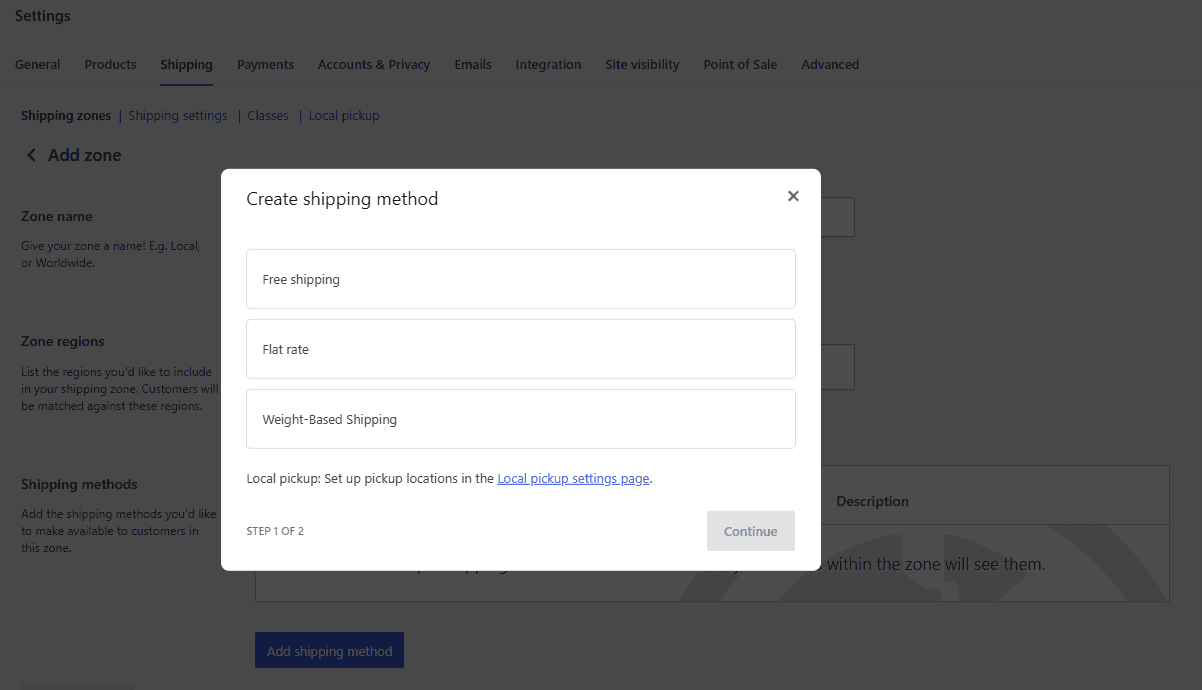
To set up Weight-Based Shipping for WooCommerce after activating it, go to WPFactory > Weight-Based Shipping (also reachable at WooCommerce > Settings > Shipping), open or add a zone, click Add shipping method and choose Weight-Based Shipping. Then open the method and replace the three default tiers with your own.
Install Weight-Based Shipping #
The steps below cover requirements, installation, adding the method to a zone, and checking that rates appear at checkout.
Requirements #
| Requirement | Minimum | Notes |
|---|---|---|
| WordPress | 5.8 | Declared as Requires at least: 5.8. |
| PHP | 7.4 | Declared as Requires PHP: 7.4. |
| WooCommerce | 5.0 | Required. Without it the plugin does nothing and shows an admin notice. Tested up to WooCommerce 10.9. |
| User capability | manage_woocommerce |
The capability WooCommerce requires for its shipping settings. Administrators and shop managers have it. |
| HPOS | Compatible | Declared compatible with High-Performance Order Storage. The plugin only reads cart contents, so order storage does not affect it. |
| Cart & Checkout Blocks | Compatible | Declared compatible. Rates appear in the block checkout as they do in the classic one. |
Install the plugin #
From WordPress
- Go to Plugins > Add New.
- Search for Weight-Based Shipping for WooCommerce (use the ZIP route below if you bought it from WPFactory and it does not show in search).
- Click Install Now, then Activate.
From a ZIP
- Download the plugin ZIP from your WPFactory account.
- Go to Plugins > Add New > Upload Plugin, choose the ZIP, click Install Now.
- Click Activate.
Activation creates no database tables and runs no migration. If WooCommerce is not active, the plugin stays dormant and shows a notice saying WooCommerce is required. Install and activate WooCommerce, and the shipping method appears without any further step.
Where the screens live #
There is no settings page of the usual kind. Three routes lead to the same place:
- WooCommerce > Settings > Shipping, then open the zone you want. This is where the method is actually configured.
- WPFactory > Weight-Based Shipping in the admin sidebar, which is a shortcut to the same shipping screen. It needs the
manage_woocommercecapability. - The Settings link on the plugin’s own row on the Plugins screen.

Add the method to a shipping zone #
A zone is WooCommerce’s answer to “where does this customer live”. The method has to be added to each zone that should offer it.
- Go to WPFactory > Weight-Based Shipping (also reachable at WooCommerce > Settings > Shipping).
- Open an existing zone, or click Add zone and set its regions.
- Click Add shipping method.
- Choose Weight-Based Shipping and confirm.
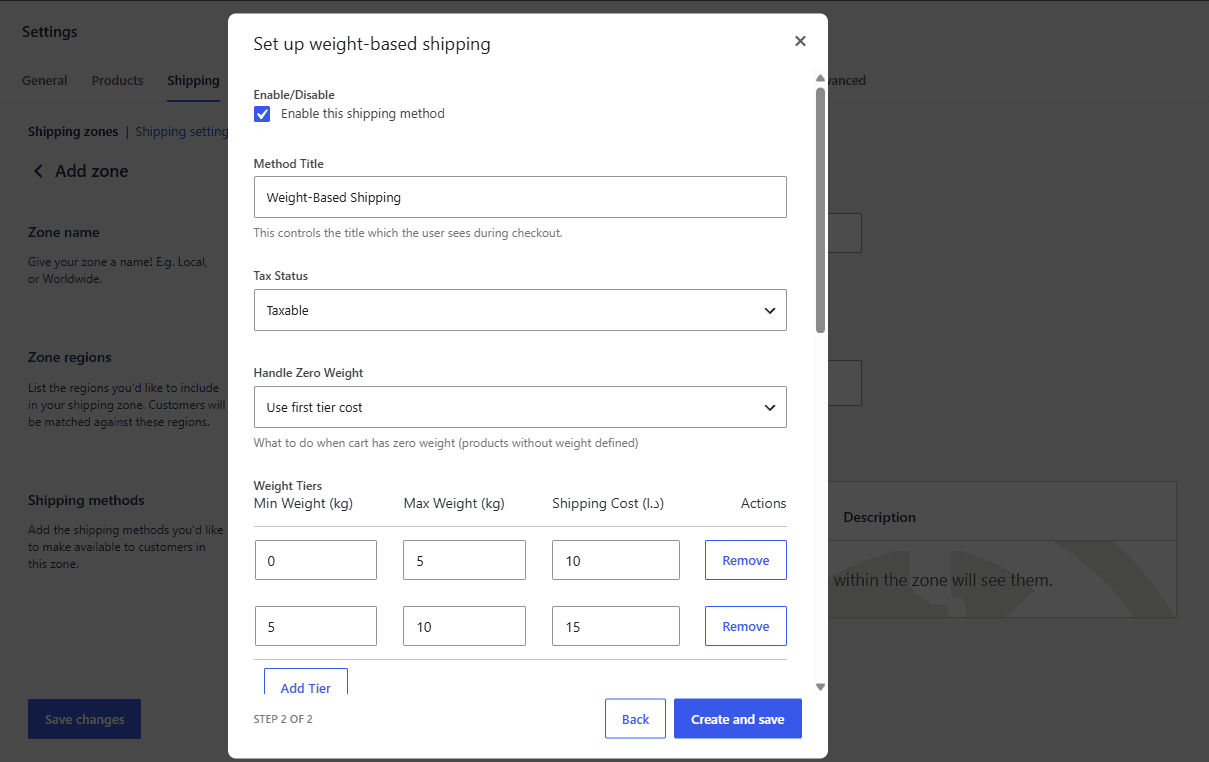
- Click the method name to open its settings modal.
The modal opens with a working configuration already in place: three default tiers of 0 to 5 (cost 10), 5 to 10 (cost 15) and 10 and up (cost 25), in your store’s weight unit and currency. Those defaults are live values, not placeholders: a method you add and never edit will quote them. Replace them with your own before going anywhere near a real order. See set up your weight tiers.
Repeat for every zone that needs weight-based rates. Each zone instance keeps its own tiers, fees, thresholds and limits, so a domestic zone and an international zone share nothing.
Set your weight unit #
Weight-Based Shipping reads WooCommerce > Settings > Products > General > Weight unit and uses it everywhere: the tier table headings, the free shipping weight threshold, the maximum weight, and the weights it reads off your products.
Change that unit later and nothing is converted. Your tier boundaries stay the numbers you typed, now meaning something else entirely: 0 to 5 kg quietly becomes 0 to 5 lbs. If you do change it, go through every zone and restate the numbers.
Give your products weights #
The method is only as accurate as the weights on your catalog.
Simple products. Edit the product, open the Shipping tab in the Product data box, fill in Weight, update.
Variable products. Edit the product, open Variations, expand each variation and fill in its Weight. A variation left blank falls back to its parent product’s weight, which is worth using deliberately: set the weight once on the parent when every variation weighs the same, and only override the variations that differ.
Virtual products do not need shipping, so WooCommerce leaves them out of the shipping package entirely and they never reach the weight total. A cart of physical products that all have an empty weight weighs zero: see Handle Zero Weight in the settings reference for what should happen then.
A product with no weight is not an error and produces no warning. It simply adds nothing, and the customer is quoted a lighter bracket than the parcel really is.
Check it works #
- Add a product with a known weight to the cart, quantity 1.
- Open the cart or checkout and set a shipping address inside the zone you configured.
- Confirm the method appears with the title you set and the cost of the tier that weight falls into.
- Raise the quantity until the total crosses a tier boundary and confirm the cost changes.
If the rate does not move after you edit the method’s settings, WooCommerce may be serving a rate it cached for the session. Empty the cart and add the product again, or turn on Enable debug mode under WooCommerce > Settings > Shipping > Shipping options while testing, which bypasses the shipping rate cache.
Troubleshooting the install #
- “WooCommerce Weight-Based Shipping requires WooCommerce” notice. WooCommerce is not active. Activate it; nothing else is needed.
- Weight-Based Shipping is not in the Add shipping method list. The plugin is not active, or you are looking at a WooCommerce screen loaded before activation. Reload the shipping settings page.
- No WPFactory menu entry. The settings are always reachable at WooCommerce > Settings > Shipping, or through the Settings link on the plugin’s row on the Plugins screen.
- You cannot see the shipping settings at all. The account needs
manage_woocommerce. Administrators and shop managers have it; editors and authors do not.
Where to go next #
- How to charge shipping by weight in WooCommerce
- Set up your weight tiers
- How to set different weight-based rates per zone or country
- Handling fees, free shipping thresholds and weight limits
- FAQ and troubleshooting
Get Weight-Based Shipping #
Every setting covered here is included in Weight-Based Shipping for WooCommerce, with no locked Pro options. Get Weight-Based Shipping.
Need a hand? Our team answers every ticket on the Weight-Based Shipping support forum.