- Set up your weight tiers
- The three columns
- The boundary rule: min is inclusive, max is exclusive
- Always leave the last tier's maximum blank
- Row order does not matter
- What happens when no tier matches
- The validation warnings
- The built-in defaults are real values
- Worked examples
- Different tiers per zone
- Where to go next
To set up weight tiers in Weight-Based Shipping for WooCommerce, go to WPFactory > Weight-Based Shipping (also reachable at WooCommerce > Settings > Shipping), open your zone and edit the Weight-Based Shipping method. In Weight Tiers, enter each row’s Min Weight, Max Weight and Shipping Cost, and use Add Tier for more rows.
Set up your weight tiers #
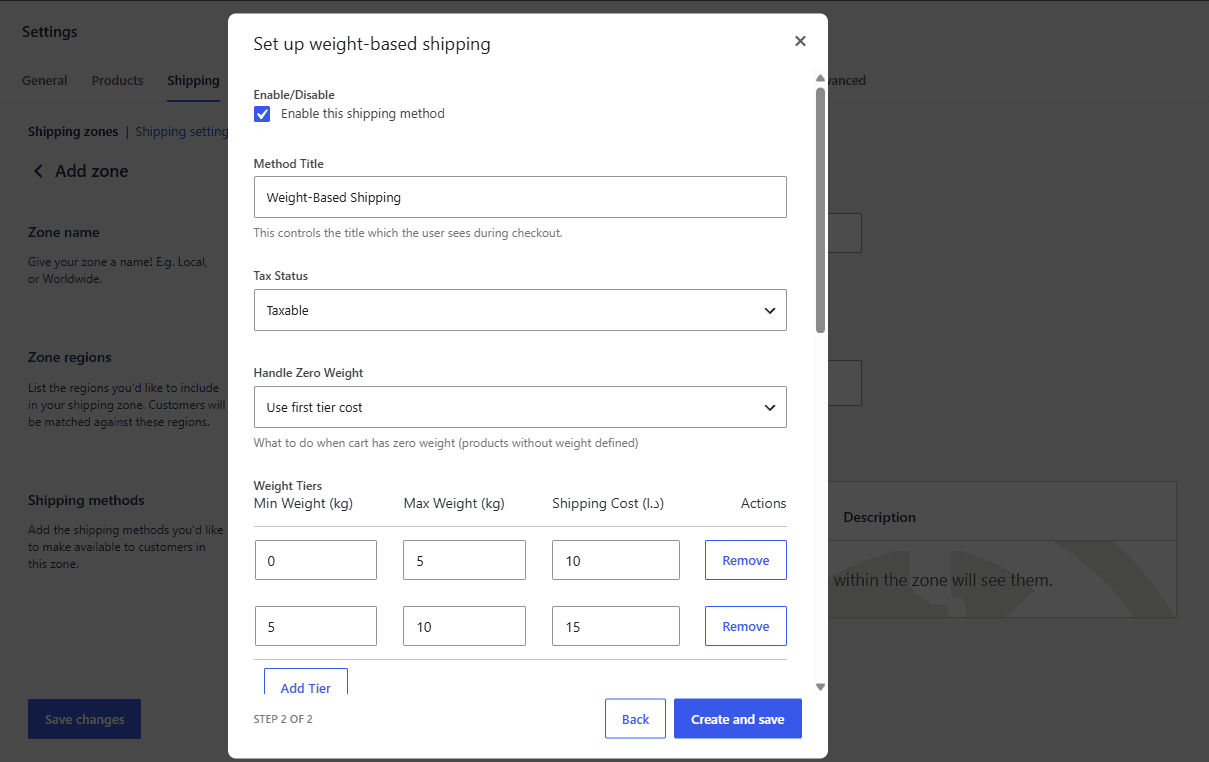
The tier table sits in the middle of the method’s settings modal. The cart’s total weight picks the tier.
The three columns #
| Column | What to enter |
|---|---|
| Min Weight | The lowest weight this tier covers, in your store’s weight unit. Inclusive. Leave it blank and it is treated as 0. |
| Max Weight | The weight at which this tier stops. Exclusive. Leave blank for no upper limit. |
| Shipping Cost | The amount charged when the cart’s weight falls in this range, in your store currency. Blank counts as 0. |
Use Add Tier for another row and Remove to drop one. Rows where all three fields are empty are discarded when you save, so clearing a row is as good as removing it.
The boundary rule: min is inclusive, max is exclusive #
A tier covers weights from its minimum up to but not including its maximum. Written as a range, [min, max).
This is the single most important thing to understand about the table, because it decides what happens to a cart that lands exactly on a boundary.
| Tier | Range | Cost |
|---|---|---|
| 1 | 0 to 5 | 10.00 |
| 2 | 5 to 10 | 15.00 |
| 3 | 10 to (blank) | 25.00 |
- A 4.9 kg cart matches tier 1 and pays 10.00.
- A cart of exactly 5 kg matches tier 2, not tier 1, and pays 15.00.
- A 9.99 kg cart matches tier 2 and pays 15.00.
- A 10 kg cart matches tier 3 and pays 25.00.
- A 400 kg cart matches tier 3 as well, because tier 3 has no maximum.
The practical consequence: write your tiers so each row’s maximum is the next row’s minimum. 0 to 5, 5 to 10, 10 to 20, 20 to blank. Do not leave a gap and do not write 0 to 4.99, 5 to 9.99: the exclusive maximum already handles it, and the decimal version leaves anything between 4.99 and 5 falling through.
Always leave the last tier’s maximum blank #
A blank maximum means unlimited. The top row should almost always have one, because it is what catches every cart heavier than you planned for.
If you cap your top tier instead, heavy carts do not lose the method: they fall through to a fallback that charges the top tier’s cost anyway. The result is the same price, but you reach it by accident rather than by design, and it hides the fact that your table stops short. If you genuinely want heavy carts refused rather than priced, that is the Maximum Weight Limit setting, not a capped top tier. See handling fees, free shipping thresholds and weight limits.
Row order does not matter #
Tiers are sorted by minimum weight when you save, so a row added at the bottom of the table moves to its right place automatically. Reopen the modal after saving and you will see them in ascending order.
That also means “the last tier” always means the one with the highest minimum weight, not the one you happened to type last.
What happens when no tier matches #
Two fallbacks exist, and both charge something rather than removing the method.
| Situation | What is charged |
|---|---|
| The cart is lighter than the first tier’s minimum, for example a 2 kg cart when the first tier starts at 5 | The first tier’s cost. |
| The cart falls in a gap between two tiers, or above a top tier that has a maximum set | The last tier’s cost. |
The gap case is the one that catches people out. With tiers of 0 to 5 and 10 to 20 and nothing in between, a 7 kg cart does not get the 0 to 5 price and does not get a “no rate available”; it gets the 10 to 20 price, because the fallback reaches for the last tier. Nothing warns you at checkout. Close your gaps.
The validation warnings #
As you type, the table checks two things and shows warnings underneath:
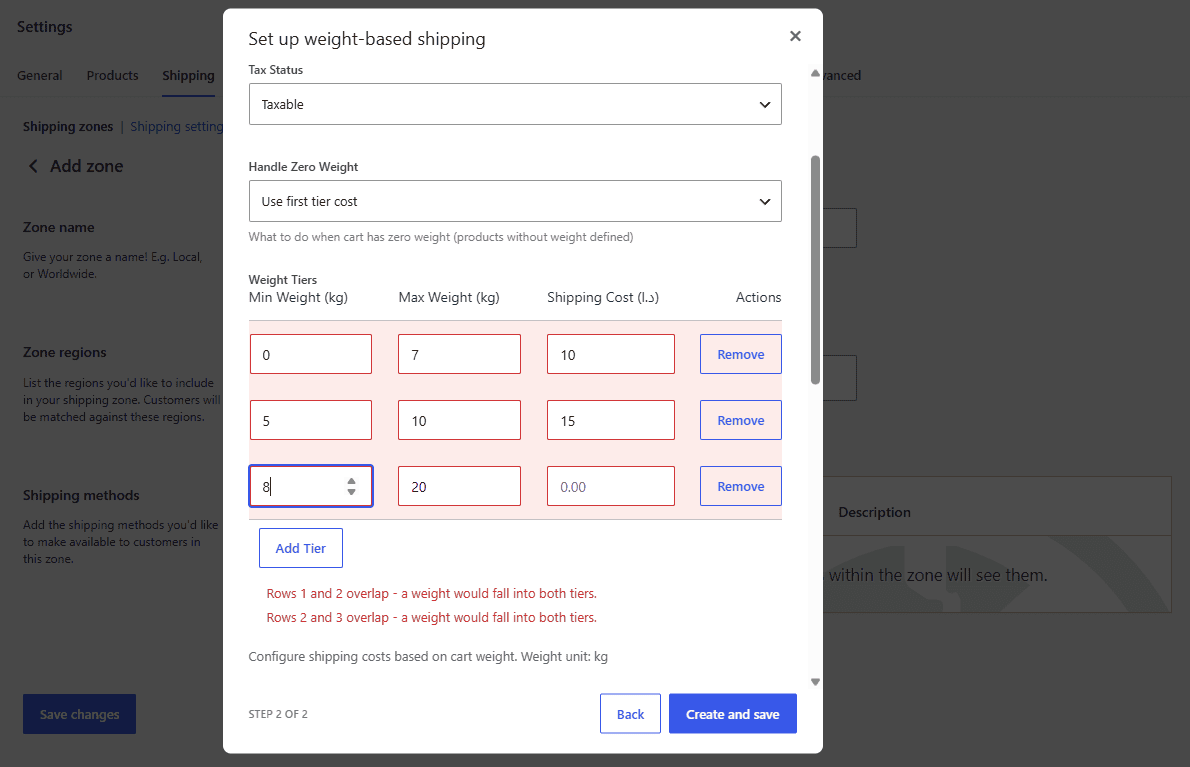
Row N: "Max" must be greater than "Min".The row is unusable as written: it can never match a weight as a range. If it ends up first or last after sorting, its cost can still be picked up by the fallbacks described above, so fix or remove it.Rows N and M overlap - a weight would fall into both tiers.Two ranges cover the same weight. The lower-minimum tier wins, and the other row is dead weight for that range.
Offending rows are highlighted in red. These are warnings, not blocks: the settings still save. They are telling you the table will behave in a way you probably did not intend, not refusing to store it.
The built-in defaults are real values #
A method you add to a zone and never configure already has three tiers: 0 to 5 at 10, 5 to 10 at 15, and 10 and up at 25, in your store’s own unit and currency. They are used at checkout exactly as if you had typed them.
Treat the defaults as a worked example to overwrite, not as an empty state. There is no configuration in which the plugin quotes nothing because tiers are missing.
Worked examples #
A courier’s own weight brackets. The simplest and most common setup: copy the table your courier bills you on, add your margin.
| Min | Max | Cost |
|---|---|---|
| 0 | 2 | 4.95 |
| 2 | 5 | 7.95 |
| 5 | 10 | 12.95 |
| 10 | 30 | 24.95 |
| 30 | (blank) | 49.95 |
One flat price, but only up to a ceiling. One tier covering everything, with the Maximum Weight Limit set to 25 so heavier carts are refused rather than mispriced.
| Min | Max | Cost |
|---|---|---|
| 0 | (blank) | 9.95 |
Free under a weight, charged above it. A zero-cost first tier is perfectly valid.
| Min | Max | Cost |
|---|---|---|
| 0 | 1 | 0 |
| 1 | 5 | 6.50 |
| 5 | (blank) | 14.00 |
Note this is the opposite of the Free Shipping Weight Threshold setting, which makes heavy carts free. A zero-cost bottom tier is the right tool for “light orders ship free”.
Different tiers per zone #
Every instance of the method holds its own table. Add Weight-Based Shipping to your domestic zone and your international zone and the two tables are unrelated: different brackets and different costs. See how to set different weight-based rates per zone or country.
You can also add the method twice to the same zone, name one Economy and the other Express, and give each its own table. The customer sees both and chooses. See how to offer economy and express weight-based options.
Where to go next #
- How the shipping cost is calculated
- Handling fees, free shipping thresholds and weight limits
- FAQ and troubleshooting
Get Weight-Based Shipping #
Every setting covered here is included in Weight-Based Shipping for WooCommerce, with no locked Pro options. Get Weight-Based Shipping.
Need a hand? Our team answers every ticket on the Weight-Based Shipping support forum.