This reference lists every setting in Helpdesk Support Ticketing System for WooCommerce, with its option ID and default. Find them at WPFactory > Support Tickets > Settings (also under Support Tickets > Settings), split into the General and Notifications sub-tabs. Only administrators can see and save them.
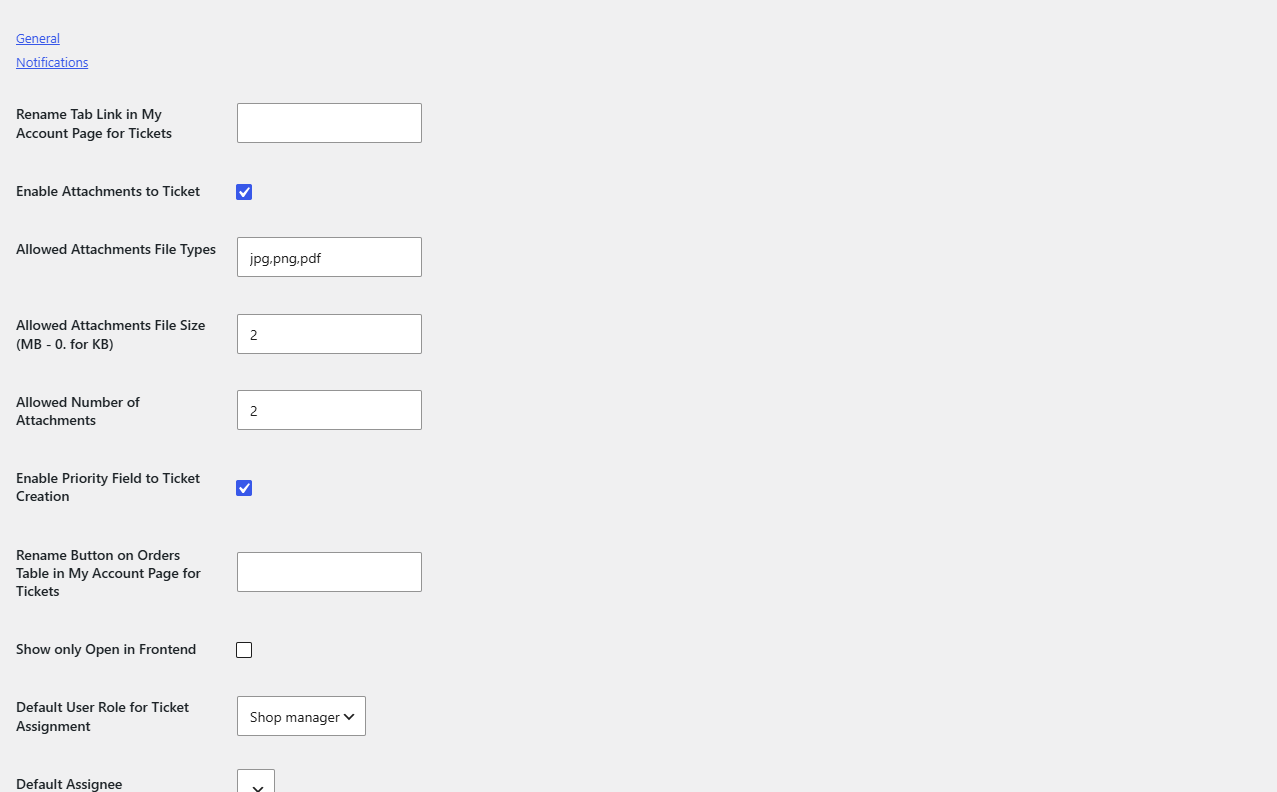
How to change Helpdesk settings #
- Go to WPFactory > Support Tickets and click the Settings tab.
- Choose the General or Notifications sub-tab.
- Change the options you need. Both sub-tabs are part of one form.
- Click Save Changes. The page reloads with a fresh copy of the settings.
All options are stored in the WordPress options table. Every option ID starts with the prefix STSWooCommercePro. Values in this reference were verified against Helpdesk Pro 3.0.4; the free WordPress.org edition was not reviewed, so the Free/Pro column only confirms the option exists in Pro.
General settings #
| Label | Option ID | Type | Default | Free/Pro |
|---|---|---|---|---|
| Rename Tab Link in My Account Page for Tickets | STSWooCommerceProrenameAccountTabLink |
Text | Empty (tab label “Tickets”) | Pro |
| Enable Attachments to Ticket | STSWooCommerceProenableAttachments |
Checkbox | Off | Pro |
| Allowed Attachments File Types | STSWooCommerceProallowedExtensions |
Text, comma separated | jpg,png |
Pro |
| Allowed Attachments File Size (MB – 0. for KB) | STSWooCommerceProallowedSize |
Text, whole MB | Empty (no plugin limit) | Pro |
| Allowed Number of Attachments | STSWooCommerceProallowedAttachNum |
Number | 2 (saved but not enforced in 3.0.4) | Pro |
| Enable Priority Field to Ticket Creation | STSWooCommerceProenablePriority |
Checkbox | Off (tickets get Normal priority) | Pro |
| Rename Button on Orders Table in My Account Page for Tickets | STSWooCommerceProrenameOrderButtonLink |
Text | Empty (button label “Get Help”) | Pro |
| Show only Open in Frontend | STSWooCommerceProhideClosed |
Checkbox | Off | Pro |
| Default User Role for Ticket Assignment | STSWooCommerceProassignToRole |
Role dropdown | Not set (a role is preselected in the dropdown) | Pro |
| Default Assignee | STSWooCommerceProassignToUser |
User dropdown | Not set | Pro |
| Text to display once Ticket is saved | STSWooCommerceProtextforTicketSave |
Editor | Saved your ticket successfully! We will come back to you soon | Pro |
| Text to display once Response is saved | STSWooCommerceProtextforResponseSave |
Editor | Saved your response successfully! We will come back to you soon | Pro |
Notes on General settings #
- Enable Attachments to Ticket only shows the upload field when Enable Priority Field to Ticket Creation is also ticked (version 3.0.4). See how to allow file attachments.
- Allowed Attachments File Types is compared with the lowercase file extension exactly as typed, so avoid spaces and capitals. Do not leave it empty while attachments are enabled.
- Allowed Attachments File Size is read as whole megabytes. Decimal values such as 0.5 are treated as 0 and block every upload.
- Show only Open in Frontend hides tickets with the Closed status. In Progress tickets remain visible.
- Default User Role for Ticket Assignment grants the
stsw_ticketscapability to the saved role and removes it from the previously saved role. Changing this dropdown submits the form in the background to refresh the Default Assignee list. - The confirmation texts accept basic HTML such as links, bold text and paragraphs.
Notifications settings #
| Label | Option ID | Type | Default | Free/Pro |
|---|---|---|---|---|
| Notify Assignee by Email | STSWooCommercePromailToAssignee |
Checkbox | Off | Pro |
| Notify Admin by Email | STSWooCommercePromailToADmin |
Checkbox | Off | Pro |
| Admin Address | STSWooCommerceProAdminEmailAddress |
Text | The site admin email | Pro |
| Notify Customer by Email | STSWooCommercePromailToCustomer |
Checkbox | Off | Pro |
| Email Subject sent to Assignee | STSWooCommercePromailIt_subjectToAs |
Text | Empty (built-in subject) | Pro |
| Email Content sent to Assignee | STSWooCommercePromailIt_contentToAs |
Editor | Empty (built-in message) | Pro |
| Email Subject sent to Customer | STSWooCommercePromailIt_subjectToCust |
Text | Empty (built-in subject) | Pro |
| Email Content sent to Customer | STSWooCommercePromailIt_contentToCust |
Editor | Empty (built-in message) | Pro |
The assignee subject and content are also used for the admin email. Available placeholders: {ticketId}, {responseId}, {title}, {content}, {toEmail}, {toFirstName}, {toLastName}, plus {responseContent} in emails for replies sent from wp-admin. Details are in how to configure ticket email notifications.
Settings stored outside this screen #
| Where | Field | Stored as |
|---|---|---|
| Priorities tab, add or edit a priority | Color | Term meta STSWooCommerceProcolor |
| Subject tab, add or edit a subject | Assignee | Term meta STSWooCommerceProAssignee |
Get Helpdesk #
All settings above are part of Helpdesk Support Ticketing System for WooCommerce Pro. New to the plugin? Start with how to set up a WooCommerce support ticket system.
Need a hand? Our team answers every ticket on the Helpdesk support forum.