To charge shipping by weight in WooCommerce, install Weight-Based Shipping for WooCommerce, go to WPFactory > Weight-Based Shipping (also reachable at WooCommerce > Settings > Shipping), open a shipping zone and add the Weight-Based Shipping method. Then enter weight tiers, each with a shipping cost, and save.
Charge shipping by cart weight #
Weight-Based Shipping adds up the weight of every product in the package (product weight multiplied by quantity), finds the weight tier that total falls into, and quotes that tier’s cost at checkout. Every feature used in this guide is included in the plugin; there is no Pro-only step.
Before you start #
- WooCommerce, active.
- Weight-Based Shipping for WooCommerce, installed and active. See install Weight-Based Shipping and add it to a zone.
- At least one shipping zone that covers the addresses you ship to.
Step 1: Check your store’s weight unit #
Weight-Based Shipping reads every weight in your store’s unit and never converts it. Check it at WooCommerce > Settings > Products > General > Weight unit (kg, g, lbs or oz) before you type any tier values. The tier table headings show the unit you are using.
Step 2: Give your products a weight #
- Edit each shippable product and open the Shipping tab in the Product data box.
- Fill in Weight and update the product.
- For variable products, you can set the weight on each variation. A variation with no weight uses its parent product’s weight.
A product with no weight adds nothing to the total, and no warning is shown, so fill in every product that ships.
Step 3: Add the method to a zone #
- Go to WPFactory > Weight-Based Shipping (also reachable at WooCommerce > Settings > Shipping).
- Open the zone you want, or add a new one and set its regions.
- Click Add shipping method, choose Weight-Based Shipping and confirm.
- Click to edit the new method to open its settings.
Step 4: Enter your weight tiers #
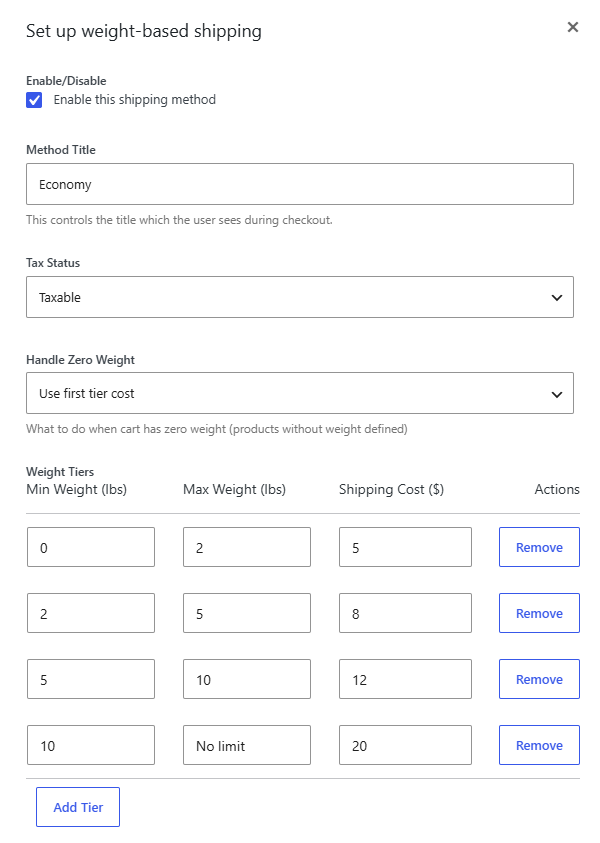
- Set Method Title to what customers should see, for example Standard Shipping. The default is Weight-Based Shipping.
- In Weight Tiers, replace the three default rows with your own. For each row, enter Min Weight, Max Weight and Shipping Cost.
- Click Add Tier for more rows and Remove to delete one.
- Leave the last row’s Max Weight blank so it covers every heavier cart.
- Save the method.
Each tier covers weights from its minimum (included) up to its maximum (not included). Make each row’s maximum equal to the next row’s minimum, for example 0 to 2, 2 to 5, 5 to 10, and 10 with no maximum.
| Min Weight | Max Weight | Shipping Cost |
|---|---|---|
| 0 | 2 | 5.00 |
| 2 | 5 | 8.00 |
| 5 | 10 | 13.00 |
| 10 | (blank) | 25.00 |
With this table, a 4 kg cart pays 8.00, a cart of exactly 5 kg pays 13.00, and a 40 kg cart pays 25.00.
Note: the three default tiers (0 to 5 at 10, 5 to 10 at 15, 10 and up at 25) are real values. If you add the method and never change them, customers are charged those amounts.
Step 5: Test at checkout #
- Add a product with a known weight to the cart.
- Enter a shipping address inside the zone.
- Confirm the method shows your title and the cost of the matching tier.
- Raise the quantity past a tier boundary and confirm the cost changes.
Options used in this guide #
| Label | Option ID | Default | Free/Pro |
|---|---|---|---|
| Method Title | title |
Weight-Based Shipping | Included |
| Weight Tiers | tiers |
0 to 5 at 10, 5 to 10 at 15, 10 and up at 25 | Included |
| Handle Zero Weight | handle_zero_weight |
Use first tier cost | Included |
| Tax Status | tax_status |
Taxable | Included |
Use cases #
- Mirror your courier’s weight brackets, plus your margin, so checkout matches what you are billed.
- Stop losing money on heavy orders that a single flat rate undercharges.
- Sell products by weight (bulk food, garden supplies, hardware) where cart weight varies widely.
Troubleshooting #
- The rate is lower than expected. Some products have no weight. Check the Weight field on each product and variation in the cart.
- A cart gets the price of a much heavier tier. There is a gap in your table. A weight that matches no row falls back to the last tier’s cost. Close the gap so each maximum equals the next minimum.
- The method does not appear. Check the address is in the zone and the method is enabled. For the full checklist, see the FAQ and troubleshooting article.
Tip: to add a packaging charge, a free shipping threshold or a weight ceiling, Weight-Based Shipping handles them in the same settings screen. See handling fees, free shipping thresholds and weight limits.
Get Weight-Based Shipping #
Every setting covered here is included in Weight-Based Shipping for WooCommerce, with no locked Pro options. Get Weight-Based Shipping.
Need a hand? Our team answers every ticket on the Weight-Based Shipping support forum.