To schedule a sitewide sale in WooCommerce, open a discount group in Sitewide Discount for WooCommerce at WPFactory > Global Shop Discount > Discount Group #1, set the discount, and enter a start and end in Date(s), for example 24.11.2026 00:00 - 30.11.2026 23:59. The discount switches on and off by itself.
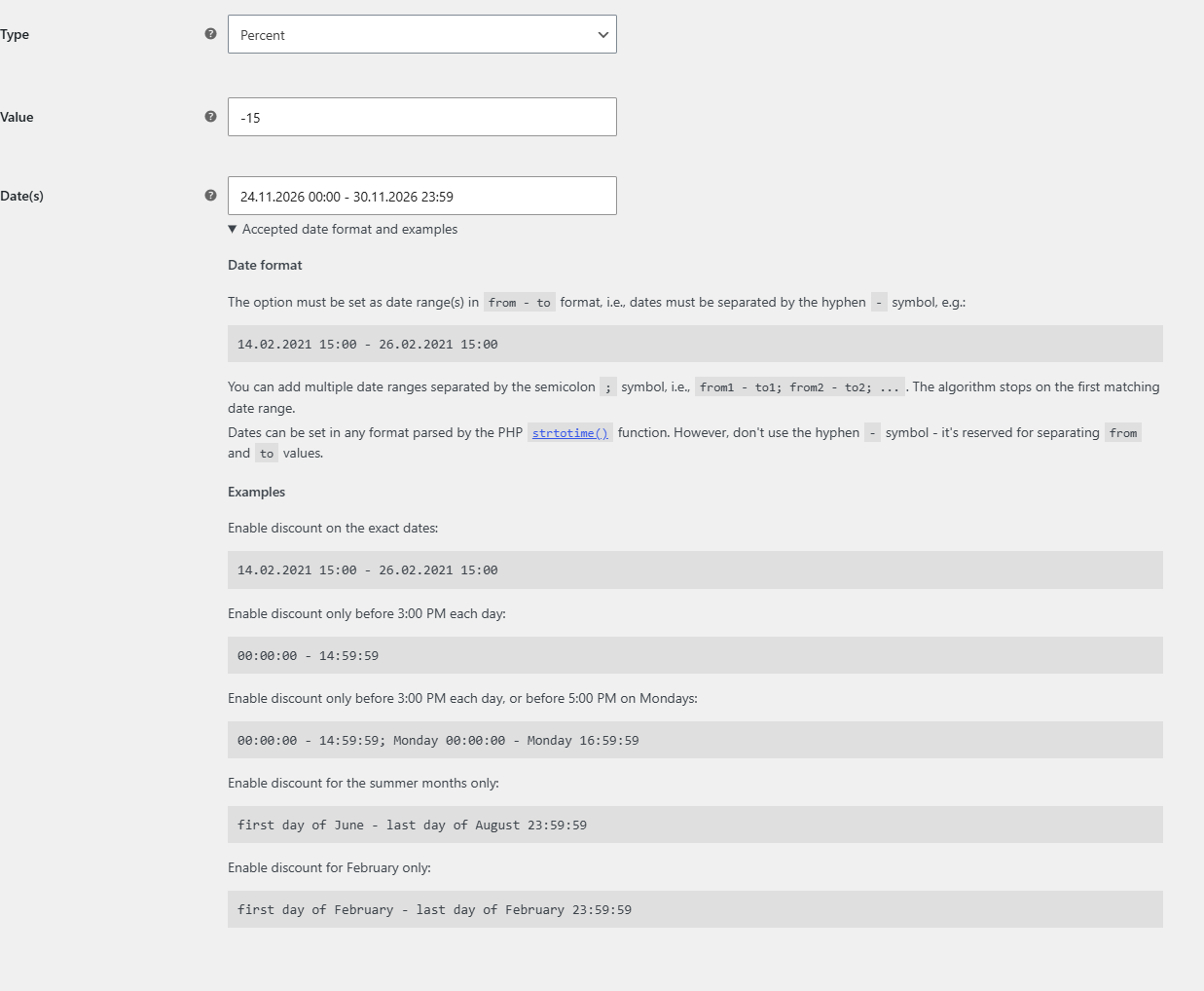
Before you start #
- Check your site time zone in Settings > General. Dates are compared with your site’s local time, not the visitor’s.
- Date scheduling works in both the free and Pro versions.
Steps #
- Go to WPFactory > Global Shop Discount (also reachable at WooCommerce > Settings > Global Shop Discount) and open the discount group you want to schedule.
- Set Type and a negative Value, for example Percent and
-25. - In Date(s), enter the period as
from - to, with a hyphen between the two parts:24.11.2026 00:00 - 30.11.2026 23:59
- Hover the help icon next to Date(s) to see the current site date and time, and confirm your times line up with it.
- Click Save changes. Outside the date range, the group is skipped and normal prices show.
Date format rules #
- Separate the start and end with a hyphen
-. Because the hyphen is reserved for this, do not use hyphens inside the dates themselves: write24.11.2026, not2026-11-24. - Dates can use any format that the PHP
strtotime()function understands, including relative words such asMondayorfirst day of June. - Add several ranges by separating them with a semicolon
;. The discount is active when the current time falls inside any of them. - Leave the field empty to keep the group active all the time.
Examples #
| Goal | Date(s) value |
|---|---|
| Exact start and end | 14.02.2027 15:00 - 26.02.2027 15:00 |
| Every day before 3:00 PM | 00:00:00 - 14:59:59 |
| Before 3:00 PM daily, or before 5:00 PM on Mondays | 00:00:00 - 14:59:59; Monday 00:00:00 - Monday 16:59:59 |
| Summer months every year | first day of June - last day of August 23:59:59 |
| February only | first day of February - last day of February 23:59:59 |
Frequently asked questions #
Which time zone does the schedule use? #
Your WordPress site time zone. The plugin reads the current local time from WordPress and compares it with the dates you entered.
Can I run a recurring daily happy hour? #
Yes. Times without a date apply to the current day, so 18:00 - 20:00 activates the discount between 6:00 PM and 8:00 PM every day.
Can I schedule different discounts for different weeks? #
Yes. Raise Total groups on the General section, save, and give each group its own Value and Date(s). See How to Discount Specific Categories or Products in WooCommerce for how several groups interact.
The sale started but some pages still show the old price. Why? #
Prices are worked out when a page is built. If your site uses page caching, cached pages keep the old prices until the cache is cleared. Clear your cache when a scheduled sale starts or ends. More fixes are in Sitewide Discount troubleshooting.
Get Sitewide Discount #
Scheduled discounts are included in the free version of Sitewide Discount for WooCommerce. See the plugin page for plans and updates.
Need a hand? Our team answers every ticket on the Sitewide Discount support forum.