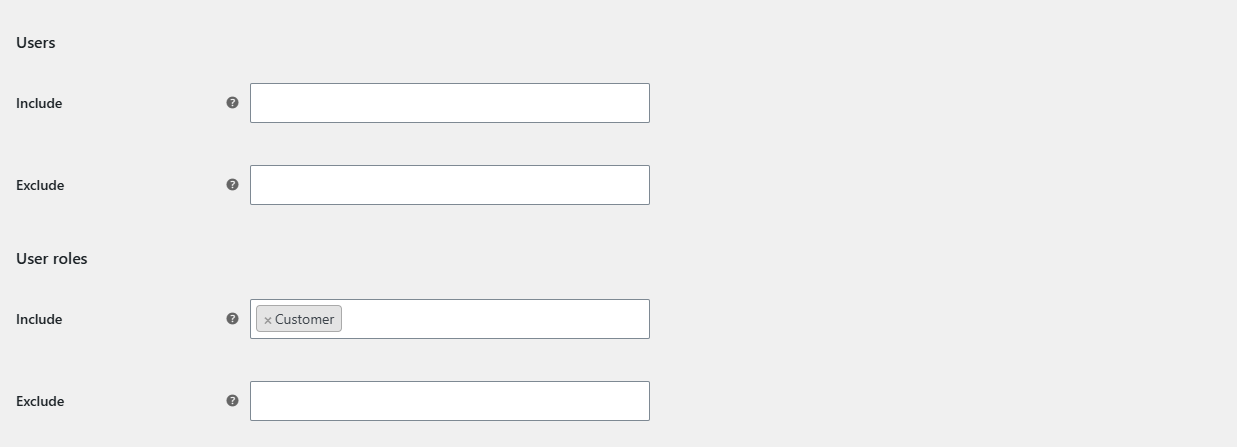
To give a discount to specific user roles or customers in WooCommerce, open a discount group in Sitewide Discount for WooCommerce at WPFactory > Global Shop Discount > Discount Group #1, set the discount, then pick roles under User roles > Include or customers under Users > Include, and save.
Before you start #
- User and role filters work in both the free and Pro versions.
- Customers must be logged in for these filters to recognize them. Guests have no user account and no role.
Discount for a user role (for example, wholesale buyers) #
- Go to WPFactory > Global Shop Discount (also reachable at WooCommerce > Settings > Global Shop Discount) and open a discount group.
- Set Type and a negative Value, for example Percent and
-15. - Under User roles, choose one or more roles in Include, for example a wholesale role created by another plugin. The list shows every role on your site.
- Click Save changes. Only logged-in users with one of those roles see the discounted prices. Everyone else sees normal prices.
Discount for specific customers #
- Open the discount group and set the discount.
- Under Users, choose the customers in Include. Users are listed by their user nicename.
- Click Save changes.
Hide a discount from certain users or roles #
Use the Exclude fields instead. For example, exclude the Wholesale customer role from your public sale so wholesale buyers keep their own pricing. Guests are never blocked by an Exclude filter, because they have no account or role to match.
Rules to know #
- If you fill in both Include and Exclude for Users, only Include is checked. The same applies to User roles.
- Users and User roles are checked separately, and both must pass. A customer listed in Users Include still needs to pass any User roles filter you set.
- User and role filters combine with product filters, dates and product scope in the same group. All of them must pass.
- To offer one discount to members and another to everyone else, use two groups and keep Stop on first matching discount group on, with the members group first.
Frequently asked questions #
Why don’t guests see the role discount? #
Include filters for users and roles only match logged-in users. A guest has no role, so a group with User roles Include set never applies to guests.
Can I give logged-in customers a discount but not guests? #
Yes. Include the roles your customers have, for example Customer, in User roles > Include. Guests do not match, so they see normal prices.
Will page caching show the member price to other visitors? #
It can, if your cache serves the same page to logged-in and logged-out visitors. Most caching plugins skip the cache for logged-in users. Check that yours does before you rely on role-based prices.
How do I see what a wholesale customer sees? #
Log in with a test account that has the wholesale role, or use a user-switching plugin, and browse the shop in a private window.
Related guides #
Get Sitewide Discount #
User and role discounts are included in the free version of Sitewide Discount for WooCommerce. See the plugin page for plans and updates.
Need a hand? Our team answers every ticket on the Sitewide Discount support forum.