WooCommerce Limit Cart Quantity: Cap Total Items in Cart

Quick Answer: WooCommerce Limit Cart Quantity
To limit cart quantity in WooCommerce, you cap the total number of items a customer can have across every product in the cart, not per product. WooCommerce has no native setting for this, so you use a plugin that measures the cart by combined quantity and blocks checkout once the total passes your ceiling.
The distinction that trips people up is between “total items” and “number of different products”.. one counts every unit in the cart, the other counts how many separate products are in it, and picking the wrong one caps the wrong thing.
- Combined quantity: The cap looks at the whole cart’s item count, added up across all products.
- Cart-level, not per product: A customer can spread items across products and still hit the ceiling.
- Blocked at checkout: An over-limit cart is held with a clear message until the customer trims it.
The free cart limit checker below lets you set a ceiling and test any item count against it, so you can see exactly where the block falls before you configure a thing.
A wholesale order lands in your dashboard: 340 units, spread across eleven products. On paper it looks like a great day.
Then the warehouse opens it. That single cart needs more boxes than you stock, breaks the weight limit your courier set, and ties up two staff for an afternoon of packing.
The order was never really profitable at that size. It just looked profitable until someone had to fulfill it.
This is the gap a cart quantity limit closes. Not a limit per product, which a determined buyer walks around by spreading units across items, but a ceiling on the whole cart.. the total number of things a single order can contain, no matter how they are distributed.
This guide shows how to set a WooCommerce limit cart quantity rule that counts every item in the cart together, why it differs from a per-product cap, and how to configure it so oversized orders stop at the door.
Why a Per-Product Limit Is Not Enough
Most stores that think about quantity limits reach for a per-product cap first. Maximum 10 of any single item. It helps, but it leaves a hole.
A customer who wants 200 units simply spreads them out. Twenty of this, twenty of that, across ten products, and the per-product cap never fires once. The cart still arrives at 200 items.
The per-product limit answers a different question: how many of one thing can someone buy. It says nothing about how large the whole order can get.
For fulfillment, weight, packaging, and courier limits, the number that matters is the total across the cart. That is what a cart quantity limit controls, and it is the piece the per-product rule cannot cover on its own.
Combined Quantity: What “Total Items in Cart” Actually Means
The mechanism here rests on one setting, and knowing exactly what it counts saves you from capping the wrong thing.
The rule measures the cart by combined quantity.. it adds up every unit across every product and checks that total against your ceiling. Three of product A plus four of product B is seven items, and seven is what the cap sees.
This is different from limiting the number of different products. That would count A and B as two, regardless of how many units of each sits in the cart. Combined quantity counts the units. Number of products counts the product lines.
For an order that strains fulfillment, combined quantity is almost always the number you want. A cart with two products and 300 units is the problem, not a cart with twenty products and one unit each.
The Order Minimum/Maximum Amount Limits for WooCommerce plugin measures the cart this way. It works at the whole-order level, checks the combined quantity against your maximum, and blocks checkout when the cart goes over. It is active on 4,000+ stores.
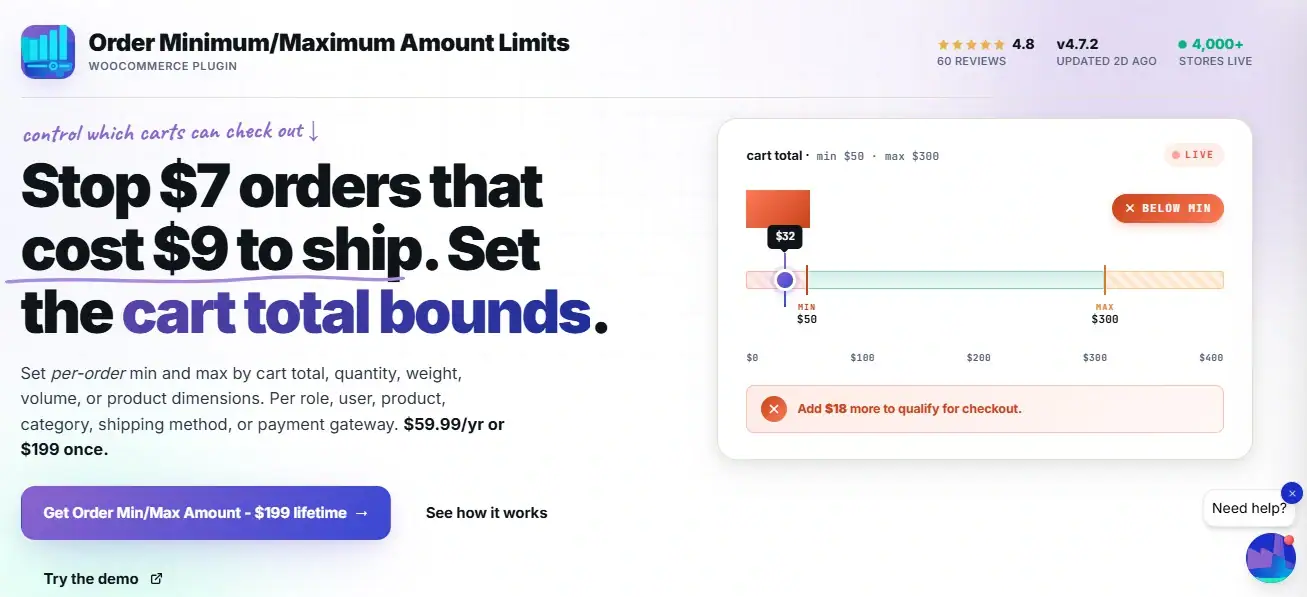
Cap the Whole Cart, Not Just One Product
The Order Minimum/Maximum Amount Limits for WooCommerce plugin sets a maximum combined quantity across the entire cart, so an oversized order is stopped no matter how the items are spread. It also caps by cart value, weight, or volume from the same screen. To cap a single product instead, pair it with a per-product quantity rule.
A Worked Example: A 50-Item Cart Ceiling
Say your packing setup handles up to 50 items cleanly in one order. Past that, you are into multiple boxes and courier weight surcharges, so you set a cart ceiling of 50.
Here is how different carts behave against that single ceiling:
| Cart Contents | Total Items | Result | What the Customer Sees |
|---|---|---|---|
| 12 of one product | 12 | Allowed | Checkout proceeds |
| 20 + 20 across two products | 40 | Allowed | Checkout proceeds |
| Exactly at the ceiling | 50 | Allowed | Checkout proceeds |
| 15 across five products | 75 | Blocked | “Orders are limited to 50 items. Please remove 25.” |
| Bulk order | 300 | Blocked | Held with the overage message |
Notice the fourth row. Fifteen items each across five products looks modest product by product, but it totals 75, and the cart ceiling catches it. A per-product cap of, say, 20 would have let that whole order through.
That is the case the cart-level limit exists for: the order that is only oversized when you add everything up.
Step-by-Step: Setting a Cart Quantity Limit
The setup runs entirely in the plugin’s settings screen. No code, no per-product work.
Step 1: Install the Order Min/Max Amount Plugin
Install the plugin from your WPFactory account and activate it. The settings live under:
- WooCommerce
- Settings
- Order Min/Max Amount.
Step 2: Enable the Plugin and Choose the Amount Type
In the General tab, enable the plugin. Under Amount Types, select Quantity.
This is the setting that tells the plugin to measure the cart by total item count rather than by cart value.
Quantity here means the combined number of items across all products, which is exactly the “total items in cart” you want to cap.
Step 3: Set the Limit to Maximum
Under Amount Limits, make sure Maximum is selected. You are setting a ceiling, not a floor, so Maximum is the side you want active. You can leave Minimum off unless you also want a lower bound.
Step 4: Enter Your Ceiling
Open the Amounts tab and enter your cap in the Maximum quantity field. Following the worked example, that is 50.
This is the total the whole cart cannot exceed. A value of zero means no limit, so make sure you enter a real number.
Step 5: Write the Customer Message
Go to the Messages tab and set the message shown when a cart goes over.
Use the placeholders the plugin provides so the message names the limit and the shortfall.. something like “Orders are limited to %amount% items. Your cart has %total%. Please remove some to continue.”
A message that states the number and what to do converts far better than a bare error.
Step 6: Set Checkout Behavior and Test
In the General tab’s checkout options, choose to block checkout when the limit is exceeded. Then test.. add items across several products until the total passes your ceiling, and confirm the cart is held with your message.
Test the exact-ceiling case too. A cart of precisely 50 should pass, because the limit is inclusive. Only 51 and above should be blocked.
Free Tool: Cart Quantity Limit Checker
Set your ceiling and a current cart item count to see whether the order clears or gets held, and by how much.
Comparison: Cart Limit vs Per-Product Limit vs Per-Customer Limit
Three different limits solve three different problems, and stores often need more than one.
Knowing which caps what keeps you from setting the wrong rule for the job.
Look down the “What it caps” column.
Each rule guards a gap the other two leave open, which is why a store with real fulfillment constraints usually runs at least two of them together.
| Limit Type | What It Caps | Best For | Plugin |
|---|---|---|---|
| Cart quantity | Total items across the whole cart | Packaging, weight, and courier limits per order | Order Min/Max Amount |
| Per-product | Units of one specific product | Stock protection on a single item | Quantity Manager |
| Per-customer over time | What one buyer takes across many orders | Fair-share limits on scarce goods | Maximum Products per User |
| Number of products | How many different product lines are in the cart | Limiting cart variety, not volume | Order Min/Max Amount |
The cart quantity limit and the number-of-products limit both live in the same plugin, set through the Amount Type.
Quantity counts units, Products counts distinct lines. Choose by what actually strains your fulfillment.
Cart Limits by Store Type
The right ceiling and the reason for it change with what you ship. Here is how the thinking shifts across common setups.
Physical Goods with Packing Constraints
If your orders are packed by hand into set box sizes, the cart limit maps directly to what fits.
Base the ceiling on the largest order your standard packaging handles cleanly, so anything above it, which needs a second box or a heavier courier tier, is held for review or split.
Promotional and Flash-Sale Products
During a limited promotion, a cart ceiling stops a single buyer from clearing the promotional stock in one order.
It works alongside a per-customer limit, which stops the same buyer coming back for more across several orders.
Free-Shipping Thresholds
Stores that offer free shipping above a value sometimes see carts engineered to squeeze maximum weight under the free-shipping banner.
A cart quantity ceiling caps how far that can go, protecting the shipping margin the free-shipping offer was supposed to preserve.
Marketplaces and Mixed Catalogs
For a broad catalog where customers routinely buy across many products, the cart quantity limit is more useful than any per-product rule, because the risk is not one item running out but the whole order growing past what you can ship in one go.
Common Mistakes with Cart Quantity Limits
A few errors show up when stores first set this.
- Confusing Quantity with Products
Selecting Products instead of Quantity caps how many different items are in the cart, not how many units.
If a customer with 200 units of one product slips through, the wrong Amount Type is the usual cause.
- Setting the ceiling from a guess
A cap pulled from nowhere either blocks good orders or fails to catch the ones that hurt.
Base it on a real constraint: box capacity, courier weight, or packing time.
- Leaving the message generic
A cart held with no explanation of the number just frustrates the customer.
Use the placeholders so the message names the limit and the overage, and tell them exactly how many items to remove.
- Forgetting large legitimate buyers
If some customers genuinely order in bulk, a hard cart cap can block real revenue.
Consider routing them to a wholesale flow or a quote form rather than turning them away at the cart, so the limit protects fulfillment without losing the sale.
Related Resources
- WooCommerce Quantity Rules: The Complete Guide – the hub covering every quantity and order limit in one place
- How to Set Maximum Order Value in WooCommerce – cap the cart by value instead of item count
- WooCommerce Variable Product Quantity Rules – cap a single product or variation rather than the whole cart
- How to Limit Purchases per Customer – cap what one buyer takes across many orders over time
- How to Limit Order Minimum and Maximum Amounts in WooCommerce – the full plugin walkthrough behind this rule
Ready to Limit Cart Quantity in WooCommerce?
The Order Minimum/Maximum Amount Limits for WooCommerce plugin caps the total items in a cart by combined quantity, so an oversized order is stopped whatever way the items are spread. It also limits by value, weight, and volume from the same screen. Pricing is $59.99 per year or $199 for a lifetime license on unlimited sites.
Every purchase comes with a 14-day money-back guarantee.
FAQs About WooCommerce Limit Cart Quantity
How do I limit the total number of items in a WooCommerce cart?
Use the Order Minimum/Maximum Amount plugin. In its settings, set the Amount Type to Quantity and the Amount Limit to Maximum, then enter your ceiling in the Amounts tab.
This caps the combined number of items across all products in the cart, and checkout is blocked once the total goes over your limit.
Does WooCommerce have a built-in cart quantity limit?
No. Core WooCommerce lets a customer add any number of items to the cart with no ceiling on the total. To limit cart quantity you need a plugin.
The Order Minimum/Maximum Amount plugin adds a cart-level maximum measured by combined item quantity.
What is the difference between limiting cart quantity and limiting per product?
A cart quantity limit caps the total items across the whole cart, so 20 units each of five products (100 items) is caught. A per-product limit caps units of one specific item and would let that same cart through.
Cart quantity is for fulfillment and packing limits; per-product is for protecting stock of a single item.
Can I limit the total quantity and the total value of a WooCommerce cart at the same time?
Yes. The plugin lets you enable more than one Amount Type. Turn on both Quantity and Sum, and with the “Require all” option you can make the cart satisfy both, or with it off, satisfy either.
This lets a single rule cap both how many items and how much value a cart can hold.
Will the cart limit count items across different products or just one?
Across different products. The Quantity amount type measures combined quantity, meaning every unit in the cart is added together regardless of which product it belongs to.
A customer cannot get around the limit by spreading items across several products.
Is limiting cart quantity in WooCommerce available in a free plugin?
The cart-level maximum by combined quantity is part of the Order Minimum/Maximum Amount plugin, which has a free version on WordPress.org.
More advanced scopes, such as limits by payment method or currency, are in the Pro version. For a single cart quantity ceiling, the core capability covers it.