WooCommerce Variable Product Quantity Rules (Per Variation)


Quick Answer: WooCommerce Variable Product Quantity Rules
A variable product in WooCommerce holds several variations, and each one can carry its own minimum, maximum, and step quantity. The core platform does not allow this, but the WooCommerce Quantity Manager plugin does.
The catch worth knowing before you start.. every variation inherits the product-level rule until you override it, so if the 6-pack and the 12-pack behave the same when they should not, it is because one of them is still running on the inherited value rather than its own.
- Per-variation rules: Each variation gets its own min, max, and step, set independently.
- Inheritance model: Variations follow the product rule until you set a specific one for them.
- Validated everywhere: Rules apply on the product page and in the cart, so invalid quantities cannot check out.
The free rule builder below lets you set two variations side by side and see the exact quantities each one allows, so you can plan the rules before you open a single product.
Picture the packing bench in a small warehouse. Same product, two versions on the shelf.. a 6-pack that goes out in one padded envelope, and a 12-pack that ships in a carton of two trays, six units each.
These are the same item to a shopper. To the person packing them, they are two different jobs with two different rules.
The 6-pack should sell one at a time. The 12-pack only makes sense in tray-sized multiples, because a carton packed with eleven units means someone is breaking a tray by hand.
WooCommerce, left alone, treats both variations identically. It puts the same open quantity field on each, and it has no idea that one ships in twos and the other in ones. The result is orders that do not match how the products actually move.
Setting proper WooCommerce variable product quantity rules fixes this. Each variation gets the min, max, and step that matches how it is really packed and shipped.
This guide shows how the per-variation rules work, where they live, and how to plan them before you touch a product.
What a Variable Product Is, and Why Variations Need Their Own Rules
A variable product in WooCommerce is one listing that contains multiple variations. A t-shirt in three sizes. A coffee in whole-bean and ground. A supplement in a 6-pack, a 12-pack, and a case of 24.
Each variation can already have its own price, SKU, and stock. What the core platform does not give it is its own quantity rule.
That gap matters because variations often ship and sell differently from one another. A single unit and a bulk case of the same product rarely share the same sensible minimum or the same packing increment.
When every variation is forced to use one shared rule, you end up with either a rule too loose for the bulk option or too strict for the single unit. Per-variation rules remove that compromise.
How Per-Variation Rules Work in WooCommerce
The mechanism rests on a simple inheritance model, and understanding it is the difference between a setup that works and one that quietly does not.
You set a rule at the product level first. Every variation inside that product inherits it automatically.
Then, for any variation that needs something different, you override the inherited value with a rule specific to that variation.
So a supplement product might carry a store-wide or product-level minimum of 1.
The 6-pack variation keeps that. The 12-pack variation overrides it with a step of 12, because it only ships in tray multiples.
The WooCommerce Quantity Manager plugin adds this capability, and the per-variation control.
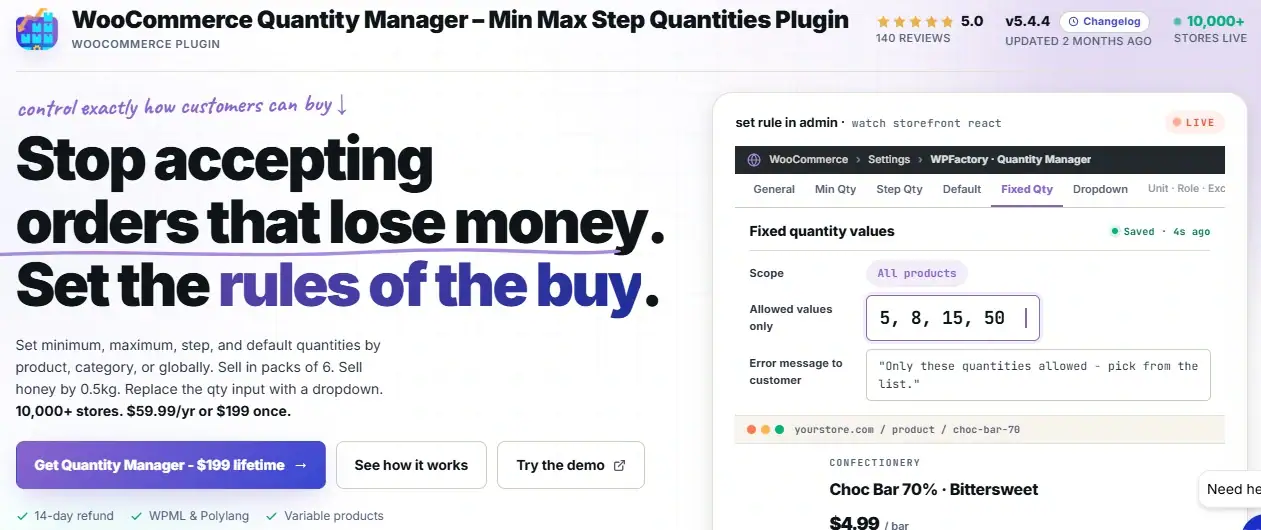
The plugin is active on 10,000+ stores and validates the rules on both the product page and the cart, so a customer cannot slip an invalid quantity through to checkout.
The important habit.. if two variations behave the same when they should differ, check whether the one you meant to change is still running on the inherited product rule.
An unset override is the most common reason a per-variation rule seems ignored.
Give Every Variation the Rule It Actually Needs
The WooCommerce Quantity Manager sets a different min, max, and step for each variation. Set the product rule once, then override the variations that ship differently. Active on 10,000+ stores, rated 5.0. It also handles the step quantity that most per-variation setups depend on.
A Worked Example: One Product, Three Variations
Take a single supplement sold in three formats. Each ships differently, so each needs its own rule.
| Variation | How It Ships | Min | Max | Step | Allowed Quantities |
|---|---|---|---|---|---|
| Single bottle | Individually | 1 | 10 | 1 | 1, 2, 3 … 10 |
| 6-pack | One padded box | 1 | 5 | 1 | 1, 2, 3, 4, 5 |
| Case of 24 | Pallet in tray multiples | 2 | 10 | 2 | 2, 4, 6, 8, 10 |
Three variations, three different rule sets, one product listing. The single bottle sells freely up to ten. The 6-pack caps at five boxes. The case only sells in even numbers, because the warehouse moves them two pallets at a time.
None of this is possible with the shared product rule alone. Each line in that table is a per-variation override doing its job.
Step-by-Step: Setting Quantity Rules per Variation
The setup moves from the global rule inward to the individual variation. The per-variation rule is free.
Step 1: Install the Quantity Manager Plugin
Install from your WPFactory account and activate it. Once active, the per-variation quantity fields appear inside every variation, ready to configure.
Step 2: Set a Baseline Product Rule (Optional)
Go to WPFactory → Quantity Manager. In the tab you need (Minimum, Maximum, or Step), you can set an “All Products” value as your store-wide baseline.
This is the value every variation inherits until you override it. Many stores leave the baseline loose and do the real work at the variation level.
Step 3: Open the Variable Product
Edit the variable product you want to configure. Go to the Product Data section and open the Variations tab.
Expand the first variation you want to set a rule for. WooCommerce shows the variation’s own fields here.. price, SKU, stock, and, with the plugin active, its quantity rule fields.
Step 4: Set the Rule for That Variation
Enter the minimum, maximum, and step for this specific variation. Following the worked example, the case-of-24 variation gets a step of 2 and a minimum of 2, while the single bottle stays at min 1, step 1.
This value overrides whatever the variation inherited from the product baseline.
Step 5: Repeat for Each Variation That Differs
Expand each variation that needs its own rule and set it. Any variation you leave untouched keeps the inherited baseline, which is exactly what you want for the variations that do not need anything special.
Step 6: Save and Test Each Variation
Save the product. Then visit it on the front end and switch between variations in the dropdown.
Confirm the quantity field changes behavior as you switch.. the step should update, the minimum should update, and an invalid quantity should be blocked.
Testing each variation is the step that catches an override you thought you set but did not.
Free Tool: Per-Variation Rule Builder
Set the rule for two variations and see the exact quantities each one will allow, side by side.
Comparison: Product-Level vs Variation-Level Rules
Knowing which level to set a rule at saves a lot of confusion later. The two levels work together, but they answer different needs.
Look at the last row before you build anything. Setting a rule at the wrong level is the single most common source of variation quantity problems, and it is easy to avoid once the distinction is clear.
| Factor | Product-Level Rule | Variation-Level Rule |
|---|---|---|
| Applies to | Every variation in the product, unless overridden | One specific variation only |
| Best for | A shared baseline all variations can start from | Variations that ship or sell differently |
| Where it is set | Product Data, or the global All Products field | Inside each variation in the Variations tab |
| Free or Pro | Free | Free |
| Common mistake | Setting it too strict, so a single unit inherits a bulk rule | Forgetting to override, so the variation silently uses the product rule |
Per-Variation Rules by Store Type
The way you split rules across variations depends on what the variations represent. Here is how the logic changes across common setups.
Pack Sizes of the Same Product
This is the clearest case. When variations are pack sizes, single, 6-pack, 12-pack, case, the step is the key setting.
Each pack size gets a step that matches how it is packed, so the bulk case only sells in clean multiples while the single unit sells freely.
Physical Sizes or Weights
For products that vary by size or weight, the minimum often changes per variation.
A small size might sell one at a time, while a large, heavy size carries a higher minimum to make its shipping cost worthwhile.
This pairs well with selling by measurement. If a variation is sold by weight or length, the price per unit approach can run alongside the per-variation quantity rule.
Retail and Wholesale Variants
Some stores use variations to separate a retail pack from a wholesale pack of the same product.
The wholesale variation carries a high minimum, the retail one a low one.
If you would rather split by customer type than by variation, a rule scoped by user role may fit better than a per-variation rule.
The two approaches solve overlapping problems from different angles.
Mixed Catalogs
For a catalog where only some products are variable, set a sensible global baseline and override only the variations that genuinely need it.
There is no need to touch every variation. The inheritance model means the ones you leave alone still behave correctly.
Common Mistakes with Variation Quantity Rules
A few errors come up again and again once stores start setting these.
- Forgetting the override and blaming the plugin
If a variation ignores the rule you thought you set, the usual cause is that the rule was never set on that variation, so it is still inheriting the product baseline. Check the variation’s own fields first.
- Setting a step that does not divide the range cleanly
A minimum of 2 with a step of 3 produces 2, 5, 8, and so on, which may not be what you intended. Plan the min and step together so the allowed quantities make sense.
- Testing only one variation
Rules are per variation, so testing one proves nothing about the others. Switch through every variation on the front end and confirm each behaves as intended.
- Over-configuring variations that do not need it
Not every variation needs a special rule. Setting one on a variation that could happily inherit the baseline just adds maintenance for no gain. Override only where the variation genuinely differs.
Related Resources
- WooCommerce Quantity Rules: The Complete Guide – the hub covering every quantity rule type in one place
- How to Set Quantity Step Increments in WooCommerce – the step setting most per-variation pack rules depend on
- WooCommerce Case Quantity Pricing: Sell by Box or Pallet – pricing packs and cases, which pairs with per-variation pack rules
- WooCommerce Price per Unit: Sell by Weight, Length or Volume – for variations sold by measurement rather than count
- How to Hide the Add to Cart Button Until Minimum Quantity Is Met – enforce the minimum you set on each variation
Ready to Set WooCommerce Variable Product Quantity Rules?
The WooCommerce Quantity Manager sets a different min, max, and step for every variation, and the per-variation control is free. Category and attribute rules, decimal quantities, and dropdown replacement are in the Pro version at $59.99 per year or $199 for a lifetime license on unlimited sites.
Every purchase comes with a 14-day money-back guarantee.
FAQs About WooCommerce Variable Product Quantity
Can I set a different minimum quantity for each variation in WooCommerce?
Yes. The WooCommerce Quantity Manager plugin lets you set a separate minimum, maximum, and step for each variation of a variable product.
Open the variation in the Variations tab of the product editor and enter its own values. This overrides whatever the variation inherited from the product-level rule.
Does WooCommerce support per-variation quantity rules by default?
No. Core WooCommerce puts an open quantity field on every variation with no minimum, maximum, or step control.
You need a plugin to add quantity rules, and the WooCommerce Quantity Manager plugin includes per-variation rules in its free version.
Is setting quantity rules per variation a free feature?
Yes. The per-variation min, max, and step rules are available in the free version of the WooCommerce Quantity Manager plugin.
Category-level and attribute-level rules, along with decimal quantities and dropdown replacement, are part of the Pro version.
Why is my variation ignoring the quantity rule I set?
The most common reason is that the rule was set at the product level but never overridden on that specific variation, so the variation is still using the inherited value.
Open the variation in the Variations tab and confirm its own quantity fields are set to the values you intended.
Can I set a step quantity per variation so a product sells only in packs?
Yes. Set the step on the specific variation. A case variation with a step of 6 will only allow quantities of 6, 12, 18, and so on, while a single-unit variation of the same product can keep a step of 1.
Each variation enforces its own step independently.
Do variation quantity rules apply in the cart as well as the product page?
Yes. The plugin validates the rules on both the product page and the cart, so a customer cannot reach checkout with a quantity that breaks a variation’s minimum, maximum, or step.
This closes the gap where an invalid quantity might otherwise slip through by an unusual path.