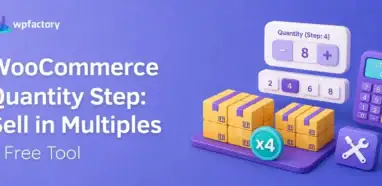
WooCommerce Quantity Step: Sell in Multiples (+Free Tool)
Quick Answer: What Is a WooCommerce Quantity Step? A WooCommerce quantity step forces the quantity field to move in fixed jumps instead of one at a time, so shoppers can […]
Read moreQuick Answer: What Is a WooCommerce Quantity Step? A WooCommerce quantity step forces the quantity field to move in fixed jumps instead of one at a time, so shoppers can […]
Read moreQuick Answer: Minimum Order Quantity vs Minimum Order Amount A WooCommerce minimum order quantity sets how many units a customer must buy, counted in items. A minimum order amount sets […]
Read moreQuick Answer: What Are WooCommerce Quantity Rules? WooCommerce quantity rules are settings that control how many units a customer must, may, or can buy.. either on a single product or […]
Read moreQuick Answer WooCommerce does not let you restrict payment methods per product out of the box. You need a plugin. The fastest solution: install Payment Methods by Product & Country […]
Read moreQuick answer: To sell through ChatGPT Instant Checkout, you apply through OpenAI’s merchant interest form and prepare a product feed with complete, accurate data: titles, descriptions, prices, stock, images and […]
Read moreQuick answer: ChatGPT Shopping shows product suggestions inside a ChatGPT conversation, and Instant Checkout lets shoppers buy from supported merchants without leaving the chat. Product results come from the data […]
Read moreQuick answer: WooCommerce Analytics covers the basics, but not forecasts or combined sales and stock views. WooCommerce Advanced Reporting and Statistics adds sales, product, revenue and stock reports with filters […]
Read moreQuick answer: WooCommerce’s built-in tool imports and exports products as CSV only. To work in Excel, use All in One WooCommerce Migration: Import & Export to Excel: export products to […]
Read moreQuick answer: A one-page checkout puts billing, shipping and payment on a single screen, so it is usually faster and works best for small carts, repeat customers and mobile traffic. […]
Read moreQuick answer: WooCommerce includes basic stock management: turn it on under WooCommerce → Settings → Products → Inventory, then tick “Track stock quantity” on each product to get automatic stock […]
Read moreQuick answer: Go to Products → All Products and click Export to download a CSV file of your products, which opens directly in Excel. To choose exactly which fields to […]
Read moreQuick answer: For a quick list, go to WooCommerce → Customers and click Download to get a CSV. For more fields, date ranges or XML, use Export WooCommerce: choose the […]
Read more