To start hiding WooCommerce payment methods by condition, install Conditional Payment Methods for WooCommerce, open WPFactory > Conditional Payment Gateways, tick the conditions you need under Available Conditions, then fill in a value for each payment gateway in that condition’s section and save.
Conditional Payment Methods removes payment gateways from the checkout when a rule does not match: cart total, date and time, customer IP, user, user role, currency, country, product, product category, product tag, shipping class, custom taxonomy, product title or language. In the admin, the plugin and its menu item are labeled Conditional Payment Gateways.
Before you start #
- WooCommerce, installed and active (the plugin declares it as a required plugin).
- At least one payment method enabled at WooCommerce > Settings > Payments. Conditional Payment Methods only hides gateways that WooCommerce would otherwise show.
- The free version applies conditions to the four built-in WooCommerce gateways: Direct bank transfer, Check payments, Cash on delivery and PayPal Standard. Conditions for any other gateway, such as Stripe or other payment plugins, need Pro. See Free vs Pro.
Install and activate #
- Go to Plugins > Add New Plugin and upload the plugin zip (free or Pro).
- Click Activate.
- If you upgrade to Pro later, you can leave the free version installed: when the Pro plugin is active, the free copy stops loading and Pro uses the same saved settings.
Find the settings #
Go to WPFactory > Conditional Payment Gateways (also reachable at WooCommerce > Settings > Conditional Payment Gateways). The Settings link on the Plugins screen opens the same page.
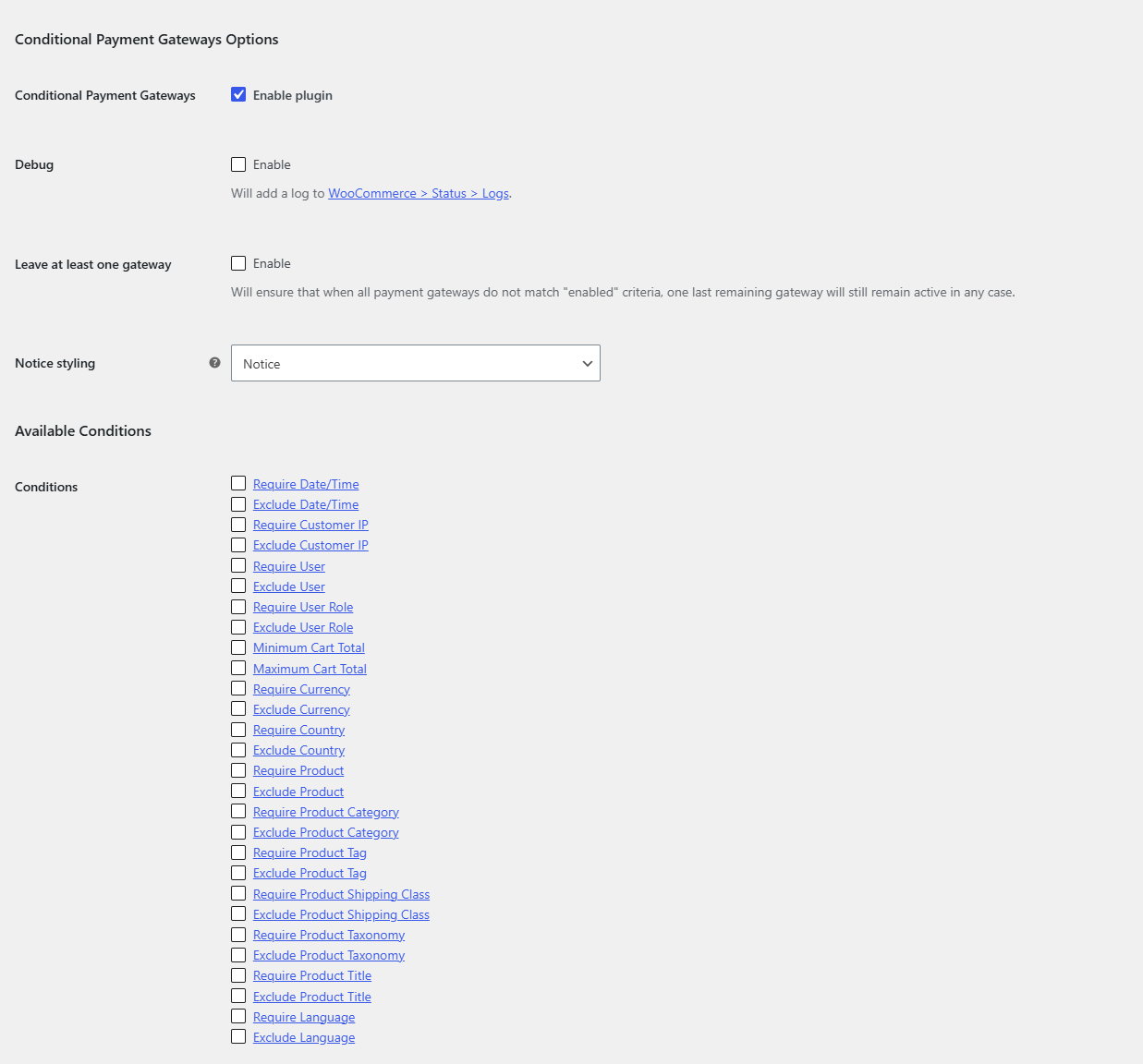
The page has a General section plus one section per condition: Date/Time, Customer IP, User, User Role, Cart Total, Currency, Country, Product, Product Category, Product Tag, Product Shipping Class, Product Taxonomy, Product Title and Language.
Set up your first rule #
- In the General section, make sure Conditional Payment Gateways: Enable plugin is ticked (it is on by default).
- Under Available Conditions > Conditions, tick the rule you want, for example Minimum Cart Total. Each checkbox links to its section.
- Click Save changes, then open the condition’s section (for example Cart Total).
- Check that Enable/disable: Enable section is ticked. This is the same setting as the checkbox in the General list, so ticking either one turns the rule on.
- Enter a value next to each payment gateway you want to control. Leave a gateway’s field empty to leave that gateway alone.
- Optionally edit the Additional notice text shown at checkout when the gateway is hidden.
- Click Save changes and test the checkout in a private browser window.
How rules are evaluated #
- Require rules keep a gateway only when the customer matches one of the values you entered.
- Exclude rules hide a gateway when the customer matches one of the values.
- Minimum and Maximum (Cart Total only) hide a gateway when the cart total is below the minimum or above the maximum. A total exactly equal to the limit keeps the gateway.
- Every enabled rule must pass. If a gateway fails any one of them, it is hidden.
- Rules run on WooCommerce’s list of available payment gateways, so they apply wherever WooCommerce builds that list, including the classic and block checkout.
Guides for each condition #
- How to hide a payment method based on cart total
- How to show payment methods by country
- How to restrict payment methods by user role, user or IP address
- How to hide payment methods by product, category or tag
- How to enable payment methods by date and time
- How to restrict payment methods by currency or language
- Settings reference and troubleshooting
Get more control #
All 14 conditions are free for the four built-in WooCommerce gateways. Conditional Payment Methods for WooCommerce Pro lets you set the same conditions for any payment gateway, including Stripe and other third-party gateways. See what Pro unlocks.
Need a hand? Our team answers every ticket on the Conditional Payment Methods support forum.