Set up dynamic, quantity-based pricing in WooCommerce #
To set up quantity-based pricing with Price by Quantity & Bulk Quantity Discounts for WooCommerce, go to WPFactory > Product Price by Quantity. On the General tab, choose where rules apply, then on the All Products tab set the discount type, number of levels, and each level’s minimum quantity and discount. The store-wide setup is free.
Where to configure it #
Go to WPFactory > Product Price by Quantity (also reachable at WooCommerce > Settings > Product Price by Quantity).
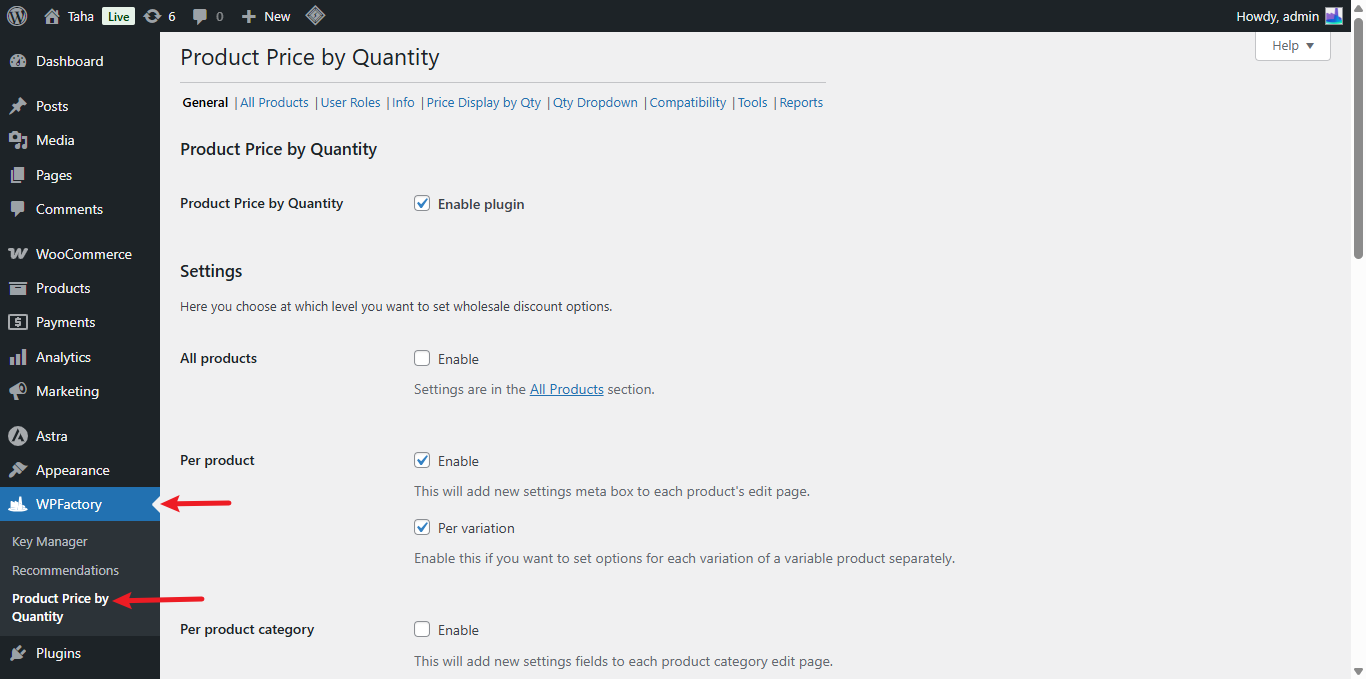
Step 1: Choose where rules apply (General tab) #
On the General tab, the Settings group decides at which level you set quantity discounts. In the free version you can enable All products and Per product. The remaining levels are Pro:
| Level | Option ID | Default | Free/Pro |
|---|---|---|---|
| All products | alg_wc_wholesale_pricing_all_products_enabled |
Yes | Free |
| Per product | alg_wc_wholesale_pricing_per_product_enabled |
Yes | Free |
| Per variation | alg_wc_wholesale_pricing_product_children |
No | Pro |
| Per product category | alg_wc_wholesale_pricing_per_product_cat_enabled |
No | Pro |
| Per product tag | alg_wc_wholesale_pricing_per_product_tag_enabled |
No | Pro |
You can enable more than one level. Per-product settings override the store-wide All Products rule for that product.
Step 2: Build the store-wide levels (All Products tab) #
Open the All Products tab to set the default levels that apply to every product, unless a more specific rule overrides them.
- Discount type (
alg_wc_wholesale_pricing_discount_type):Percent(default) orFixed. Percent takes a percentage off the price; Fixed deducts a set amount. - Number of levels (
alg_wc_wholesale_pricing_levels_number, default1): how many tiers to create. Save changes to reveal the level fields. - Level #X: Min quantity (
alg_wc_wholesale_pricing_level_min_qty_X): the minimum quantity that unlocks the level. - Level #X: Discount (
alg_wc_wholesale_pricing_level_discount_X): the discount value. Enter a negative number to add a fee instead of a discount.
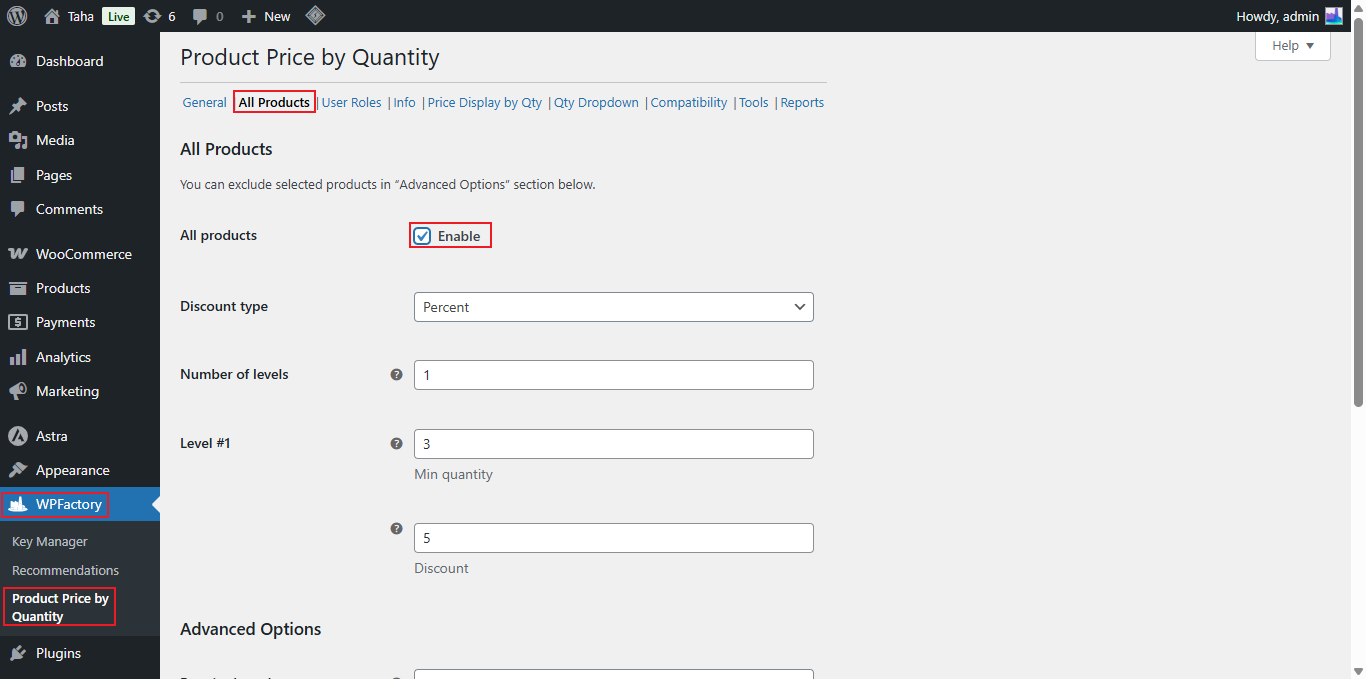
Note: a third discount type, Price directly (set an exact per-unit price), is available in the per-product and per-category/tag settings, not in the store-wide All Products tab.
Step 3: Choose how quantities are counted (General tab) #
Back on the General tab, the Quantity calculation setting (alg_wc_wholesale_pricing_use_total_cart_quantity) controls which quantity is measured against your levels:
- Single product quantity (default): the quantity of that product in the cart.
- Total cart quantity: the total count of all items in the cart.
- Group by product parent, Group by product category, Group by product tag: sum quantities across related items. These three options are Pro.
Use cases #
- Offer 10% off at 10 units and 20% off at 50 units, store-wide.
- Give a flat amount off a single high-volume product using a per-product rule.
- Reward total basket size with “Total cart quantity” so mixed carts still qualify.
Troubleshooting #
- Levels not showing after you set “Number of levels”? Save changes first; the level fields render on reload.
- Discount not applying? Confirm the level’s Min quantity is greater than 0 and that the cart quantity reaches it.
Get more control #
Store-wide and per-product rules are free. Price by Quantity & Bulk Quantity Discounts for WooCommerce Pro adds per-variation, per-category and per-tag pricing, the quantity dropdown, and product-page pricing tables. See what Pro unlocks.