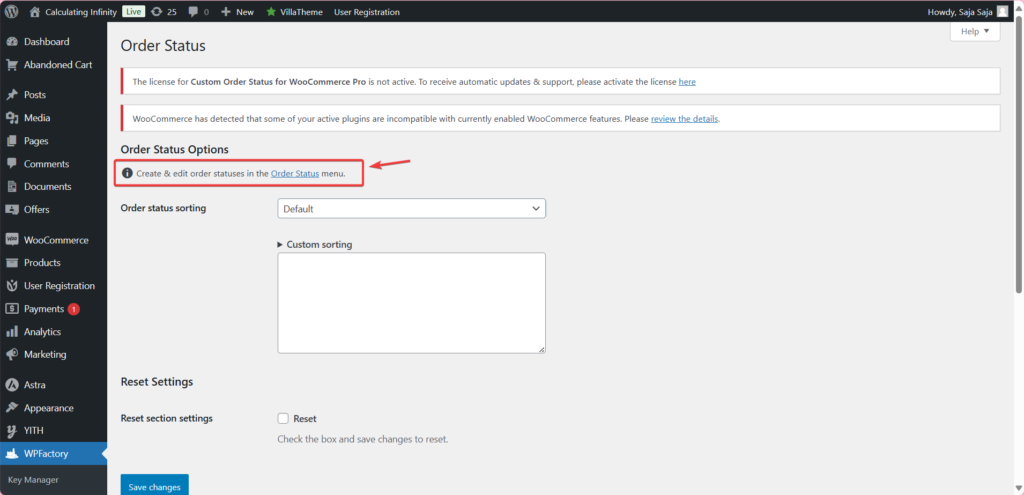
Additional Custom Order Status for WooCommerce lets you add your own WooCommerce order statuses, style them and control how orders behave in each one. You create statuses at WooCommerce > Order Status, and global settings are at WPFactory > Order Status (also reachable at WooCommerce > Settings > Order Status).
What it does #
WooCommerce ships with a fixed set of statuses such as Processing, On hold and Completed. Custom Order Status adds as many extra statuses as you need, for example “Under manufacture” or “Awaiting pickup”, each with its own colors, bulk action, report inclusion, action buttons and order behavior. With Pro, a status can also send an email when an order reaches it.
Install and activate #
- Free: install Additional Custom Order Status for WooCommerce from WordPress.org (or search for it at Plugins > Add New) and activate it.
- Pro: download Additional Custom Order Status for WooCommerce Pro from your WPFactory account, upload the ZIP at Plugins > Add New > Upload Plugin and activate it.
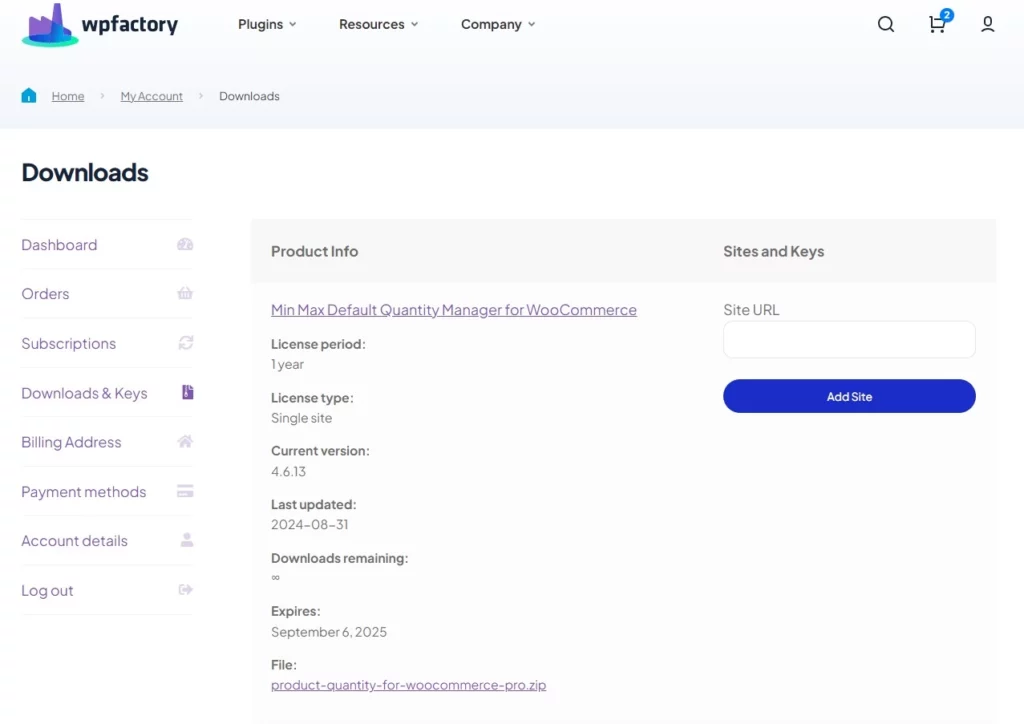
For more detail, see installing the Custom Order Status plugin.
First setup #
- Go to WooCommerce > Order Status and click Add New.
- Enter a Title, for example “Under manufacture”. The title cannot start with a number.
- The Status Slug is generated from the title. It cannot be edited, so choose the title carefully.
- In Styling Options, pick a Text color (default #000000) and Background color (default #999999) for the status label.
- Check General Options: Add to order bulk actions and Add to reports are both Yes by default.
- Click Publish. Open any order and the new status is available in the status dropdown.
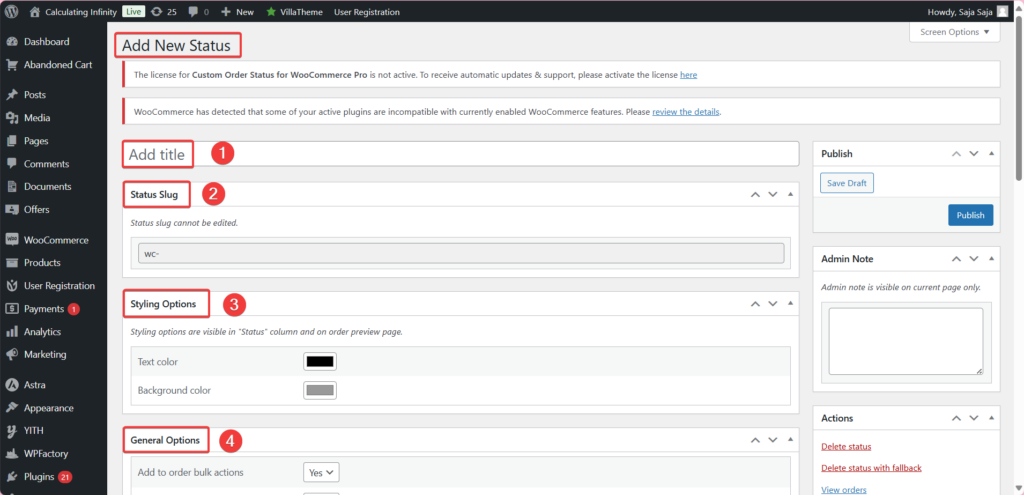
See creating custom order statuses and styling custom order statuses for more.
Main features #
Action buttons (Free) #
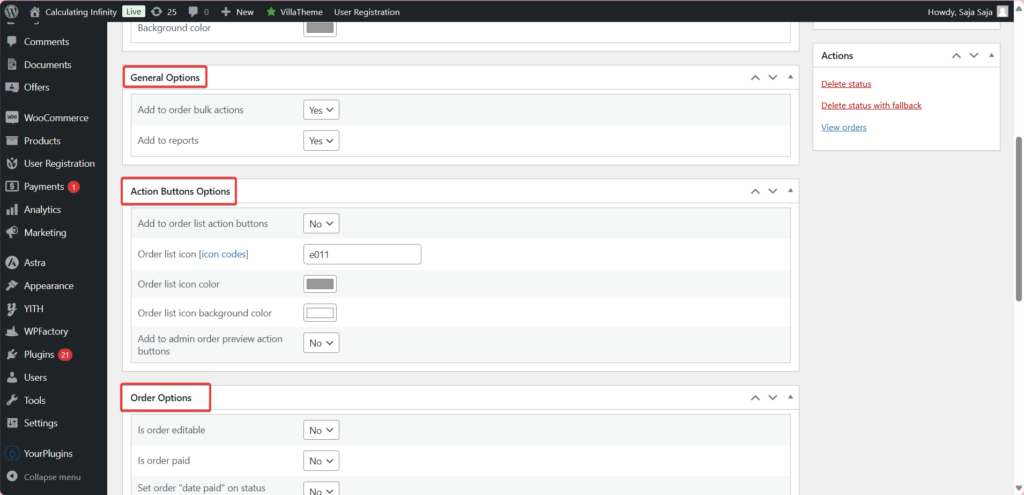
In Action Buttons Options, set Add to order list action buttons or Add to admin order preview action buttons to Yes (both No by default) to get a one-click button for the status, with your own icon and colors. See adding custom order status action buttons.
Order behavior (Free) #
Order Options decides whether an order in this status Is order editable, Is order paid or Is order valid for payment, whether to Set order “date paid” on status update, and whether to grant Download permissions. All are No by default. See custom order status behavior settings.
Status emails (Pro) #
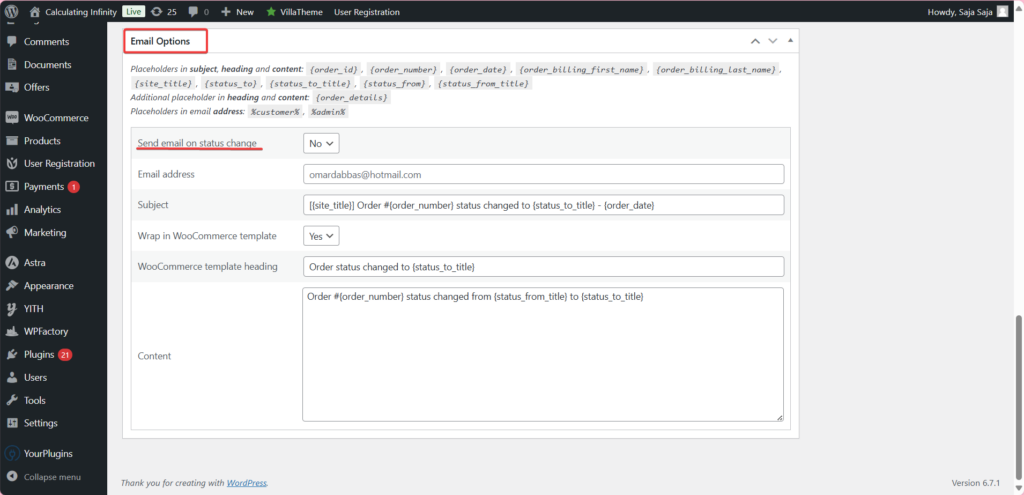
In Email Options, set Send email on status change to Yes and fill in Email address, Subject and Content. The address field accepts %customer% and %admin%. See sending emails on custom order status change and the email placeholders reference.
Sorting (Free) #
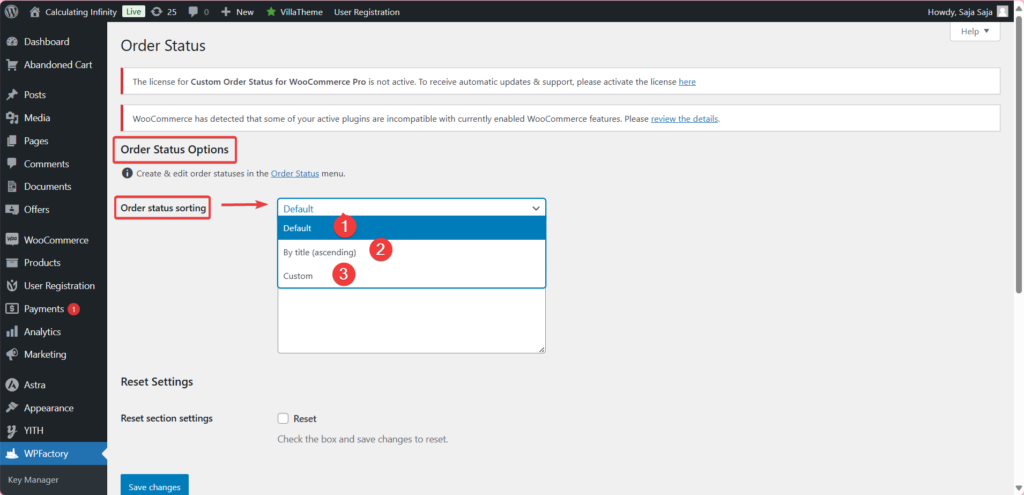
At WPFactory > Order Status, the Sorting section sets the order of statuses in the admin order edit dropdown, the order list and preview action buttons, and bulk actions. Each can be Default, By title (ascending) or Custom. See how to sort order statuses.
Processing and Complete buttons (Free) #
The General section can override which statuses show WooCommerce’s own Processing and Complete buttons in the order list. By default, Processing appears for pending and on-hold orders, and Complete for pending, processing and on-hold orders. See showing Processing and Complete buttons on more orders.

Restyle default statuses and delete safely (Free) #
You can restyle a built-in WooCommerce status, and when you delete a custom status you can move its orders to a fallback status. See how to restyle a default order status and deleting a custom order status safely.
Free vs Pro #
| Feature | Free | Pro |
|---|---|---|
| Unlimited custom statuses with styling | Yes | Yes |
| Bulk actions, reports, action buttons | Yes | Yes |
| Order Options (editable, paid, date paid, download permissions) | Yes | Yes |
| Sorting, Processing and Complete button overrides | Yes | Yes |
| Send email on status change | No | Yes |
For a longer comparison, see Custom Order Status: Free vs Pro.
FAQ #
Where do I create a new status? #
At WooCommerce > Order Status. The WPFactory > Order Status page holds only the global General and Sorting settings, with a link back to the status list.
Can I change a status slug later? #
No. The slug is created from the title and cannot be edited. To use a different slug, create a new status and move your orders to it.
Why is my title rejected? #
Status titles cannot start with a number. Put a word first, for example “Stage 2” instead of “2nd stage”.
Is there a limit on how many statuses I can add? #
No. The free version has no status limit.
Why is the Email Options box disabled? #
Status emails are the Pro feature. In the free version Send email on status change stays disabled.
Ready to set this up? #
Status emails are a Pro feature of Custom Order Status. Everything else in this guide is free. Get Custom Order Status Pro.
Need a hand? Our team answers every ticket on the Custom Order Status support forum.