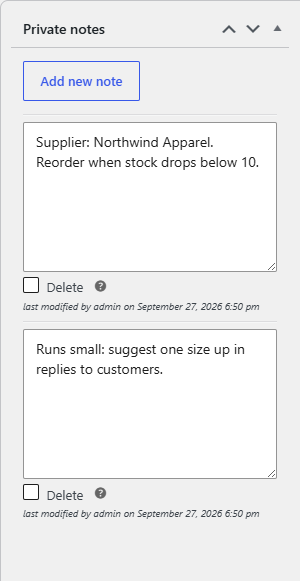
To add private admin notes to WooCommerce products, open any product and use the Private notes box in the sidebar, added by Product Notes Tab & Private Admin Notes for WooCommerce. Control where they appear at WPFactory > Product Notes > Private notes. Customers never see private notes.
Before you start #
- Product Notes installed and active (free version is enough for adding notes).
- The Private notes > Enable section option switched on. It is on by default.
How to add a private note #
- Go to Products and open the product for editing.
- In the sidebar, find the Private notes box and click Add new note.
- Type the note, for example supplier details, a reorder reminder or packing instructions.
- Click Add new note again for each extra note. There is no limit per product.
- Click Update to save.
Each saved note shows “last modified by” with the username and date, so your team can see who wrote or changed it. To remove a note, tick its Delete box and click Update.
Who can see private notes #
- In the admin: anyone who can edit the product sees the Private notes box.
- On the storefront: only logged-in users with the
manage_woocommercecapability, which by default means administrators and shop managers. Everyone else sees nothing. - In customer emails: never. The Pro customer email option only exists for public notes.
By default private notes appear to administrators and shop managers in a Private notes tab on the product page. To keep them in the admin only, go to WPFactory > Product Notes > Private notes and untick Frontend Options > Product tab.
Make notes easier to write and read #
These options are in WPFactory > Product Notes > Private notes > Backend Options and are free:
- Visual editor > Product notes: replaces the plain text field with the WordPress visual editor.
- Textarea style > Product notes: CSS for the plain text field. The default is
width:100%;height:150px;. It is ignored when the visual editor is on.
Find private notes faster (Pro) #
Product Notes Pro adds these options to the same Backend Options group:
- Admin products list column: shows the notes in a column on the Products screen.
- Admin search: makes the Products screen search match note text.
- Admin orders and Admin emails: show the notes next to each item in orders and in emails sent to the store.
See how to search, export and bulk edit product notes and how to show product notes in orders and emails.
Delete all private notes at once #
Go to WPFactory > Product Notes > Private notes > Tools, tick Products > Delete and click Save changes. This removes the private notes from every product and variation. There is no undo, so export or back up first if you may need them. This tool is free.
FAQ #
Can customers see private notes? #
No. On the storefront, private notes are only output for users with the manage_woocommerce capability. Guests and customers do not get the tab or any other private note output. The one exception is the [alg_wc_product_notes] shortcode: if you set it to show private notes, it does not check who is viewing, so do not place it on public pages.
Can I add more than one private note to a product? #
Yes. Click Add new note as many times as you need. Each note is saved separately with its own author and date.
Can I add private notes to individual variations? #
Yes. Turn on Private notes > General Options > Note per variation and a note field appears for each variation. See how to add notes to product variations.
Do I need Pro for private notes? #
No. Adding, editing, deleting and displaying private notes is free. Pro adds them to the products list, admin search, orders, emails, export, import and quick or bulk edit.
Get more control #
Private notes are free. Product Notes Tab & Private Admin Notes for WooCommerce Pro shows them in your products list, orders and admin emails, and makes them searchable. See what Pro unlocks.
Need a hand? Our team answers every ticket on the Product Notes support forum.