To add notes to WooCommerce product variations, enable Note per variation at WPFactory > Product Notes > Private notes or Public notes in Product Notes Tab & Private Admin Notes for WooCommerce. A note field then appears on every variation, and public variation notes can show when a customer selects that variation. This is free.
Step 1: Turn on variation notes #
- Go to WPFactory > Product Notes (also reachable at WooCommerce > Settings > Product Notes).
- Open the Private notes or Public notes section. The option is separate for each, so enable it in both if you need both kinds.
- Under General Options, tick Note per variation.
- Click Save changes.
Step 2: Add a note to a variation #
- Open a variable product and go to Product data > Variations.
- Expand a variation. Below the standard Description field you will see a Private note field, a Note field (public), or both.
- Type the note and click Save changes in the Variations panel (or update the product).
Each variation has one note field per note type. After saving, hover the field’s help icon (or read the line under the editor, if the visual editor is on) to see who last modified it and when.
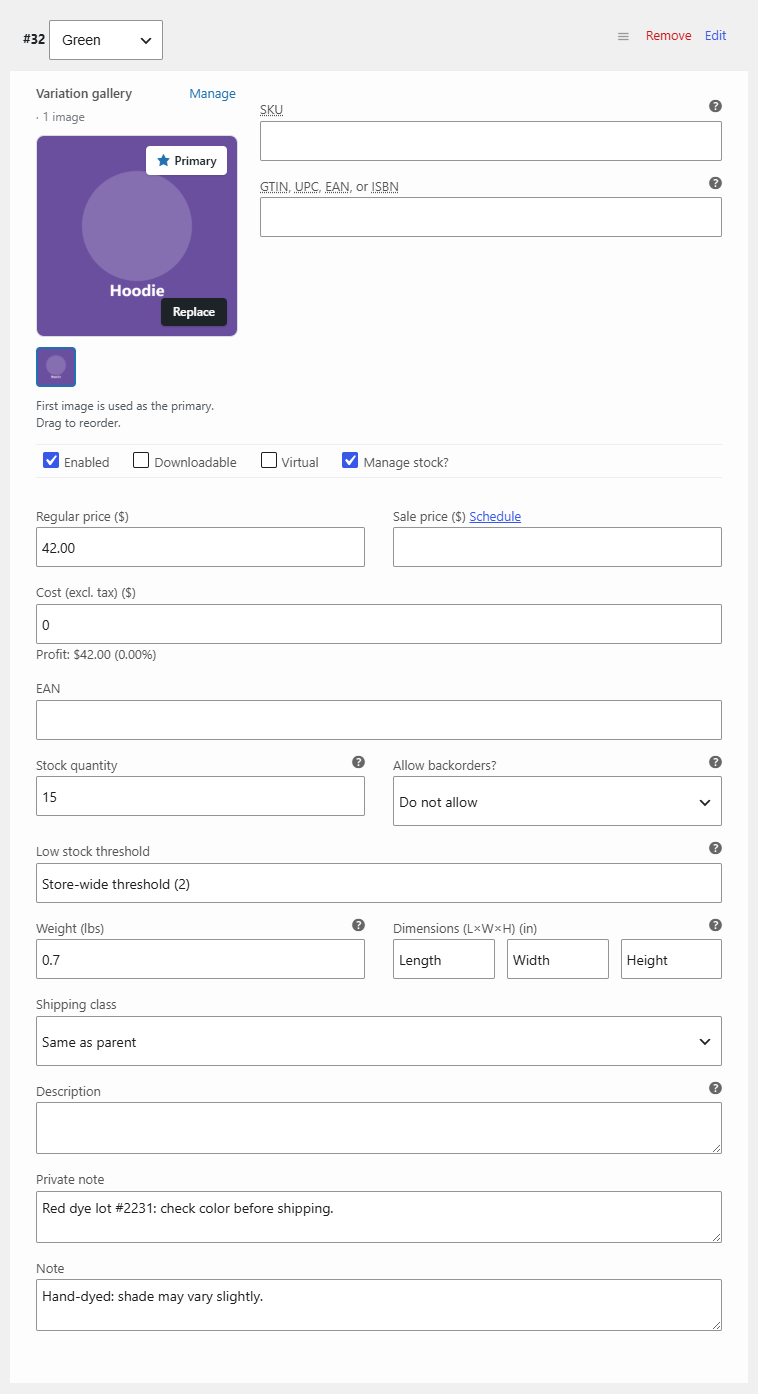
Step 3: Show public variation notes to customers #
- In Public notes > Frontend Options, tick Variation description.
- Click Save changes.
When a customer picks that variation on the product page, its note is added to the variation description area, together with the price and stock details. Note per variation must stay enabled for this to work.
Where variation notes appear #
| Place | Uses variation notes? | Free/Pro |
|---|---|---|
| Variation description on the product page | Yes, with the Variation description option | Free |
| Cart and checkout | Yes. For a variation in the cart, only that variation’s notes are shown, not the parent product’s | Free |
| Product tab, product meta, single product page and shop page positions | No. These show the parent product’s notes | Free |
| Admin orders, order item meta, admin and customer emails | Yes. The parent product’s notes and the variation’s notes are both included | Pro |
| Admin search | Yes. A match in a variation note returns its parent product | Pro |
Editor options for variation notes #
In Backend Options of each section (free):
- Visual editor > Variation notes: uses a simplified editor (text mode with formatting buttons) instead of a plain text field.
- Textarea style > Variation notes: CSS for the plain variation field, empty by default. Ignored when the visual editor for variation notes is on.
FAQ #
Why do variation notes not show on the product page? #
Both Note per variation and Variation description must be enabled in the Public notes section. Private variation notes are only shown to administrators and shop managers.
Can a variation have several notes, like a product can? #
No. Each variation has one note field per note type. Use line breaks inside the field for several points.
Why does the cart show a different note than the product tab? #
For variable products, the cart and checkout use the chosen variation’s notes, while the product tab uses the parent product’s notes. Add the text to the variation if you want it in the cart.
Do variation notes appear in order emails? #
Yes, with Pro. When Admin emails or Customer emails is on, the email lists the product’s notes followed by the variation’s notes. See how to show product notes in orders and emails.
Get more control #
Variation notes are free. Product Notes Tab & Private Admin Notes for WooCommerce Pro carries them into orders, emails and admin search. See what Pro unlocks.
Need a hand? Our team answers every ticket on the Product Notes support forum.