To show product notes in WooCommerce orders and emails, enable Admin orders, Admin emails or Customer emails at WPFactory > Product Notes > Private notes or Public notes > Backend Options in Product Notes Tab & Private Admin Notes for WooCommerce Pro. Notes then appear under each order item for your team or your customers.
Before you start #
- Product Notes Pro, installed and active. In the free version these options are visible but greyed out.
- Notes added to your products (see private notes and public notes).
Show notes on the admin order screen #
- Go to WPFactory > Product Notes (also reachable at WooCommerce > Settings > Product Notes) and open Private notes or Public notes.
- Under Backend Options, tick Admin orders.
- Optional: tick Save in order items meta as well (see below).
- Click Save changes.
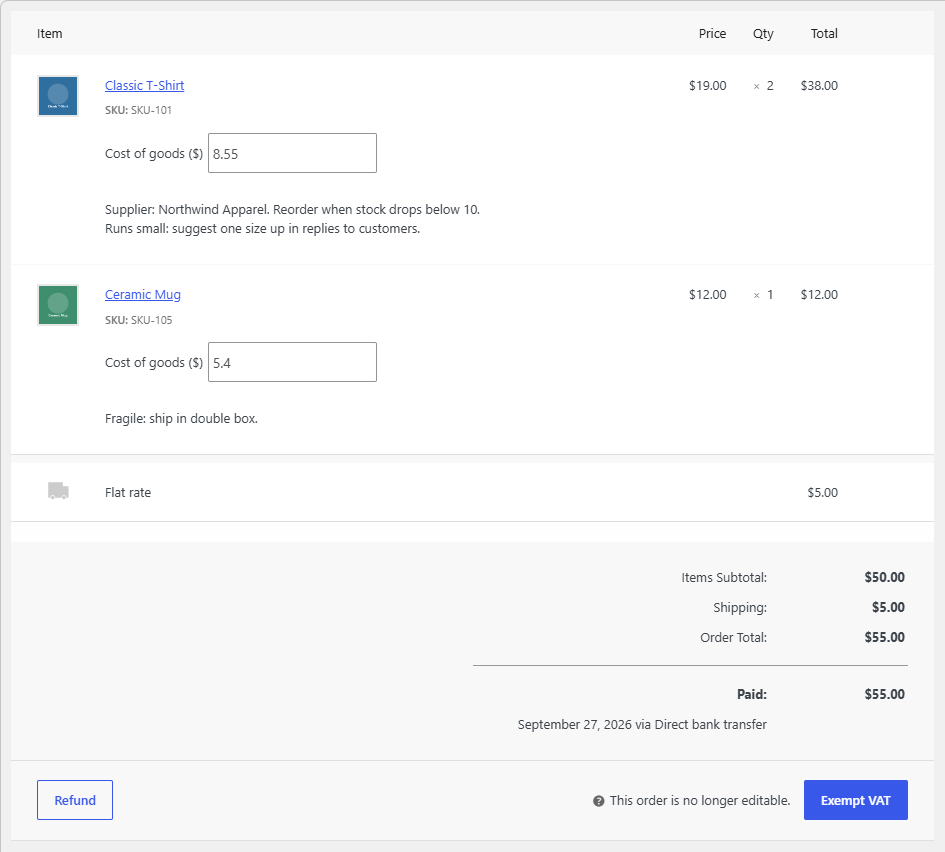
Open any order in WooCommerce > Orders. Each line item now shows the product’s notes, plus the variation’s notes when Note per variation is on. This is ideal for private picking, packing or supplier notes.
Keep a copy of the notes in each order #
Without Save in order items meta, the order screen always shows the product’s current notes, so editing a product note also changes what you see on old orders. With it enabled:
- The notes are saved into each new order item when the order is placed, and when you add a product to an order from the admin.
- Several notes are joined with a semicolon. They are shown under the item labeled Private note or Note, and you can edit them on the admin order page like other item meta.
- The saved copy stays the same when you later change the product’s notes.
Orders placed before you enabled this have no saved copy. To add one, go to Tools in the same section, tick Orders > Add and click Save changes. It processes all orders and shows how many notes were added. Orders > Delete removes the saved notes from all order items. Neither tool can be undone.
Add notes to order emails #
- In Private notes or Public notes > Backend Options, tick Admin emails to add notes to emails sent to the store (such as New order).
- In Public notes > Backend Options, tick Customer emails to add public notes to emails sent to customers (such as Processing order and Completed order).
- Click Save changes.
Notes appear under each item in the order table. In HTML emails they are shown as a list; in plain text emails each note starts with a dash. Customer emails only exists for public notes, so private notes never reach customers.
Add notes to PDF invoices and packing slips #
If you use the free WooCommerce PDF Invoices & Packing Slips plugin (by WP Overnight):
- In Private notes or Public notes, go to Compatibility Options.
- Tick WooCommerce PDF Invoices & Packing Slips.
- To limit the documents, enter a comma-separated list of template types, for example
invoice,packing-slip. Leave it empty to show notes in all document types. - Click Save changes.
A private note on packing slips only is a common setup: warehouse staff see handling instructions, while customers’ invoices stay clean. The PDF output uses the parent product’s notes.
Change how notes look in orders and emails #
Go to WPFactory > Product Notes > Advanced > Formatting Options. Once a position is enabled, it gets its own row for each formatting option. For example, emails wrap notes in <ul class="wc-item-meta"><li>%product_notes%</li></ul> by default, and PDF documents in <small>%product_notes%</small>.
FAQ #
Will customers see private notes in their emails? #
No. Customer emails is only available in the Public notes section. Admin emails only affects emails sent to the store.
If I change a product note, do old orders change? #
Only if Save in order items meta is off. With it on, each order keeps the notes as they were when the order was created (or when you ran the Orders > Add tool).
Why are notes missing on older orders? #
With Save in order items meta on, only new orders get a saved copy. Run Tools > Orders > Add once to fill in existing orders.
Do variation notes appear in orders and emails? #
Yes, when Note per variation is enabled in the same section. The product’s notes come first, followed by the variation’s notes.
Ready to set this up? #
This is a Pro feature of Product Notes. If you are still on the free version, upgrading takes a couple of minutes and unlocks orders, emails, PDF documents, search, export and bulk editing. Get Product Notes Pro.
Need a hand? Our team answers every ticket on the Product Notes support forum.