To show product notes to customers, add a public note on the product and choose where it appears at WPFactory > Product Notes > Public notes (also under WooCommerce > Settings > Product Notes) in Product Notes Tab & Private Admin Notes for WooCommerce. A Notes product tab is on by default, and every display position is free.
Step 1: Add a public note to the product #
- Open the product for editing.
- In the Public notes box in the sidebar, click Add new note and type the text customers should see, such as care instructions, sizing advice or delivery information.
- Click Update.
The note now appears in a Notes tab on the product page. If that is all you need, you are done.
Step 2: Choose where public notes appear #
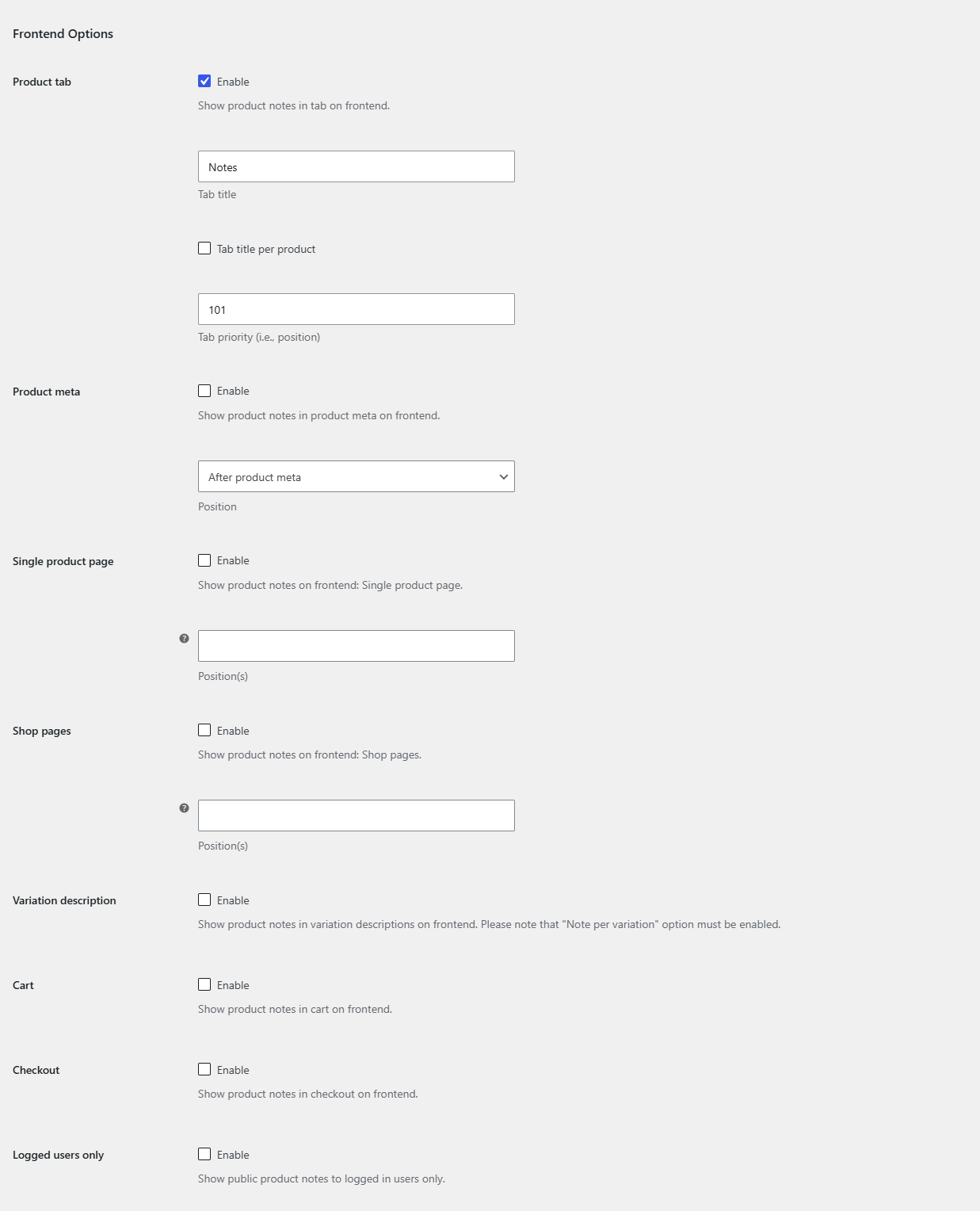
Go to WPFactory > Product Notes > Public notes > Frontend Options. You can enable any combination of these positions:
| Position | What it does | Default |
|---|---|---|
| Product tab | Adds a tab to the product page tabs. Set the Tab title (default “Notes”) and Tab priority (i.e., position) (default 101; WooCommerce’s own tabs use lower numbers, so 101 places it after them). | On |
| Product meta | Shows the notes in the product meta area (where SKU and categories appear). Position: Before product meta or After product meta. | Off |
| Single product page | Shows the notes at one or more hook positions: Before product, Before product summary, In product summary, After product summary, After product. | Off |
| Shop pages | Shows the notes on shop and category listings: Before product, Before product title, In product title, After product title, After product. | Off |
| Cart | Shows the notes under each item name in the cart. | Off |
| Checkout | Shows the notes next to each item name on the checkout page. | Off |
| Variation description | Adds variation notes to the variation description. Needs Note per variation. | Off |
Click Save changes after choosing.
Step 3: Fine-tune single product and shop page positions #
- Tick Single product page (or Shop pages) and pick one or more entries in Position(s).
- Click Save changes. New fields appear for each position you picked.
- In each content box, edit the HTML wrapper. The default is
<p>%product_notes%</p>. Keep the%product_notes%placeholder, because that is where the notes are inserted. - Set Priority (i.e., order inside the “Position”) to move the notes before or after other elements on the same hook. The field’s help tip lists the known priorities, for example Title 5, Price 10, Excerpt 20 and Add to cart 30 inside the product summary. The default is 10.
- Click Save changes again.
Step 4: Rename the tab per product (optional) #
- In Frontend Options > Product tab, tick Tab title per product and save.
- Open a product. The Public notes box now has a Tab title field. Enter a title for this product, or leave it empty to use the global title.
- Click Update.
Show public notes to logged-in customers only #
In Public notes > Frontend Options, tick Logged users only. Guests then see no public notes in any position. This is useful for trade prices, wholesale terms or member-only information.
Control how notes are formatted #
Go to WPFactory > Product Notes > Advanced > Formatting Options. For each position you have enabled, you can switch Process shortcodes, Escape HTML, Replace line breaks and Convert plaintext URI to HTML links, set the Notes glue placed between multiple notes, and edit the Content wrapper. Only enabled positions are listed. For example, the product tab escapes HTML by default, so turn off Escape HTML for the product tab if you want HTML in your notes to render.
Place notes anywhere with a shortcode #
Use [alg_wc_product_notes] in a page builder block, widget or template to output public notes for the current product. See the developer reference for all attributes.
FAQ #
Why does the Notes tab not appear on some products? #
The tab is only added when the product has at least one non-empty public note. Also check that Public notes > Enable section and Product tab are on and that Logged users only is off if you are testing as a guest.
Can I show notes in the cart and at checkout? #
Yes, both are free. Tick Cart and Checkout in Public notes > Frontend Options. For a variation in the cart, the notes of that variation are shown, not the parent product’s notes.
Can I show public notes in several places at once? #
Yes. Every position is a separate option, and Single product page and Shop pages accept several hook positions each.
Can I add public notes to order emails? #
Yes, with Pro. See how to show product notes in orders and emails.
Get more control #
All storefront display options are free. Product Notes Tab & Private Admin Notes for WooCommerce Pro also puts public notes in customer emails, PDF invoices and your product exports. See what Pro unlocks.
Need a hand? Our team answers every ticket on the Product Notes support forum.