To search, export, import or bulk edit WooCommerce product notes, enable the matching options at WPFactory > Product Notes > Private notes or Public notes > Backend Options in Product Notes Tab & Private Admin Notes for WooCommerce Pro. Each option works per note type, so you can turn on only what you need.
Before you start #
- Product Notes Pro, installed and active. In the free version these options are greyed out.
- All options below are off by default. Enable them in the Private notes section, the Public notes section, or both.
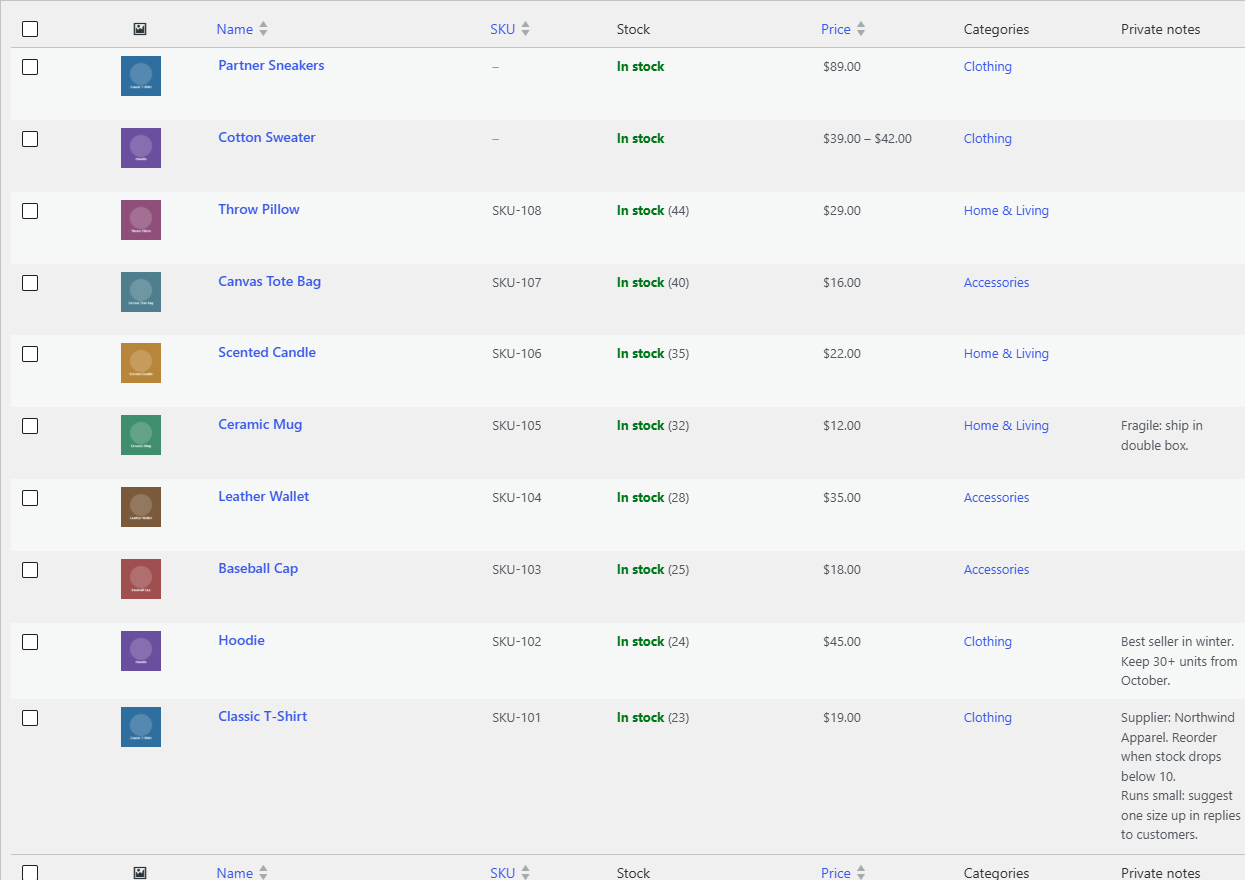
Show notes in the products list #
- Go to WPFactory > Product Notes (also reachable at WooCommerce > Settings > Product Notes) and open Private notes or Public notes.
- Under Backend Options, tick Admin products list column and save.
The Products screen gets a Private notes or Public notes column showing each product’s notes, so you can scan them without opening products.
Search products by note text #
- Under Backend Options, tick Admin search.
- Optional: also tick JSON Search. This extends the search to product search boxes inside the admin, for example Linked Products (upsells and cross-sells). Matching results show the note text in brackets after the product name.
- Click Save changes.
The search box on the Products screen now also finds products whose notes contain your search term. A match in a variation’s note returns its parent product. Searching for an internal code such as a supplier reference is a common use.
Export notes to CSV #
- Tick Export under Backend Options and save.
- Go to Products > Export (the standard WooCommerce product exporter) and generate the CSV.
The file includes a Private notes or Public notes column. When a product has several notes, they are joined with a semicolon and a space.
Import notes from CSV #
- Tick Import under Backend Options and save.
- Go to Products > Import and upload your CSV.
- On the column mapping screen, map your notes column to Private note or Public note. A column already named “Private note” or “Public note” is mapped automatically.
- Run the import.
Note: the export column is titled in the plural (“Private notes”) while the importer auto-maps the singular (“Private note”). When re-importing an exported file, choose the mapping by hand. The imported text replaces the product’s existing notes of that type with one single note.
Add notes with Quick Edit and Bulk Edit #
- Tick Quick edit, Bulk edit, or both under Backend Options and save.
- On the Products screen, use Quick Edit on one product, or select several products and choose Bulk actions > Edit.
- Type in the Private note or Public note field and click Update.
The text is added as a new note on each product; existing notes are kept. Leave the field empty (it shows “- No change -“) to leave notes untouched. The Quick Edit field does not display the product’s current notes.
Import notes with WebToffee Product/Review CSV Import Export #
If you move products with the Product/Review CSV Import Export plugin by WebToffee, open Compatibility Options in the relevant section and tick Product/Review CSV Import Export. Product Notes then decodes the notes meta columns from that plugin’s files so they import as proper notes.
Let Dokan vendors add notes #
- In Compatibility Options, tick Dokan.
- Optionally change the Title (default “Private Product Note” or “Public Product Note”), Textarea placeholder (default “Enter some product notes…”) and Textarea rows (default 3).
- Click Save changes.
A notes field appears in the Dokan vendor product form after the product tags. It edits one note: saving from the vendor form replaces that product’s notes of this type with the single note in the field. Enable Dokan in the Private notes section only if vendors should read and edit private notes.
FAQ #
Does Bulk Edit overwrite existing notes? #
No. Quick Edit and Bulk Edit add the text as a new note and keep existing ones. The CSV import and the Dokan vendor form are different: both replace the notes of that type.
Why are my imported notes not saved? #
Check that Import is enabled in the right section and that the column is mapped to Private note or Public note on the mapping screen. Unmapped columns are skipped.
Can customers search products by public notes? #
No. Admin search only affects the product search in the WordPress admin.
Are variation notes exported? #
The export column is filled for each exported row, including variation rows, from that row’s own notes.
Ready to set this up? #
This is a Pro feature of Product Notes. If you are still on the free version, upgrading takes a couple of minutes and unlocks search, export, import and bulk editing along with orders and emails. Get Product Notes Pro.
Need a hand? Our team answers every ticket on the Product Notes support forum.