Setting up an order status rule takes a status transition, a time trigger and any conditions you want to add. This walkthrough builds one complete rule in Scheduled & Automatic Order Status Controller for WooCommerce: cancel an order one hour after it enters Pending payment.
Open the rule #
Go to WPFactory > Order Status Rules (also reachable at WooCommerce > Settings > Order Status Rules) and open the Rule #1 section.
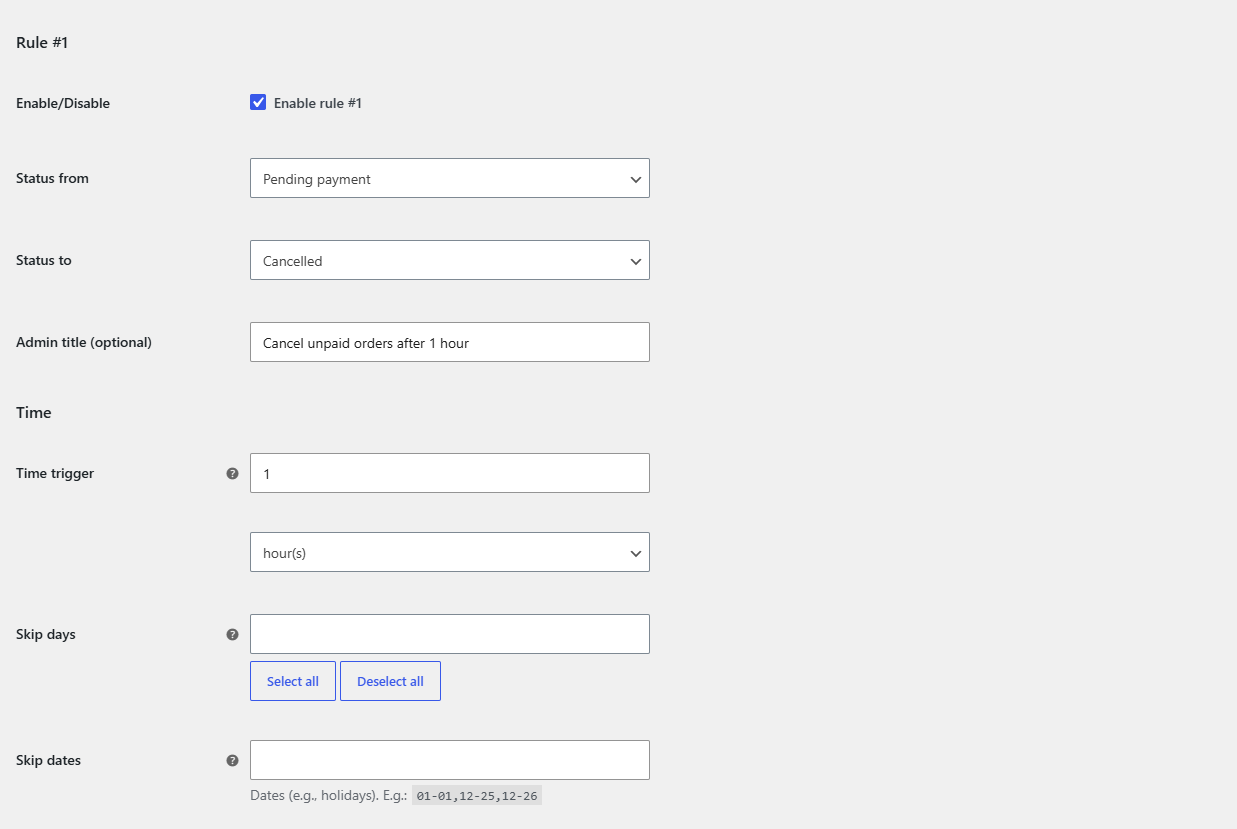
Build the rule #
- Enable rule #1: tick the
alg_wc_order_status_rules_enabled[1]checkbox. New rules are disabled by default, so this step is required. - Status from: choose Pending payment. The rule only looks at orders currently in this status. Default is Pending payment (
wc-pending). - Status to: choose Cancelled. This is the status the order is moved to. Default is Cancelled (
wc-cancelled). - Admin title (optional): add a label such as “Cancel unpaid after 1 hour” for your own reference. It appears in the order note when the rule runs.
- Time trigger: set
1and leave the unit on hour(s). The order changes one hour after it entered Pending payment. Set the value to0for an immediate change.
Rule options reference #
| Label | Option ID | Default |
|---|---|---|
| Enable rule | alg_wc_order_status_rules_enabled[1] |
No |
| Status from | alg_wc_order_status_rules_from[1] |
Pending payment |
| Status to | alg_wc_order_status_rules_to[1] |
Cancelled |
| Admin title (optional) | alg_wc_order_status_rules_title[1] |
(empty) |
| Time trigger | alg_wc_order_status_rules_time_trigger[1] |
1 |
| Time trigger unit | alg_wc_order_status_rules_time_trigger_unit[1] |
hour(s) |
Add conditions (optional) #
Below the timing options, each rule groups its conditions into sections. Every condition is ignored when left empty, so add only the ones you need:
- Time: Time trigger, unit, Skip days, Skip dates.
- Order Minimum/Maximum Amounts: minimum and maximum order amount (subtotal or total) and item quantity.
- Order Payment & Shipping: required payment gateways and shipping methods.
- Order Countries: billing and shipping countries.
- Order Products: products, categories, tags and stock status, each with a Require / Require all / Exclude / Exclude all action.
- Order Coupons: any coupon, specific coupons or no coupons.
- Order Users: billing emails, user roles, users and paying-customer status.
- Order Dates: created before and created after.
- Order Meta: a meta key, value, multiple values and an Equals / Not equals compare.
For the full option-by-option list, see the order status rule conditions reference.
Save and let it run #
Click Save changes. The rule now runs whenever an order’s status changes and on the schedule set in the Advanced section. To apply it to existing orders straight away, use Run all rules now on the Tools section.
Automate several transitions at once #
This example uses one rule. To cancel unpaid orders and complete paid orders and more, all at the same time, Order Status Rules Pro lets you add unlimited rules. Get Order Status Rules Pro.