Rules with a time delay need something to re-check orders in the background. Scheduled & Automatic Order Status Controller for WooCommerce can process rules with WordPress cron, with Action Scheduler, or through a URL you call from a real server cron job. All three options are available in the free version.
Where to configure it #
Go to WPFactory > Order Status Rules (also reachable at WooCommerce > Settings > Order Status Rules) and open the Advanced section, Periodical Processing Options.
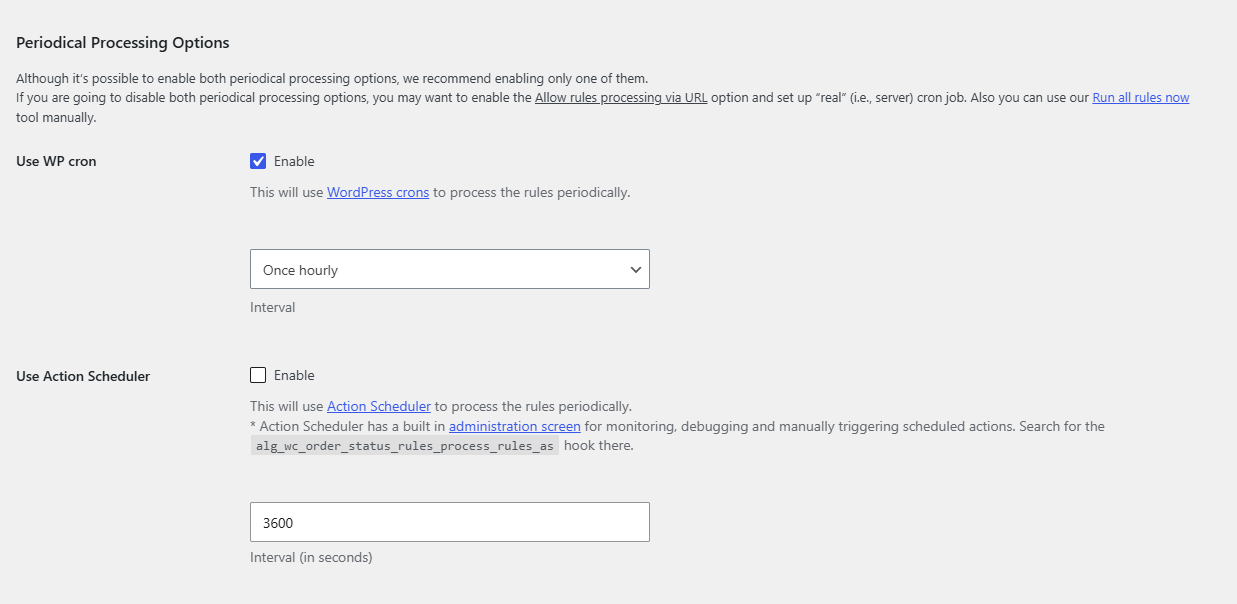
Option 1: WP Cron #
- Enable Use WP cron (
alg_wc_order_status_rules_use_wp_cron, on by default). - Set the Interval (
alg_wc_order_status_rules_wp_cron_schedule, default Once hourly). Choices range from once every minute to once weekly.
WP Cron only runs when your site receives a visit. On low-traffic stores the timing can drift, so a delayed rule may fire later than expected.
Option 2: Action Scheduler #
- Enable Use Action Scheduler (
alg_wc_order_status_rules_use_action_scheduler, default off). - Set the Interval (in seconds) (
alg_wc_order_status_rules_action_scheduler_interval, default3600, minimum60).
Action Scheduler is bundled with WooCommerce and is generally more reliable for busy stores. It has its own admin screen at WooCommerce > Status > Scheduled Actions, where you can watch the alg_wc_order_status_rules_process_rules_as action.
Recommendation: enable only one of the two periodical options. Running both is unnecessary. If you disable both, use the URL method below with a real server cron.
Option 3: server cron via URL #
To bypass WP Cron entirely, enable Allow rules processing via URL in the Advanced section, then have your server’s cron call the endpoint:
https://example.com/?alg_wc_order_status_rules_process_rulesThis runs all rules on each call. It is the most predictable option on stores that already use system cron.
If crons are disabled #
If your site defines DISABLE_WP_CRON, WordPress cron will not fire on its own. The Periodical Processing section shows a warning when this is the case. Use a real server cron with the URL method, or set up Action Scheduler through system cron.
Run it now #
To process orders immediately without waiting for the next scheduled run, use Run all rules now on the Tools section.
Scale up your automation #
Automatic processing drives your single free rule. To run several rules on the same schedule, Order Status Rules Pro removes the single-rule limit. See what Pro unlocks.