When you run several rules, you can copy one rule’s settings into another to save setup time, and reset any section back to defaults. Scheduled & Automatic Order Status Controller for WooCommerce puts both tools at the bottom of each settings section.
Where to find them #
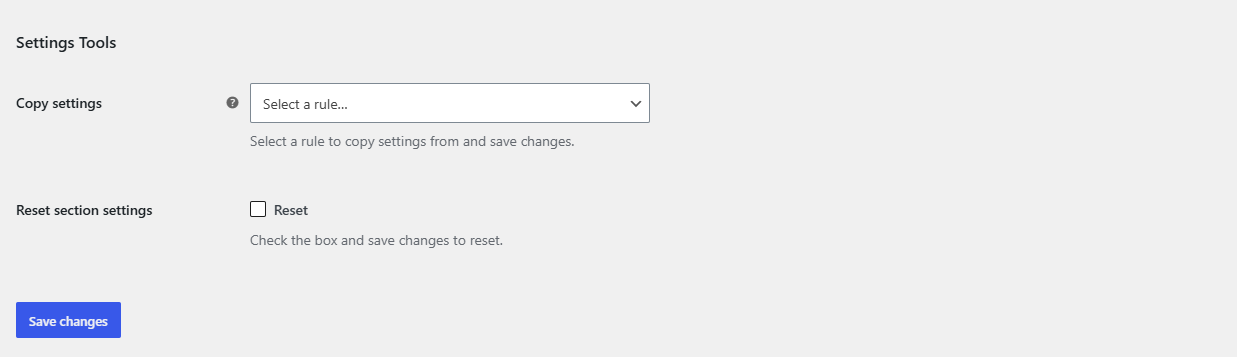
Go to WPFactory > Order Status Rules (also reachable at WooCommerce > Settings > Order Status Rules) and scroll to the Settings Tools group at the bottom of any section.
Copy settings from another rule #
The Copy settings tool appears on a Rule section only when more than one rule exists. With a single rule you see Reset section settings only. To add rules, raise Total rules in the General section (Pro).
- Open the rule you want to copy settings into.
- In Copy settings, select the rule to copy from.
- Click Save changes. The current rule’s settings are overwritten with the selected rule’s settings.
Warning: there is no undo. Copying replaces the current rule’s settings with the source rule’s settings. Confirm you have the right rule open before saving.
Reset a section to defaults #
Every section, including General, each Rule, Advanced, Tools, My Account and Extra, has a Reset section settings checkbox.
- Open the section you want to reset.
- Tick Reset section settings (
alg_wc_order_status_rules_<section>_reset). - Click Save changes. That section returns to its default values.
On a Rule section, reset clears only that rule. On the General section, it clears the general options. Other sections behave the same way, each reset is scoped to the section you are viewing.
Set up rules faster #
Copy settings is most useful when running several similar rules, which needs Pro. Order Status Rules Pro removes the single-rule limit. Get Order Status Rules Pro.