The time trigger sets how long an order waits in its current status before a rule changes it. With Scheduled & Automatic Order Status Controller for WooCommerce you can trigger a change immediately, after a delay, and even skip certain days or dates. Time triggers are available in the free version.
Where to set it #
Go to WPFactory > Order Status Rules (also reachable at WooCommerce > Settings > Order Status Rules), open a Rule section, and find the Time options.
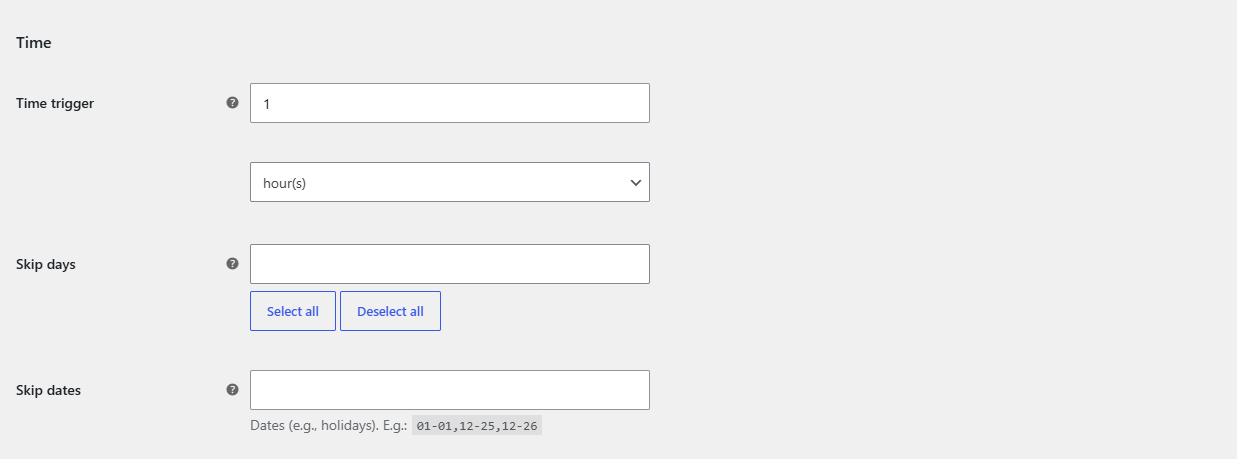
Time trigger and unit #
- Set Time trigger to a number. This is how long after the order entered “Status from” the change happens.
- Choose the unit: second(s), minute(s), hour(s), day(s) or week(s). The default is hour(s).
- Set the value to
0for an immediate status update the moment the order reaches “Status from”.
The delay is measured from the recorded status change in the order’s history. For example, a trigger of 2 day(s) on a Processing to Completed rule completes each order two days after it entered Processing.
Skip days #
Skip days excludes chosen weekdays from the countdown. Select any of Monday through Sunday. Days you select are not counted toward the trigger time, so the change lands on an active day instead. The setting is ignored if empty or if all seven days are selected.
Example: a 1-day trigger with Saturday and Sunday skipped means an order that enters its status on Friday changes on Monday, not over the weekend.
Skip dates #
Skip dates excludes specific calendar dates, such as holidays. Enter a comma-separated list in MM-DD format (two digits each), for example:
01-01,12-25,12-26Dates in the list are not counted toward the trigger time. The setting is ignored if empty.
Make sure the timing is checked #
For delayed triggers to fire, the plugin must re-check pending orders over time. Confirm a scheduler is enabled in the Advanced section (WP Cron or Action Scheduler). Immediate (0) triggers apply on the order status change itself. See the guide on automatic processing for details.
Schedule more transitions #
Time triggers work on your single free rule. To schedule several transitions at once, Order Status Rules Pro removes the single-rule limit. See what Pro unlocks.