Table of Contents
To let customers choose from a set list at checkout, use the Select, Multiselect, or Radio field type in Custom Checkout Fields for WooCommerce. All three share one options group, including an optional Select2 enhanced dropdown.
Set the type and options #
- Go to WPFactory > Custom Checkout Fields (also reachable at WooCommerce > Settings > Custom Checkout Fields).
- Open a field tab and set Type to Select, Multiselect, or Radio.
- Scroll to Select/Multiselect/Radio Type Options and enter your choices in Options, one per line.
Options reference #
| Label | Option ID | Default |
|---|---|---|
| Options (one per line) | alg_wc_ccf_type_select_options_1 |
Empty |
| Select/multiselect: “Select2” | alg_wc_ccf_type_select_select2_1 |
No |
| Select2: Min input | alg_wc_ccf_type_select_select2_min_input_1 |
0 |
| Select2: Max input | alg_wc_ccf_type_select_select2_max_input_1 |
0 |
| Select2: Text input by user | alg_wc_ccf_type_select_select2_is_tagging_1 |
No |
| Select2: Custom text | alg_wc_ccf_type_select_select2_is_i18n_1 |
No |
How the three types differ #
- Select is a single-choice dropdown. If you set a Placeholder, it becomes the empty first option.
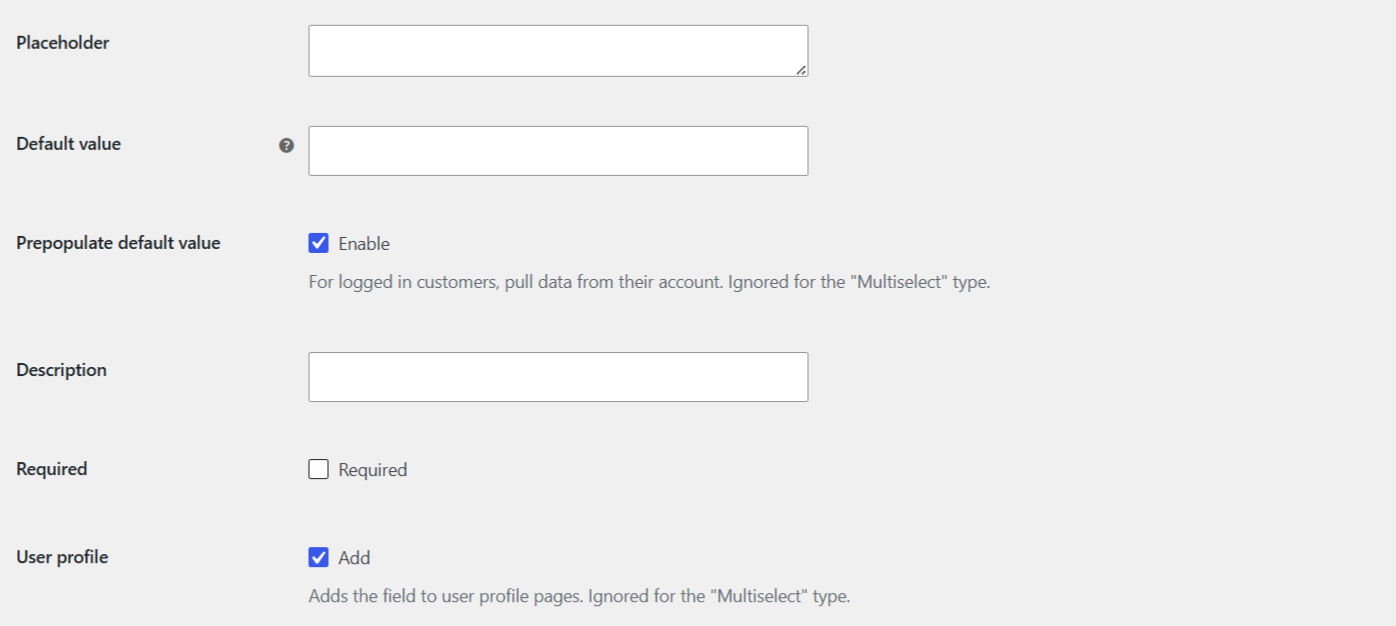
- Multiselect lets the customer pick several values, which are saved as a list. Prepopulate and User profile do not apply to Multiselect.
- Radio shows all choices as radio buttons, so every option is visible at once.
Using Select2 #
Enable Select2 to turn a Select or Multiselect into a searchable dropdown. Then, if you want:
- Min input and Max input set how many characters trigger and cap the search box (0 ignores the limit).
- Text input by user (tagging) lets customers add their own value that is not in your list.
- Custom text reveals text fields to translate the Select2 messages, such as “No matches found” and “Searching”.
Get more fields #
You can add one dropdown or radio field in the free version. Custom Checkout Fields for WooCommerce Pro lets you add up to 100 fields. See what Pro unlocks.