Table of Contents
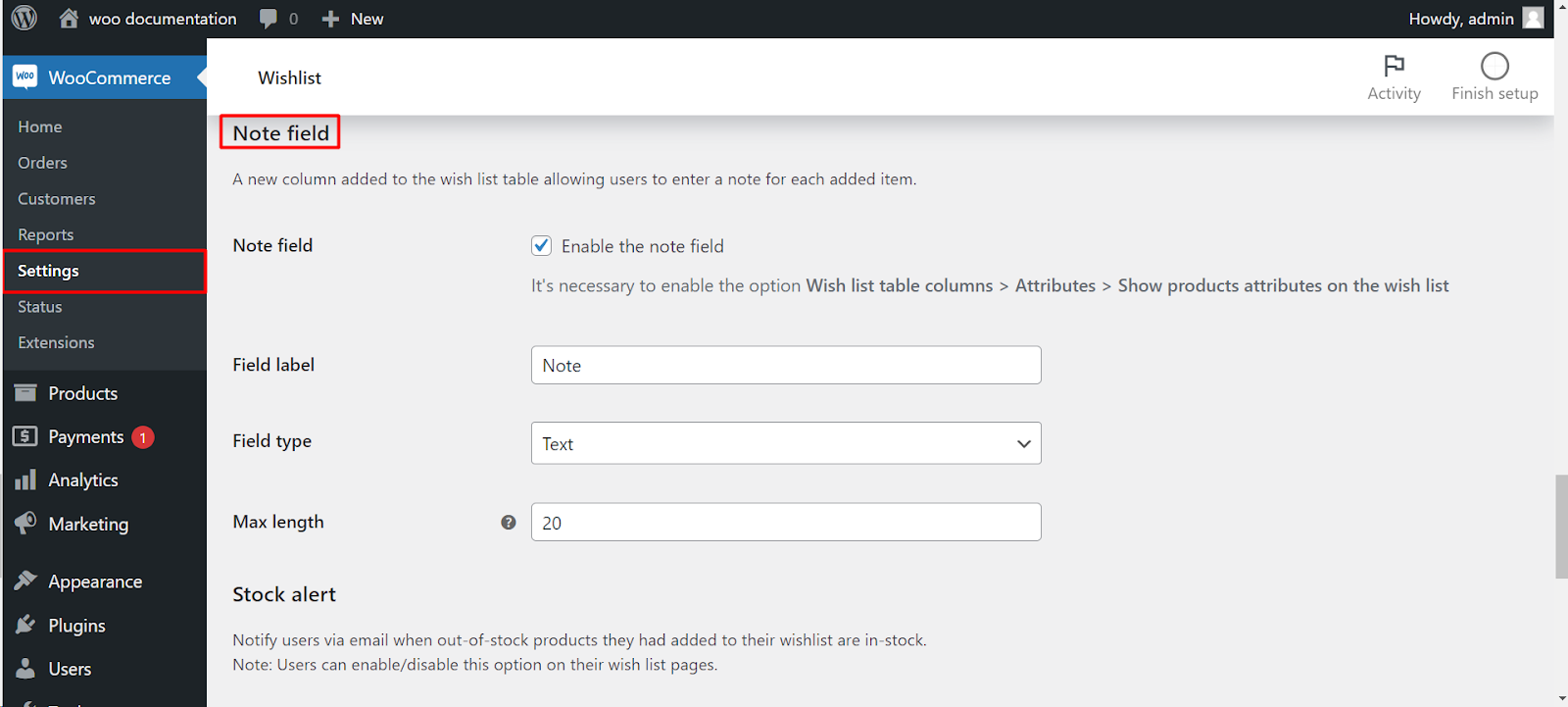
To add note fields in Wishlist for WooCommerce, go to WPFactory > Wishlist, open the Wishlist Page tab, enable Attributes in the Wishlist table columns section, then turn on Note field in the Note field section and save. Customers can then attach a short note to each wishlist item. This feature is free.
Before you start #
The note field appears only when the Attributes column is enabled. You will find it in the same settings group, described below.
Step-by-step setup #
- Go to WPFactory > Wishlist (also reachable at WooCommerce > Settings > Wishlist).
- Open the Wishlist Page tab.
- In the Wishlist table columns section, enable Attributes.
- Scroll to the Note field section and turn on Note field.
- Save changes.
Note field options #
| Label | Option ID | Default |
|---|---|---|
| Note field (enable) | alg_wc_wl_note_field |
No |
| Field label | alg_wc_wl_note_field_label |
Note |
| Field type (Text or TextArea) | alg_wc_wl_note_field_type |
Text |
| Max length | alg_wc_wl_note_field_max_length |
20 |
| Note email (include the note in emails) | alg_wc_wl_note_field_email_enable |
No |
Troubleshooting #
If the note column does not show, confirm the Attributes column is enabled under Wishlist Page > Wishlist table columns, then clear any page cache and reload the wishlist page.
Get more control #
This feature is free. Wishlist for WooCommerce Pro adds item sorting, wishlist import, and admin reporting on top. See what Pro unlocks.
