To limit what unverified customers can do, open WPFactory > Email Verification > Blocking in Customer Email Verification for WooCommerce. It groups every restriction, from blocked pages to checkout and order-email blocking. Note that Block checkout stops logged-in unverified users only; guests need the separate guest verification option.
Controlling user access with the Blocking sub-tab #
Where to find it #
Go to WPFactory > Email Verification (also reachable at WooCommerce > Settings > Email Verification) and open the Blocking sub-tab.
What each group does #
| Group | What it blocks | Free/Pro |
|---|---|---|
| Block content | Access to chosen pages, products, conditionals (shop, cart, checkout, and so on) and URLs for unverified users and guests. | Free (Blocked pages); Pro (Blocked products, Conditionals, Blocked URLs) |
| Block checkout | Placing an order for logged-in users who have not verified their email. Guests are not affected (see the note below). | Pro |
| Block adding products to cart | Guests from adding any product to the cart. | Pro |
| Block non-paying users | Account activation until the customer places a paid order. | Free (payment-triggered email is Pro) |
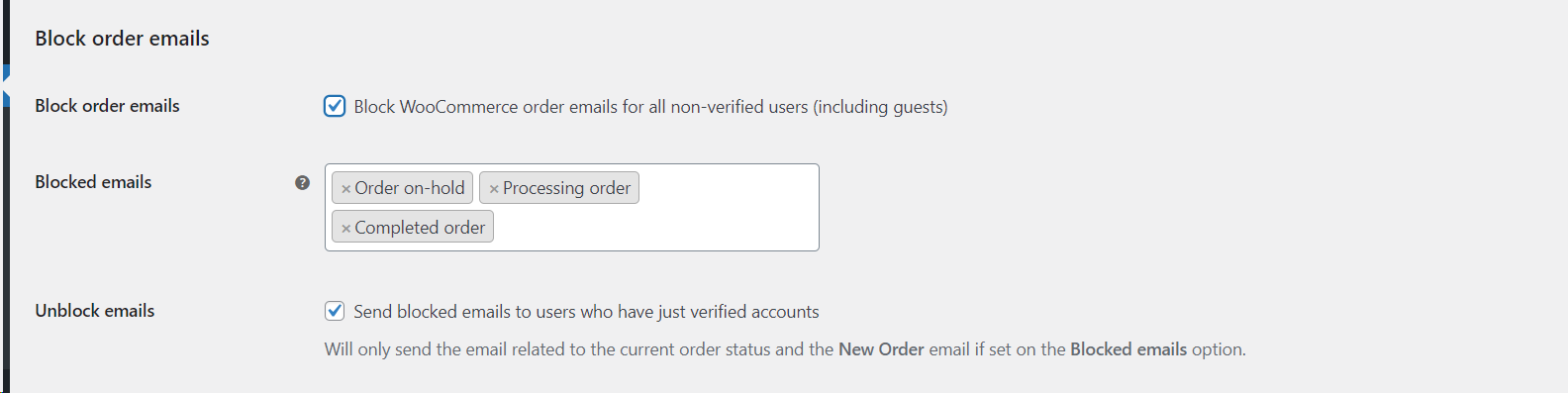
| Block order emails | WooCommerce order emails to unverified customers until they verify. | Pro |
| Block account verification by email | Verification for addresses or domains on a denylist. | Pro |
| Log out unverified users | Keeps unverified users logged out on the My Account page or on every page. | Free |
Notes that avoid common mistakes #
- Block checkout does not stop guests. The check is skipped for visitors who are not logged in, so a guest can still place an order. To verify guests, tick Guest users (Verify guest users) on the General sub-tab: it is free and works with the classic checkout only. To stop guest orders completely, untick Allow customers to place orders without an account in WooCommerce > Settings > Accounts & Privacy. Block adding products to cart (Pro) is another option, because it stops guests before they reach checkout.
- Block content options accept the
%myaccount_url%and%resend_verification_url%placeholders in their notices, so you can point a blocked visitor straight to verification. - Block non-paying users treats the Completed order status as paid. It does not offer a list of paid statuses to choose from; that choice belongs to the separate Paying customers auto-verify option on the General sub-tab.
- Role checking under Block non-paying users defaults to the Customer role.
Step-by-step #
- Open the Blocking sub-tab.
- Enable the group you need and fill in its notice text.
- Click Save changes.
Get more control #
Blocked pages and logout rules are free. Customer Email Verification for WooCommerce Pro unlocks the email denylist, blocked products, conditionals and URLs, checkout and add-to-cart blocking, and order-email blocking. See what Pro unlocks.
Need a hand? Our team answers every ticket on the Email Verification support forum.