WooCommerce Order Statuses: Complete Guide + How to Add Custom Statuses

Quick answer: WooCommerce moves each order through default statuses: Pending payment, Processing, On hold, Completed, Cancelled, Refunded and Failed. The payment gateway sets most of them automatically, and you change the rest by hand from the order screen. If your workflow needs extra steps such as Packed or Awaiting pickup, add custom order statuses and rules that change statuses automatically.
You open your WooCommerce dashboard and see orders sitting in “Processing” for three days. Is that normal? Should you act? And what exactly does it mean when an order flips to “On Hold” right after payment? If you’ve ever stared at your order list wondering what each label actually tells you.. or wishing you could add your own labels that match your real workflow.. this guide is for you.
In this complete WooCommerce order status guide, you’ll get a full reference of every default status, a clear explanation of how the order flow works, step-by-step instructions for adding custom statuses, and a walkthrough of automating status changes so your store runs on its own.
No fluff.. just everything a store owner needs in one place.
Quick Answer: WooCommerce Order Statuses Explained
WooCommerce uses order statuses to track every order from placement to fulfilment. There are 8 default statuses, and you can add unlimited custom ones using a plugin.
- Pending Payment → Order placed, no payment received yet
- Processing → Payment confirmed, order being prepared
- On Hold → Awaiting manual payment verification
- Completed → Fulfilled and closed
- Cancelled → Cancelled by customer or admin
- Refunded → Money returned to customer
- Failed → Payment attempt failed
- Trash → Deleted from the order list
Need statuses like “In Production” or “Ready for Pickup”? Keep reading.. we cover how to add them in minutes, with or without code.
How WooCommerce Order Status Works: The Full Flow
Every order in WooCommerce moves through a series of statuses.. think of it as a pipeline. Understanding that pipeline helps you spot stuck orders, reduce support tickets, and build a more reliable fulfilment process.
Here’s how the flow looks from the moment a customer clicks “Place Order”:
The main path is Pending → Processing → Completed. The other statuses branch off when something goes wrong or requires intervention. Virtual and downloadable products typically skip Processing and jump straight to Completed once payment is confirmed.
As part of a smoother order fulfilment process, you can also automate the creation of PDF invoices and packing slips, making it easier to prepare and manage orders as they move through each status.
WooCommerce Order Status List: Complete Reference
Below is the full WooCommerce order status list.. every default status, what triggers it, what the customer sees, and what happens to inventory. Use this as your go-to reference.
| Status | What It Means | What Triggers It | Customer Sees | Stock Impact |
|---|---|---|---|---|
| Pending Payment | Order received, payment not yet collected | Customer completes checkout but payment hasn’t processed (e.g. bank transfer, cheque) | “Your order is pending payment” | Not reduced |
| Processing | Payment confirmed, order being prepared for shipment | Successful payment via card, PayPal, or COD (Cash on Delivery) | “Your order is being processed” | Reduced immediately |
| On Hold | Awaiting manual payment confirmation or admin review | Bank transfer orders, or admin manually puts order on hold | “Your order is on hold” | Reduced (reserved) |
| Completed | Order fully fulfilled, no further action needed | Admin marks order complete, or auto-complete rules trigger | “Your order is complete” | Already reduced |
| Cancelled | Order cancelled, no further action required | Customer or admin cancels; also auto-triggered when pending orders expire | “Your order has been cancelled” | Not restored automatically |
| Refunded | Full or partial refund issued to customer | Admin processes refund from the order screen | “Your order has been refunded” | Not restored automatically |
| Failed | Payment attempt failed or was declined | Payment gateway returns a failure response | “Your payment failed” | Not reduced |
| Trash | Order deleted and moved to trash | Admin manually deletes the order | Not visible to customer | No change |
Important note about stock:
WooCommerce does not automatically restore stock when an order is cancelled or refunded. You need to do this manually from the order screen, or use a plugin that handles it automatically.
How to Add a Custom Order Status in WooCommerce?
The default WooCommerce order status list covers the basics.. but most real stores have steps in between that these labels can’t capture.
A furniture store might need “In Production.” A local bakery might need “Baking in Progress.” A repair shop might need “Parts Ordered” and “Ready for Collection.”
When your team is forced to use “Processing” for everything that isn’t shipped yet, clarity breaks down. Your staff doesn’t know what needs action. Customers get generic updates. And you lose visibility into exactly where each order stands.
There are two ways to add a custom order status in WooCommerce: using PHP code, or using a plugin. Here’s both.
Method 1: Add Custom Order Status with PHP Code (Developer Method)
If you’re comfortable editing code, you can register a custom status by adding a function to your child theme’s functions.php file. This is a no-plugin approach, but it requires maintenance every time WooCommerce updates.
Step 1: Open your child theme’s functions.php file (via Appearance → Theme File Editor, or via FTP).
Step 2: Add the following code to register your custom status:
// Register custom order status
function register_awaiting_pickup_order_status() {
    register_post_status( 'wc-awaiting-pickup', array(
        'label'                     => 'Awaiting Pickup',
        'public'                    => true,
        'show_in_admin_all_list'    => true,
        'show_in_admin_status_list' => true,
        'label_count'               => _n_noop( 'Awaiting Pickup (%s)', 'Awaiting Pickup (%s)' )
    ) );
}
add_action( 'init', 'register_awaiting_pickup_order_status' );

// Add to WooCommerce order status list
function add_awaiting_pickup_to_order_statuses( $order_statuses ) {
    $order_statuses['wc-awaiting-pickup'] = 'Awaiting Pickup';
    return $order_statuses;
}
add_filter( 'wc_order_statuses', 'add_awaiting_pickup_to_order_statuses' );
Step 3: Save the file. Your new status will now appear in the order status dropdown inside WooCommerce → Orders.
Limitations of this method:
You can’t trigger email notifications, assign colors or icons, or reorder statuses without writing additional code. Every new status requires a new function. If WooCommerce changes its internals, your code may break silently. Shipping logic runs into the same wall, which is why WooCommerce conditional shipping rules are usually handled by a plugin.
Method 2: Add Custom Order Status with a Plugin (Recommended)
For most store owners, the plugin approach is faster, safer, and far more flexible. Additional Custom Order Status for WooCommerce by WPFactory lets you create unlimited custom statuses directly from your WordPress dashboard.. no code required.
Setup guide: Creating Custom Order Statuses in WooCommerce walks through the settings step by step.
Step 1: Install the plugin
Go to WPFactory plugin page, download it, then upload the ZIP file. Click Install Now, then Activate.
Step 2: Navigate to the Order Status settings
After activation, go to WooCommerce → Settings → Order Status. This is where all your custom statuses are managed.

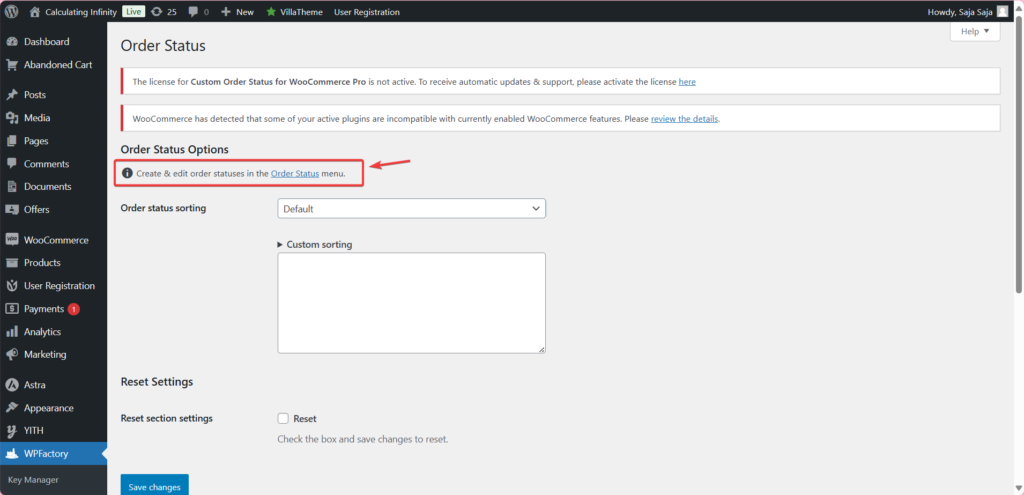
Step 3: Create a new status
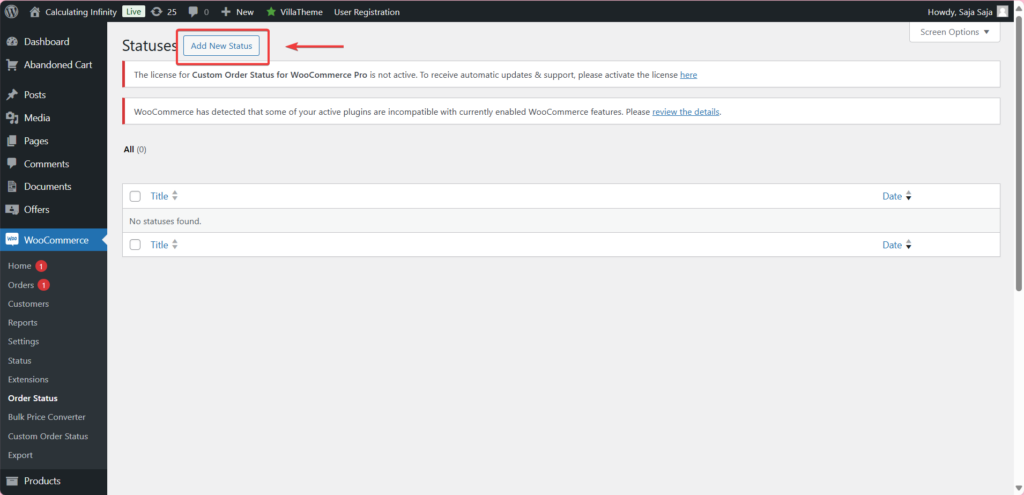
Click Add New Status. Fill in the following fields:
- Title: The name of your status, e.g. “Awaiting Pickup” or “In Production”
- Slug: Auto-generated from the title (e.g.
wc-awaiting-pickup) you cannot edit this after saving - Color & Icon: Choose a color and icon so the status is easy to spot in your order list
- Is order paid? Set to Yes if this status should count as a paid order
- Is order editable? Control whether admins can still edit orders at this stage
- Download permissions: Enable if customers should be able to download digital products at this status
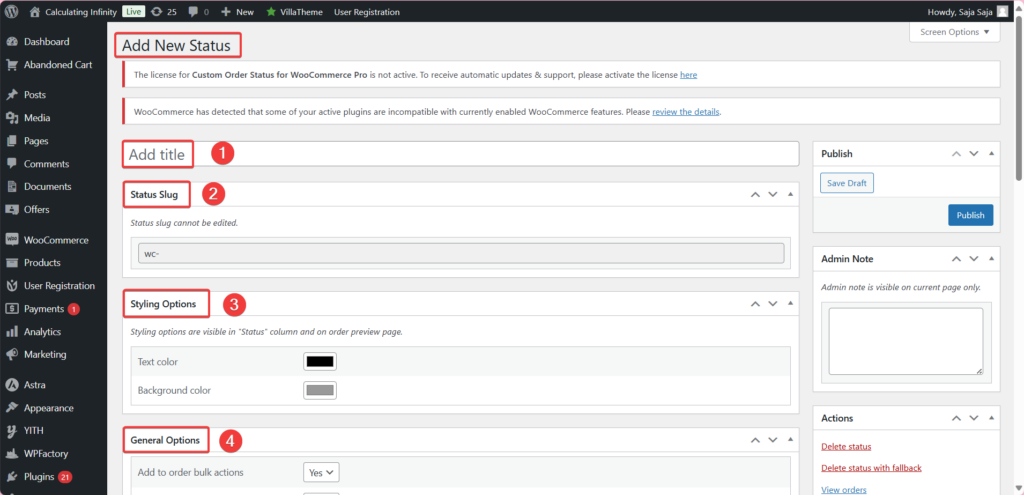
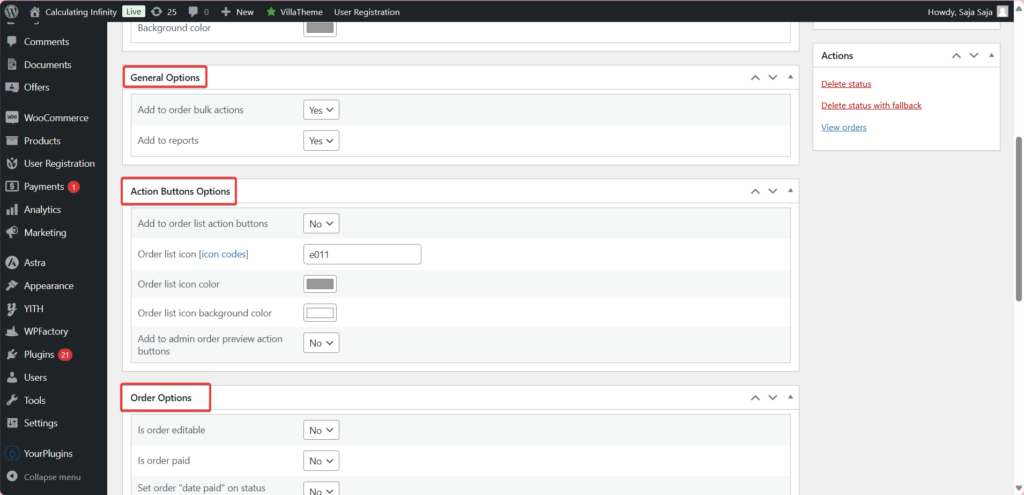
Step 4: Save and assign
Click Save. Your new status now appears in the order status dropdown on every order. You can assign it manually, or pair it with the automation plugin (covered below) to assign it automatically based on rules.
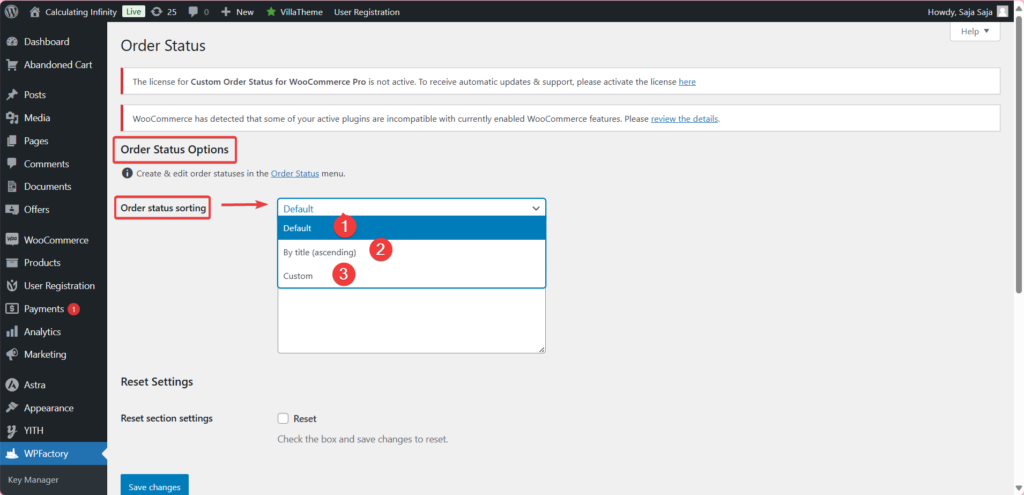
Step 5: Set the sort order
In the Order Status settings, use the Order Status Sorting option to control where your custom statuses appear in the dropdown.. either alphabetically, by title, or in a custom order you define.
Stop forcing every order into “Processing”
The Additional Custom Order Status for WooCommerce plugin lets you create statuses that match how your store actually works.. with custom colors, icons, email triggers, and no coding required. There’s a free version to get started.
Plugin vs PHP Code: Which Method Should You Use?
Not sure which approach fits your situation? Here’s a direct comparison to help you decide.
| Factor | PHP Code Method | Plugin Method (WPFactory) |
|---|---|---|
| Setup time | 30-60 minutes (per status) | Under 5 minutes |
| Coding required | Yes – PHP knowledge needed | No – fully visual interface |
| Custom colors & icons | Requires extra CSS code | Built-in, pick from dashboard |
| Email notifications | Requires additional hooks | Supported natively (Pro) |
| Reorder statuses | Not possible without more code | Drag-and-drop reordering |
| WooCommerce update risk | Code may break silently | Plugin maintained & updated |
| Number of statuses | Unlimited (but more code per status) | Unlimited from the dashboard |
| Cost | Free (but developer time costs money) | Free version available; Pro for advanced features |
| Best for | Developers who need lightweight, one-off customisations | Store owners who want a reliable, scalable solution |
For the vast majority of WooCommerce store owners, the plugin method wins on every practical dimension.
The code method makes sense only if you have a developer on staff, want zero plugin overhead, and are adding a single simple status that never needs email triggers.
How to Change WooCommerce Order Status Automatically?
Manually updating order statuses is fine when you have ten orders a week. At fifty orders a day, it becomes a bottleneck.
Orders get missed. Customers don’t get timely updates. And your team wastes time on clicks that a rule could handle in zero seconds.
WooCommerce does have one built-in automation: virtual and downloadable products auto-complete after payment.
But for everything else.. auto-cancelling unpaid orders, auto-completing after shipment, moving orders based on payment method.. you need automation rules.
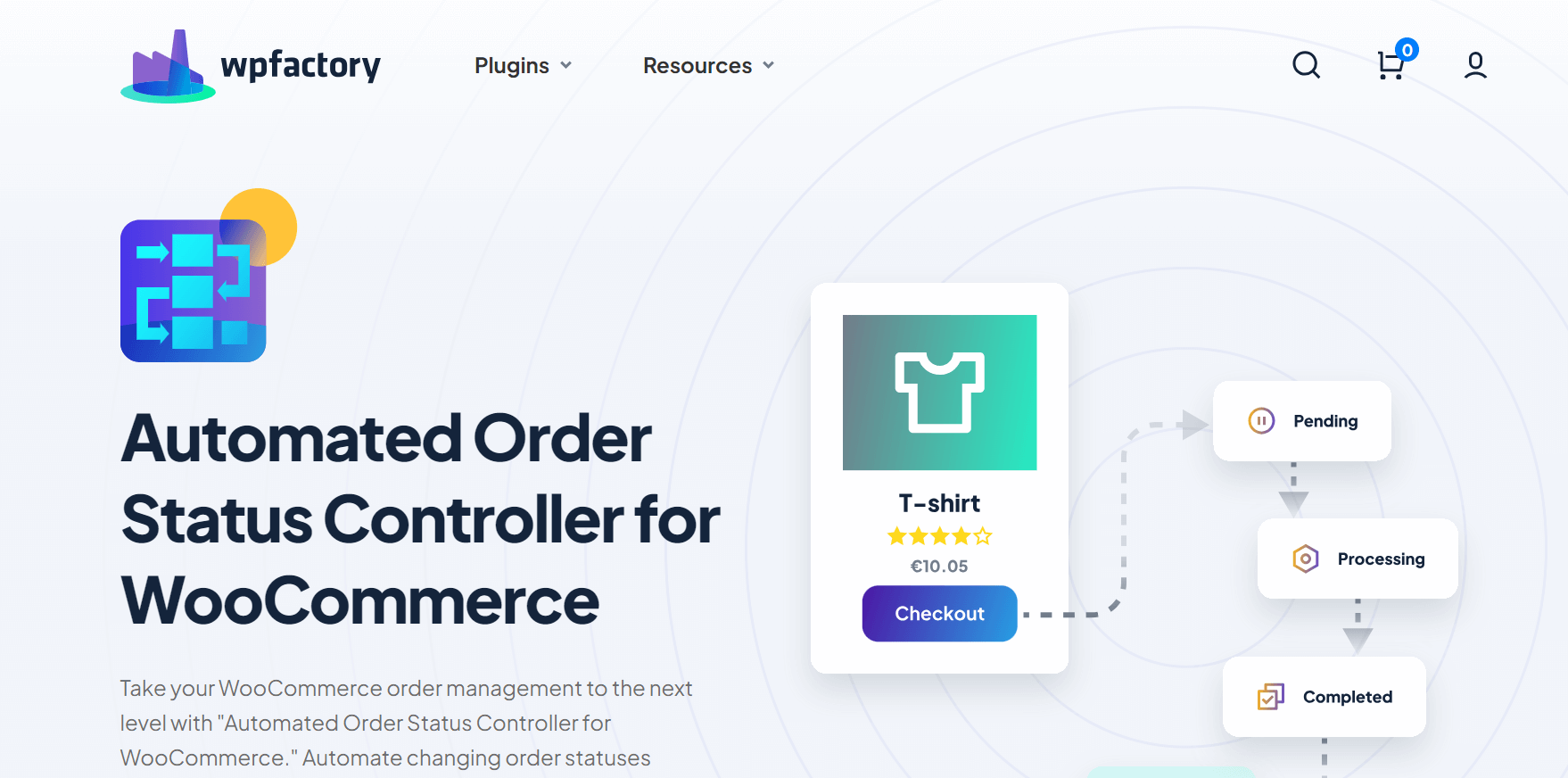
The WooCommerce Scheduled & Automatic Order Status Controller by WPFactory is built exactly for this.
It lets you set conditions and trigger status changes automatically.. based on time, payment method, product type, user role, stock level, coupon used, and more.
Common Automation Scenarios
1. Auto-cancel unpaid orders after 24 hours
Set a rule: if an order has been in Pending Payment for 24 hours and no payment has been received, automatically change status to Cancelled.
This frees up reserved stock and keeps your order list clean without manual intervention.
2. Auto-complete orders for digital products
WooCommerce auto-completes virtual/downloadable orders by default, but if you sell a mix of physical and digital, or use a custom fulfilment process, you can set a rule to auto-complete specific product categories immediately after payment confirmation.
3. Move orders from On Hold to Processing after manual payment confirmation
For stores that accept bank transfers, orders land in On Hold waiting for payment verification. Once your team confirms payment, a rule can automatically shift the order to Processing.. or you can trigger it via a time-based rule after a set number of hours.
4. Auto-complete after X days in Processing
If your fulfilment team marks orders as shipped in an external system but forgets to update WooCommerce, set a rule: if an order has been in Processing for 7 days, automatically move it to Completed. This keeps your order list accurate without chasing your team.
5. Trigger custom statuses based on shipping method
If a customer selects local pickup at checkout, automatically assign the status “Ready for Pickup” instead of Processing. Combine this with a custom email trigger so the customer gets notified when their order is ready.. without any manual steps from your team.
Order Status Decision Tool
Not sure which status to assign to a specific situation? Use this quick tool to get a recommendation.
Which order status should I use?
Real-World Example: Custom Order Status Flow for a Furniture Store
To see how this works in practice, here’s how a furniture store might map its entire fulfilment process using a combination of WooCommerce’s default statuses and custom statuses added via the WPFactory plugin.
| Stage | Status Used | Type | Email Triggered? |
|---|---|---|---|
| Customer places order and pays | Processing | Default | Yes – order confirmation |
| Workshop begins building the piece | In Production | Custom | Yes – “Your order is being made” |
| Quality check before dispatch | Quality Check | Custom | No (internal only) |
| Order handed to delivery team | Out for Delivery | Custom | Yes – “Your order is on its way” |
| Delivered and confirmed | Completed | Default | Yes – order complete |
With this setup, every member of the team knows exactly where an order is at a glance.
Customers get timely, relevant updates at each meaningful stage.. not just a generic “Processing” email that doesn’t tell them anything useful. And the whole thing runs automatically once the rules are configured.
Related Resources from WPFactory
- How to Add Custom Order Status in WooCommerce – step-by-step walkthrough with code and plugin methods
- How to Change WooCommerce Order Status – manual, bulk, and automatic methods explained
- How to Get Order Status in WooCommerce – finding and reading order status in your dashboard
- How to Customize Your Order Status for WooCommerce – full plugin setup guide
- Additional Custom Order Status Plugin – free and Pro versions
- WooCommerce Scheduled & Automatic Order Status Controller – automation rules plugin
Frequently Asked Questions: WooCommerce Order Status
1. What is the difference between “Pending Payment” and “On Hold” in WooCommerce?
Pending Payment means the order has been placed but no payment action has occurred yet.. stock is not reduced.
On Hold means the order is waiting for manual payment verification (common with bank transfers), and stock is reduced to reserve the items. Both require action before the order can proceed to Processing.
2. Can I add custom order statuses in WooCommerce without coding?
Yes. The Additional Custom Order Status for WooCommerce plugin by WPFactory lets you create unlimited custom statuses from your WordPress dashboard with no PHP knowledge required. You can add colors, icons, email triggers, and control sort order.. all from the settings screen.
3. How do I automatically change order status in WooCommerce?
WooCommerce only auto-completes orders for virtual/downloadable products by default. For everything else.. auto-cancelling unpaid orders, auto-completing after a time delay, or triggering status changes based on payment method or product type.. you need the WooCommerce Scheduled & Automatic Order Status Controller plugin.
It lets you build rules with conditions and apply them automatically across your order flow.
4. Does cancelling a WooCommerce order restore stock?
Not automatically. When an order is cancelled or refunded, WooCommerce does not restore inventory by default. You need to manually restore stock from the order screen, or use a plugin that handles automatic stock restoration on cancellation.
5. What happens to an order stuck in “Processing”?
An order in Processing means payment has been confirmed but the order hasn’t been marked as fulfilled yet. It won’t move on its own.. you need to either manually change it to Completed, or set up an automation rule that moves it after a defined number of days.
If you’re seeing many orders stuck in Processing, it usually signals a gap in your fulfilment tracking process.
6. How many custom order statuses can I add in WooCommerce?
With the PHP method, there’s no hard limit.. but each status requires its own code block, which gets difficult to manage. With the WPFactory plugin, you can add unlimited custom statuses from the dashboard with no practical ceiling.
7. Can I send email notifications for custom WooCommerce order statuses?
Yes, but only with the Pro version of the Additional Custom Order Status plugin.
The free version lets you create and assign custom statuses, the Pro version adds email notification triggers so customers automatically receive an email whenever an order moves to one of your custom statuses.
Ready to take control of your order workflow?
WPFactory’s order status plugins give you everything you need.. custom statuses with colors and icons, automated status transitions based on smart rules, and email notifications at every stage. Start with the free version and upgrade when you need more.