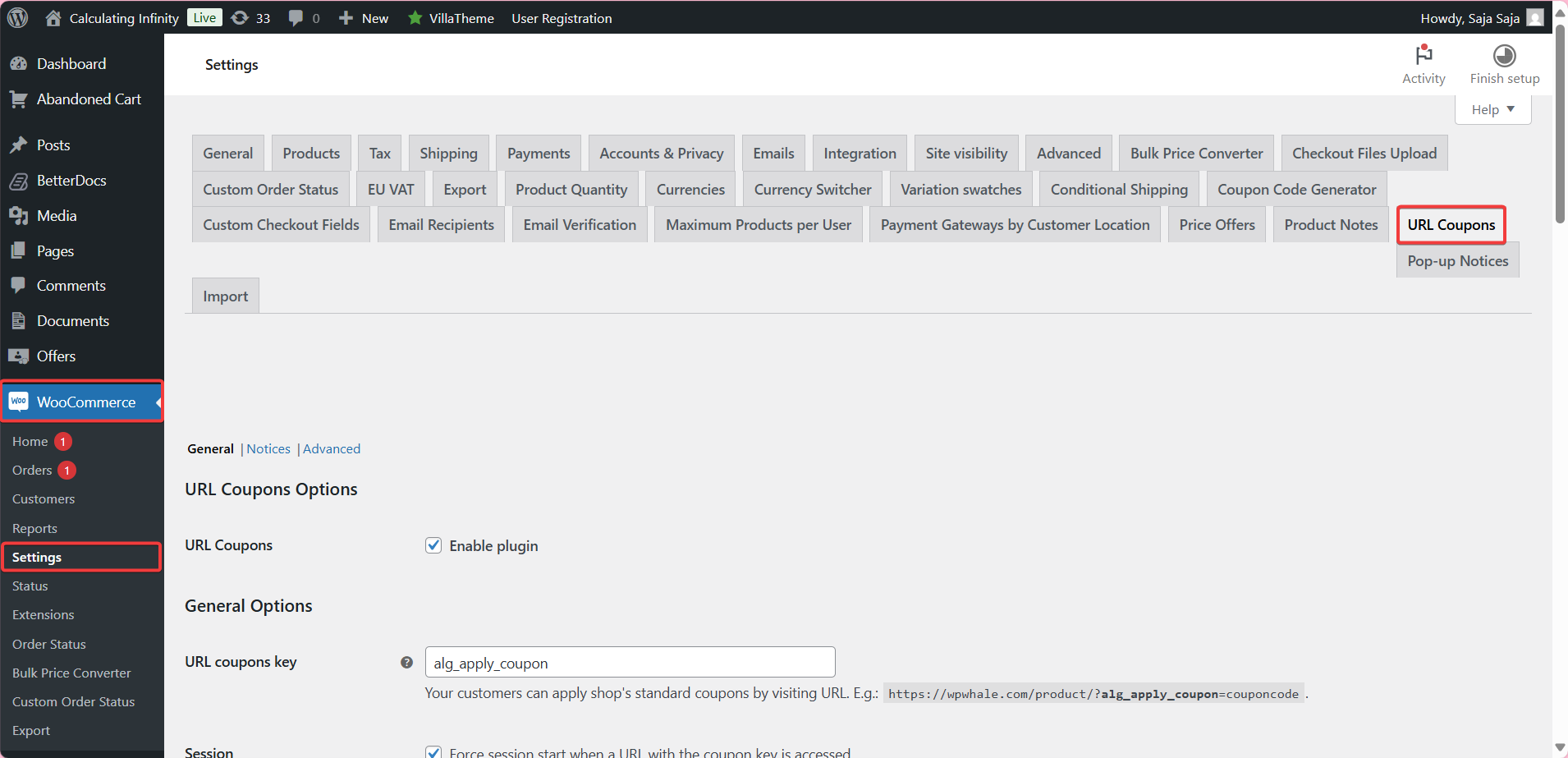
To apply a WooCommerce coupon with a URL, install Coupons & Add to Cart by URL Links for WooCommerce and share a link such as https://yourstore.com/?alg_apply_coupon=SAVE10. The coupon is applied when the customer opens it. Settings are at WPFactory > Coupons by URL (also reachable at WooCommerce > Settings > URL Coupons).
What it does #
URL Coupons lets customers apply your existing WooCommerce coupons by visiting a link, so there is no code to copy or retype. You can also hide the standard coupon box, delay a coupon until a product is in the cart, and, in Pro, add the coupon’s products to the cart, redirect after the coupon is applied and show custom notices.
Install and activate #
- Free: go to Plugins > Add New, search for Coupons & Add to Cart by URL Links for WooCommerce, then install and activate it.
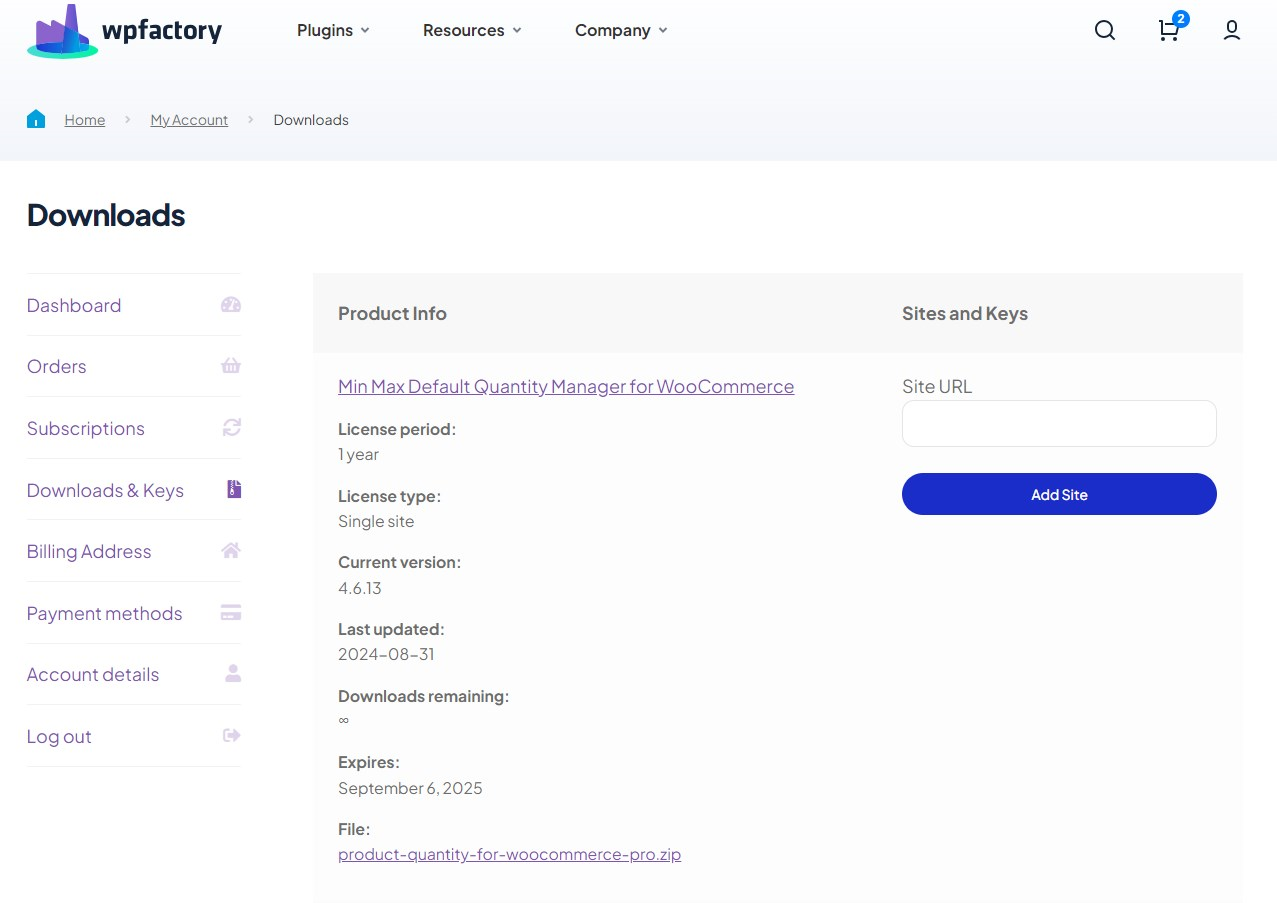
- Pro: download Coupons & Add to Cart by URL Links for WooCommerce Pro from your WPFactory account, upload the ZIP at Plugins > Add New > Upload Plugin and activate it.
For more detail, see installing the plugin.
First setup #
- Create a normal coupon in Marketing > Coupons (or use an existing one), for example
SAVE10. - Go to WPFactory > Coupons by URL. On the General section, confirm Enable plugin is ticked (on by default).
- Check URL coupons key. The default is
alg_apply_coupon. You can change it to any word, and your links will use that word instead. - Leave Session > Force session start when a URL with the coupon key is accessed ticked (on by default). It lets guests who are not logged in receive the coupon.
- Save, then build your link by adding
?alg_apply_coupon=SAVE10to any page on your store, for examplehttps://yourstore.com/shop/?alg_apply_coupon=SAVE10. - Open the link in a private browser window, add a product and check that the discount shows in the cart.
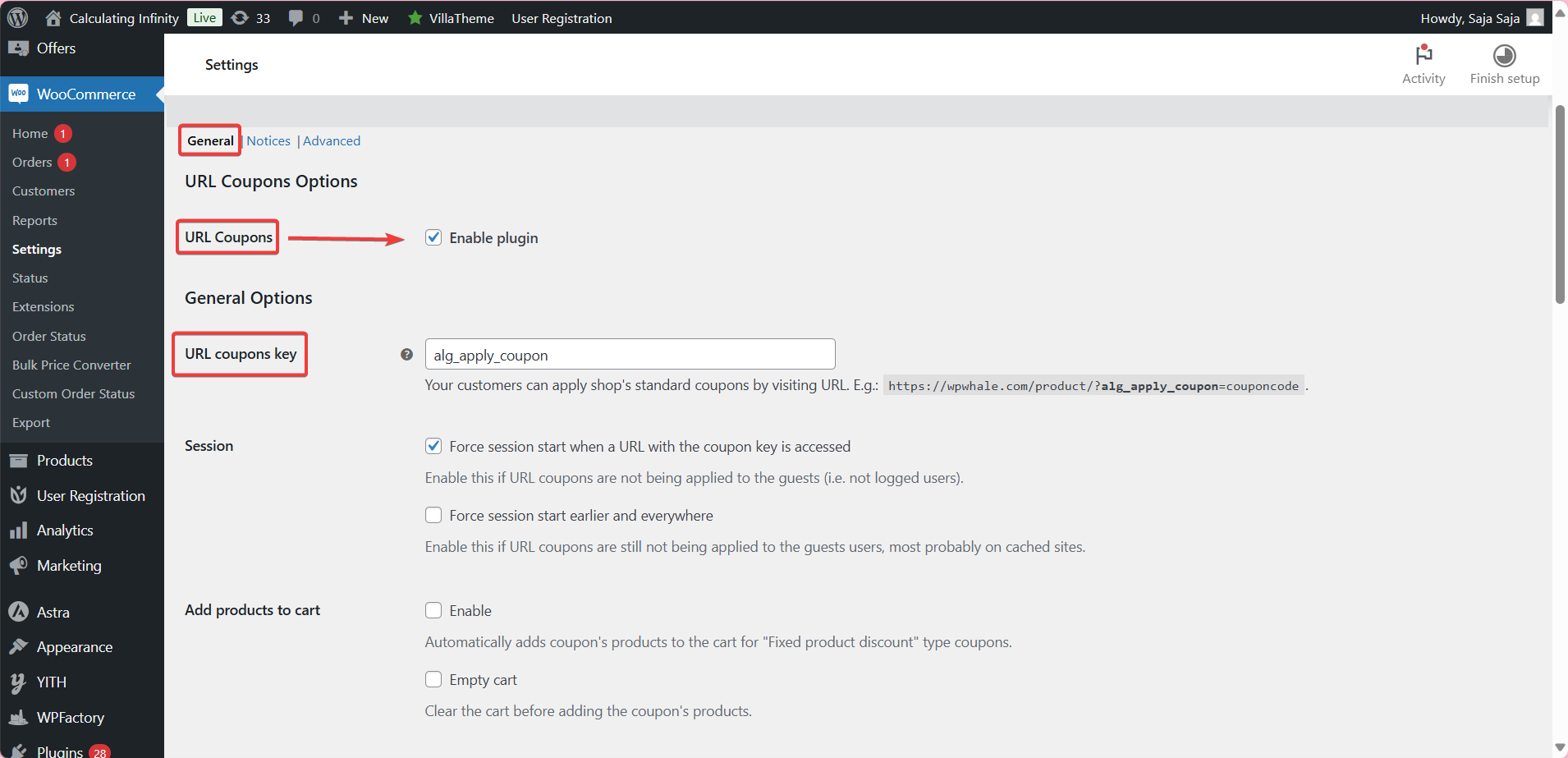
Every option on this screen is explained in URL Coupons settings explained and listed with its option ID in the settings reference.
Main features #
Delay coupon (Free) #
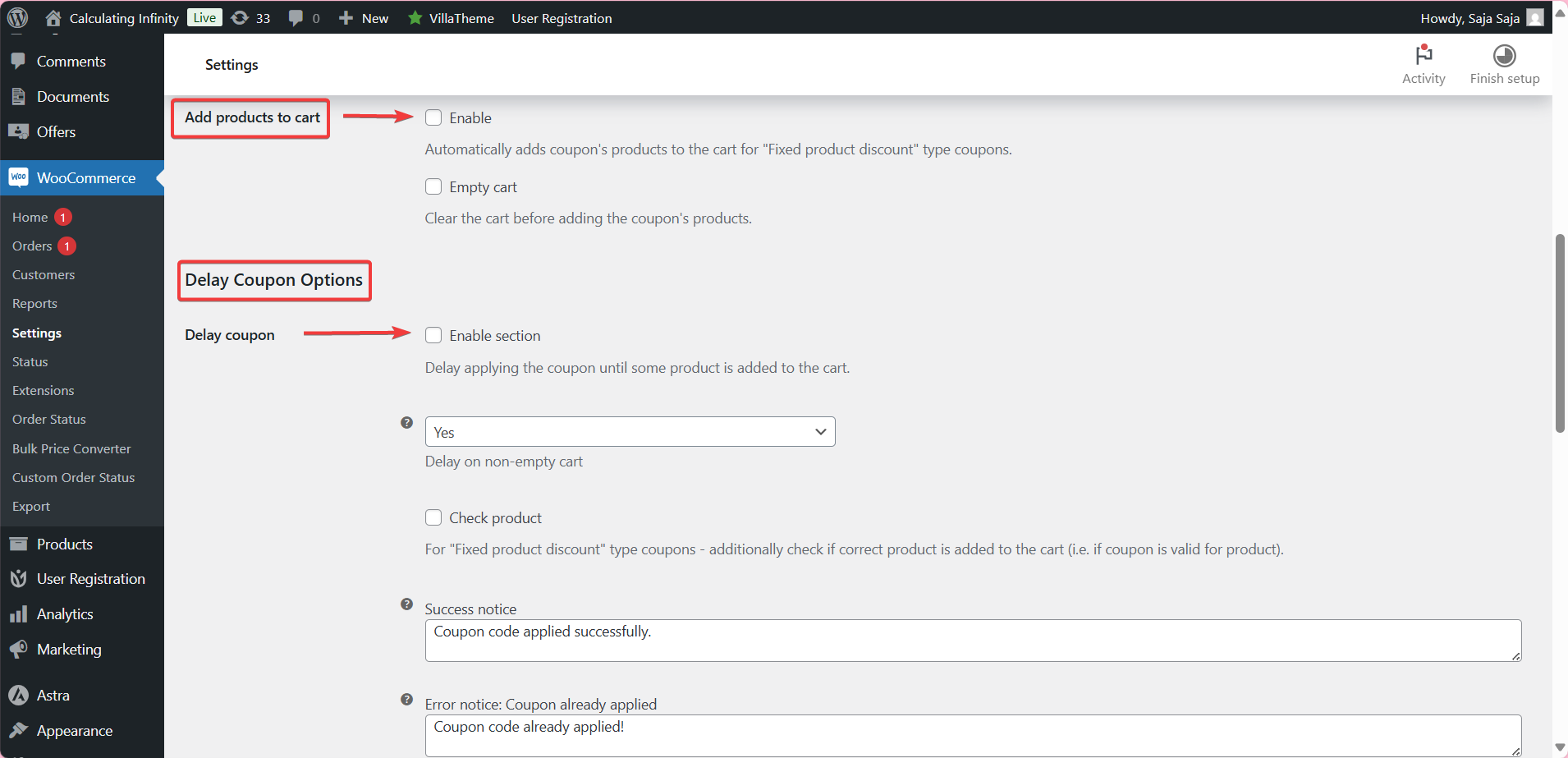
In Delay Coupon Options, turn on Delay coupon to hold the coupon until a product is added to the cart. Check product also confirms the right product is in the cart for “Fixed product discount” coupons, and you can edit the success and error notices. See how to delay a URL coupon until a product is added.
Hide the coupon field (Free) #
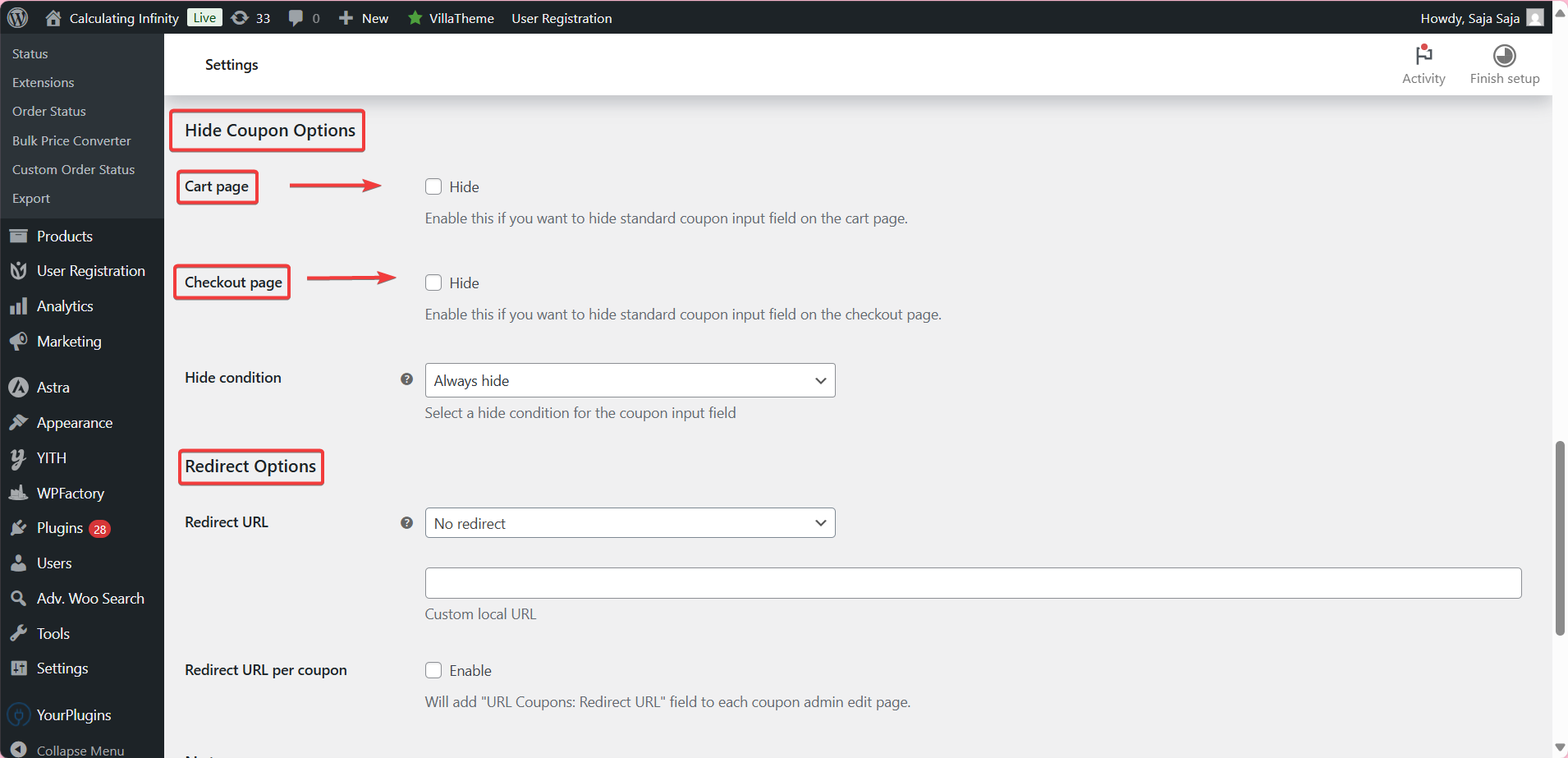
In Hide Coupon Options, hide the standard coupon box on the Cart page, the Checkout page or both. Hide condition is Always hide by default, or choose Hide if coupon applied via URL. See hide and redirect coupons options.
Add coupon products to the cart (Pro) #
Add products to cart adds the coupon’s products to the cart for “Fixed product discount” coupons, and Empty cart clears the cart first. See how to add coupon products to the cart by URL.
Redirect after applying (Pro) #
Redirect URL keeps the customer on the page (No redirect, the default) or sends them to the cart, the checkout or a custom local URL. Redirect URL per coupon adds a redirect field to each coupon. See how to set a redirect URL per coupon.
Notices #
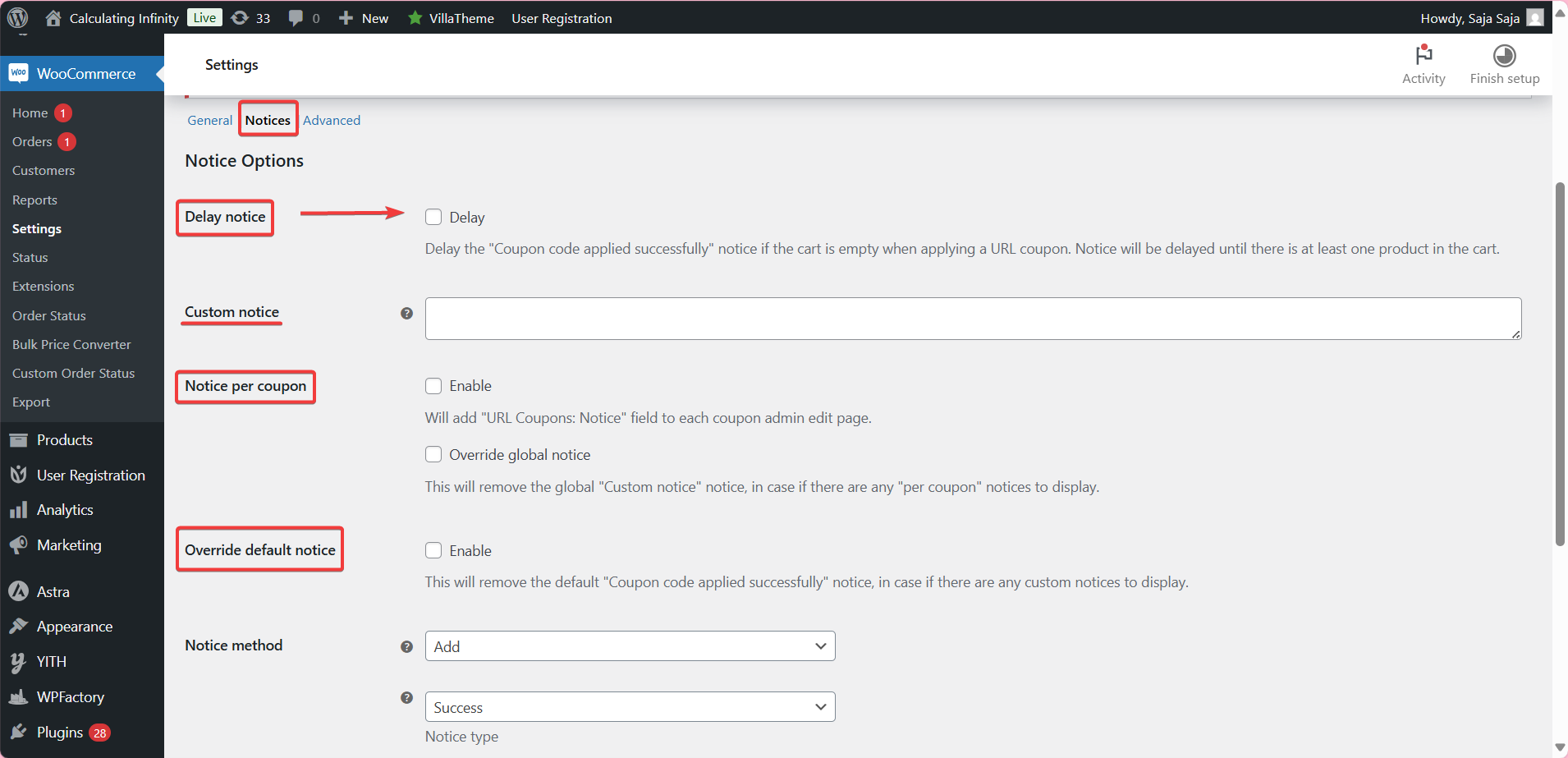
On the Notices section, Delay notice (Free) holds the success message until the cart has a product. Custom notice, Notice per coupon, Override global notice and Override default notice are Pro. See notice options and how to show a custom notice per coupon.
Advanced options (Free) #
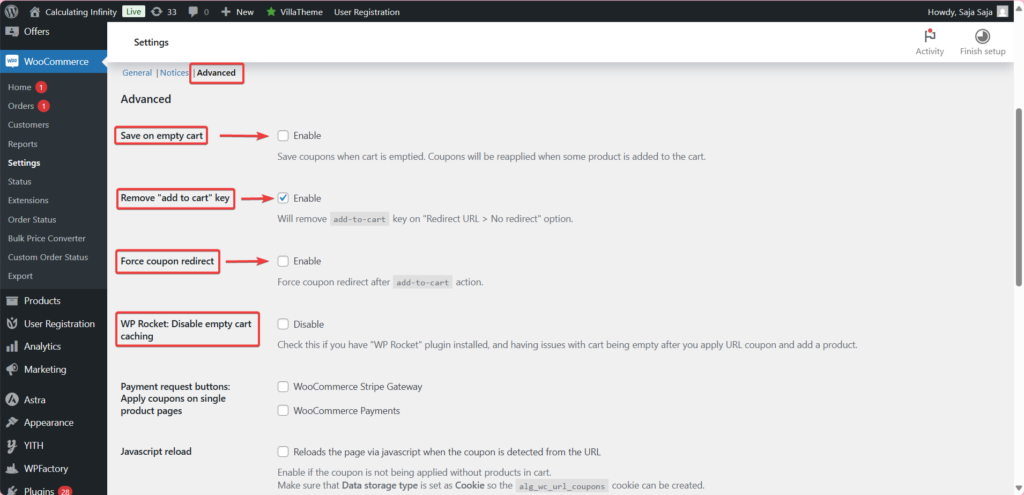
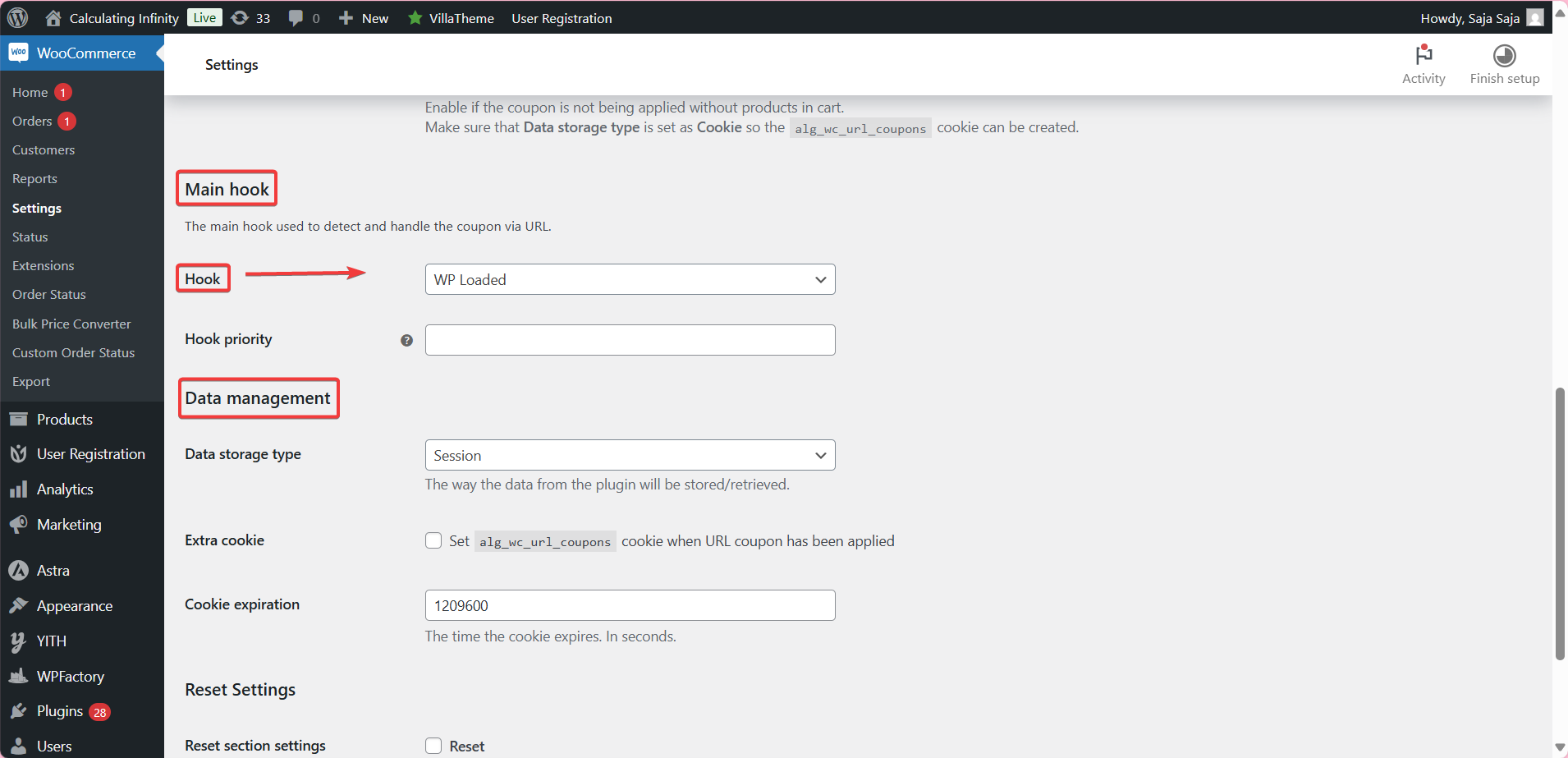
The Advanced section covers Save on empty cart, Remove “add to cart” key, Force coupon redirect, a WP Rocket empty cart caching option, payment request buttons for WooCommerce Stripe Gateway and WooCommerce Payments, Javascript reload, the main Hook (wp_loaded by default) and the Data storage type (session by default). See URL Coupons advanced options.
Shortcodes #
[alg_wc_url_coupons_translate] (Free) shows text per language. [alg_wc_url_coupons_print_notices] (Pro) prints WooCommerce notices on pages that do not show them, and note that it prints all WooCommerce notices, not only coupon notices. See the shortcodes guide and how to translate URL coupon text.
Free vs Pro #
| Feature | Free | Pro |
|---|---|---|
| Apply coupons by URL, custom URL key, session option | Yes | Yes |
| Delay coupon, hide coupon field, delay notice | Yes | Yes |
| All Advanced options | Yes | Yes |
[alg_wc_url_coupons_translate] |
Yes | Yes |
| Add products to cart, Empty cart | No | Yes |
| Redirect URL and Redirect URL per coupon | No | Yes |
| Custom notice, notice per coupon, override and notice method options | No | Yes |
[alg_wc_url_coupons_print_notices] |
No | Yes |
For a longer comparison, see URL Coupons: Free vs Pro.
FAQ #
What does a coupon URL look like? #
Any store URL plus ?alg_apply_coupon=CODE, for example https://yourstore.com/?alg_apply_coupon=SAVE10. If the URL already has a ?, add the key with & instead. If you changed URL coupons key, use your key in place of alg_apply_coupon.
Does the coupon work for guests? #
Yes, with Force session start when a URL with the coupon key is accessed ticked, which is the default. If page caching gets in the way, see make URL coupons work for guests and cached sites.
The coupon applies but no message appears. Why? #
The page you link to may not display WooCommerce notices. Link to the cart or shop page, or on Pro add [alg_wc_url_coupons_print_notices] to the page.
Can the link add a product to the cart too? #
Yes, in Pro. Turn on Add products to cart and use a “Fixed product discount” coupon with products set on it.
Do I need to create special coupons? #
No. Any standard WooCommerce coupon works; the plugin only changes how it is applied.
Get more control #
Applying coupons by URL is free. Coupons & Add to Cart by URL Links for WooCommerce Pro adds add-to-cart coupons, redirects and custom notices. See what Pro unlocks.
Need a hand? Our team answers every ticket on the URL Coupons support forum.