WooCommerce Profit Calculator: Know Your Margins Before You Price

Quick answer: Profit per order = revenue − product costs − payment gateway fees − shipping costs − refunds (and taxes you collect but pass on). WooCommerce shows revenue only, so add product costs and fees with Cost of Goods for WooCommerce to see real profit in your reports. A worked example is below.
Your WooCommerce dashboard tells you how much you’re doing and the revenue you received, but do you really know how much profit you make on each WooCommerce order?
Most likely, not really. The dashboard shows your total revenue without accounting for the costs you need to cover. This often leads to pricing decisions that are off.
For that, in this article, we will guide you on how to calculate your net profit and provide you the tools like profit calculator tool that make this process effortless.
Why You Need a WooCommerce Profit Calculator
Most store owners think that the cost of a product is just it takes to make it. to make this clearer, for example, a store owner might say:
This product costs me $8, so I can price it at $50 and make $42 profit, wow this is amazing!
But you forgot to include the real costs or all costs, such as:
- Product costs
- Payment gateway fees
- Shipping Costs
- Refunds & Failed Orders
- Taxes
This is what we call the true cost of the product.
So, when you ignore these costs, this leads to:
1. Underpricing your products
When you price your products below their true cost, it results in relatively low profit margins, losing money on every sale, and ultimately makes it difficult to cover operational costs such as:
- Shipping
- Payment fees
- Inventory.
- Losing money without noticing
The dashboard shows you the revenue you’ve earned, but it doesn’t account for the portion that goes toward shipping costs, payment gateway fees, and other expenses. As a result, your actual profit may be much lower, or even negative leading to losses.
2. Scaling a business that isn’t actually profitable
Sometimes, when store owners see high revenue numbers, they start expanding their business. However, this expansion is often based on increase figures, which can lead to profit that isn’t real.
In the end, pricing your products without knowing the true total cost can lead to financial losses, even if your revenue looks high.
That’s why you need a tool or method to help calculate the real costs and show your actual net profit for each product, which is exactly what we will cover in this article
The Complete Profit Formula
Every WooCommerce order from your store contributes its revenue toward five types of costs before you see a single cent of net profit. Promotions affect those numbers directly, so it is worth understanding how a WooCommerce BOGO deal is priced.
1. Product costs (Cost of goods sold)
Cost of Goods Sold (COGS) this is the cost of the product you purchased from a supplier, or if you manufacture it yourself, it includes raw materials, labor, and any per unit overhead.
2. Payment gateway fees
Every payment gateway you integrate into your store comes with fees, which vary depending on the payment method used. For example, if you’re using Stripe in the United States, they charge 2.9% of the amount + $0.30 per transaction.
So, if you sell a product for $50:
- 2.9% of $50 = $1.45
- Add the fixed fee of $0.30 → $1.45 + $0.30 = $1.75
For example, you add a 5% shipping fee, and Stripe takes 2.9% of the total amount plus the fixed $0.30 fee, Stripe will charge $1.90 as a payment processing fee, leaving you with $53.10 net.
The same applies to other payment gateways, such as PayPal and others, although the percentage and fees may vary.
To manage this effectively, some store owners use tools like WooCommerce Conditional Payment Methods that let them control which payment gateways are available based on products, order amounts, locations, cart value, or customer conditions, helping reduce unnecessary fees and improve checkout efficiency.
3. Shipping Costs
As for shipping costs, they depend on the differences between the actual shipping cost and what the customer pays. For example:
- If the shipping company charges $5 and the customer pays less than that, the difference comes out of your profit margin.
-
If you offer Free Shipping and the shipping cost is $5, you cover the full $5 from your margin.
-
Or, if the actual shipping cost is $5 and you charge the customer $4.50, you absorb $0.50 from your profit for each order.
The problem is that many store owners overlook these small amounts, but they are crucial because they directly impact the true profit margin of each product.
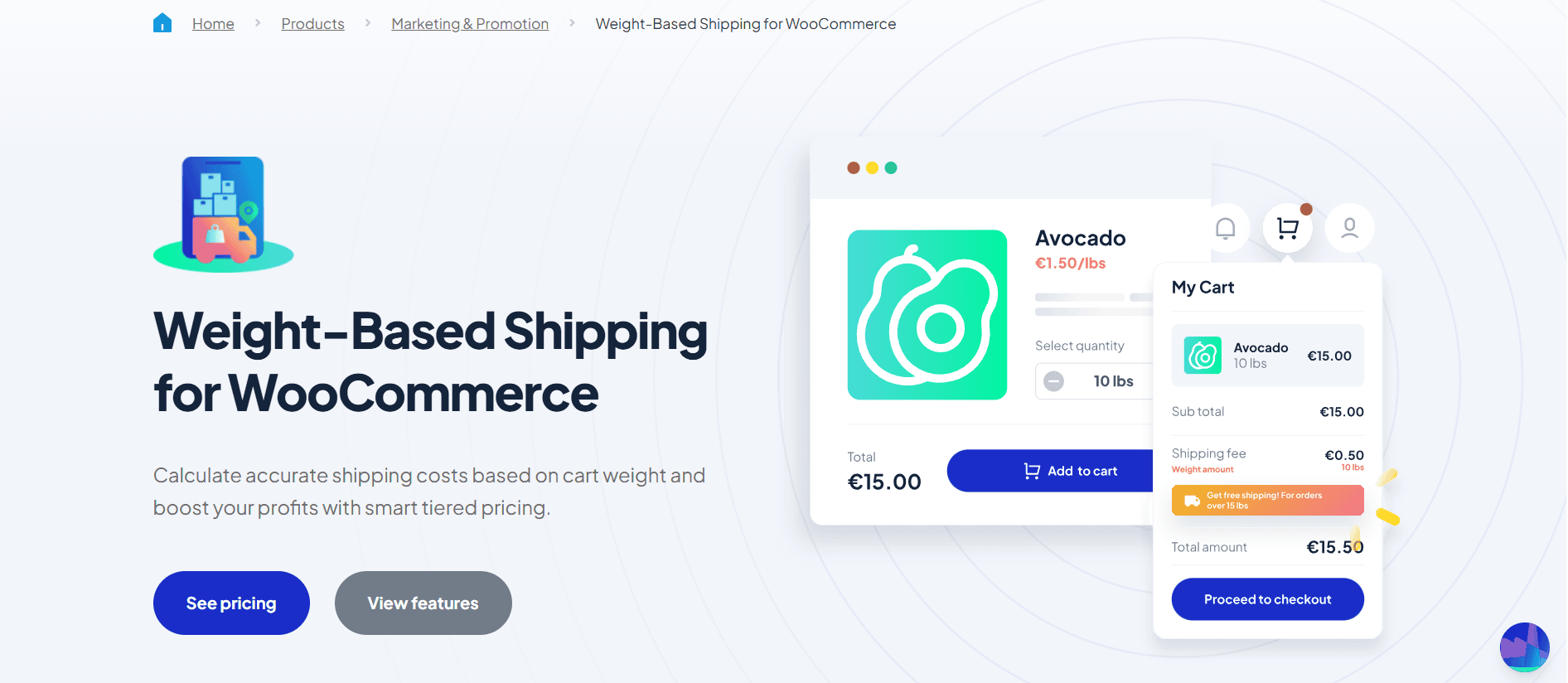
To calculate shipping costs accurately, you can use tools like Weight-Based Shipping for WooCommerce. Which lets you set shipping costs based on cart wight and boost your profits with smart tiered pricing.
4. Refunds & Failed orders
Most store owners overlook refunds and don’t include them in their total costs. However, studies show that around 3 out of every 100 orders are returned.
These returns don’t just reduce your revenue, you also lose original shipping cost, and in many cases, payment gateways like Stripe don’t refund their fees.
As a result, a refund can end up costing you more than the product itself.
5. Taxes
Taxes vary from one store to another. Some stores pay purchase or import taxes on products, and these should be included in the product cost since they are part of what you paid to acquire the item.
On the other hand, there are sales taxes, such as VAT (Value Added Tax), which are changed to customers. These taxes are not considered part of the product cost, since they are collected from the customer rather than paid by you.
How to Calculate Profit in WooCommerce with Real Example
To calculate your net profit in your WooCommerce store, you can use a simple formula:
Net Profit = Selling Price – (Product Cost + payment Fees + Shipping + Refund Impact)
Let’s break it down with a real example:
$50-(8 + ($2.9% + $0.30) +$5 +5%)
1.The first thing you should calculate Stripe fees:
- 2.9% of $50 = $1.45
- $0.30 fixed fee
Total fees = $1.75
2. And then we will calculate the refund impact:
5% refund rate means:
Average loss per order = $50 × 5% = $2.50
3. Now you can collect all costs, to calculate the net profit later:
- Product: $8
- Fees: $1.75
- Shipping: $5
- Refund impact: $2.50
Total cost = $17.25
4. Net Profit
$50 – $17.25 = $32.75 actual profit
But what if I told you there’s a much easier way, that doesn’t require you to do all these calculations manually?
Automating COGS Tracking in Your WooCommerce Store
Calculating profits and costs manually isn’t practical. It’s difficult to keep track of every number in your store and every single order, especially when you’re running discounts, promotions, and other changes that constantly affects your margins.
That’s why you need a tool that handles all these calculations in seconds and gives you real time insights that reflect your store’s actual performance. This is what WooCommerce Cost of Goods: Product Cost & Profit Calculator offers.
Simply put, this tool takes the stress out of handling all your store calculations. All you need to do in connect it to your store, and all your numbers and data will be available to you within seconds.
The COGS plugin, used by 15K+ online stores, tracks your WooCommerce product costs to give you your true net profit, not just revenue. It allows you to add product costs individually or in bulk, and choose exactly which costs to include, whether it’s direct costs only or also indirect costs like materials, labor, and packaging.
The plugin automatically handles all calculations and provides you with the profit reports and cost breakdowns you need, helping you better understand where your money is going. You can also add any additional costs at any time to keep your data accurate and up to date.
One of its most powerful features is that it doesn’t just calculate profit, it helps you identify your most and least profitable products through detailed reports.
It also lets you track cost changes over time using cost archives, giving you full visibility into how your costs have increased or decreased across different periods.
And it doesn’t stop there, beyond reporting, the plugin also supports your pricing strategy, helping you determine the optimal price for your products based on actual costs and profit margins.
Here are some of its most powerful features:
- Track and Analyze Your COGS Effortlessly
- Advanced Inventory Management with Real-Time Tracking
- Comprehensive Tax Reporting & Financial Management
- Customize How COGS Is Calculated
- User-Friendly Admin Management
- Bulk Edit Prices in a Single Click
- Save Historical Values for Costs
- Customize Your Admin Panel
Now, you can make smarter pricing decisions based on real data and actual net profits.
Final Thoughts
Pricing your products without knowing the real costs and your net profits is like sailing in a boat without a map or a compass. You are moving, but you don’t know if you will reach the shore or head straight towards trouble.
So, every product you price without calculating the full cost, it will eat your profits.
That’s where the WooCommerce Cost of Goods: Product Cost & Profit Calculator plugin comes in. It makes the process effortless, you just need to enter your costs, and it takes care of the rest: calculating total costs, net profits, generating reports, identifying your most and least profitable products, and much more.
Frequently Ask Questions
- What is a good profit margin for a WooCommerce store?
It depends on the product category. Physical goods typically run 20–40% net margin once all costs are accounted for. Digital products can reach 70–90% since COGS and shipping are minimal. A margin below 15% on physical goods leaves very little room for marketing spend or unexpected cost increases.
2. Does WooCommerce calculate profit automatically?
Not by default. WooCommerce records revenue and order totals but has no built-in concept of product cost. You need a plugin like WPFactory’s Cost of Goods for WooCommerce to input COGS data and surface real profit figures across your reports and orders screen.
3. How do I calculate COGS for a WooCommerce product?
COGS includes everything you paid to get the product ready to ship: supplier invoice, manufacturing materials, inbound freight, and any per-unit packaging. It does not include outbound shipping or payment fees, those are separate line items in your per-order profit calculation. WPFactory’s free COGS calculator lets you model this before setting a price.
4. What is the difference between margin and markup?
5. Can I track COGS for variable products in WooCommerce?
Yes, but only with a dedicated plugin. The WPFactory Cost of Goods plugin supports individual cost entry per variation, so a blue T-shirt and a red T-shirt with different supplier prices each carry their own COGS, and profit is calculated correctly at the variation level on every order.