- Will a scan time out on a large catalog?
- Can I close the tab while a scan is running?
- I get "A scan is already running"
- A check is flagging products that are actually fine
- Why are my subscription, booking, or bundle products not being flagged?
- A whole category says "Not applicable"
- I fixed a lot of products and the score did not move
- Old scans in the history show different scores than they used to
- The dashboard says some products were not checked
- How does the grace period work, and why is it off by default?
- An issue I fixed has come back
- What can undo restore, and what can it not?
- My scheduled scan never runs, or the digest never arrives
- Does scanning affect my storefront or my customers?
- Can I scan only part of my catalog?
- What happens to my data if I deactivate the plugin?
- Related reading
- Need help?
This Catalog Health Scanner troubleshooting guide answers the questions that come up most often when running Catalog Health Scanner for WooCommerce Pro on a real catalog: long scans, findings you disagree with, categories that report nothing, scores that will not move, and what undo actually restores.
Will a scan time out on a large catalog? #
No. A scan is not one long request. It is started once and then advanced in short, resumable steps, so no single request has to get through the whole catalog.
| Scan type | How it advances | Work per step |
|---|---|---|
| Manual, from the dashboard | The browser polls the plugin repeatedly while the progress bar is on screen. | About 8 seconds of work, in batches of 25 products. |
| Scheduled, from cron | Each step schedules the next one 30 seconds later until the scan completes. | About 20 seconds of work, in batches of 25 products. |
Products are walked in ascending ID order and the last ID reached is stored on the scan row, so a scan resumes exactly where it stopped even if products were added or deleted in the meantime. Nothing is scanned twice and nothing is missed.
The nine cross-product checks (duplicates, orphans, price outliers) run once at the very end, as a single pass. On a very large catalog the progress bar can appear to sit at the end for a moment while they finish.
Can I close the tab while a scan is running? #
Yes. Progress is written to the database on every step. When you come back to the dashboard, the scan is still there and can be resumed. You can also pause a scan deliberately and resume it later, or cancel it: cancelling keeps the progress made so far rather than throwing it away.
I get “A scan is already running” #
Only one scan can run at a time, which prevents two scans writing conflicting counters. If a scan was interrupted and never finished, it stays in the running or paused state and blocks new ones. Open the dashboard, then resume it or cancel it, and start the scan you wanted.
A check is flagging products that are actually fine #
You have three levels of response, from narrowest to broadest:
| Situation | What to use | Effect |
|---|---|---|
| One product is a legitimate exception | Ignore on that issue | The issue is marked ignored, counts as passing in the score, and never reappears until you restore it. It stays visible in the ignore list with who ignored it and when. |
| Many products in one check are exceptions | Select them and use ignore selected, or ignore all matching | The same, applied to the whole selection or to every product matching the current filters. |
| The check is wrong for your store everywhere | Untick the check under Settings > Individual checks | The check stops running in every profile and leaves both sides of the score fraction. |
Ignoring is per product and per check, so ignoring “no reviews” on one product does not silence any other check on it. Everything is reversible from Settings > Ignored issues, including a restore-all button that covers every ignored issue and not just the page on screen. See Ignore false positives.
One warning worth stating plainly: ignored issues count as passing. A catalog where everything has been ignored will read as healthy, which is why the dashboard and the PDF cover declare how many issues are ignored next to the score.
Why are my subscription, booking, or bundle products not being flagged? #
Many checks name the product types they understand. no_price and price_zero run on simple and external products, variable_no_purchasable on variable products, grouped_no_children on grouped products, and so on. A product type that a check does not name is skipped by that check and is not counted in its denominator, so it neither passes nor fails.
That is deliberate. A custom product type from another plugin can store its price, stock, or files somewhere Catalog Health Scanner has no way to read, and reporting it as broken would be wrong. Checks that do not depend on product type (images, categories, descriptions, titles, SKUs, tax class) still run on every product normally.
Products that WooCommerce itself cannot load into a product object are skipped entirely and are not counted as scanned.
A whole category says “Not applicable” #
A category card reads Not applicable when every check in it belongs to an applicability group that resolved to not applicable. The card shows the reason, and the category tab shows it again next to a Change link. Common reasons:
| Category | Typical reason | How to override |
|---|---|---|
| Inventory | Stock management is disabled store-wide. | Set Inventory & stock to Applicable in Settings > Applicability. |
| Shipping | Every enabled shipping method is flat rate, free shipping, local pickup, or pickup location, none of which use weight or dimensions. | Set Shipping weight & dimensions to Applicable if you still want weights maintained. |
| Tax | Tax is disabled, or only the standard tax class exists. | Set Tax to Applicable. |
| Downloads | No downloadable product exists in the catalog. | Set Downloads to Applicable, or publish a downloadable product and rescan. |
| Feed Readiness | No feed plugin was detected and no product carries a feed identifier. | Set Product feed readiness to Applicable before you build your first feed. |
Pricing and Content never go fully not applicable, because only some of their checks belong to a group. Purchasability, Media, and Structure always apply.
Auto-detect results are cached for an hour and refreshed on every settings save and after every completed scan, so a store change you just made may need a save or a scan before the card updates. If you want the checks reported without them affecting the score, use Report, but do not score rather than Applicable. See Applicability: why checks are skipped.
I fixed a lot of products and the score did not move #
Work through these in order:
- Did you rescan? Fixing an issue closes it immediately, but the score is stored on a scan. It changes when the next scan completes.
- Is the score capped? One open critical issue anywhere in the catalog holds the total at 89.00. Clear the criticals first, then everything else starts to show.
- What is the check worth? A Low check is worth 0.5 points and a Critical is worth 4. Fixing every Low finding in a category can be worth less than one Critical.
- How big was the share you fixed? A check earns its weight in proportion to the products that pass it. Fixing 30 of 900 failures moves that check by a thirtieth of its weight.
- Is the group scored? A group set to Report, but do not score lists its issues but leaves the score alone by design.
- Was the check in the profile you ran? Revenue Blockers runs critical checks only. Rescan with Full Scan to see everything.
The score reference works through the arithmetic with a numeric example.
Old scans in the history show different scores than they used to #
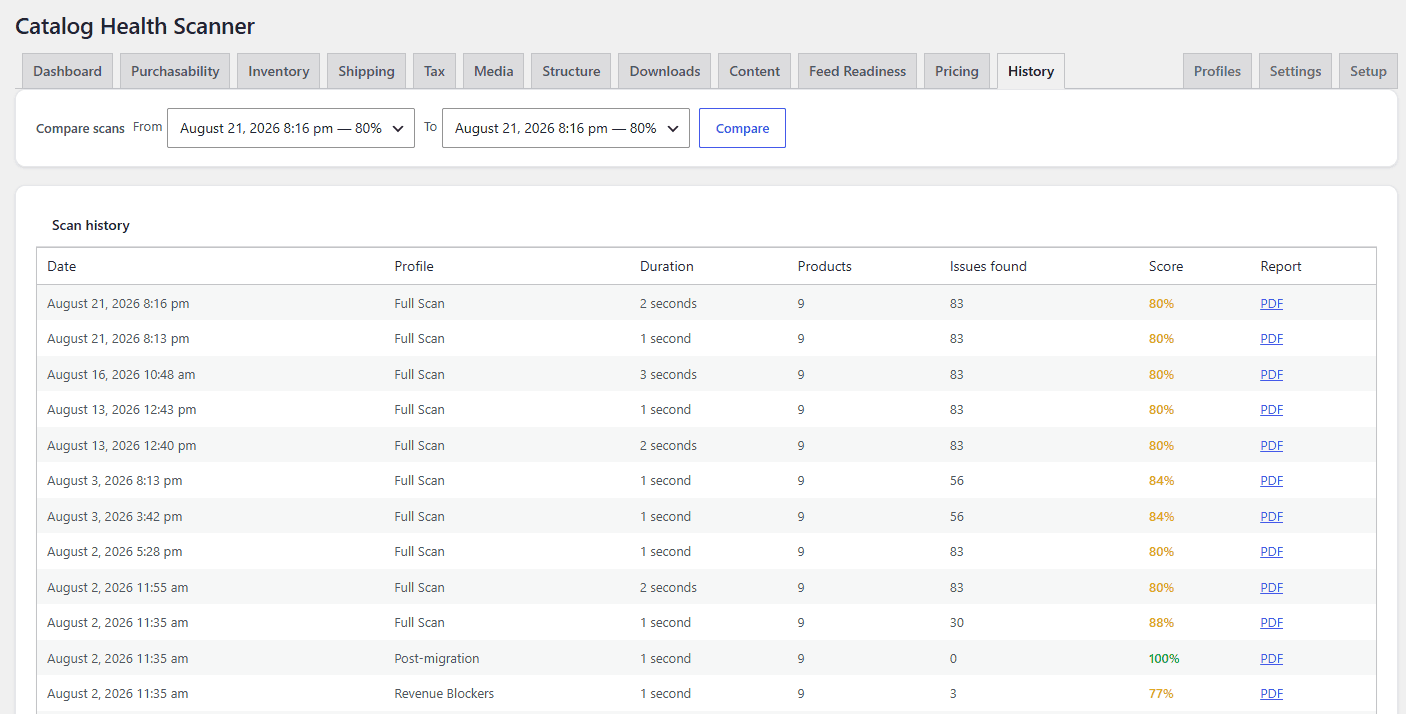
That is expected after an applicability change. When you change any applicability group and save, Catalog Health Scanner re-scores past scans from their own stored counters using the new configuration, so the trend line compares like with like instead of showing a step that only reflects a settings change. Nothing is rescanned, and each affected scan records that it was recalculated along with its original score.
The dashboard says some products were not checked #
A scan skips a product for one of two reasons: it sits in a product category you excluded under Settings > Scan scope, or it is inside the grace period for new products. Skipped products are counted separately from scanned ones and declared on the dashboard, precisely so that “we did not look at your new import” is never displayed as “your new import is healthy”.
Two rules keep skipping honest:
- A scan that skipped anything does not auto-resolve issues. Resolution works from “not seen in this scan”, which a skipped product also satisfies, so leaving it to the next complete pass is the only way a skipped product is never reported as fixed.
- Skipped products still count toward the progress bar, because they have been dealt with. They are absent from every score counter, so they neither help nor hurt the score.
How does the grace period work, and why is it off by default? #
The grace period, set in days under Settings > Thresholds as grace_period_days, excludes recently created products from scans so a genuine work in progress does not drag the score down. It defaults to 0, which means off.
That default is deliberate. Most people install a catalog scanner to audit a catalog they have just imported, migrated, or bulk edited, and those are exactly the products a grace window would hide. Turn it on if you publish products one at a time and want a working window before they count.
When it is on, two conditions must both hold before a product is skipped: it was created after the previous completed scan started, and it is still inside the configured window. Your very first scan never applies a grace period, because a store with no scan history would otherwise report a score having checked nothing.
An issue I fixed has come back #
Findings are tracked per product and per check across scans, not recreated from scratch each time. A resolved issue that a later scan sees again is reopened and recorded as a regression, with the scan it came back in. The comparison view on the history screen groups exactly this: what is new, what was fixed, and what regressed between any two scans.
Recurring regressions usually mean something upstream is rewriting the data: a scheduled import, a feed sync, or a bulk edit tool. Fixing the product again will work, but the import will win next time.
What can undo restore, and what can it not? #
Every fix batch is written to the fix log with the exact before and after values for each product it touched, and one click reverts the whole batch. Undo is available from the History tab.
Undo does restore:
- The precise previous value of every field the fixer changed, including values WooCommerce would normally normalise away, such as a deliberately inconsistent stock status or a tax class that pointed at a deleted class.
- Variations trashed by the orphaned-variation fix. They are moved to trash rather than deleted, and undo takes them back out.
- Stale term relationships removed by the deleted-term fix, reinserted exactly as they were.
- The issues themselves. Reverted findings are reopened, and product issue counts are recalculated straight away.
Undo cannot restore:
- A batch that is older than the undo window, which defaults to 30 days and is set with the
undo_window_daysthreshold. - A batch that has already been undone. Each batch can be reverted once.
- Edits you made yourself after the fix. Undo writes the logged before value back, so any later manual change to the same field is overwritten.
- A trashed variation you have since emptied from the WordPress trash.
- The score of an earlier scan. Undo reopens the issues; the score updates on the next scan.
Fixes applied automatically after a scheduled scan use the same log and the same undo, so unattended fixing is as reversible as a fix you clicked yourself. See Fix issues safely.
My scheduled scan never runs, or the digest never arrives #
Check these in order:
- Scheduled scans are switched on in Settings, and a frequency and profile are selected.
- WP-Cron is working. A site with little traffic and no system cron will not fire the event on time.
- The digest is only sent after a scheduled scan, never after a manual one.
- The digest is only sent when that scan found issues that were not there before. Silence means nothing new, which is the intended behaviour rather than a fault.
- The recipient field contains at least one valid address. Invalid addresses are dropped on save.
- Your site can send mail at all. Test with any other WordPress email first.
Immediate critical alerts are separate: they fire after any completed scan, manual or scheduled, as soon as new critical issues appear, and have their own recipient field.
Does scanning affect my storefront or my customers? #
No. Catalog Health Scanner has no frontend output and does not touch the cart, checkout, or any order. It reads product data, writes its own tables, and sends no data to third-party services. The only exceptions are two outbound requests it makes about your own site: a cached HEAD request per remote download URL, and one cached request to a single product page to see whether your theme emits Product structured data.
The only writes to your products are the fixes you choose to apply, or the one-click fixes you explicitly opt into after scheduled scans. Everything written is logged and reversible.
Can I scan only part of my catalog? #
Two controls narrow a scan, and they work differently:
- Scan profiles choose which checks run. Revenue Blockers runs the critical checks only, Post-migration runs the duplicate and broken-reference set, and so on.
- Scan scope chooses which products are skipped, by product category.
Scans always cover published products. Drafts, private products, and products in the trash are not scanned. See Scan profiles.
What happens to my data if I deactivate the plugin? #
Scans, issues, and the fix log live in three of the plugin’s own tables and are not dropped on deactivation, so reactivating restores your history. Resetting settings from the settings screen also keeps them: it clears configuration and profiles only, then reopens the setup wizard.
Related reading #
- How the health score is calculated
- Check library: all 70 checks
- Settings reference
- Run your first scan
Need help? #
If your question is not answered here, contact Catalog Health Scanner support with the check ID, an example product ID, and the profile you scanned with.