To manually relate categories in Related Categories for WooCommerce Pro, go to WPFactory > Related Categories and enable the options under the Relate Manually heading on the Single or Archives sub-tab. Then pick the related categories in the Related categories field on each category, tag, custom taxonomy term, or product edit screen. This is a Pro feature.
Before you start #
- WooCommerce, active.
- Related Categories for WooCommerce Pro (in the free version these fields are visible but disabled).
- The relevant section (Single or Archives) enabled first.
Enable the options at WPFactory > Related Categories (also reachable at WooCommerce > Settings > Related Categories), under the Relate Manually heading on the Single or Archives sub-tab.
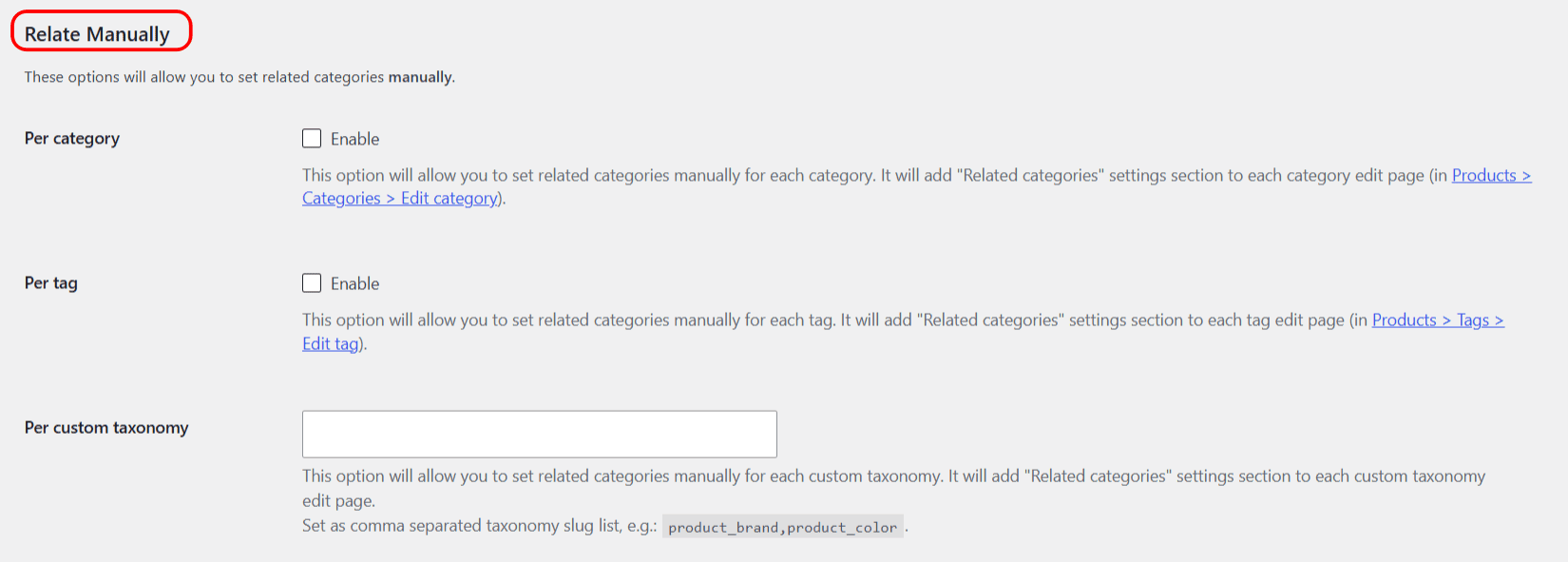
The four manual sources #
| Label | Option ID (array key) | Where you assign categories | Free/Pro |
|---|---|---|---|
| Per category | relate_per_category |
Products > Categories > Edit category | Pro |
| Per tag | relate_per_tag |
Products > Tags > Edit tag | Pro |
| Per custom taxonomy | relate_per_taxonomy |
Each custom taxonomy term edit page | Pro |
| Per product | relate_per_product |
Products > Edit product (meta box) | Pro |
Per product appears on the Single sub-tab only. Per category, Per tag and Per custom taxonomy appear on both the Single and Archives sub-tabs.
Per category #
- Enable Per category and save.
- Go to Products > Categories and open a category for editing.
- In the new Related categories field, select the categories you want related to that category, then update.
Per tag #
- Enable Per tag and save.
- Open a tag under Products > Tags and pick its related categories in the Related categories field.
Per custom taxonomy #
Per custom taxonomy is a text field, not a checkbox. Enter the taxonomy slugs you want to enable as a comma-separated list, for example product_brand,product_color. A Related categories field is then added to each term edit page of those taxonomies, so you can relate categories to a brand or any other custom taxonomy term.
Per product and the Override sub-option #
- Enable Per product on the Single sub-tab and save.
- Edit a product and find the Related categories meta box.
- Set Enabled/Disabled to Yes and choose the categories. If you set it to Yes but pick no categories, the section is hidden for that product.
The Override sub-option (relate_per_product_override, default Yes) decides whether the per-product list replaces the automatically related categories, or is merged with them. Turn Override off to merge.
Multi-language sites #
If you run WPML or Polylang, set the Multi-language option on the Advanced sub-tab so manual relations resolve to the default-language product or term ID. This affects Per category, Per tag, Per custom taxonomy and Per product.
Ready to set this up? #
Relate Manually is a Pro feature of Related Categories. If you are still on the free version, upgrading unlocks hand-picked related categories along with the rest of the Pro toolkit. Get Related Categories Pro.