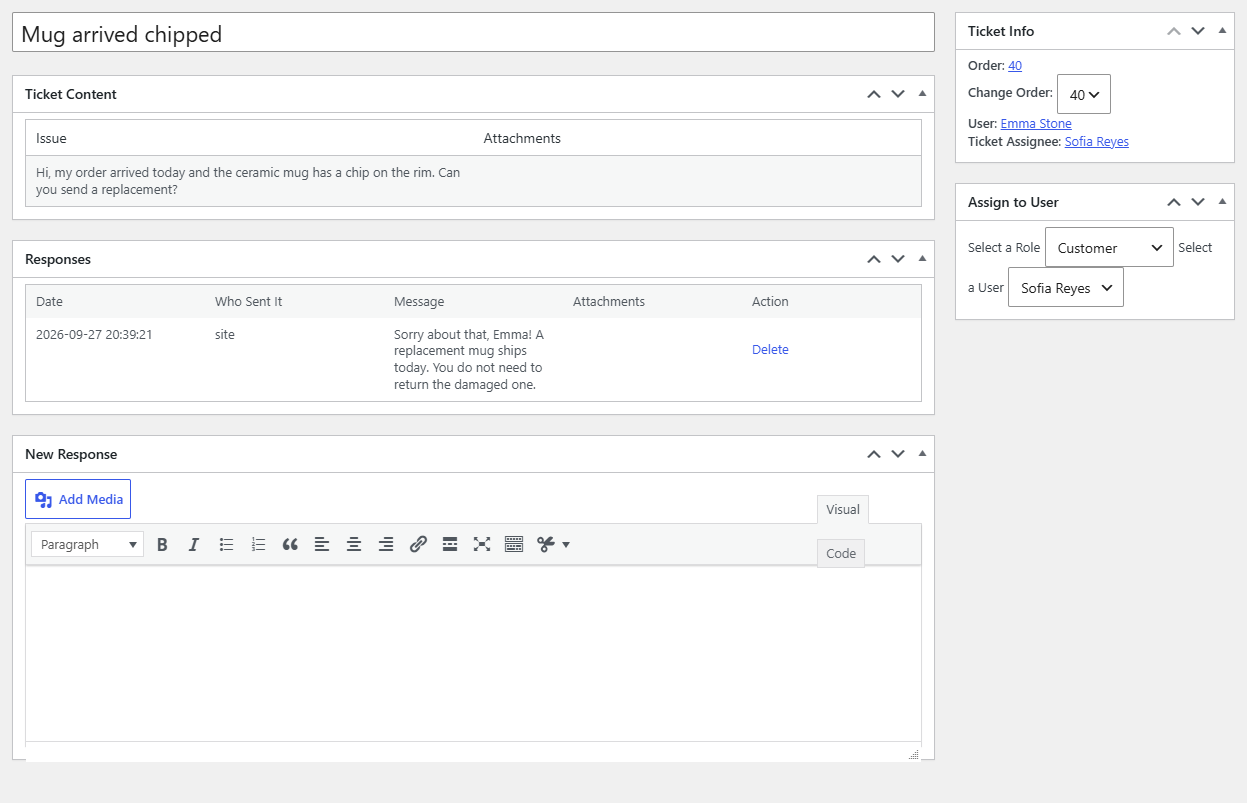
To reply to a WooCommerce support ticket, go to WPFactory > Support Tickets (also under Support Tickets in the admin menu), open the Tickets tab and click the ticket title. Helpdesk Support Ticketing System for WooCommerce lets you reply, add private notes, change the status and reassign the ticket from that screen.
Before you start #
- You need an Administrator account, or a role set in Default User Role for Ticket Assignment that can also edit pages (tickets use the same permissions as WordPress pages).
- To email the customer when you reply, tick Notify Customer by Email on the Notifications settings tab.
Find the right ticket #
The Tickets tab lists every ticket with these columns: Title, Subject, Priority (shown in the priority color), Status, User, Order, Assignee, Last Response and Date. Use the dropdowns above the list to filter by status, priority or subject, then click Filter. The Dashboard tab counters (ALL, OPEN, IN PROGRESS) are shortcuts to the same list.
How to reply to a ticket #
- Go to WPFactory > Support Tickets and click the Tickets tab.
- Click the ticket title to open it.
- Read the customer’s message and files in the Ticket Content box, and earlier messages in the Responses box.
- Type your answer in the New Response box.
- Optionally, in the Status box on the right, tick In Progress or Closed and untick the previous status.
- Click Update. The reply is saved to the Responses list, the customer sees it in My Account, and the assignee and customer emails are sent if they are enabled.
What each box on the ticket screen does #
| Box | What it is for |
|---|---|
| Ticket Content | The customer’s original message (Issue) and any attached files. |
| Responses | All public replies with the date, who sent them (customer, admin or site) and attachments. Each row has a Delete link. |
| New Response | Write a public reply. The customer can read it. |
| Private Notes | Internal notes with the date and author. Customers never see them. |
| New Private Note | Write an internal note for your team. No email is sent for notes. |
| Ticket Info | The linked order (with a link to it), a Change Order or Select an Order dropdown, the customer and the current assignee. |
| Assign to User | Pick a role in Select a Role, then a person in Select a User, to reassign the ticket. |
| Status, Priority, Subject | Standard WordPress term boxes to change the ticket’s status, priority and subject. |
Ticket statuses #
Helpdesk creates three statuses on first run:
- Open: set automatically on every new ticket.
- In Progress: set it yourself while you work on a ticket. It has its own counter on the Dashboard.
- Closed: set it yourself, or the customer sets it by ticking Close Ticket when replying. Customers cannot reply to closed tickets, and you can hide closed tickets from the front end with Show only Open in Frontend.
Link or change the order on a ticket #
Tickets opened from the Get Help button or an order page are linked to that order automatically. To link a ticket to a different order, choose it in the Change Order dropdown (or Select an Order if none is linked) in the Ticket Info box and click Update.
Delete a ticket #
Move the ticket to the Trash from the Tickets list. When a ticket is permanently deleted, Helpdesk also deletes its public responses and the files attached to it from the Media Library.
FAQ #
Can I attach a file to my reply? #
No. The New Response box in wp-admin is a text editor without a file upload field. Customers can attach files to their tickets and replies when attachments are enabled.
Does the customer get an email when I add a private note? #
No. Private notes are stored separately from responses, are not shown in My Account and do not trigger any email.
Can I reply to tickets from the front end? #
Administrators see all tickets in the front-end ticket area, and other staff see the tickets assigned to them. Users who can manage WooCommerce can post a reply there too, but the wp-admin ticket screen gives you private notes, status changes and reassignment.
Which emails are sent when I reply from wp-admin? #
If enabled, the assignee (Notify Assignee by Email) and the customer (Notify Customer by Email) are emailed. The admin address is not emailed for your own replies. See ticket email notifications.
Get Helpdesk #
Ticket management is part of Helpdesk Support Ticketing System for WooCommerce Pro. To route tickets to the right person automatically, see how to assign support tickets to agents.
Need a hand? Our team answers every ticket on the Helpdesk support forum.