To get started with Product Notes Tab & Private Admin Notes for WooCommerce, install and activate the plugin, then open WPFactory > Product Notes (also reachable at WooCommerce > Settings > Product Notes). Both note types are on by default, so you can add your first note from any product edit screen right away.
Before you start #
- WooCommerce must be installed and active. Product Notes does not load without it.
- You need an administrator or shop manager account to add notes and to see private notes on the storefront.
Install the free version #
- In your WordPress dashboard, go to Plugins > Add New.
- Search for Product Notes Tab & Private Admin Notes for WooCommerce.
- Click Install Now, then Activate.
Install the Pro version #
- Download the Pro zip from your WPFactory account.
- Go to Plugins > Add New > Upload Plugin, choose the zip, click Install Now and then Activate.
- Enter your license key when prompted so the plugin can receive updates.
When Pro is active, the free version stops loading on its own, so you can deactivate and delete it. Both versions use the same settings and the same product data, so your existing notes and options carry over.
Where the settings live #
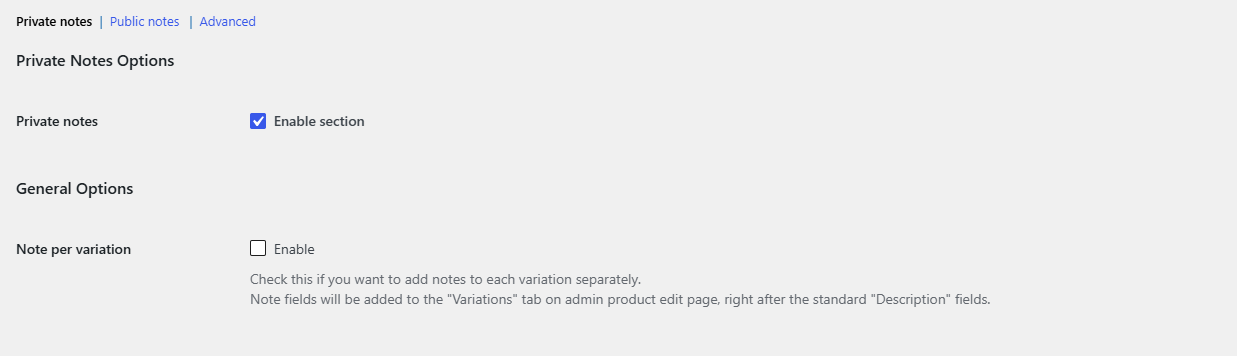
Go to WPFactory > Product Notes (also reachable at WooCommerce > Settings > Product Notes). The Settings link under the plugin name on the Plugins screen opens the same page. It has three sections:
- Private notes: notes for your team. On the storefront they are shown only to administrators and shop managers.
- Public notes: notes your customers can see.
- Advanced: WPML handling and the formatting options for each place notes are displayed.
The Private notes and Public notes sections have the same layout: an Enable section switch, General Options, Frontend Options, Backend Options, Compatibility Options and Tools. Each section also has a Reset section settings box at the bottom.
Add your first note #
- Go to Products and open any product for editing.
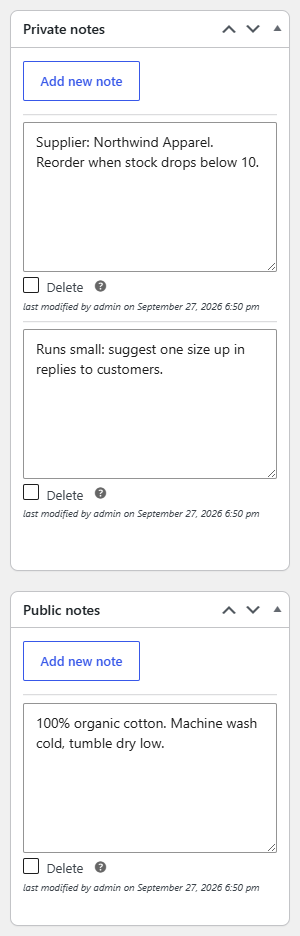
- In the right-hand sidebar, find the Private notes and Public notes boxes.
- Click Add new note in the box you want. A text field appears.
- Type your note. Click Add new note again if you want to add more than one note to the same product.
- Click Update (or Publish) to save the product.
After saving, each note shows who last modified it and when. To remove a note, tick its Delete box and update the product.
See the result on your storefront #
The Product tab option is enabled by default in both sections, so as soon as a product has a note:
- Public notes appear in a new Notes tab on the product page, visible to every visitor.
- Private notes appear in a Private notes tab that only logged-in administrators and shop managers can see. Customers and guests never see it.
A tab is only added when the product has at least one note of that type, so products without notes look unchanged.
Next steps #
- How to add private admin notes to WooCommerce products
- How to show product notes to customers
- How to add notes to product variations
- Product Notes settings reference
Get more from your notes #
Adding and displaying notes is free. Product Notes Pro adds notes in the admin products list, admin search, orders and emails, plus export, import, quick edit and bulk edit. Compare Free and Pro.
Need a hand? Our team answers every ticket on the Product Notes support forum.