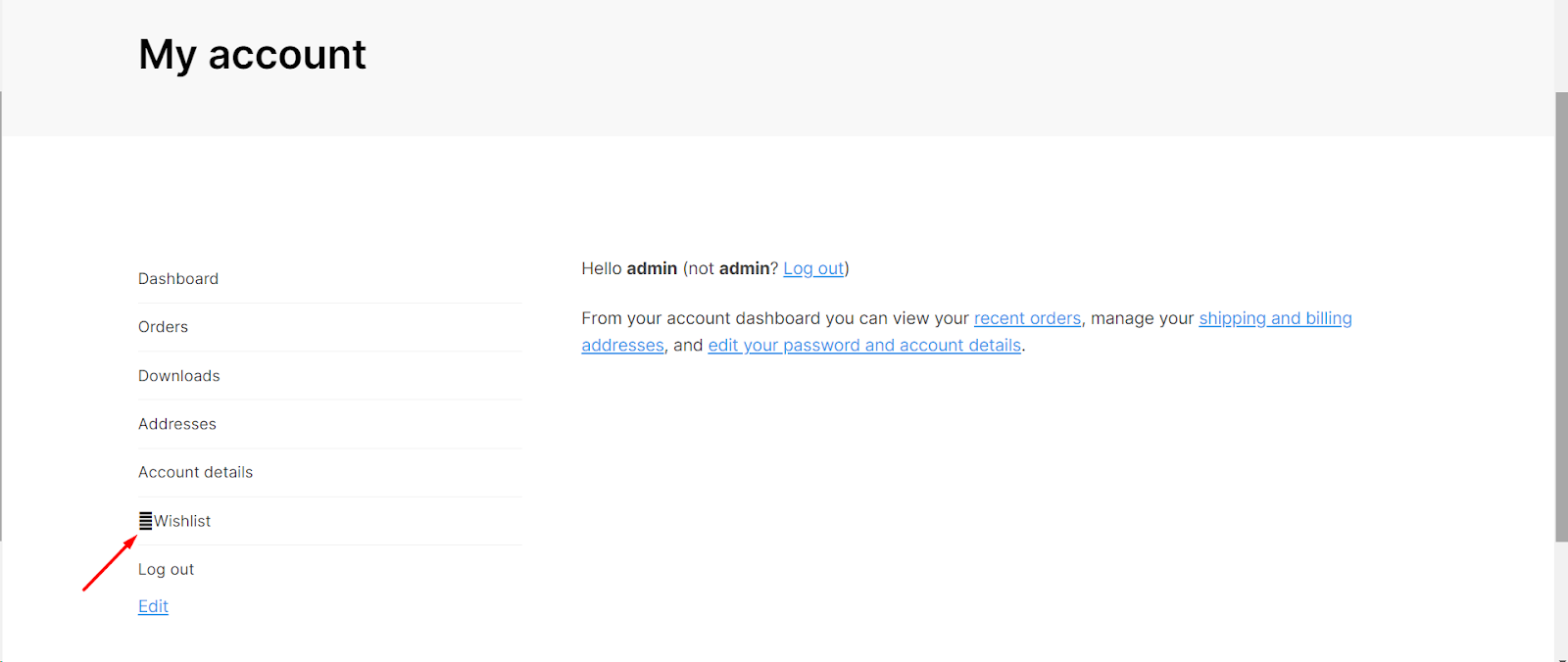
To add an icon to the Wishlist tab on the WooCommerce My Account page, go to WPFactory > Wishlist > Style in Wishlist for WooCommerce, tick Custom style, then in My account tab tick Show icon and enter a Font Awesome code such as f004 (a heart). The icon then appears next to the tab label. The feature is free.
Before you start #
- The Wishlist tab must be enabled: Wishlist Page > My account – Wishlist tab > Wishlist tab (on by default). See adding the Wishlist tab to My Account.
- Font Awesome must be loaded, as the settings note. Keep General > Font Awesome > Load FontAwesome ticked unless your theme already loads it.
Step-by-step #
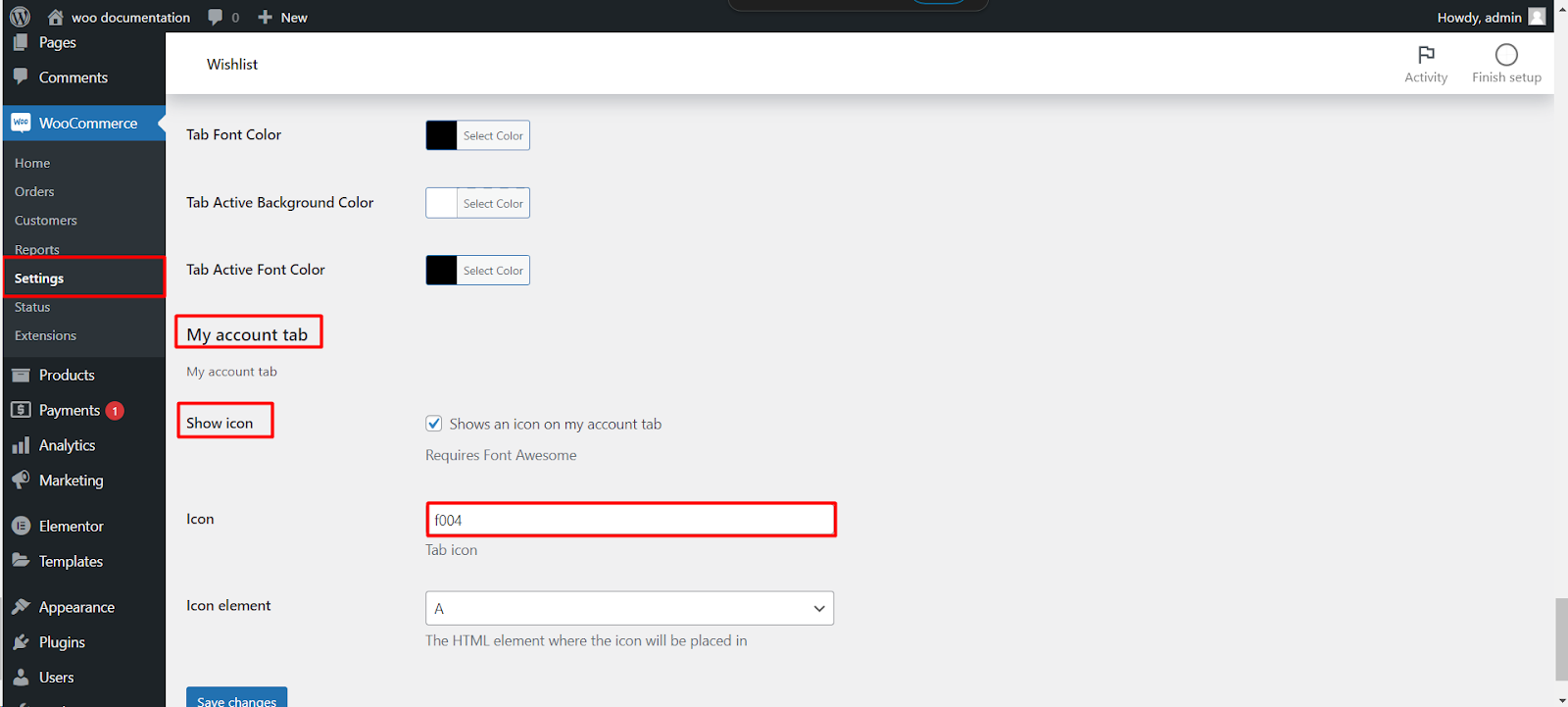
- Go to WPFactory > Wishlist (also reachable at WooCommerce > Settings > Wishlist) and open the Style tab.
- Tick Custom style (Enable custom style section) at the top.
- Scroll to My account tab and tick Show icon (Shows an icon on my account tab).
- In Icon (Tab icon), enter the Font Awesome unicode for the icon you want, for example
f004for a heart. - In Icon element, choose where the icon is placed: A (inside the tab link, the default) or LI (on the list item around it).
- Click Save changes.
Options #
| Label | Option ID | Default | Free/Pro |
|---|---|---|---|
| Show icon | alg_wc_wl_style_my_account_tab_icon_enable |
No | Free |
| Icon | alg_wc_wl_style_my_account_tab_icon |
f004 |
Free |
| Icon element | alg_wc_wl_style_my_account_tab_icon_element |
A | Free |
What the customer sees #
In the My Account menu, the Wishlist item shows the icon before its label. Choosing LI instead of A can help if your theme already adds its own icons to account links and the two clash.
If it does not work #
- No icon: Custom style is not ticked; the My account tab settings only apply with it on.
- A square or wrong symbol: Font Awesome is missing, or the code belongs to an icon your Font Awesome version does not include. Enter only the code (for example
f004), without a backslash orfa-prefix. - Icon vanished after changing the tab slug: the icon styling targets the default
my-wish-listslug, so keep Tab slug at its default if you want the icon. - Two icons show: your theme adds its own; switch Icon element between A and LI, or turn Show icon off.
FAQ #
Where do I find icon codes? #
In the Font Awesome icon gallery, each icon lists its unicode value (for example f004). See managing Font Awesome icons.
Can I change the tab text too? #
Yes, with Wishlist Page > Tab label.
Is this free? #
Yes. The My account tab icon is part of the free Style tab.
Related guides #
- Add the Wishlist tab to My Account
- Manage Font Awesome icons
- Style the wishlist buttons, popup and page
Get more control #
This feature is free. Wishlist for WooCommerce Pro adds drag-and-drop, arrow and dropdown sorting, copying a wishlist, hiding buttons by product tag, extra shortcodes and CSV wishlist import. See what Pro unlocks.
Need a hand? Our team answers every ticket on the Wishlist for WooCommerce support forum.
