To hide payment methods by product, category or tag in WooCommerce, use Conditional Payment Methods for WooCommerce: go to WPFactory > Conditional Payment Gateways, open the Product, Product Category or Product Tag section, enable a Require or Exclude block, select items next to each gateway and save.
Examples: hide Cash on delivery when the cart contains digital products, allow bank transfer only for a “Custom orders” category, or disable a gateway for products in a specific shipping class. Six cart-based conditions are available: Product, Product Category, Product Tag, Product Shipping Class, Product Taxonomy and Product Title.
Before you start #
- Conditional Payment Methods installed and active.
- Free version: product rules work for Direct bank transfer, Check payments, Cash on delivery and PayPal Standard. Other gateways need Pro.
- Prefer to set allowed gateways on each product’s edit page? Payment Methods by Product & Country for WooCommerce works per product, while Conditional Payment Methods checks the whole cart against rules set on one screen. See assign payment gateways to individual products.
Hide or require a payment method for cart products #
- Go to WPFactory > Conditional Payment Gateways (also reachable at WooCommerce > Settings > Conditional Payment Gateways).
- Open the section you need: Product, Product Category, Product Tag, Product Shipping Class, Product Taxonomy or Product Title.
- To hide a gateway when any matching item is in the cart, tick Enable section in the Exclude … block and select the items next to the gateway.
- To show a gateway only when at least one matching item is in the cart, tick Enable section in the Require … block and select the items next to the gateway.
- Optionally edit the Additional notice. The default reads
"%gateway_title%" is not available for the cart products. - Click Save changes.
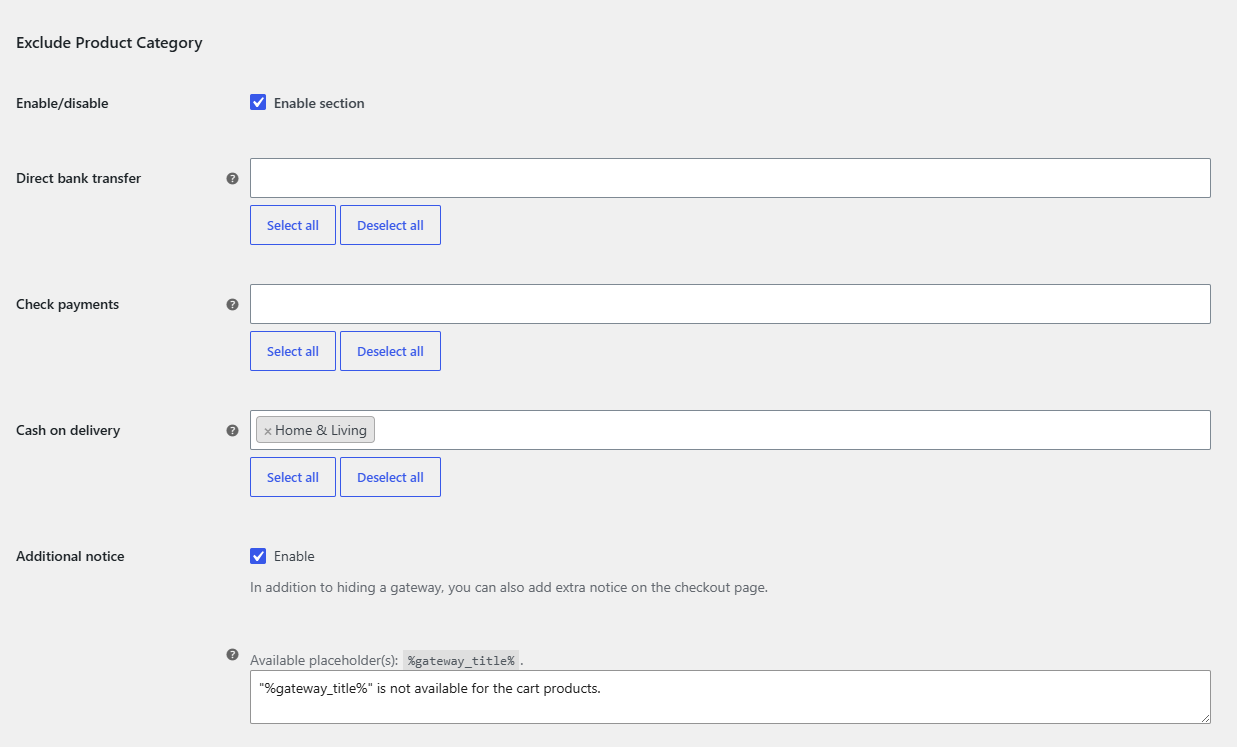
How each product condition matches #
| Section | What you enter | Matches when |
|---|---|---|
| Product | Products or variations, picked with a search box. | The product or the exact variation is in the cart. |
| Product Category | Categories. | A cart product is assigned directly to a selected category. |
| Product Tag | Tags. | A cart product has a selected tag. |
| Product Shipping Class | Shipping classes. | A cart item (including a variation) has a selected shipping class. |
| Product Taxonomy | Terms of a custom taxonomy, such as brands. Set Taxonomy slug first (for example pwb-brand), save, and the terms appear. |
A cart product or variation has a selected term. |
| Product Title | Words or phrases, one per line. | A cart product’s text contains one of the lines. Product data chooses title, description or short description (default: title). Comparison function is Case-sensitive by default or Case-insensitive. |
FAQ #
Does a Require rule need every cart product to match? #
No. A Require rule keeps the gateway when at least one cart item matches. An Exclude rule hides the gateway as soon as one cart item matches.
If I select a parent category, are products in its subcategories included? #
Only if those products are also assigned to the parent category. The Product Category condition checks the categories set directly on each product, so select the subcategories too, or assign products to the parent as well.
Do variations count for category and tag rules? #
Yes. For categories and tags, a variation is matched through its parent product. In the Product section you can pick an individual variation.
Why can I not see any terms in the Product Taxonomy section? #
The term list stays empty until Settings > Taxonomy slug, at the bottom of that section, holds a valid taxonomy slug. Enter it, click Save changes, and the terms load.
Get more control #
Product rules are free for the four built-in WooCommerce gateways. Conditional Payment Methods for WooCommerce Pro applies them to any payment gateway. See what Pro unlocks.
Need a hand? Our team answers every ticket on the Conditional Payment Methods support forum.