To rename media files on upload in WordPress, install Rename Media Files on Upload: WordPress Image SEO. It renames every new upload from a filename structure, by default your site URL, the post title and the original filename. Settings are at WPFactory > File Renaming, in the General Settings, Rules and Advanced tabs.
What it does #
Files named IMG_2043.jpg tell search engines nothing about the image. Rename Media Files replaces the uploaded name with one built from rules such as {siteurl}, {posttitle} and {filename}, cleans out accents and special characters, and applies the same naming to everyone who uploads. It is a WordPress plugin and does not need WooCommerce.
Install and activate #
- Free: go to Plugins > Add New, search for Rename Media Files: Improve Your WordPress SEO, click Install Now, then Activate.
- Pro: download Rename Media Files: Improve Your WordPress SEO Pro from your WPFactory account, upload it at Plugins > Add New > Upload Plugin and activate it.
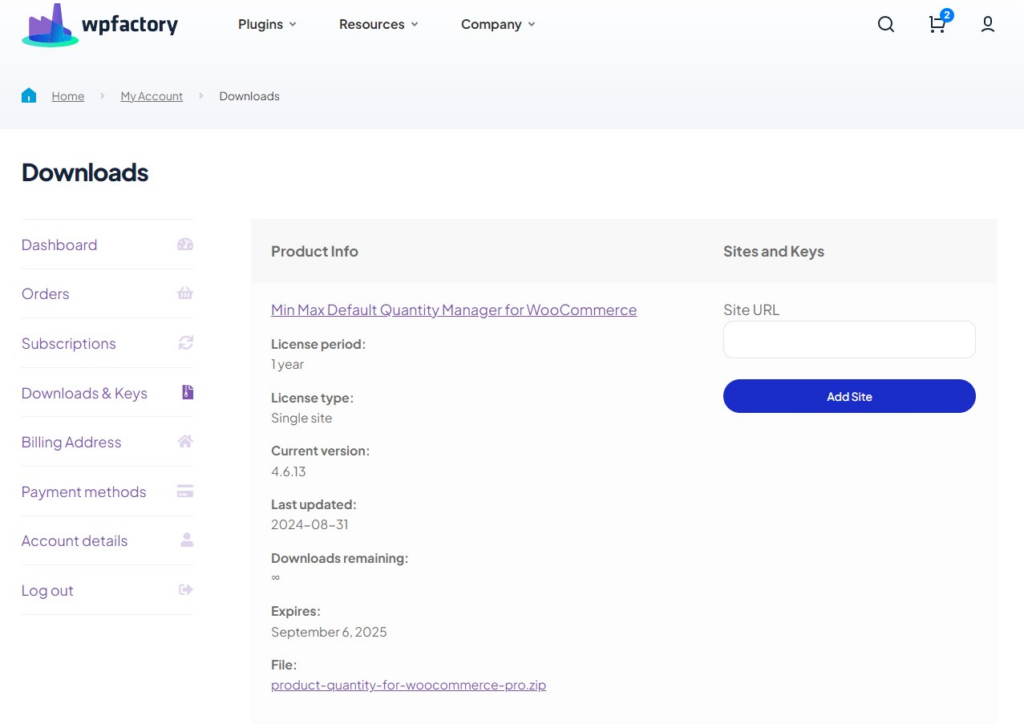
See installing the File Renaming on Upload plugin for more detail.
First setup #
Enable plugin is on by default, so new uploads are renamed as soon as the plugin is active. To check and adjust the naming:
- Go to WPFactory > File Renaming and open the General Settings tab.
- Confirm Enable plugin is checked.
- Review Filename structure. The default is
{siteurl}{posttitle}{filename}, with-as the Character(s) used to separate rules and a Max length of 200. To keep only the cleaned original name, change it to{filename}. - Click Save Changes.
- Upload an image from inside a post or page (so
{posttitle}has a value) and check the new filename in the Media Library.
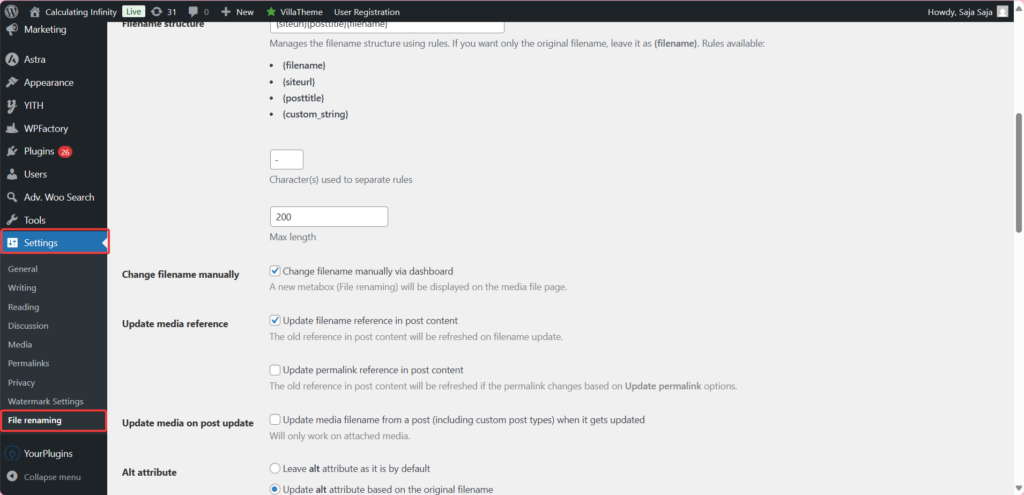
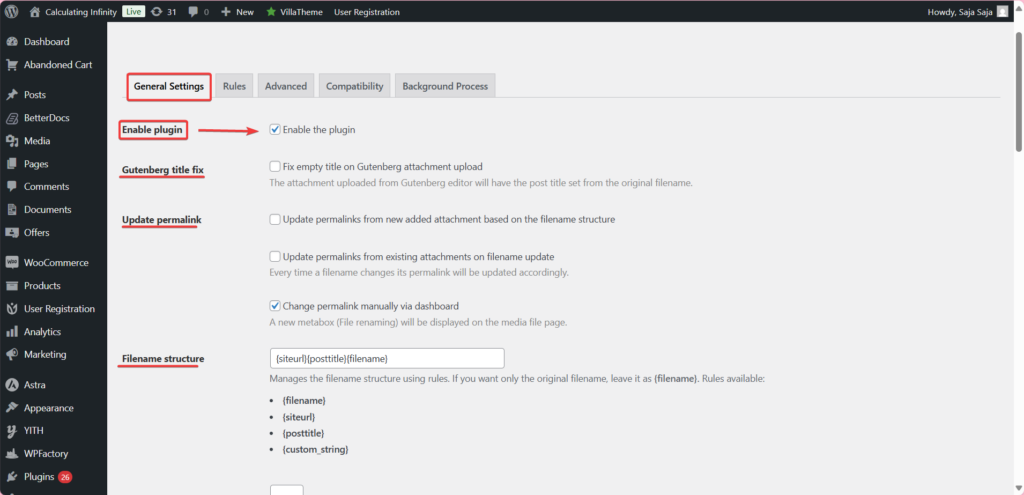
For every token and its options, see the filename structure placeholders reference and configuring the filename structure.
Main features #
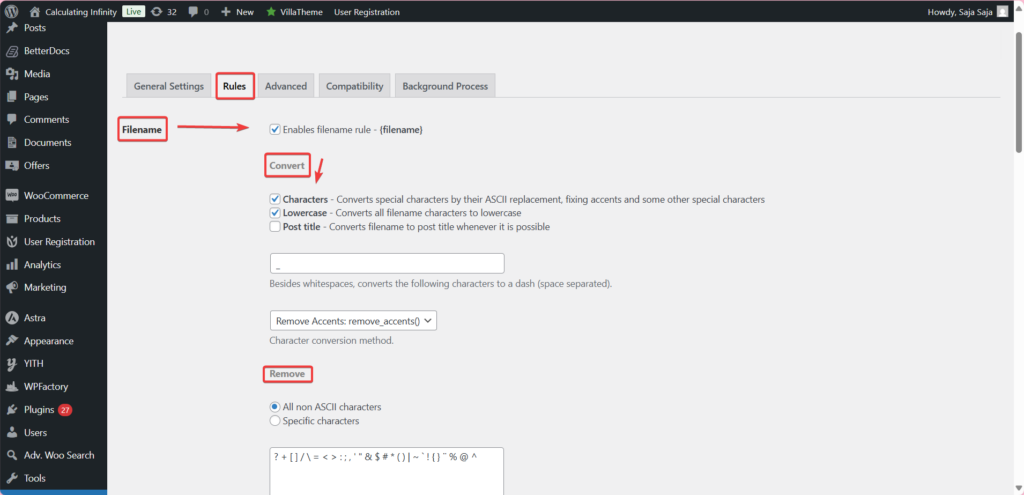
Rules for building the name (Rules tab) #
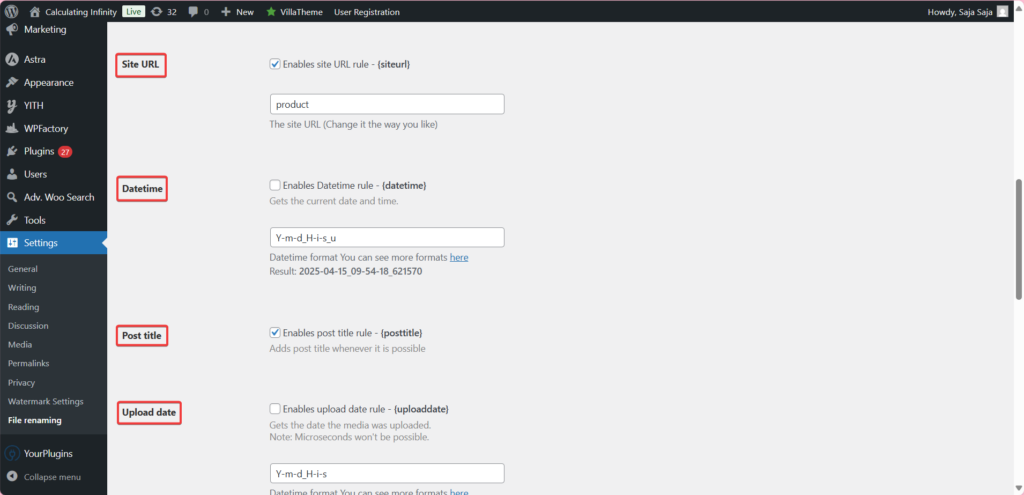
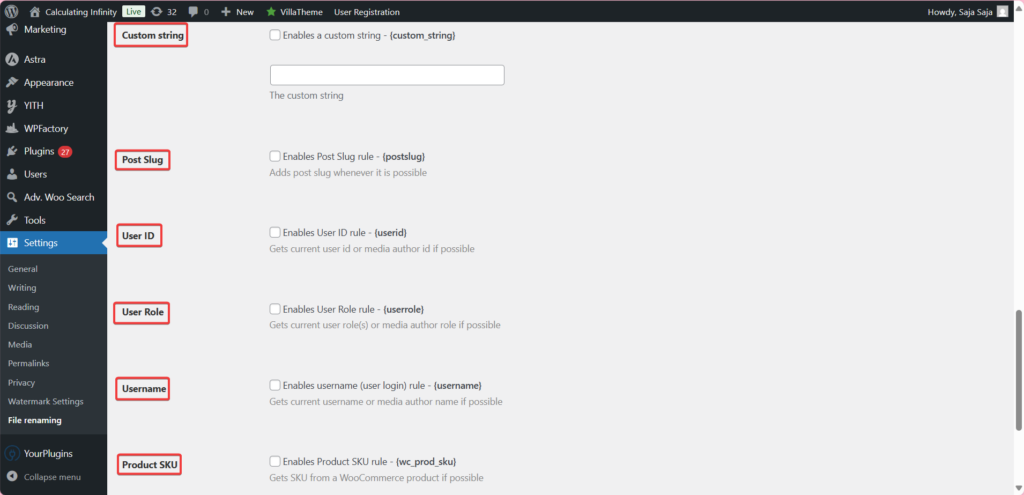
Filename, Datetime, Post title and Site URL are free. The Filename rule also converts characters, removes non-ASCII characters and can truncate the name. Post title falls back to the original filename when the post has no title (Use filename on empty title, on by default). Pro adds Custom string, Post Slug, Post ID, Upload date, User ID, User Role, Username and Product SKU. See understanding file renaming rules.
Permalinks and the Gutenberg title fix (Free) #
Update permalink (default: off) sets the attachment permalink from the filename structure. Gutenberg title fix (default: off) fixes the empty title on uploads from the block editor.
Automatic ALT text and media titles (Pro) #
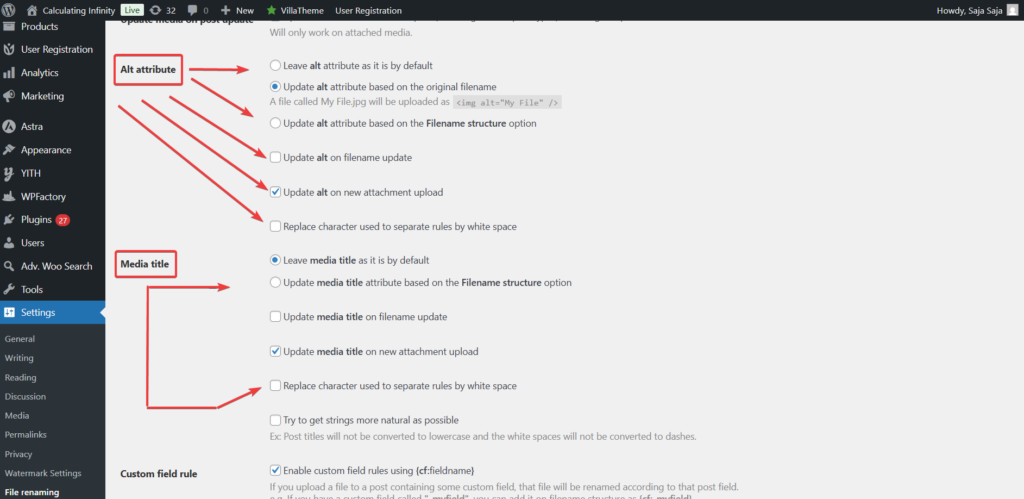
Alt attribute can stay as it is (default) or be set from the original filename or from the filename structure. Media title can stay as it is (default) or follow the filename structure. Both can update on new uploads and when the file is renamed, with an option to replace the separator with spaces. See how to automatically generate image ALT text and titles.
Rename existing files and keep links working (Pro) #
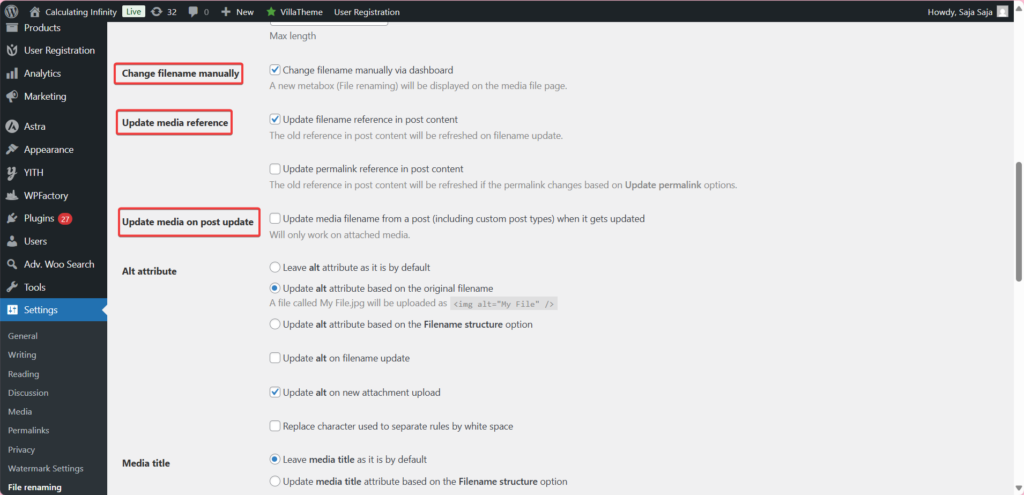
Change filename manually, Update media reference (updates links in post content when a file is renamed), Update on post saving, Update media on post update and Schedule Filename Update handle files that are already in your library. See how to bulk rename existing media files and monitoring background processes.
Custom field and taxonomy rules (Pro) #
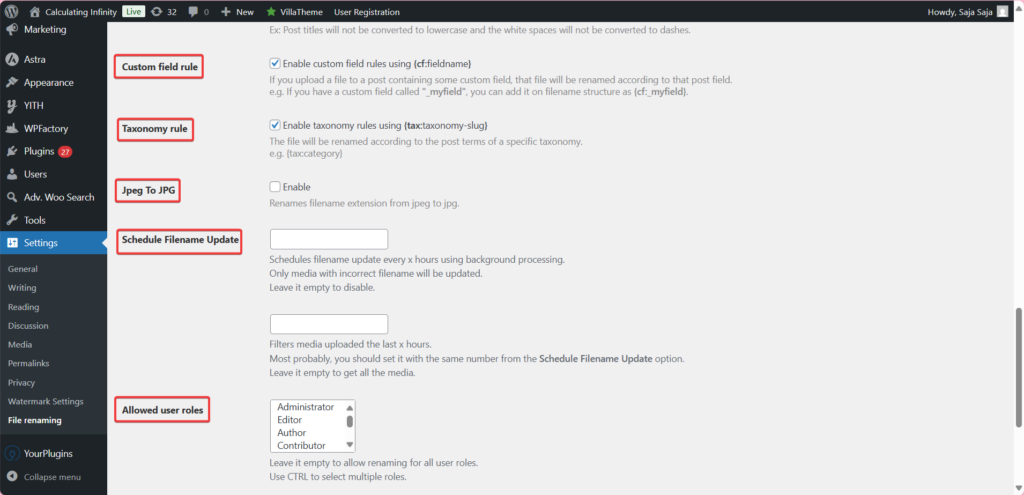
Use a post’s custom field value or taxonomy terms in the name with Custom field rule and Taxonomy rule. See how to rename files by custom field or taxonomy.
Limit who and what is renamed (Pro) #
Allowed user roles and Allowed post types restrict renaming to chosen roles or to files attached to chosen post types. See how to restrict file renaming by user role or post type.
Exceptions (Advanced tab) #
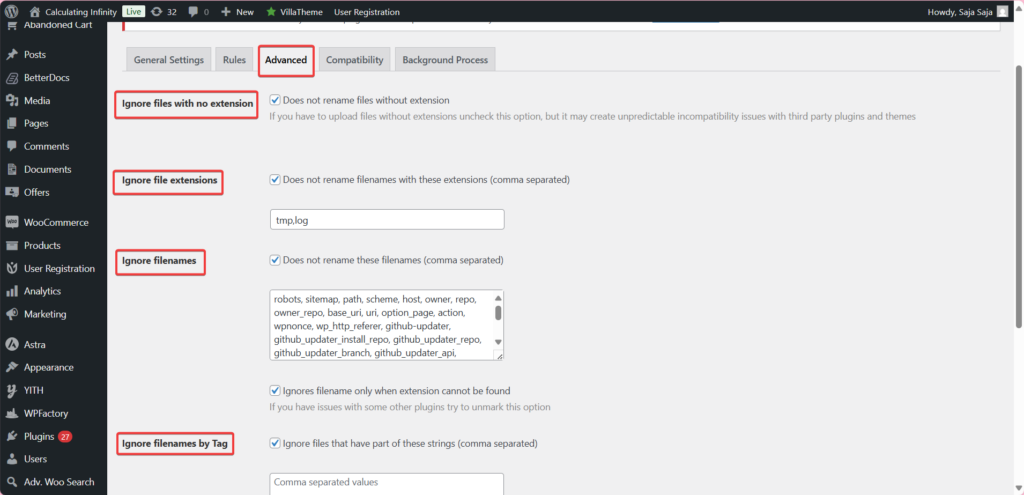
Ignore files with no extension, Ignore file extensions (default tmp,log) and Ignore filenames are free and on by default; Ignore filenames by Tag is Pro. See advanced options for file renaming.
Compatibility (Pro) #
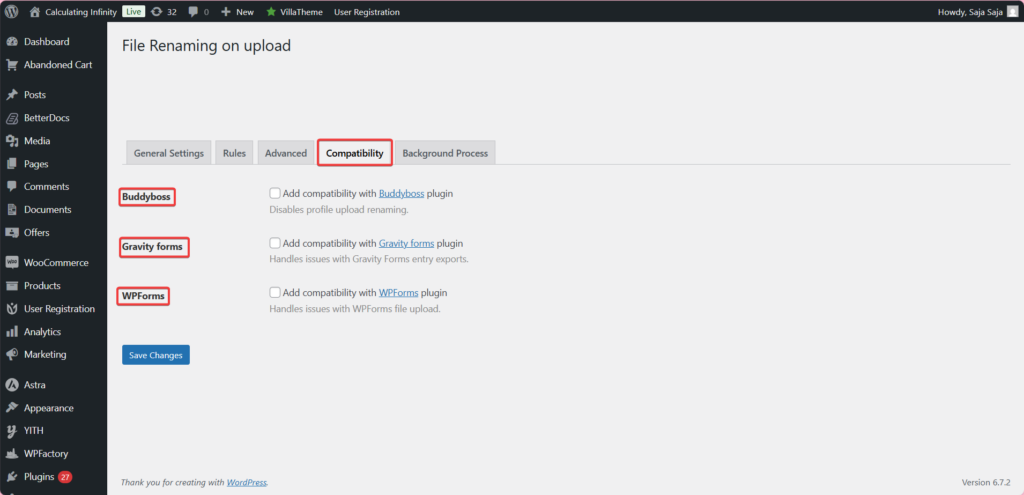
The Compatibility tab has options for BuddyBoss, Gravity Forms and WPForms uploads. See compatibility settings.
Free vs Pro #
| Feature | Free | Pro |
|---|---|---|
| Rename on upload with Filename structure, separator and max length | Yes | Yes |
| Rules: Filename, Datetime, Post title, Site URL | Yes | Yes |
| Rules: Custom string, Post Slug, Post ID, Upload date, User ID, User Role, Username, Product SKU | No | Yes |
| Update permalink, Gutenberg title fix | Yes | Yes |
| Alt attribute and Media title automation | No | Yes |
| Change filename manually, Update media reference, Update on post saving, Update media on post update | No | Yes |
| Schedule Filename Update and Background Process tab | No | Yes |
| Custom field rule, Taxonomy rule | No | Yes |
| Allowed user roles, Allowed post types | No | Yes |
| Ignore files with no extension, Ignore file extensions, Ignore filenames | Yes | Yes |
| Ignore filenames by Tag | No | Yes |
| Compatibility tab (BuddyBoss, Gravity Forms, WPForms) | No | Yes |
See Rename Media Files: Free vs Pro for more.
FAQ #
Does it rename files already in my Media Library? #
The free version renames new uploads only. Renaming existing files (manually, on post save, in bulk or on a schedule) is Pro. See how to bulk rename existing media files.
Why did my file get a blank or odd name? #
When you upload outside a post, {posttitle} has no post to read. With Use filename on empty title on (default), the original filename is used instead. See blank filename when the post title is empty.
How do I keep just the original filename, cleaned up? #
Set Filename structure to {filename}. The Filename rule still converts special characters and removes non-ASCII characters.
Can I stop some files from being renamed? #
Yes. On the Advanced tab, list extensions in Ignore file extensions (comma separated, no dots) or exact names in Ignore filenames.
My settings do not seem to save. What should I check? #
See renaming rules not saved after updating settings.
Get more control #
Renaming on upload with the core rules is free. Rename Media Files on Upload: WordPress Image SEO Pro adds automatic ALT text and titles, renaming of existing media, extra rules such as Product SKU, and custom field and taxonomy rules. See what Pro unlocks.
Need a hand? Our team answers every ticket on the Rename Media Files support forum.