Best WordPress Plugin to Rename Media Files on Upload (Auto + Bulk) 2026


Quick Answer: The Best WordPress Plugin to Rename Media Files on Upload
WordPress does not rename your media files automatically. Every image you upload keeps its original name, whether that is IMG_4821.jpg or screenshot-2024.png, making your media library messy and hurting your image SEO. The fastest solution:
- Install Rename Media Files on Upload by WPFactory, used by 10,000+ websites and rated 5.0 stars
- Set your naming rules: rename by post title, date, site URL, product SKU, or any combination
- Enable auto-rename on upload: every new file gets a clean, SEO-friendly name the moment it lands in your library
- Auto-generate ALT text: filenames sync with ALT tags so Google understands your images immediately
- Bulk rename existing files: clean up your entire media library in one run (Pro version)
Keep reading for a full feature breakdown, a comparison with other options, and a free vs Pro guide to help you choose the right plan.
You upload a product image. WordPress saves it as DSC00192.jpg. Google crawls it, sees nothing meaningful, and moves on.
Your competitor uploads the same type of image named red-running-shoes-mens-size-10.jpg and ranks in Google Images.
This is the problem a good WordPress plugin to rename media files on upload solves automatically, without you touching a single filename manually.
Properly named media files do three things at once.. they help search engines understand your content, they keep your media library organized as it grows to hundreds or thousands of files, and they ensure your ALT text stays consistent with what the file actually shows. None of this happens by default in WordPress.
This guide covers everything you need to know about choosing and using the right WordPress plugin to rename media files on upload, including a detailed look at Rename Media Files on Upload by WPFactory, an honest comparison with the alternatives, and a breakdown of which features are free versus paid.
Why WordPress Filenames Matter More Than You Think?
Most WordPress users spend time optimizing their page titles, meta descriptions, and content, then upload images named after their camera’s auto-increment counter.
This creates a consistent gap between what Google reads in the text and what it finds in the media files attached to that content.
When Google crawls an image, it reads the filename, the ALT text, the surrounding content, and the page context.
A filename like woocommerce-product-quantity-plugin-dashboard.jpg reinforces the page topic. A filename like IMG_0041.jpg contributes nothing.
For WooCommerce stores specifically, the impact is more direct. Product images named after SKUs or product titles appear in Google Shopping and Google Images searches.
Stores with clean, descriptive filenames consistently outperform those with auto-generated names in image search, which is a free traffic channel that most store owners ignore entirely.
Beyond SEO, there is the practical matter of managing a growing media library. A WordPress site that has been running for two or three years with unnamed files becomes genuinely difficult to search.
Finding the right image for a blog post or a product update turns into a manual scroll through hundreds of identically meaningless filenames. A good WordPress plugin to rename media files on upload eliminates this problem at the source.
Rename Media Files on Upload by WPFactory: Full Feature Breakdown
The Rename Media Files on Upload plugin by WPFactory is built specifically for WordPress and WooCommerce sites that need reliable, automatic file renaming without adding complexity to the upload workflow.
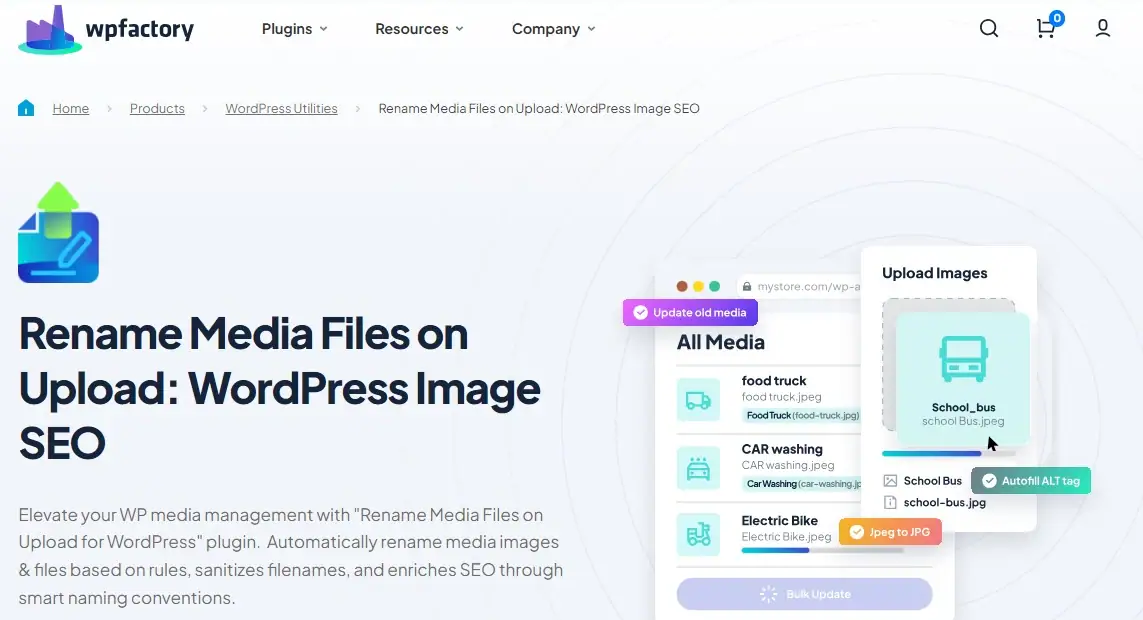
You upload a file, it gets renamed immediately before it is stored, and every reference to that file across your site stays in sync.
Automatic Renaming on Upload
The core feature is exactly what the name says: every file you upload is renamed the moment it lands in WordPress.
You define the naming rules once in the settings, and the plugin handles everything else automatically.
There is no extra step, no dashboard to check, no queue to process. The renamed file is what WordPress stores, indexes, and serves.
This matters because it means your media library is clean from day one of using the plugin. New uploads are always correctly named, and for existing files, the Pro version handles bulk renaming of your entire library in a single background run.
Flexible Naming Rules with Tokens
The plugin uses a token-based system to build filenames. You combine tokens in whatever order fits your site, and the plugin fills in the actual values at upload time.
The available tokens include:
- {posttitle}: the title of the post or page the file is attached to
- {siteurl}: your website’s domain name
- {filename}: the original filename uploaded by the user
- {wc_prod_sku}: the WooCommerce product SKU, extremely useful for product image libraries
- {postid}: the ID of the attached post
- {custom_string}: any fixed text you want to include in every filename
- Date and time tokens for the upload timestamp
You can also set a maximum filename length, choose the character used to separate tokens (hyphen or underscore), and apply transformations such as converting everything to lowercase or removing accent characters.
This last option is particularly important for non-English sites where filenames with accented characters can cause broken links or display issues.
Automatic Filename Sanitization
Even if you do not use custom naming rules, the plugin solves the most common media library problem on its own.. it automatically removes special characters, accents, spaces, and non-ASCII characters from every uploaded filename.
A file named Cafe-Interior-Photo-final.jpg comes out clean, compatible, and safe across all browsers and server configurations.
This alone prevents a category of technical problems that many WordPress sites quietly suffer from: broken image links when files are moved between servers, encoding errors in URLs, and compatibility issues with certain CDN configurations.
Permalink Synchronization
When a file is renamed, its permalink (the permanent URL WordPress assigns to the media attachment) needs to update too. The plugin handles this automatically. Page permalinks work differently, and the old ones linger until you remove old slugs in WordPress.
You can configure it to update permalinks for newly uploaded files only, or for existing files whenever you rename them manually.
This ensures that the URL your users and search engines see always matches the actual filename, which is important for both SEO consistency and avoiding 404 errors on media links.
ALT Text Auto-Generation
In the Pro version, the plugin can automatically generate ALT text for each image based on the renamed filename or the naming rules you have set.
This means that an image named using the {posttitle} token will also get ALT text derived from the post title, without any manual input.
For WooCommerce stores uploading dozens of product images at a time, this alone can save hours of manual work per week.
User Role and Post Type Controls
The plugin lets you restrict renaming behavior by user role and by post type.
This is useful on multi-author sites where you want editors to upload files without triggering renaming rules that are designed for product images, or where you want renaming to apply only to WooCommerce products and not to blog post attachments.
The granularity of control is more than most comparable plugins offer.
WooCommerce-Specific Integrations
The {wc_prod_sku} token is only the start of the WooCommerce-specific functionality.
The Pro version also includes compatibility settings for WooCommerce product galleries, handles variations correctly, and ensures that renamed files update consistently across all product image references in the database.
For stores with large catalogues, this level of integration is what separates a reliable tool from one that creates more problems than it solves.
Scheduled Auto-Renaming
The Pro version includes a scheduling feature that lets you set automatic renaming runs at intervals: hourly, daily, or weekly.
This is useful for sites that import product data from external feeds where images arrive with auto-generated names.
Instead of manually running a bulk rename after each import, you set the schedule once and the plugin keeps the library clean automatically.
Third-Party Plugin Compatibility
The plugin includes dedicated compatibility settings for BuddyBoss, Gravity Forms, and WPForms.
It also handles edge cases such as files uploaded through page builders, custom post types, and WooCommerce’s own media upload flows.
Compatibility issues are documented in the plugin’s knowledge base, and the support forum is active for cases that need custom handling.
Ready to clean up your WordPress media library?
Rename Media Files on Upload by WPFactory renames every file the moment it is uploaded. No manual work, no messy filenames, no broken links. Used by 10,000+ websites and rated 5.0 stars.
Free vs Pro: What Do You Actually Get?
The plugin is available in a free version and a Pro version.
The free version handles the core use case of automatic renaming on upload with basic rules, which is enough for most personal sites and small blogs.
The Pro version adds the features that WooCommerce stores and larger sites need: bulk renaming, ALT text automation, advanced token rules, and scheduling.
| Feature | Free | Pro |
|---|---|---|
| Auto-rename files on upload | Yes | Yes |
| Remove accents and special characters | Yes | Yes |
| Basic naming rules (filename, site URL, post title, date) | Yes | Yes |
| Permalink auto-update for new files | Yes | Yes |
| Bulk rename existing media library | No | Yes |
| Auto-generate and update ALT tags | No | Yes |
| WooCommerce SKU token ({wc_prod_sku}) | No | Yes |
| Custom fields and taxonomy tokens | No | Yes |
| Scheduled auto-renaming | No | Yes |
| Control by user role and post type | No | Yes |
| JPEG to JPG conversion | No | Yes |
| Compatibility: BuddyBoss, Gravity Forms, WPForms | No | Yes |
| Manual filename editing from dashboard | No | Yes |
| Update all content references on rename | No | Yes |
The free version is the right starting point if you are managing a blog or small site and your main goal is clean filenames going forward.
The Pro version is the right choice if you have an existing media library that needs cleaning, run a WooCommerce store where product SKUs need to appear in filenames, or need ALT text generation to be part of the same automated workflow.
How to Set Up the Plugin: Step by Step
Step 1: Install and Activate
Download the plugin from your WPFactory account and upload it via WordPress Dashboard, then Plugins, then Add New, then Upload Plugin. Activate it once installed.
Step 2: Access the Settings
Go to Settings, then File Renaming in your WordPress dashboard.
The plugin settings page is organized into tabs: General, Filename Structure, Rules, Advanced, and in the Pro version also Compatibility and Scheduling.
Step 3: Enable the Plugin and Set Your Gutenberg Fix
On the General tab, toggle the plugin on. If you use the Gutenberg block editor, also enable the Gutenberg title fix option.
This prevents a known WordPress behavior where files uploaded through Gutenberg blocks get an empty title, which would leave the renamed filename blank if you are using the {posttitle} token.
Step 4: Configure Your Filename Structure
Go to the Filename Structure tab. This is where you define the naming pattern using tokens. A practical starting configuration for most sites:
- Blog or content site:
{posttitle}-{filename}keeps the original name but prefixes it with the post title for context - WooCommerce store:
{wc_prod_sku}-{posttitle}puts the SKU first for easy filtering, followed by the product name - Brand-consistent naming:
{siteurl}-{posttitle}includes your domain name in every filename for brand attribution in image search
Set the separator character to a hyphen, enable lowercase conversion, and enable accent removal.
These three settings together ensure every filename is clean and URL-safe regardless of what the original file was called.
Step 5: Configure Permalink Updates
On the General tab, enable Update permalink and select “Update permalinks from newly added attachments based on the filename structure.” This keeps your media URLs in sync with your filenames from the start.
If you are running the Pro version and have done a bulk rename, also enable the option to update permalinks from existing attachments.
Step 6: Test Before Going Live
Upload a single test image to a draft post and check the result in your media library. Confirm the filename matches your expected pattern, that the permalink has updated, and that there are no broken references.
Only after a successful test should you run a bulk rename on your existing library.
How This Plugin Compares to the Alternatives?
There are a few other options in this space. Understanding where each one fits helps you make the right choice for your specific situation.
| Plugin | Best For | Auto-Rename on Upload | WooCommerce SKU | Free Version | Starting Price |
|---|---|---|---|---|---|
| Rename Media Files on Upload (WPFactory) | WordPress and WooCommerce sites needing rule-based automatic renaming | Yes, at moment of upload | Yes (Pro) | Yes | Free / Paid |
| Media File Renamer (Meow Apps) | Sites wanting AI-powered renaming suggestions and manual control | On title update, not directly on upload | No | Yes (limited) | Free / Paid |
| WP Media Folder (JoomUnited) | Teams needing a full media library manager with folders, cloud sync, and galleries | Yes, as one of 20+ features | Via AI metadata | No | $49/year |
Rename Media Files on Upload (WPFactory) is the right choice if your main goal is reliable, rule-based automatic renaming on upload with WooCommerce support.
It does this specific job better than anything else in its price range.
Media File Renamer by Meow Apps is worth considering if you want AI-powered suggestions and prefer to review and approve renames manually.
Its free version is genuinely useful for small sites, though the auto-rename behavior triggers on title update rather than at the moment of upload, meaning files can enter your library with their original names before the rename kicks in.
Its Pro version adds AI Vision, which analyzes image content to suggest filenames, a feature that works well for photo-heavy sites.
WP Media Folder by JoomUnited is a different category of tool entirely. It is a full media library management system with folders, subfolders, cloud storage integrations (Google Drive, Dropbox, Amazon S3), watermarking, and gallery management.
File renaming is one feature among many. At $49/year, it makes sense for agencies or large sites that need the full suite.
If renaming is your primary need, it is considerably more than you require.
The Real SEO Impact of Renaming Media Files on Upload
Using a WordPress plugin to rename media files on upload is not just a housekeeping task. It has a measurable effect on how search engines index your content.
Google uses filename signals as one of many inputs for image search ranking. A filename that matches the page topic reinforces the relevance signal already established by your heading tags, body content, and internal links.
This is particularly valuable in competitive niches where content quality is broadly similar across the top results, because image SEO becomes a genuine differentiator.
There is also the ALT text angle. Many WordPress sites have images with empty or auto-generated ALT attributes because manually writing ALT text for every upload is time-consuming.
When the plugin automatically generates ALT text from the renamed filename, it closes this gap systematically. Every image gets a meaningful ALT attribute the moment it is uploaded.
For sites with hundreds of existing images, the bulk rename and ALT text sync features in the Pro version can improve accessibility compliance and image SEO across the entire site in a single operation.
For WooCommerce stores, the impact extends to Google Shopping.
Product images with SKU-based filenames are easier for Google to associate with the correct product data in your feed, particularly if you are using Google Merchant Center with automatic product detection.
Stores that have cleaned up their product image filenames often report improvements in Shopping ad quality scores, which directly affects cost-per-click and impression share.
If you want to go deeper on how filenames interact with your broader image SEO strategy, the WPFactory blog has a practical guide on the five most common mistakes when renaming image files in WordPress, including what to do and what to avoid when cleaning up an existing media library.
Interactive: Build Your Ideal Filename Structure
What will your filenames look like?
Select your site type and naming preference to see an example of what the plugin will produce.
Related Resources
- Rename Media Files on Upload: WordPress Image SEO (Plugin Page)
- How to Bulk Edit Filenames in WordPress
- Plugin Documentation: Setup and User Guide
- WPFactory: All WooCommerce and WordPress Plugins
Frequently Asked Questions
What is the best WordPress plugin to rename media files on upload?
For most WordPress and WooCommerce sites, Rename Media Files on Upload by WPFactory is the most complete option.
It renames files at the moment of upload using flexible token-based rules, handles WooCommerce SKUs, auto-generates ALT text, and includes bulk renaming for existing libraries. It is used by 10,000+ websites and carries a 5.0-star rating.
Does WordPress rename media files automatically?
No. WordPress saves uploaded files exactly as they are named on your device. If you upload IMG_4821.jpg, that is what gets stored in your media library.
To automatically rename files on upload, you need a dedicated plugin that intercepts the file before it is saved and applies your naming rules.
Will renaming existing media files break my website?
It can, if the rename operation does not update all the references to the old filename across your site.
The Pro version of the WPFactory plugin includes a “Update filename reference in post content” option that automatically updates all internal links when a file is renamed.
Before running any bulk operation, take a full site backup as a precaution.
Can I rename WooCommerce product images using the product SKU?
Yes. The Pro version of the plugin includes a {wc_prod_sku} token that pulls the WooCommerce product SKU and uses it as part of the filename.
A product with SKU RRS-M10 and title Red Running Shoes would produce a file named rrs-m10-red-running-shoes.jpg if you use the token pattern {wc_prod_sku}-{posttitle}.
What is the difference between renaming on upload and bulk renaming?
Renaming on upload applies your naming rules to every new file as it is uploaded. This is automatic and requires no action after initial setup.
Bulk renaming applies your naming rules to files that already exist in your media library, in a single background operation.
The free version of the WPFactory plugin handles renaming on upload. Bulk renaming for existing files requires the Pro version.
Does renaming media files improve SEO?
Yes, in a meaningful way for image SEO specifically. Google uses filenames as one signal to understand what an image contains.
A filename that matches the page topic and contains relevant keywords reinforces the relevance signals already established by your content.
The effect is most visible in Google Image Search rankings and in Google Shopping for WooCommerce product images.
Combined with proper ALT text, which the Pro version can auto-generate, clean filenames are one of the most cost-effective image SEO improvements you can make.
Can I exclude certain files from being renamed?
Yes. The Advanced settings in the plugin include an “Ignore filenames” option where you can list specific filenames that should never be renamed.
There is also an option to exclude files that have no extension, and a tag-based exclusion system where any filename containing a specific text string is skipped. This is useful for protecting system files or plugin assets that should not be touched.
Does the plugin work with Gutenberg and page builders?
Yes. The plugin includes a dedicated Gutenberg title fix setting that addresses a known issue where files uploaded through Gutenberg blocks can receive an empty title.
For page builders, the Pro version’s content reference update feature handles the most common scenarios. Specific compatibility settings are available for Elementor, Gravity Forms, WPForms, and BuddyBoss.
Stop uploading files with meaningless names
Every image you upload with a name like IMG_0041.jpg is a missed SEO opportunity. Rename Media Files on Upload by WPFactory fixes this automatically. The moment each file lands in your library, it gets a clean, descriptive, SEO-friendly name based on the rules you set once.
Used by 10,000+ websites. Rated 5.0 stars. Free version available, with Pro for WooCommerce SKUs, bulk renaming, and ALT text automation.