To automatically complete WooCommerce orders, create a rule that moves orders from Processing to Completed after a set time or immediately. Scheduled & Automatic Order Status Controller for WooCommerce is well suited to stores selling virtual or downloadable products, where paid orders can be marked complete without manual review.
Before you start #
- WooCommerce, active.
- Order Status Rules installed. One rule is enough, so the free version covers this.
Set up the rule #
Go to WPFactory > Order Status Rules (also reachable at WooCommerce > Settings > Order Status Rules) and open the Rule #1 section.
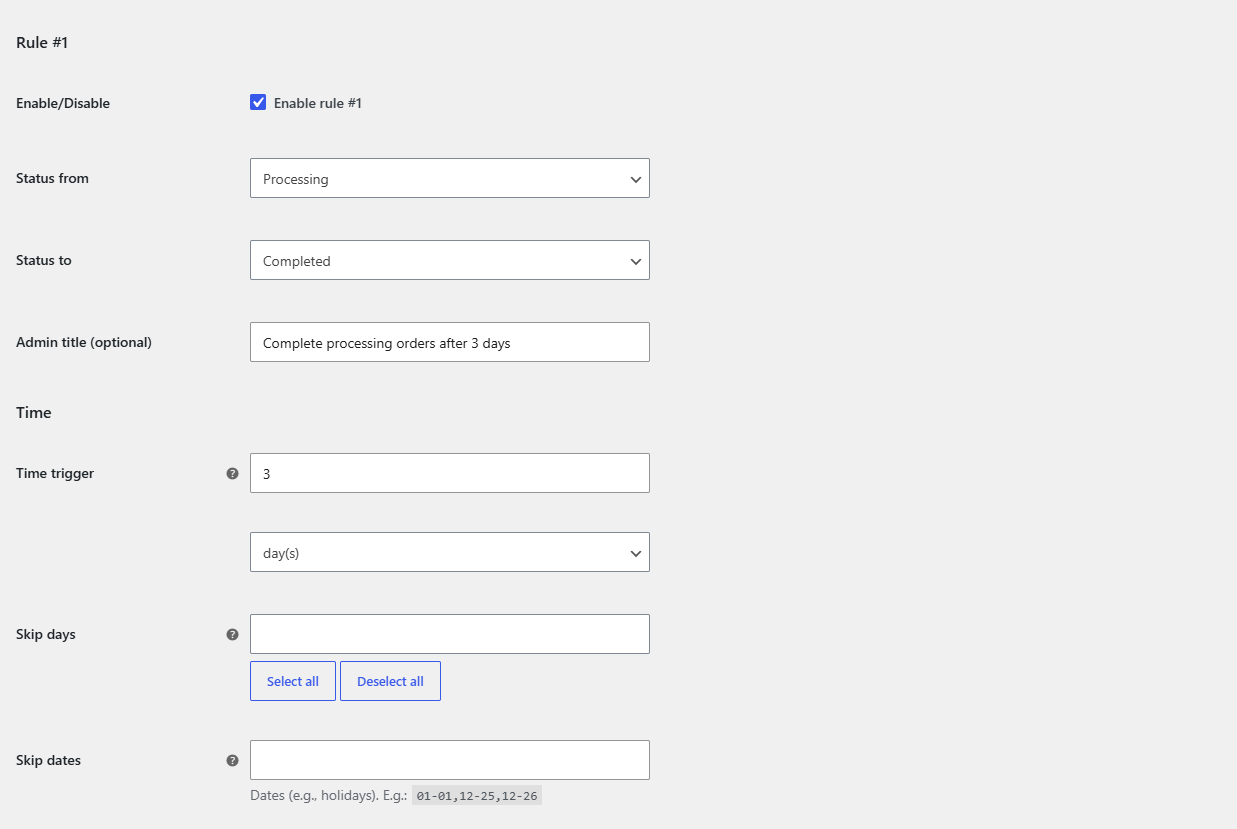
- Tick Enable rule #1.
- Set Status from to Processing.
- Set Status to to Completed.
- Set Time trigger. Use
0to complete the order as soon as it reaches Processing, or a delay such as3day(s) to give a window for cancellations. - Click Save changes.
Complete only the right orders #
Add conditions so the rule targets the orders you intend:
- Order Products: set Product stock status or specific Products / Product categories so only digital items auto-complete, using the Require or Require all action.
- Payment gateways: complete only orders paid through gateways you trust to confirm payment immediately.
Tip: the Require all action means every item in the order must match the selection, which is useful when you only want to complete orders that contain nothing but downloadable products.
Keep it running #
Confirm a scheduler is enabled in the Advanced section so Processing orders are re-checked over time, and use Run all rules now on the Tools section to apply the rule to existing orders.
Run several rules together #
Auto-completing orders is one rule, which is free. To combine it with cancelling unpaid orders and other transitions, Order Status Rules Pro removes the single-rule limit. See what Pro unlocks.