To change the WooCommerce default order status, or the status orders get after Direct bank transfer, Check payments or Cash on delivery checkout, use Scheduled & Automatic Order Status Controller for WooCommerce. Go to WPFactory > Order Status Rules > Extra, pick the statuses you want and save. These options are free.
Besides time-based rules, Order Status Rules can override the status new orders start in, both globally and per built-in payment gateway. These controls live in the Extra section.
Where to find it #
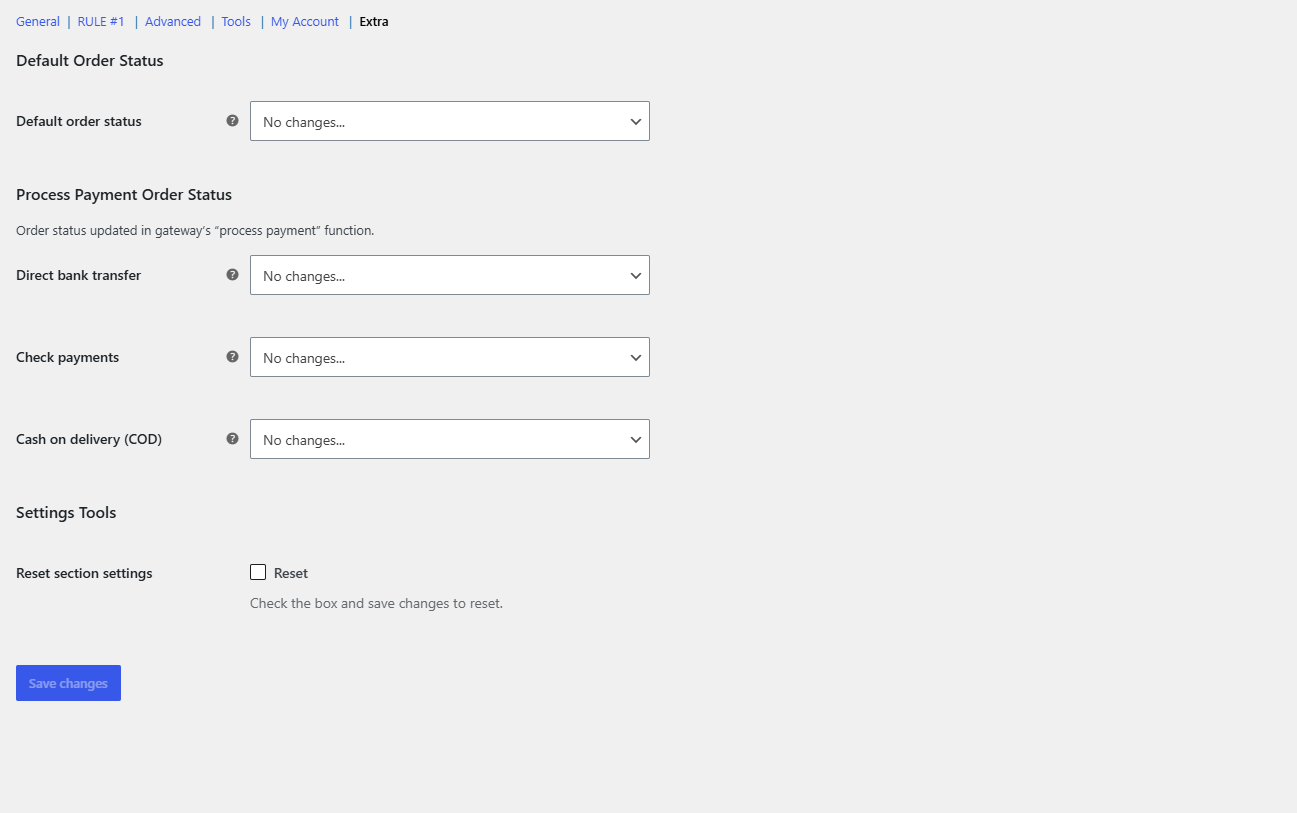
Go to WPFactory > Order Status Rules (also reachable at WooCommerce > Settings > Order Status Rules) and open the Extra section.
Step by step #
- Open the Extra section as above.
- Under Default Order Status, pick a status in Default order status, or leave No changes….
- Under Process Payment Order Status, pick a status for Direct bank transfer, Check payments and Cash on delivery (COD) as needed. Leave any of them on No changes… to keep WooCommerce’s behavior.
- Click Save changes.
- Place a test order with the gateway you changed and check its status under WooCommerce > Orders.
Default order status #
Default order status (alg_wc_order_status_rules_default_order_status, default No changes…) sets the status applied to all newly created orders, whatever the payment method. Leave it on No changes… to keep the WooCommerce default of Pending payment, or pick another status to override it.
A payment gateway can still change the status right after the order is created, when it processes the payment. For the three core offline gateways, use the options below to control that step.
Process Payment Order Status #
These options override the status set inside each gateway’s own “process payment” step. Each is empty (No changes…) by default, which means the gateway’s normal WooCommerce behavior applies.
| Gateway | Option ID | WooCommerce default |
|---|---|---|
| Direct bank transfer (BACS) | alg_wc_order_status_rules_bacs_process_payment_order_status |
On hold |
| Check payments | alg_wc_order_status_rules_cheque_process_payment_order_status |
On hold |
| Cash on delivery (COD) | alg_wc_order_status_rules_cod_process_payment_order_status |
Processing (or On hold for downloadable orders) |
For example, set Cash on delivery (COD) to On hold if you want to confirm COD orders manually before fulfillment. These three options cover the WooCommerce core gateways only; other gateways are not listed here.
Common setups #
- Bank transfer orders as Pending payment: set Direct bank transfer to Pending payment so unpaid transfers do not look like orders waiting for action.
- Use a custom status: the lists include every status registered in WooCommerce, so a custom status such as “Awaiting transfer” from another plugin can be selected.
- Cancel unpaid transfers later: combine the Extra options with a rule, see how to automatically cancel unpaid orders.
Note: the Extra options change the status an order starts in. To move an order between statuses later (for example, cancel it after a delay), use a rule in a Rule section instead.
If it does not work #
- The Enable plugin switch in the General section is off. The Extra options only load while the plugin is enabled.
- The order was paid with a gateway other than the three listed, so its own status logic applies.
- A rule, or another plugin, changed the status right after checkout. Check the order notes and the status history on the order screen.
- You expected existing orders to change. These options only affect new orders.
FAQ #
What is the WooCommerce default status for Direct bank transfer orders? #
On hold. Pick another status in Direct bank transfer to change it.
Can I set a default status per product or per customer? #
Not in the Extra section. Use a rule with product or user conditions to move matching orders to another status. See the rule conditions reference.
Are these options part of Pro? #
No. The Extra section is fully available in the free version. Pro only lifts the one-rule limit.
Combine with automated rules #
The Extra options are free. To pair them with more than one time-based rule, Order Status Rules Pro removes the single-rule limit. See what Pro unlocks.
Need a hand? Our team answers every ticket on the Order Status Rules support forum.