Payment Gateway Currency for WooCommerce ties a currency to each payment gateway: it either converts the cart to that gateway’s currency at a rate you set, or hides a gateway for currencies you choose. Configure it at WPFactory > Payment Gateway Currency (also reachable at WooCommerce > Settings > Payment Gateway Currency).
What it does #
WooCommerce supports one store currency out of the box. Payment Gateway Currency has two modes, each with its own tab:
- Convert Currency: when the customer picks a gateway, cart prices switch to the currency you assigned to it, using your conversion rate. Customers do not pick a currency; it follows the gateway.
- Restrict Currency: a gateway shows only for allowed currencies, or hides for denied ones. Nothing is converted. This is useful with a separate currency switcher.
Not sure which to use? See Convert Currency vs Restrict Currency.
Install and activate #
- Free: go to Plugins > Add New, search for Payment Gateway Currency for WooCommerce by WPFactory, then install and activate it.
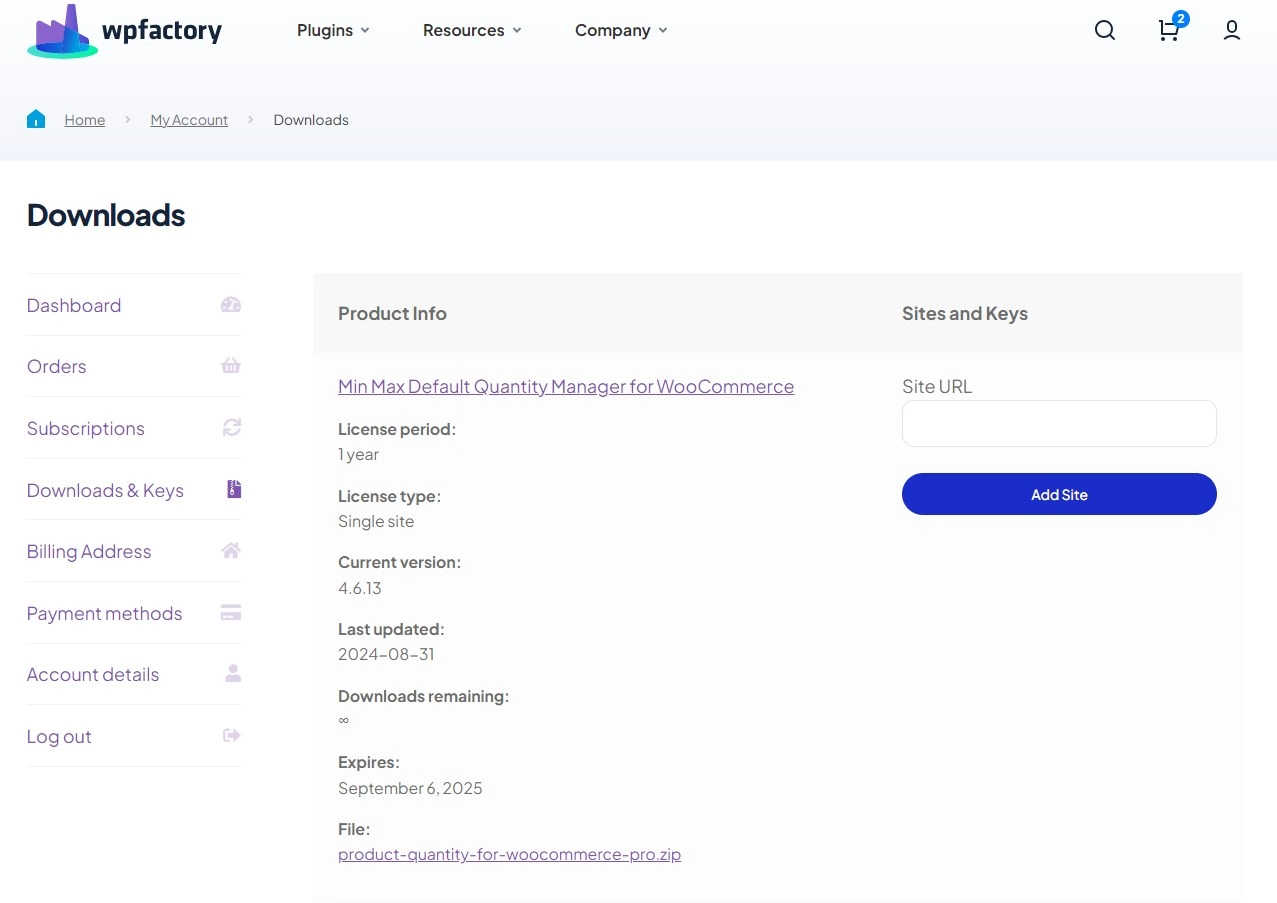
- Pro: download Payment Gateway Currency for WooCommerce Pro from your WPFactory account, upload the ZIP at Plugins > Add New > Upload Plugin and activate it. When Pro is active, the free version stops loading. WooCommerce must be active.
For more detail, see Installing Payment Gateway Currency.
First setup (Convert Currency) #
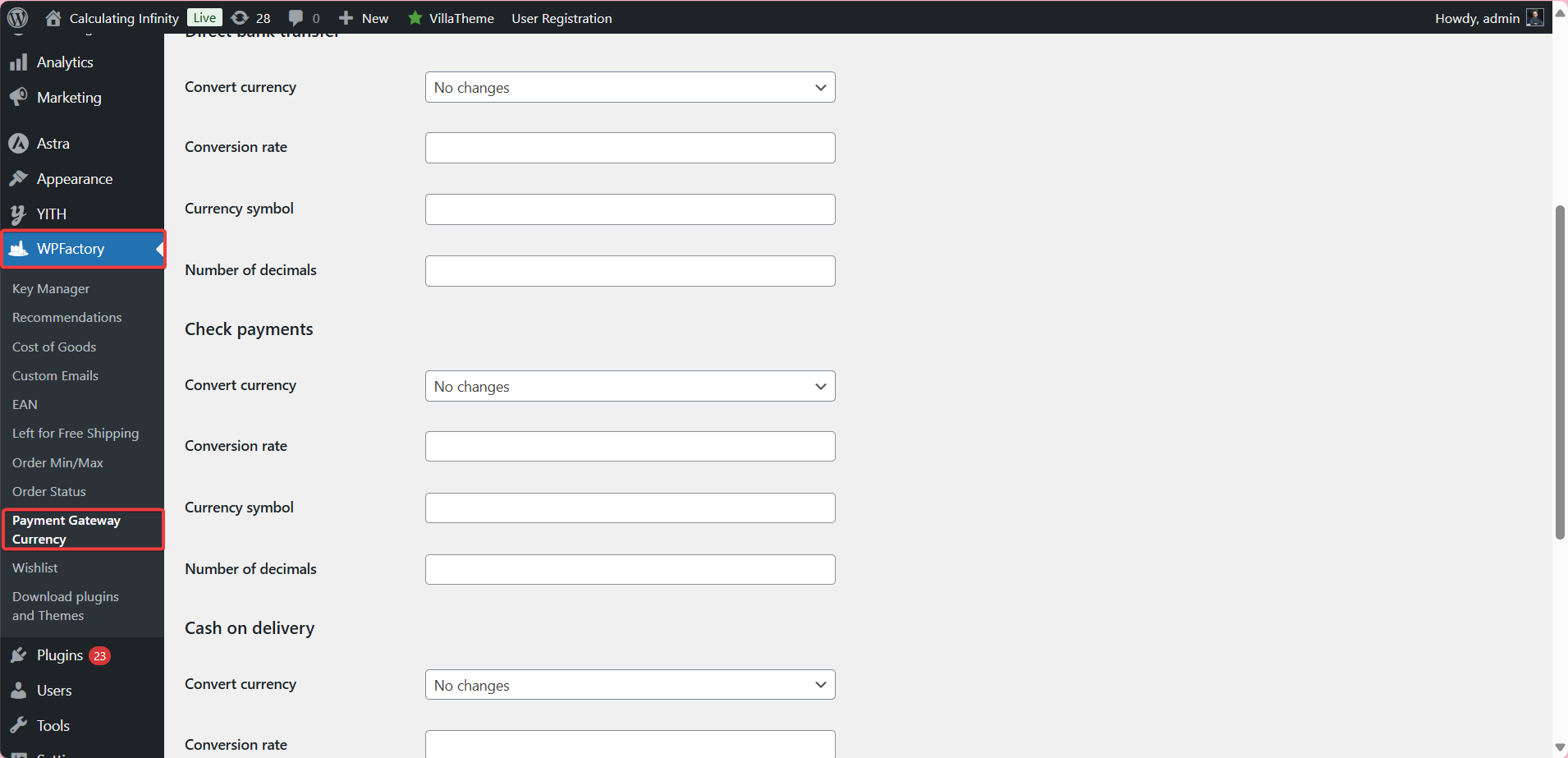
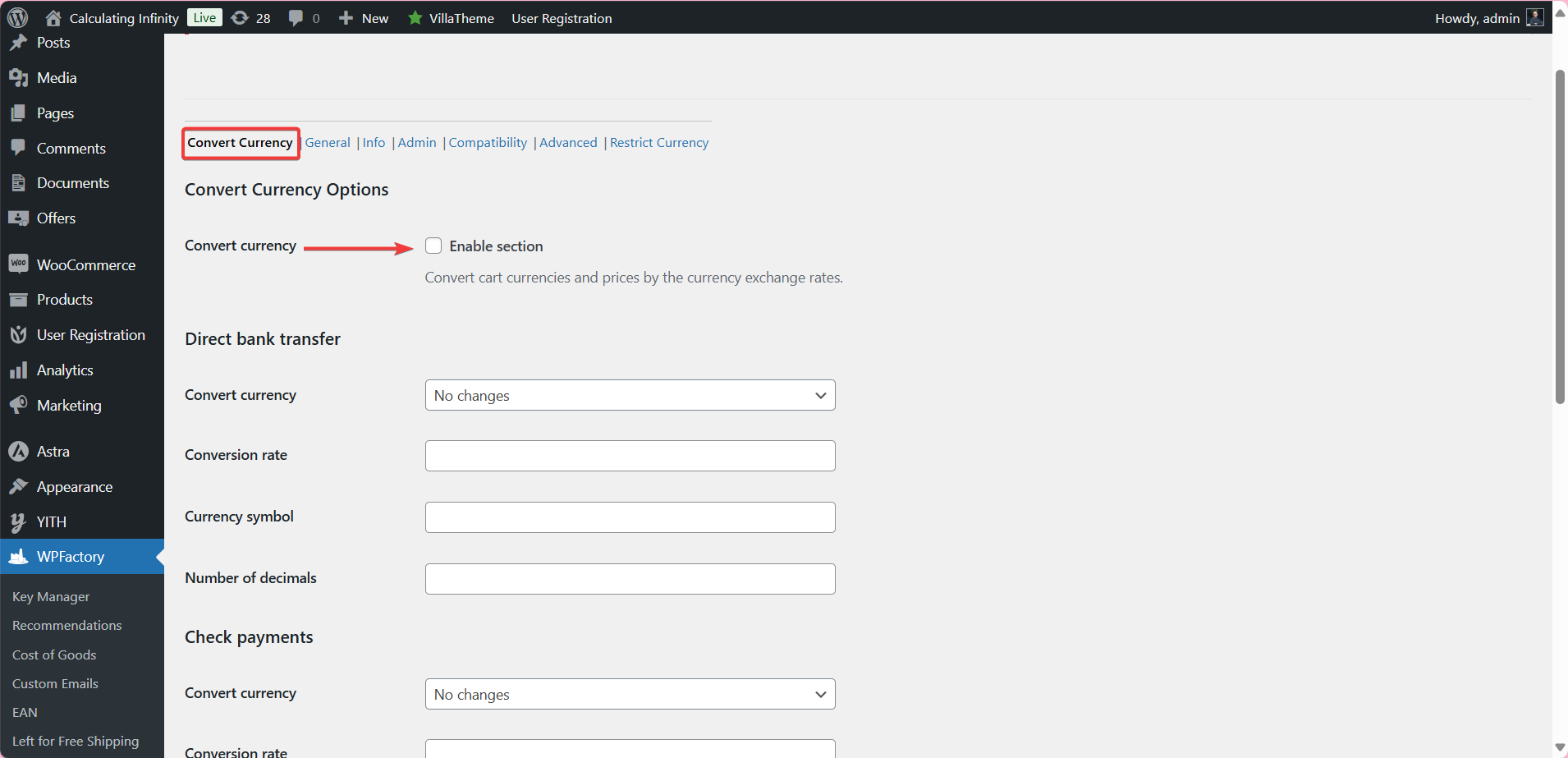
- Go to WPFactory > Payment Gateway Currency. The Convert Currency tab opens first.
- Tick Convert currency > Enable section (off by default).
- Under a gateway, for example PayPal, set Convert currency to the target currency. The default No changes leaves that gateway in the store currency.
- Enter the Conversion rate: prices are multiplied by this number, so it is how many units of the target currency equal 1 unit of your store currency. Optionally set Currency symbol and Number of decimals; leave them empty for the defaults.
- Click Save changes, add a product to the cart, and select that gateway at checkout. The totals switch to the target currency.
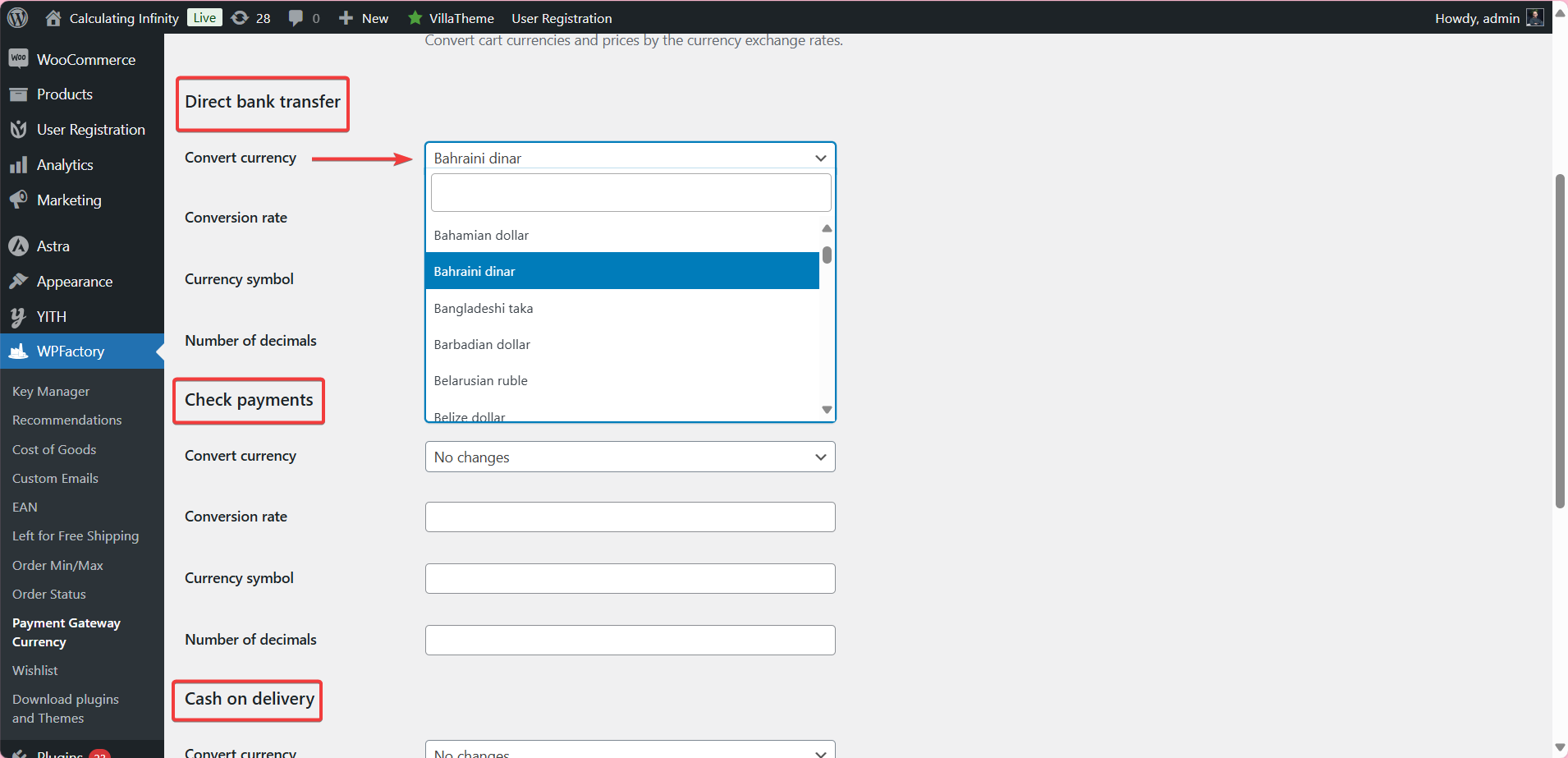
See also set a different currency per payment gateway and Convert Currency options explained.
Main features #
General options and automatic rates #
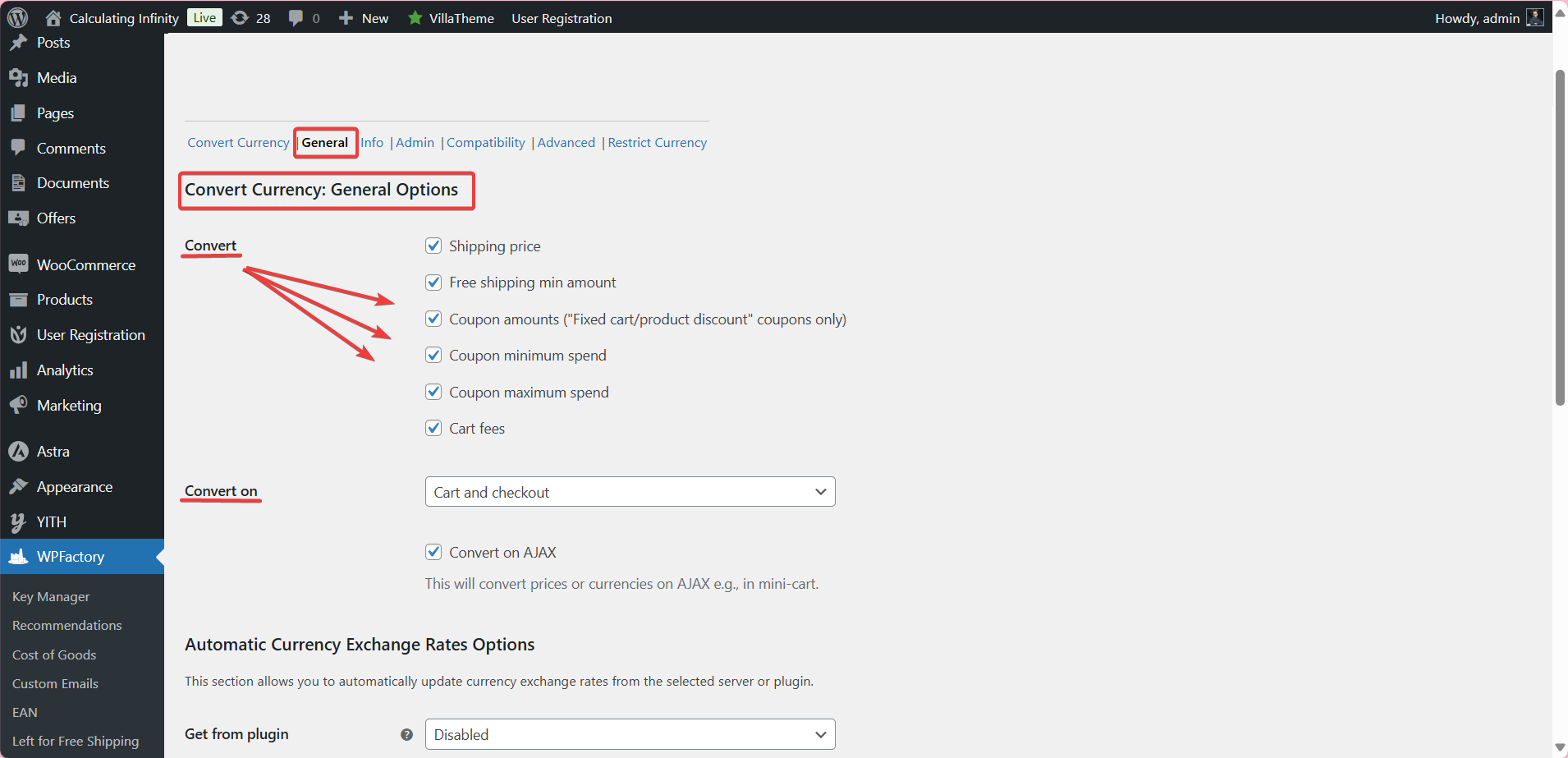
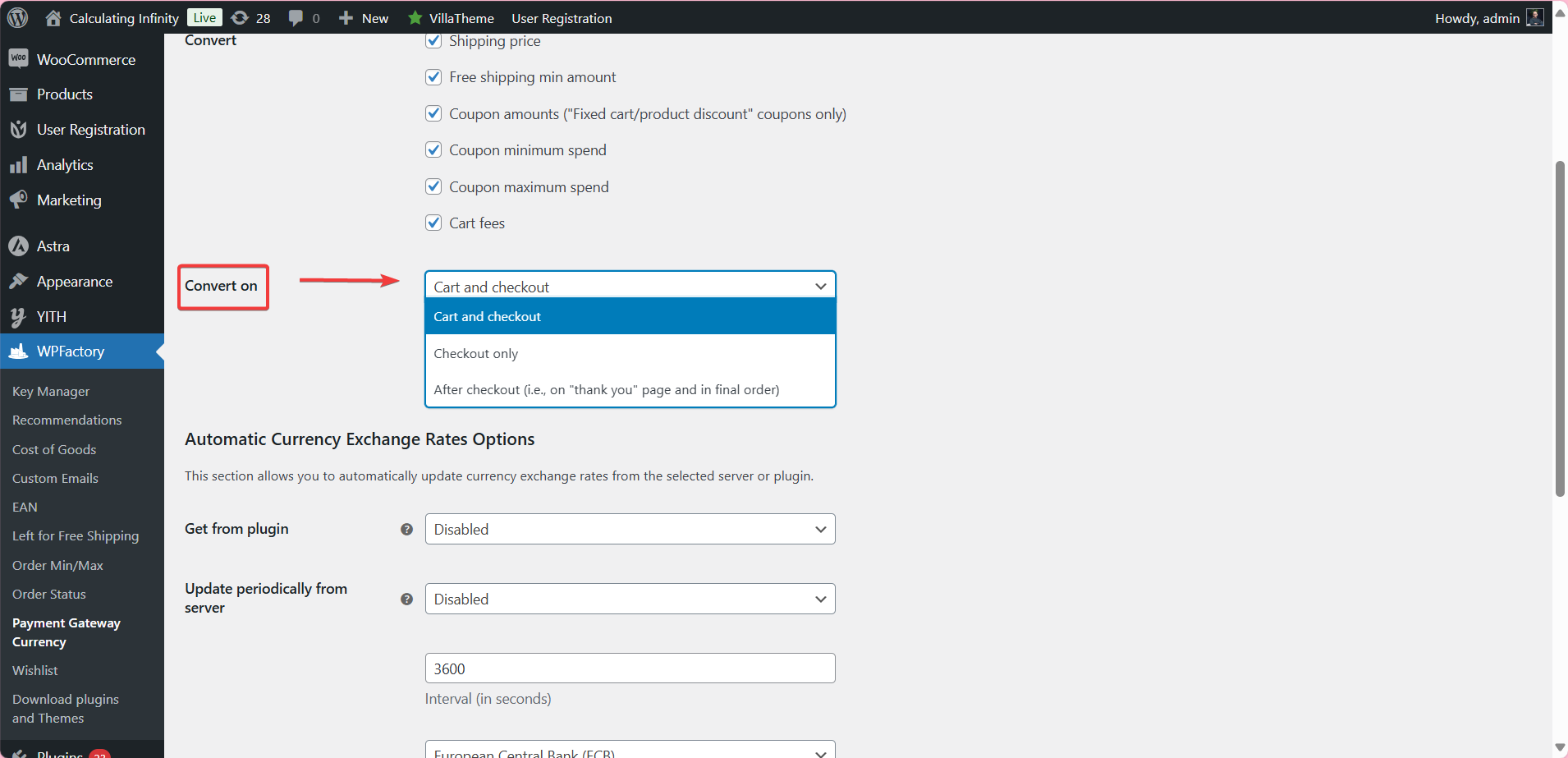
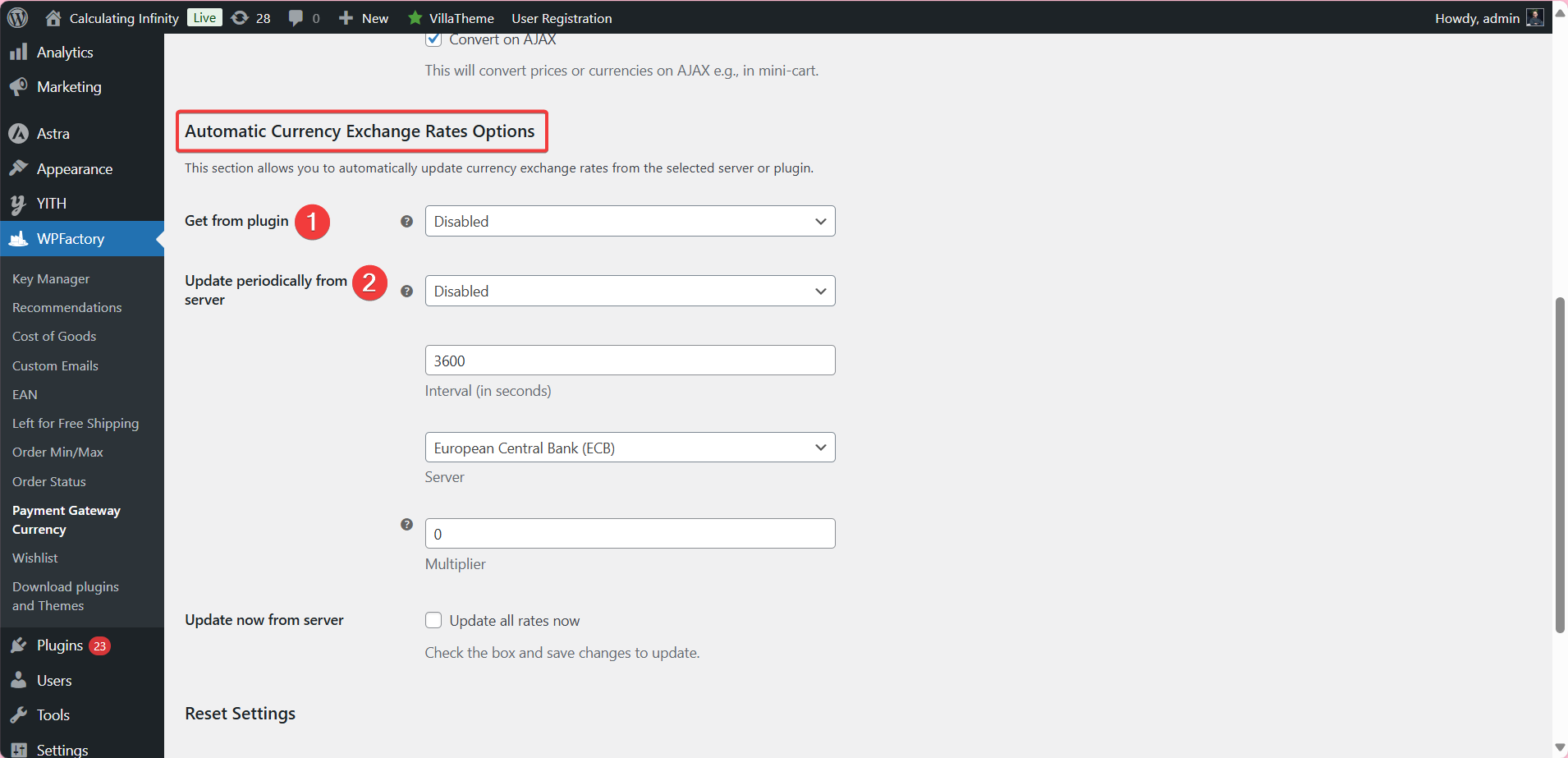
The General sub-tab chooses what to convert (shipping price, free shipping min amount, fixed coupon amounts, coupon minimum and maximum spend, cart fees; all on by default) and when, with Convert on: Cart and checkout (default), Checkout only, or After checkout. Convert on AJAX is a separate checkbox. Under Automatic Currency Exchange Rates Options, rates can come from the European Central Bank (ECB) or Fixer.io, or from WooCommerce Multilingual (WPML) multi-currency. The Multiplier is a plain multiplier applied to each fetched rate (ignored when 0), not a percentage. See General options and automatic exchange rates.
Info (frontend display) #
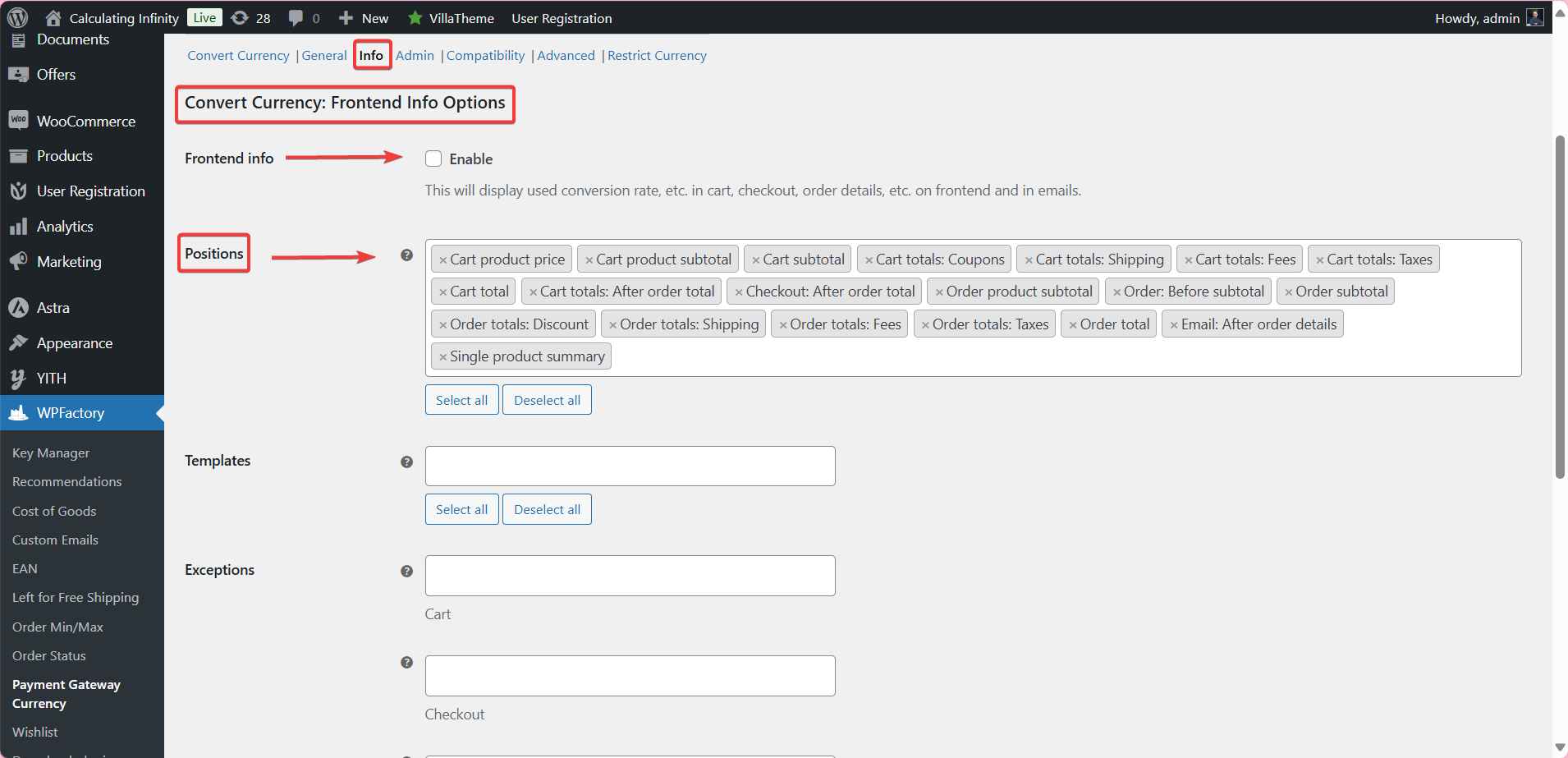
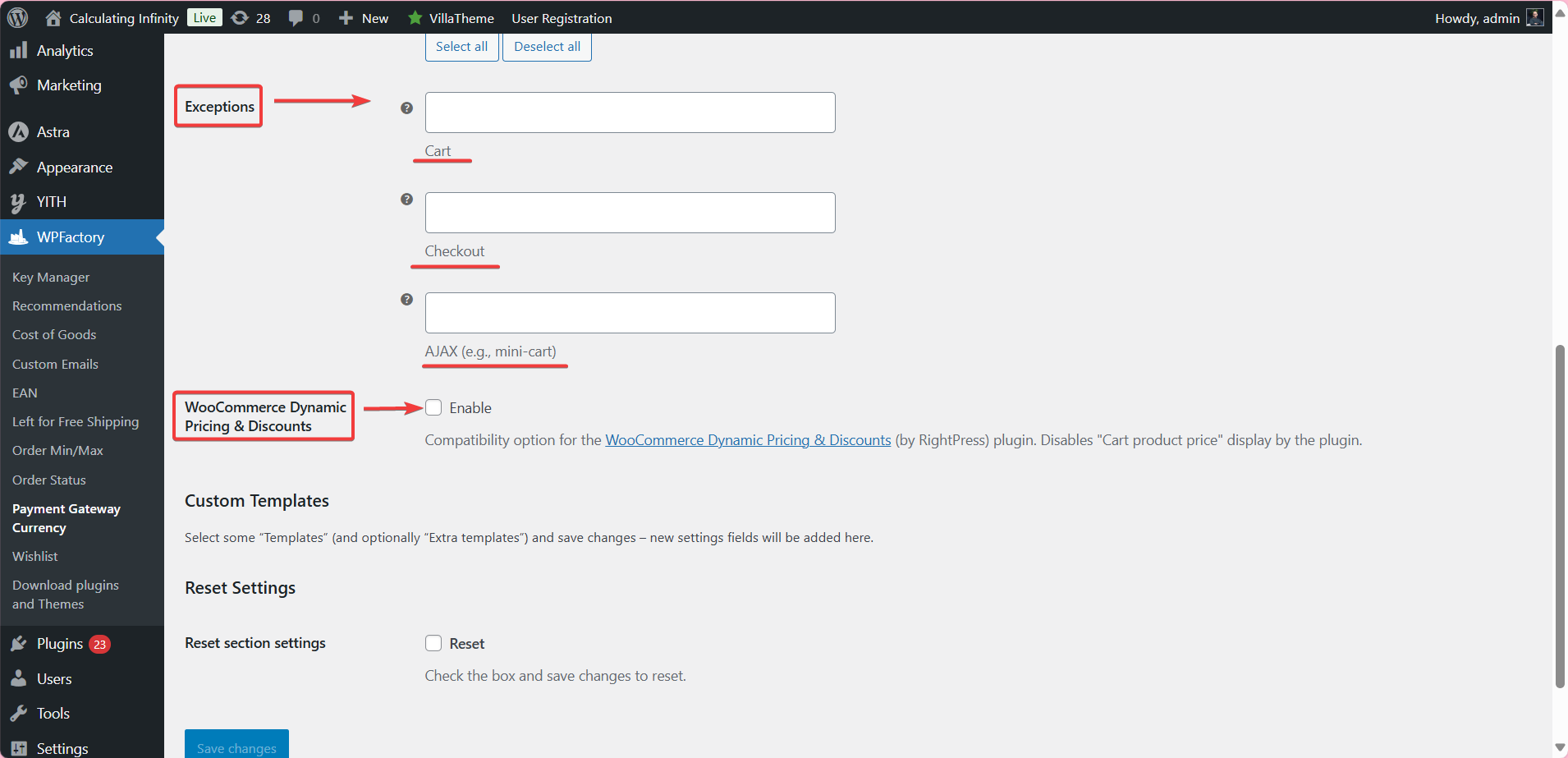
In the Info sub-tab, enable Frontend info (off by default) to show the conversion rate and converted prices in the cart, checkout, order details and emails, then choose Positions and, if needed, custom templates. The [alg_wc_pgbc_product_price_table] shortcode shows a product’s price in each gateway currency. See displaying conversion rates, the placeholders and templates reference and the product price table shortcode.
Admin options #
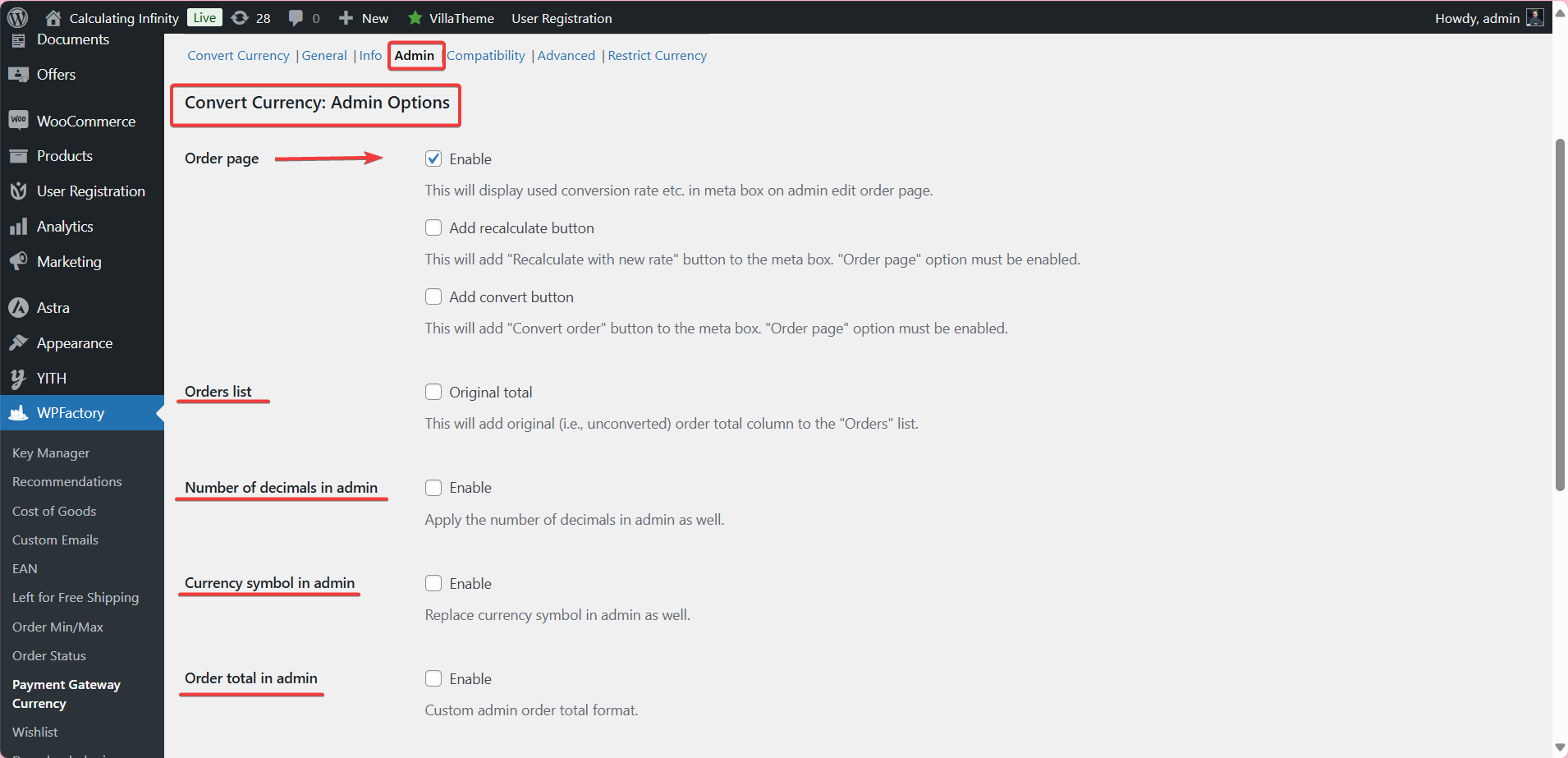
The Admin sub-tab has the Order page meta box (on by default) with optional recalculate and convert buttons, an Original total column in the Orders list, admin decimals, symbol and order total format, and WooCommerce Analytics recalculation. See Admin options explained and recalculate WooCommerce Analytics.
Compatibility options #
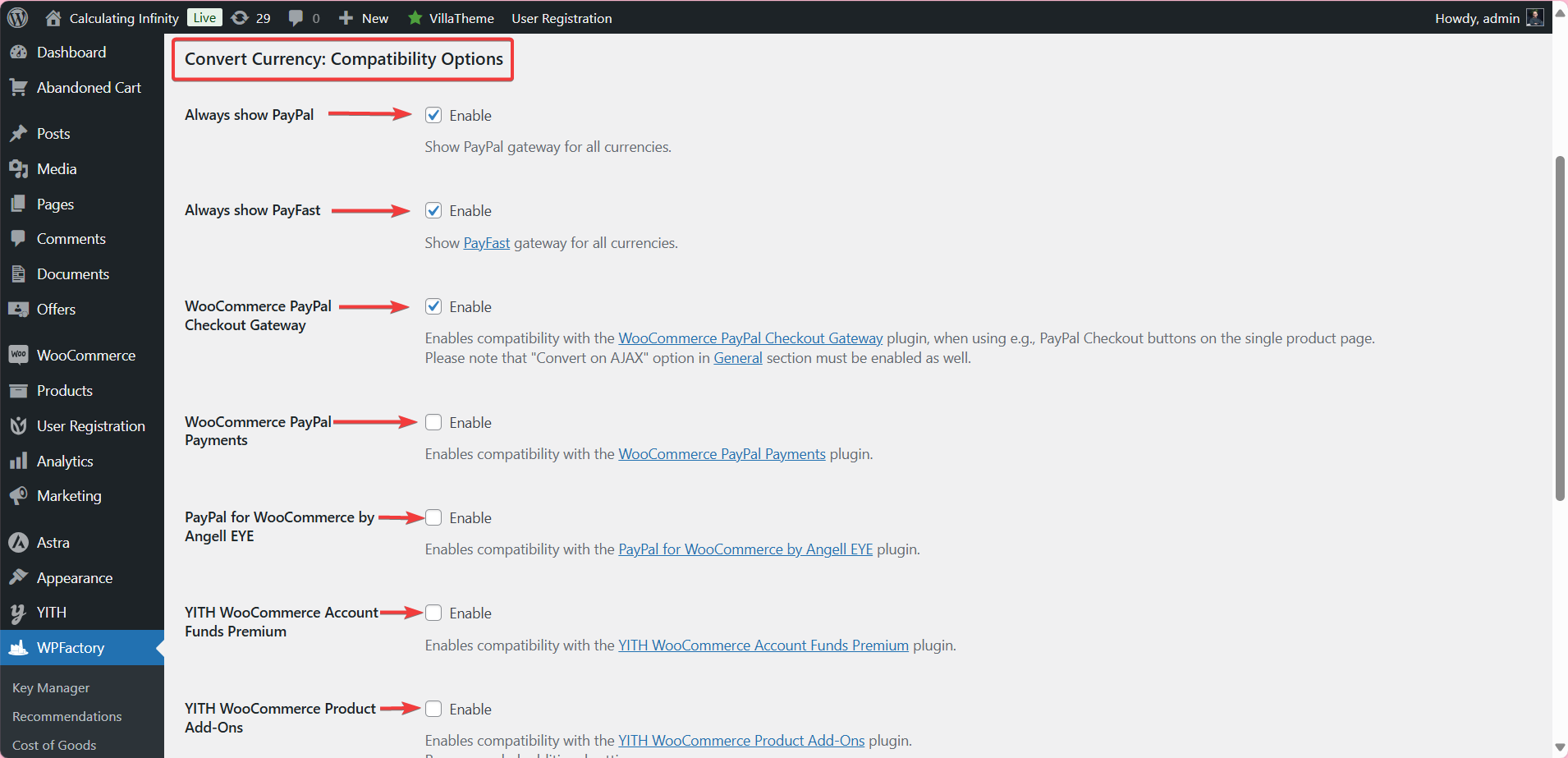
The Compatibility sub-tab has options for PayPal integrations (WooCommerce PayPal Checkout Gateway, WooCommerce PayPal Payments, PayPal for WooCommerce by Angell EYE, Payment Plugins for PayPal WooCommerce), PayFast, YITH WooCommerce Account Funds Premium, YITH WooCommerce Product Add-Ons and WooCommerce Subscriptions renewal orders. See Compatibility options explained.
Advanced options #
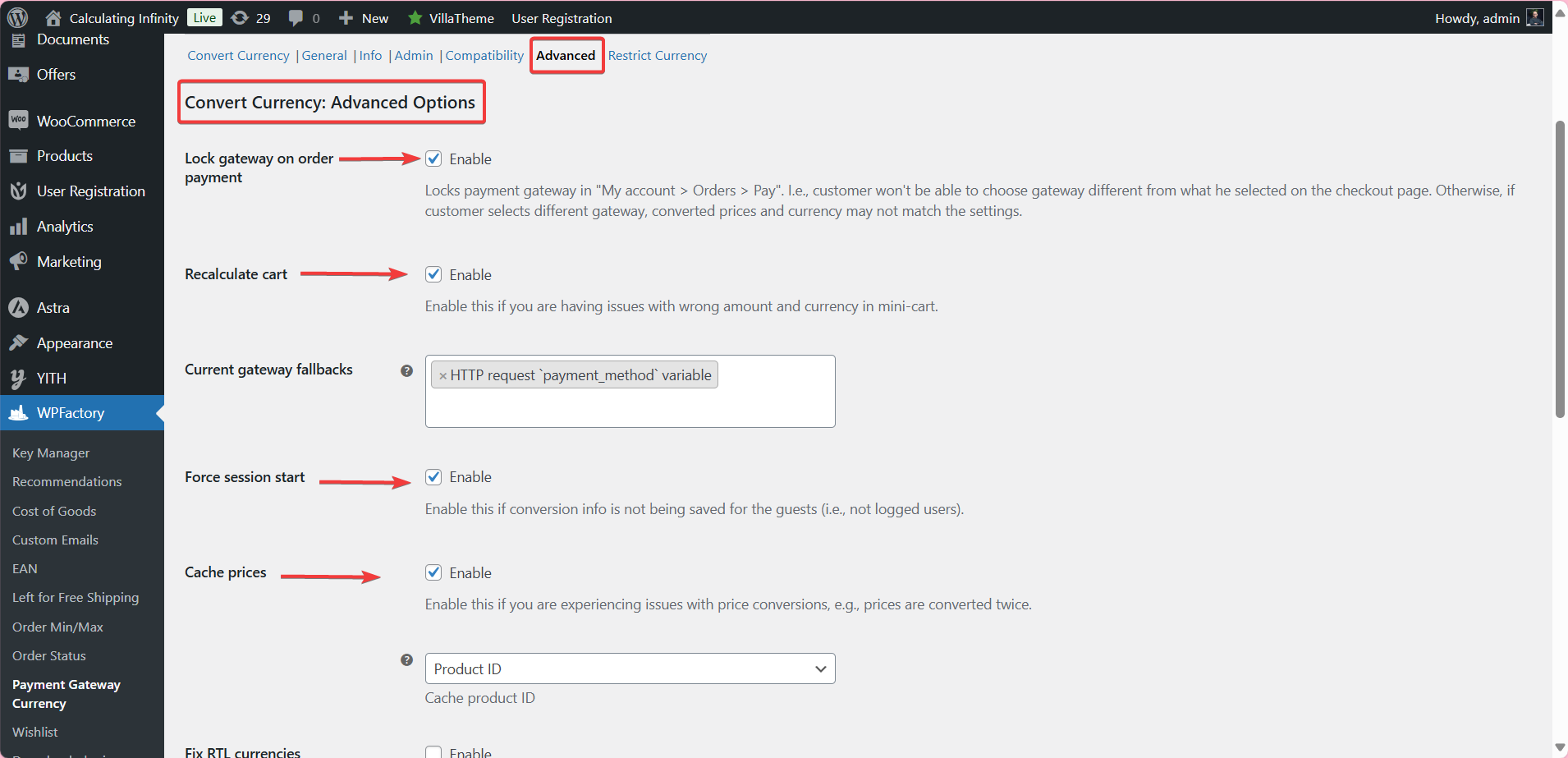
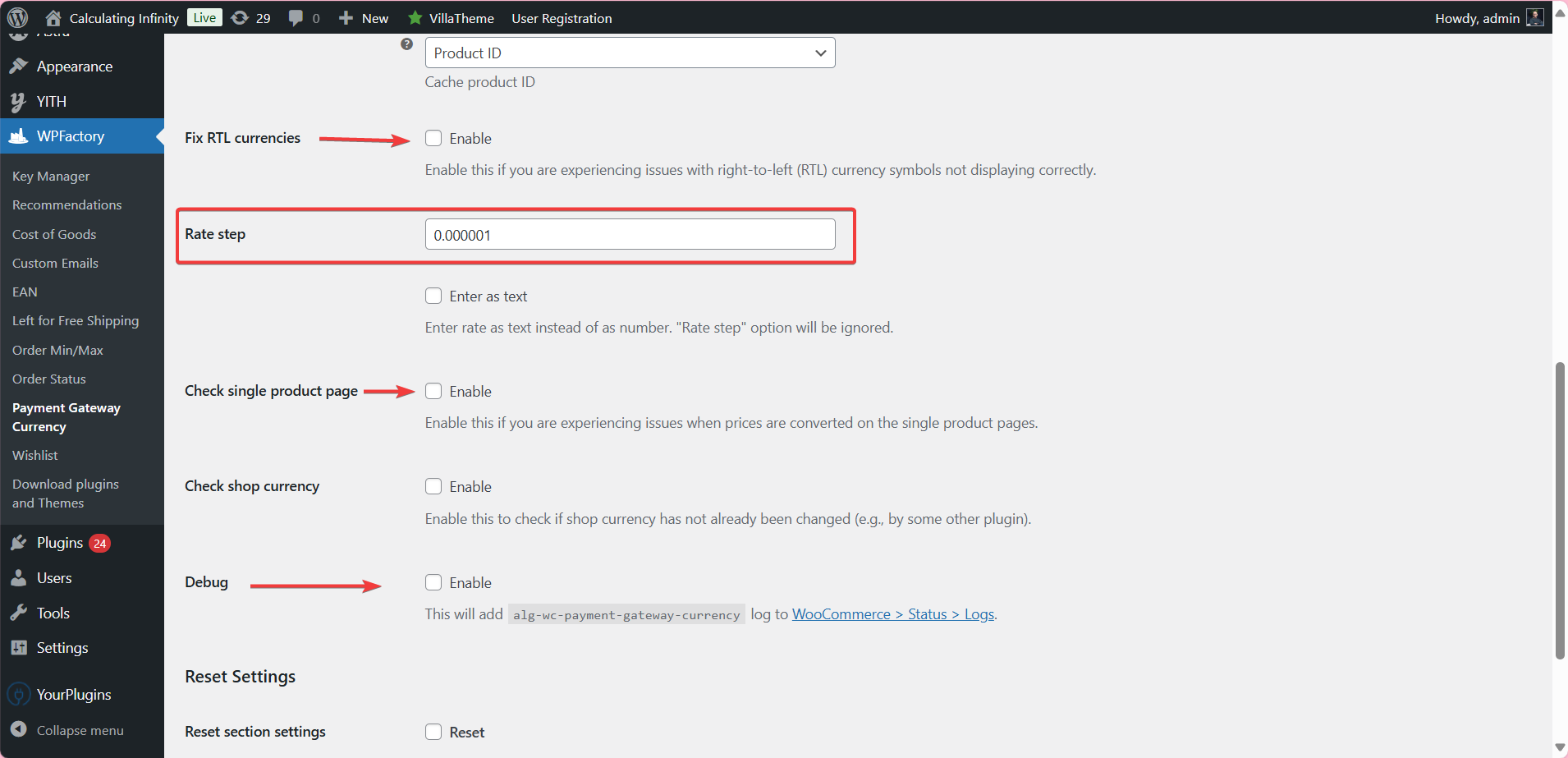
The Advanced sub-tab holds fine-tuning switches: Lock gateway on order payment, Recalculate cart, Cache prices, Force session start, Fix RTL currencies and Debug. Rate step (default 0.000001) and Enter as text are two separate options: the second switches the rate field to text. See Advanced options explained.
Restrict Currency #
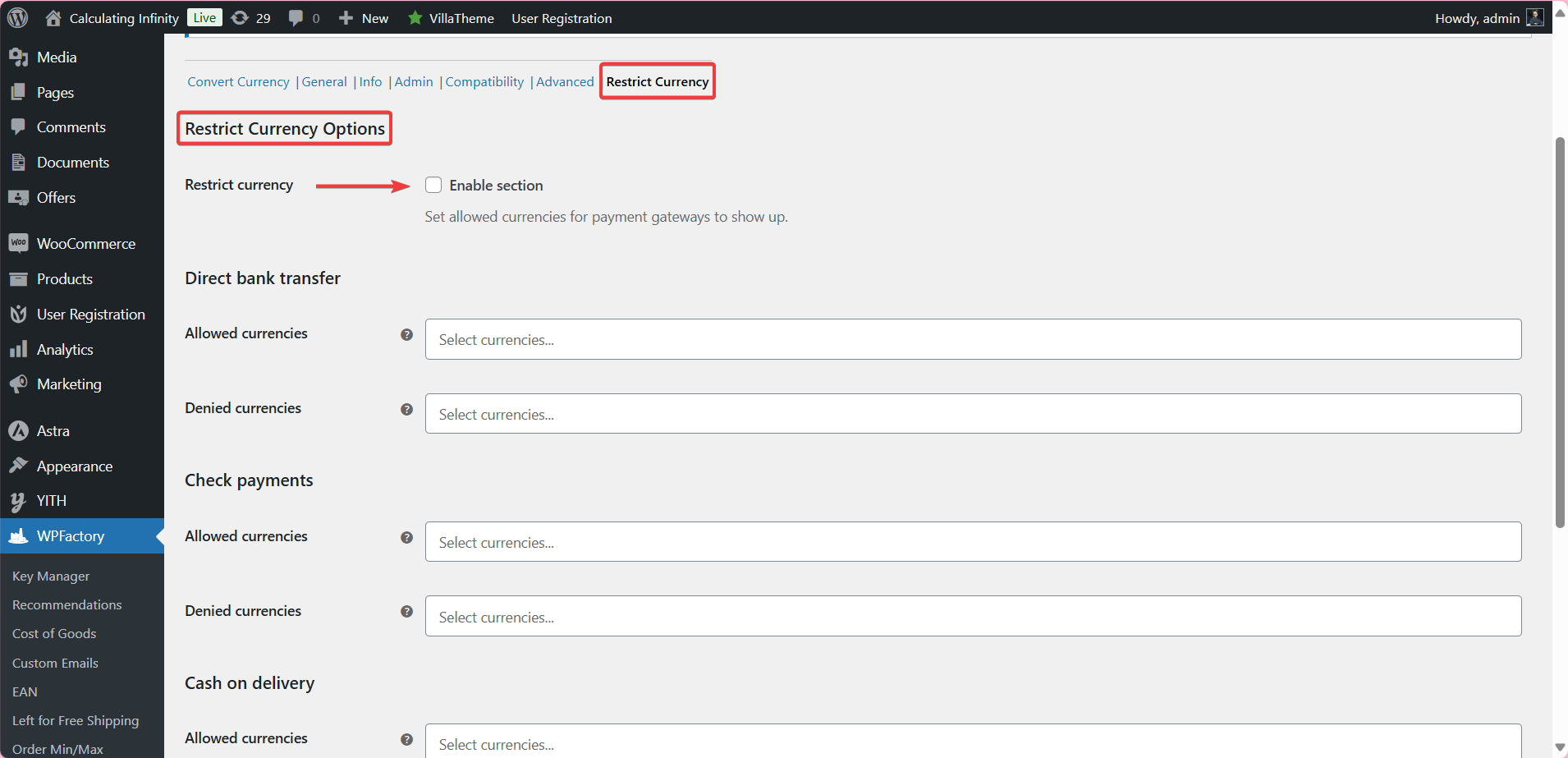
To hide gateways for some currencies instead of converting, open the Restrict Currency tab, tick Restrict currency > Enable section, then set Allowed currencies or Denied currencies per gateway. See restrict currency options.
Free vs Pro #
The only difference is which gateways you can configure. Every option in both modes is free.
| Feature | Free | Pro |
|---|---|---|
| Convert Currency and Restrict Currency for Direct bank transfer, Check payments, Cash on delivery, PayPal and WooCommerce PayPal Payments | Yes | Yes |
| Convert Currency and Restrict Currency for any other gateway (Stripe, WooPayments and others) | No | Yes |
| General, Info, Admin, Compatibility and Advanced options, automatic rates, shortcode | Yes | Yes |
More detail: Difference between the Pro and free version.
FAQ #
Why is a gateway’s currency field grayed out? #
In the free version only the five standard gateways can be configured. Fields for other gateways are disabled until you install Pro.
Is the conversion rate a percentage? #
No. Prices are multiplied by the rate. With a USD store and a rate of 0.92 for EUR, a 100 USD cart becomes 92 EUR. The same applies to the automatic rates Multiplier.
Can customers choose the currency themselves? #
Not in Convert Currency mode: the currency follows the gateway they select. If you use a currency switcher plugin, use Restrict Currency to show only the gateways that accept the current currency.
The currency does not change in the cart. Why? #
Check that Convert currency > Enable section is on, and that Convert on is not set to Checkout only or After checkout. See Convert Currency troubleshooting.
Get more control #
The free version covers the five standard WooCommerce gateways. Payment Gateway Currency for WooCommerce Pro unlocks conversion and restriction for any other gateway. See what Pro unlocks.
Need a hand? Our team answers every ticket on the Payment Gateway Currency support forum.