How to Add a Payment Gateway to WooCommerce (Step-by-Step + Best Options 2026)


UPDATED
If you want to accept payments in WooCommerce, the first step is adding a payment gateway that matches your store, country, and preferred payment methods.
In WooCommerce, this usually means choosing a gateway plugin, enabling it in your payment settings, connecting your account, and testing checkout before going live.
This guide is for WooCommerce store owners who want a clear, practical way to add a payment gateway without getting lost in technical documentation.
We’ll focus on the actual setup process inside WooCommerce, what you need before you start, which gateway options are worth considering, and how to avoid common setup mistakes.
Quick Answer: How to Add a Payment Gateway to WooCommerce
To add a payment gateway to WooCommerce, go to WooCommerce → Settings → Payments, choose the gateway you want, install its plugin if needed, enable it, connect your account, and save your settings.
- Choose a gateway → Such as Stripe, PayPal, or WooPayments
- Install and activate the plugin → Add the gateway to your store
- Complete the setup → Enter account and business details
- Test checkout → Make sure customers can pay successfully
Keep reading for the full step-by-step setup and the best gateway options for different WooCommerce stores.
How to Add a Payment Gateway to WooCommerce (Step-by-Step)
Adding a payment gateway to WooCommerce is a straightforward process once you know where to look.
Below is a simple step-by-step walkthrough that shows exactly how store owners set up payments inside WooCommerce.
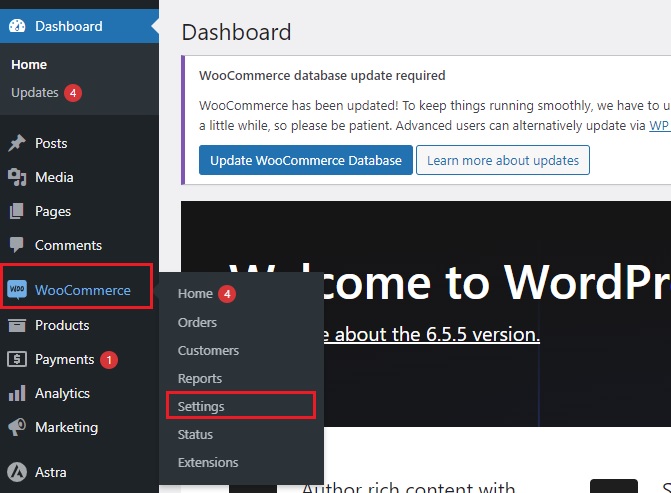
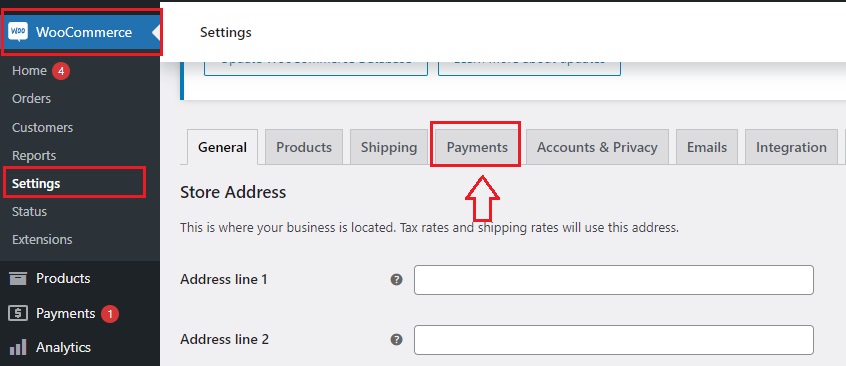
Step 1: Go to WooCommerce Payment Settings
From your WordPress dashboard, navigate to WooCommerce → Settings → Payments. This is where all available payment methods are listed and managed.
Step 2: Choose a Payment Gateway
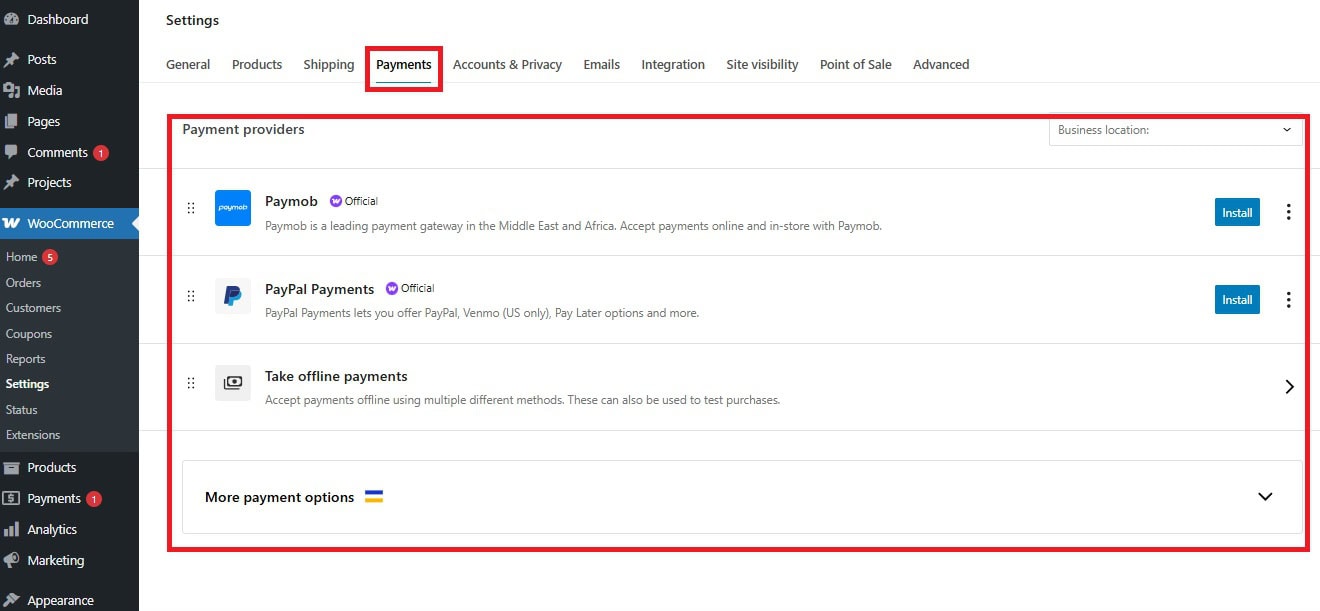
You’ll see built-in options such as PayPal or WooPayments, along with any gateways you’ve installed.
Decide which payment method you want to offer based on your customers, location, and preferred payment types.
Step 3: Install the Gateway Plugin (If Needed)
Some payment gateways require installing an additional plugin.
For example, Stripe or other providers may need a dedicated plugin to connect your store with their system.
Step 4: Enable the Payment Method
Toggle the payment method to Enabled, then click Set up or Manage to configure its settings.
Step 5: Connect Your Account
Enter your account details, API keys, or log in through the provider’s secure connection process. This step links your WooCommerce store to your payment gateway.
Step 6: Configure Payment Settings
Adjust settings such as currency, payment title, checkout display, and any additional options provided by the gateway. Make sure everything matches your business setup.
Step 7: Test the Checkout Process
Before going live, place a test order to ensure the payment gateway works correctly. This helps you catch errors early and avoid failed payments for real customers.
Once these steps are complete, your WooCommerce store will be ready to accept payments.
From here, you can expand your setup with additional gateways or customize how payment methods appear at checkout.
Once your payment gateway is working correctly, you can also streamline your post-purchase process by automatically generating invoices for completed orders. If you’re comparing different solutions, check out our guide to the best WooCommerce PDF invoicing plugins.
What You Need Before Adding a Payment Gateway
Before you add a payment gateway to WooCommerce, it helps to make sure your store is ready for it.
This saves time during setup and reduces the chances of failed payments, account verification issues, or checkout errors later on.
1. A Secure WooCommerce Store
Your store should be running on HTTPS with a valid SSL certificate. Payment gateways handle sensitive customer information, so security is a basic requirement, not an extra step.
2. A Supported Business Location and Currency
Not every payment gateway works in every country or supports every currency.
Before choosing a gateway, check whether it is available in your region and whether it supports the currencies you plan to accept.
3. A Business Account With the Payment Provider
Most gateways require you to create or connect a business account before you can accept live payments.
Depending on the provider, this may include identity checks, business verification, and bank account details.
4. Basic Store Information
You may need to prepare details such as your business name, website URL, refund policy, billing information, and contact details. Payment providers often review this information before approving your account.
5. A Clear Checkout Experience
Adding a payment gateway is only one part of the setup. Your checkout page should also be easy to understand, mobile-friendly, and free from unnecessary friction.
A payment method will not perform well if the rest of the checkout experience is confusing.
6. A Way to Test Payments
Before accepting real customer payments, it is important to test the gateway in a safe environment if the provider allows it.
This helps confirm that payments, order confirmations, and checkout flows all work as expected.
Once these basics are in place, adding a payment gateway in WooCommerce becomes much smoother.
It also makes it easier to compare your options and choose a gateway that fits your store’s needs.
Best Payment Gateways for WooCommerce (Quick Overview)
Choosing the right payment gateway depends on your store’s location, target customers, and the types of payments you want to accept.
Instead of comparing dozens of options, here are some of the most commonly used gateways for WooCommerce store owners.
-
Stripe
Stripe is one of the most popular payment gateways for WooCommerce.
It allows you to accept credit cards, Apple Pay, Google Pay, and other modern payment methods directly on your checkout page.
It’s a strong choice for stores looking for flexibility and a smooth user experience.
How to Set Up Stripe in WooCommerce?
-
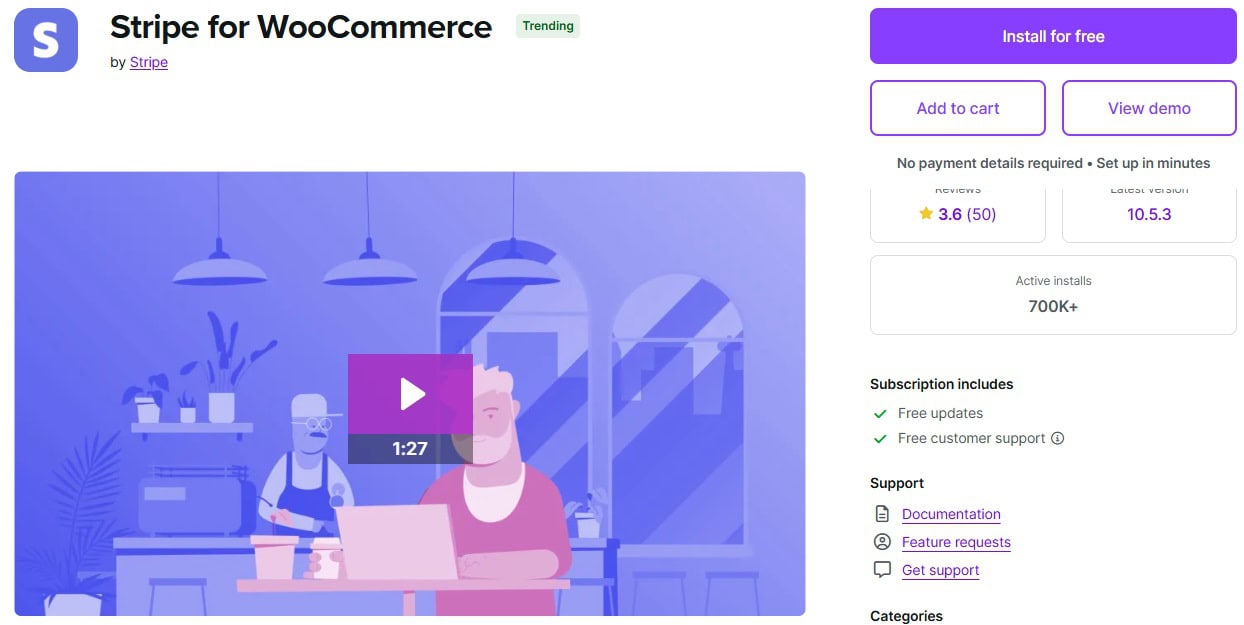
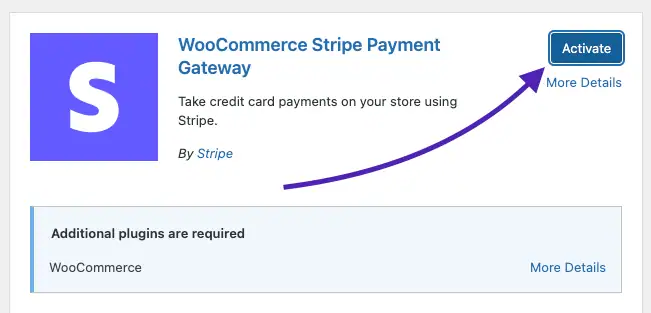
- Install the official Stripe extension.
Go to Plugins → Add New, search for the official Stripe plugin for WooCommerce, then install and activate it.
- Open the Stripe payment settings.
In your WordPress dashboard, go to WooCommerce → Settings → Payments → Stripe.
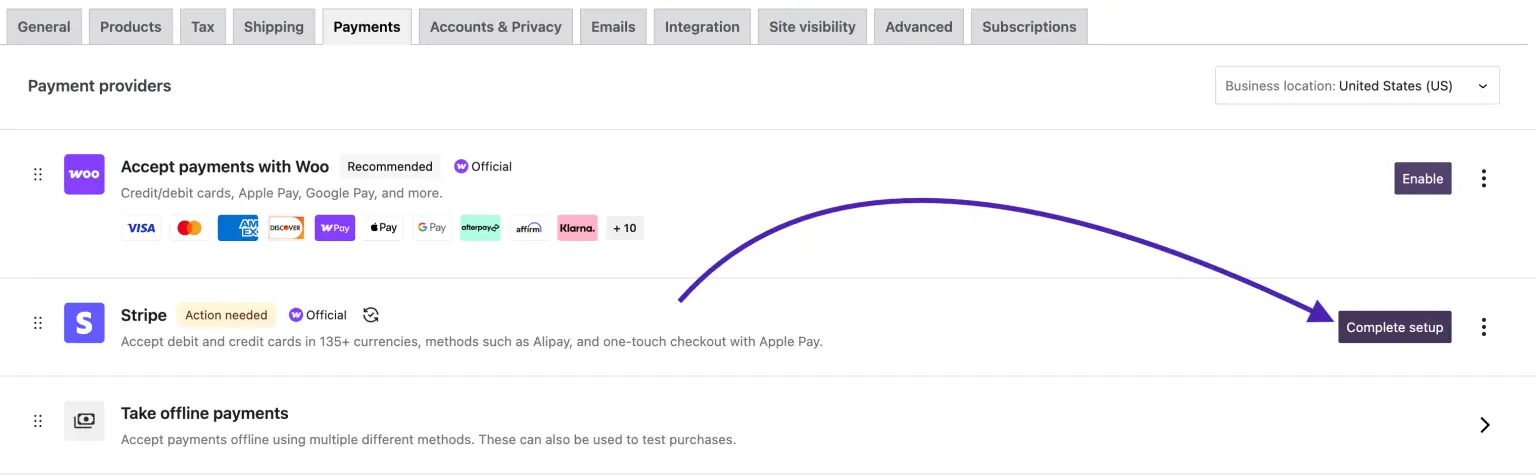
- Connect your Stripe account.
Use the connection option inside the Stripe settings to link your WooCommerce store to your Stripe account.

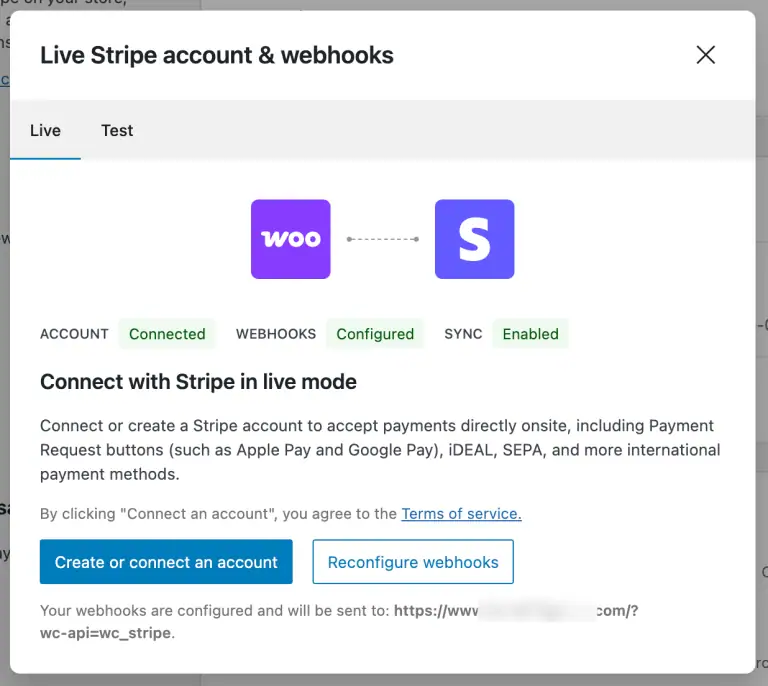
- Check the account and webhook status.
After connecting, confirm that your Stripe account status is connected and that webhooks are configured properly.
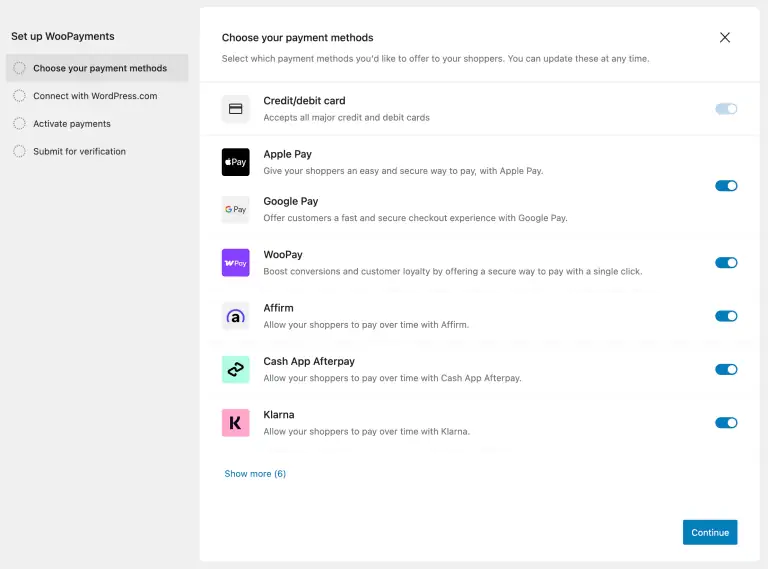
- Enable the payment methods you want to offer.
In the Payment Methods section, select the methods you want to use, such as cards or express checkout options, then save your changes.
- Review your general checkout settings.
Adjust any relevant display and checkout options in the Stripe settings so they match your store setup. - Run a test transaction before going live.
Make sure the payment flow works correctly before you start accepting real customer payments.
- Install the official Stripe extension.
Once Stripe is connected and your payment methods are enabled, your WooCommerce store is ready to start accepting payments through Stripe.
-
PayPal

PayPal is widely recognized and trusted by customers worldwide.
It allows users to pay using their PayPal balance or linked cards, which can increase trust and conversion rates, especially for international stores.
How to Set Up PayPal in WooCommerce?
- Install the WooCommerce PayPal Payments plugin.
Go to Plugins → Add New, search for WooCommerce PayPal Payments, then install and activate it. Once payments are live, our roundup of essential WooCommerce plugins covers what to add next. - Go to the Payments tab in WooCommerce.
Open WooCommerce → Settings → Payments in your dashboard. - Select the correct PayPal option.
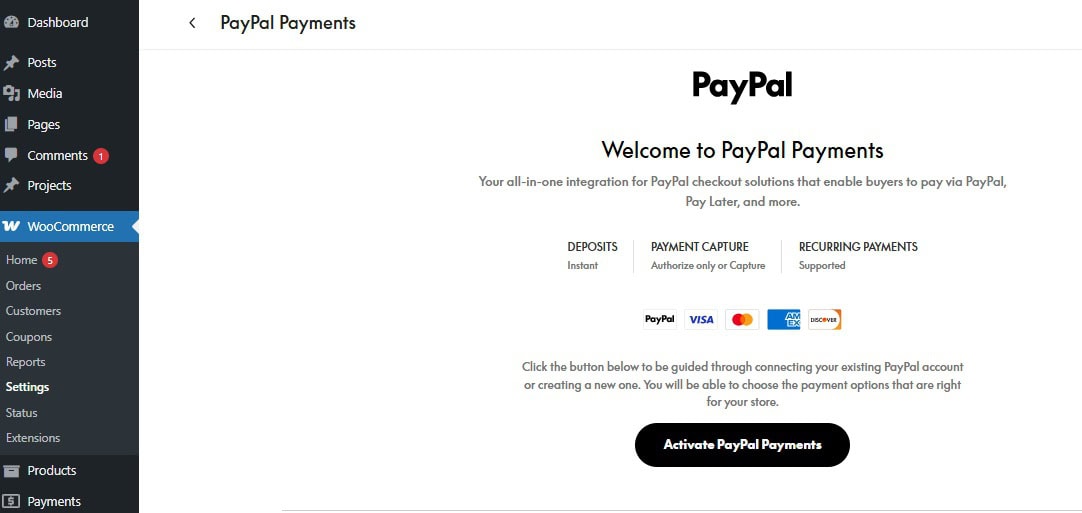
If you see more than one PayPal option, click on PayPal, not PayPal Standard. - Activate PayPal.
Click the Activate PayPal button to begin the connection process.
- Sign in to your PayPal account.
Log in with your PayPal account to connect it to your WooCommerce store. - Enable PayPal features for your store.
After the connection is complete, open the relevant PayPal settings section and enable the PayPal features you want to use in your store. - Save your changes and test checkout.
Save the setup, then place a test order to make sure PayPal appears and works correctly at checkout.
After that, your store will be ready to accept PayPal payments, and you can fine-tune the rest of the settings based on your checkout needs.
-
WooPayments
WooPayments is built specifically for WooCommerce and offers a seamless setup experience.
It allows you to manage payments directly from your WooCommerce dashboard without needing a separate platform.
-
Square

Square is a good option for businesses that operate both online and offline.
It syncs payments and inventory between your WooCommerce store and physical locations.
-
Authorize.Net
Authorize.Net is a long-established payment gateway known for its reliability and advanced features.
It’s often used by larger businesses that need more control over payment processing.
In most cases, store owners start with one or two gateways and expand later based on customer preferences.
The key is to choose options that your customers trust and that work reliably in your region.
How to Control Payment Gateways in WooCommerce (Advanced Setup)
By default, WooCommerce shows the same payment methods to every customer at checkout.
This works for simple stores, but it quickly becomes limiting when you start handling different types of orders, customers, or regions.
For example, you might want to:
- Show specific payment methods only for certain products
- Restrict gateways based on customer location
- Allow cash on delivery only for local orders
- Hide certain payment options for bulk or wholesale orders
WooCommerce doesn’t offer this level of control out of the box. This is where a dedicated plugin becomes essential.
Control Payment Methods by Product, Country, or Cart
Using a plugin like Payment Methods by Product & Country for WooCommerce, you can control exactly which payment gateways appear based on different conditions in your store.
This allows you to:
- Assign payment gateways to specific products → Useful for wholesale or bulk items
- Restrict gateways by country → Show only relevant payment methods for each region
- Control payment options at checkout → Adjust based on cart contents or order type
- Prevent invalid payment combinations → Reduce failed or problematic orders
Setup guide: Payment Methods by Product & Country documentation walks through the settings step by step.
Example Use Case
Let’s say you sell both retail and bulk products:
- Retail customers can pay using Stripe or PayPal
- Bulk buyers must use bank transfer or manual payment
Instead of handling this manually, the plugin automatically shows the correct payment options based on what’s in the cart. This keeps your checkout clean and avoids confusion for customers.
Why This Matters for Growing Stores?
As your WooCommerce store grows, payment flexibility becomes more important.
Different customers expect different payment options, and showing the wrong ones can lead to abandoned carts or failed orders.
Having full control over your payment gateways helps you:
- Match payment methods to your business rules
- Reduce checkout friction
- Handle bulk and wholesale orders more efficiently
If you’re managing different types of customers or order sizes, adding this level of control is not optional, it becomes part of running a smooth and scalable WooCommerce store.
Common Payment Gateway Issues in WooCommerce (and How to Fix Them)
Even after setting up a payment gateway correctly, some issues can still appear during checkout.
These problems are common for WooCommerce store owners, especially when dealing with different currencies, locations, or payment methods.
Payment Gateway Not Showing at Checkout
If a payment method doesn’t appear, it’s usually due to incomplete setup or specific restrictions. Make sure that:
- The payment gateway is enabled in WooCommerce
- The selected currency is supported by the provider
- The customer’s location is within supported regions
- There are no conflicts with other plugins or settings
Payments Are Failing or Getting Declined
Failed payments are often related to connection or account setup issues. Try the following:
- Check your API keys or connection credentials
- Make sure your account is fully activated and approved
- Test transactions using sandbox or test mode if available
Currency or Region Mismatch
Some payment gateways only support specific currencies or countries. If there’s a mismatch:
- Choose a gateway that supports your store’s currency
- Or add alternative payment methods for international customers
Too Many Payment Options Confusing Customers
Offering too many payment methods can overwhelm customers instead of helping them. In this case:
- Show only the most relevant payment options
- Customize payment methods based on products or customer location
Checkout Works but Orders Are Not Processed Correctly
Sometimes payments go through, but orders are not recorded properly. Check the following:
- The integration between the payment gateway and WooCommerce
- Order status and notification settings
- Conflicts with other installed plugins
Most of these issues can be resolved quickly by reviewing your basic setup.
If your store handles different types of customers or orders, customizing your payment methods can help prevent many of these problems from happening in the first place.
Frequently Asked Questions About WooCommerce Payment Gateways
What is a payment gateway in WooCommerce?
A payment gateway is a tool that allows your WooCommerce store to securely accept payments from customers.
It connects your store to a payment provider and processes transactions such as credit cards, digital wallets, or bank transfers.
Which payment gateway is best for WooCommerce?
It depends on your location and business needs. Stripe is a popular choice for flexibility, PayPal is widely trusted, and WooPayments offers a seamless experience inside WooCommerce.
Many store owners use more than one gateway to cover different customer preferences.
Do I need a plugin to add a payment gateway in WooCommerce?
Some gateways are built into WooCommerce, while others require installing a plugin.
For example, Stripe and many regional providers use plugins to connect your store with their payment system.
Why is my payment gateway not showing at checkout?
This usually happens due to incomplete setup or restrictions such as currency or country limitations.
Make sure the gateway is enabled, supports your currency, and is available in the customer’s region.
Can I use multiple payment gateways in WooCommerce?
Yes, WooCommerce allows you to offer multiple payment methods at the same time.
This helps you serve different customer preferences and improve your checkout experience.
How do I control which payment methods appear at checkout?
By default, WooCommerce shows all enabled payment methods to every customer.
To control this more precisely, you can use a plugin that allows you to show or hide payment gateways based on products, location, or cart conditions.
Final Thoughts
Adding a payment gateway to WooCommerce is one of the most important steps in setting up your store. Once your payment system is working smoothly, customers can complete purchases easily without issues, which directly impacts your sales.
Start with one reliable payment gateway, test your checkout carefully, and expand your setup as your store grows.
Over time, you may need more control over how payment methods are displayed depending on your products, customers, or order types.
If you’re managing different types of orders such as retail and bulk, or selling to multiple regions, having full control over your payment gateways can make a big difference in how your store performs.
Using the right tools, you can go beyond basic setup and create a checkout experience that fits your business instead of limiting it.