- What it does
- Install and activate
- First setup: one limit for every product
- Main features
- How purchases are counted (General, Free)
- Storefront controls and user roles (General, Free)
- Date ranges (General, Free)
- Guests
- Per product, category and tag limits (Limits, Pro)
- Limits by formula (Formula, Pro)
- Messages and checkout blocking (Frontend, Free)
- My account tab (Frontend, Free)
- Sales data (Admin and Tools, Free)
- Advanced options and orders above limits
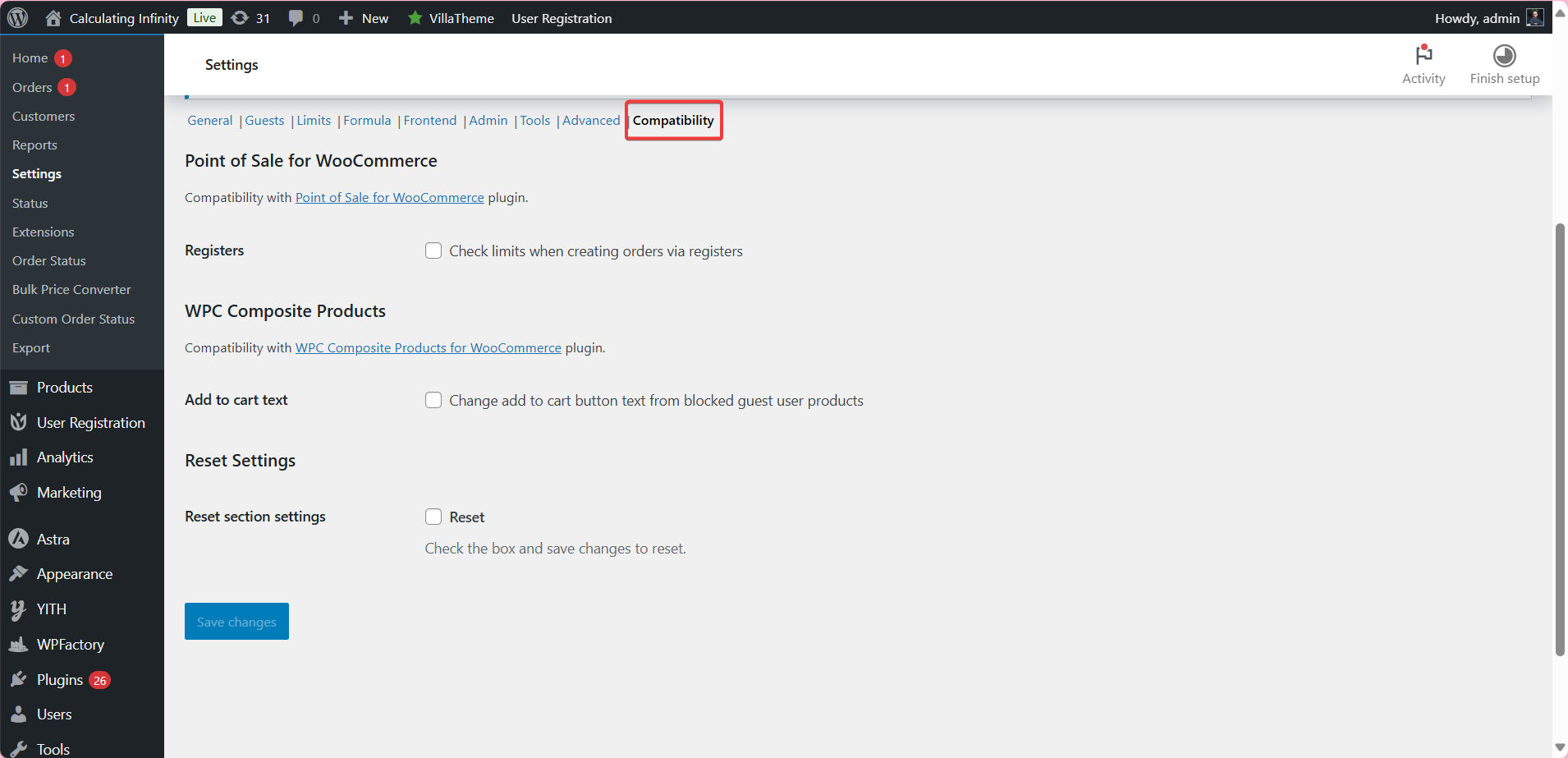
- Compatibility
- Free vs Pro
- FAQ
Maximum Products per User for WooCommerce limits how much each customer can buy, lifetime or within a date range, by quantity, orders, spend, weight or volume. Settings are at WPFactory > Max Products per User (also reachable at WooCommerce > Settings > Maximum Products per User), with store-wide limits under Limits.
What it does #
Maximum Products per User keeps a record of what each customer has bought and blocks purchases that would take them over the limit. It is useful for limited stock, launches and fair distribution during sales. Limits can apply to all products, to user roles and, in Pro, to single products, categories and tags or to a formula.
Install and activate #
- Free: go to Plugins > Add New, search for Maximum Products per User for WooCommerce, click Install Now, then Activate.
- Pro: download Maximum Products per User for WooCommerce Pro from your WPFactory account, upload it at Plugins > Add New > Upload Plugin and activate it.
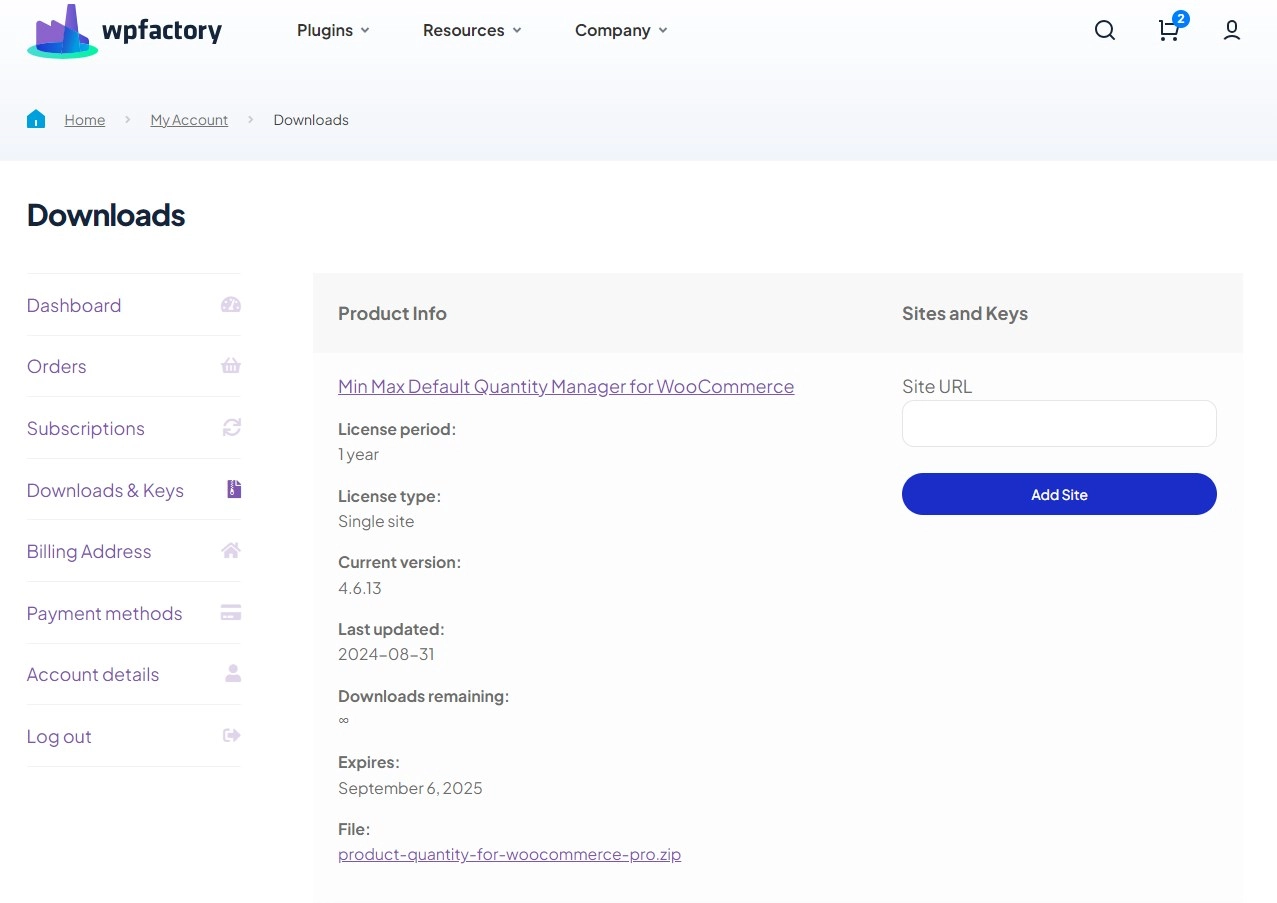
See how to install Maximum Products per User for more detail.
First setup: one limit for every product #
- Go to WPFactory > Max Products per User. In the General section, make sure Enable plugin is checked (default: on).
- Leave Mode on Product quantities (default), and leave Order statuses on Completed (default) or add Processing so paid orders count sooner.
- Choose a Date range: Lifetime (default), or a period such as This week, This month or Last 30 days. Save changes.
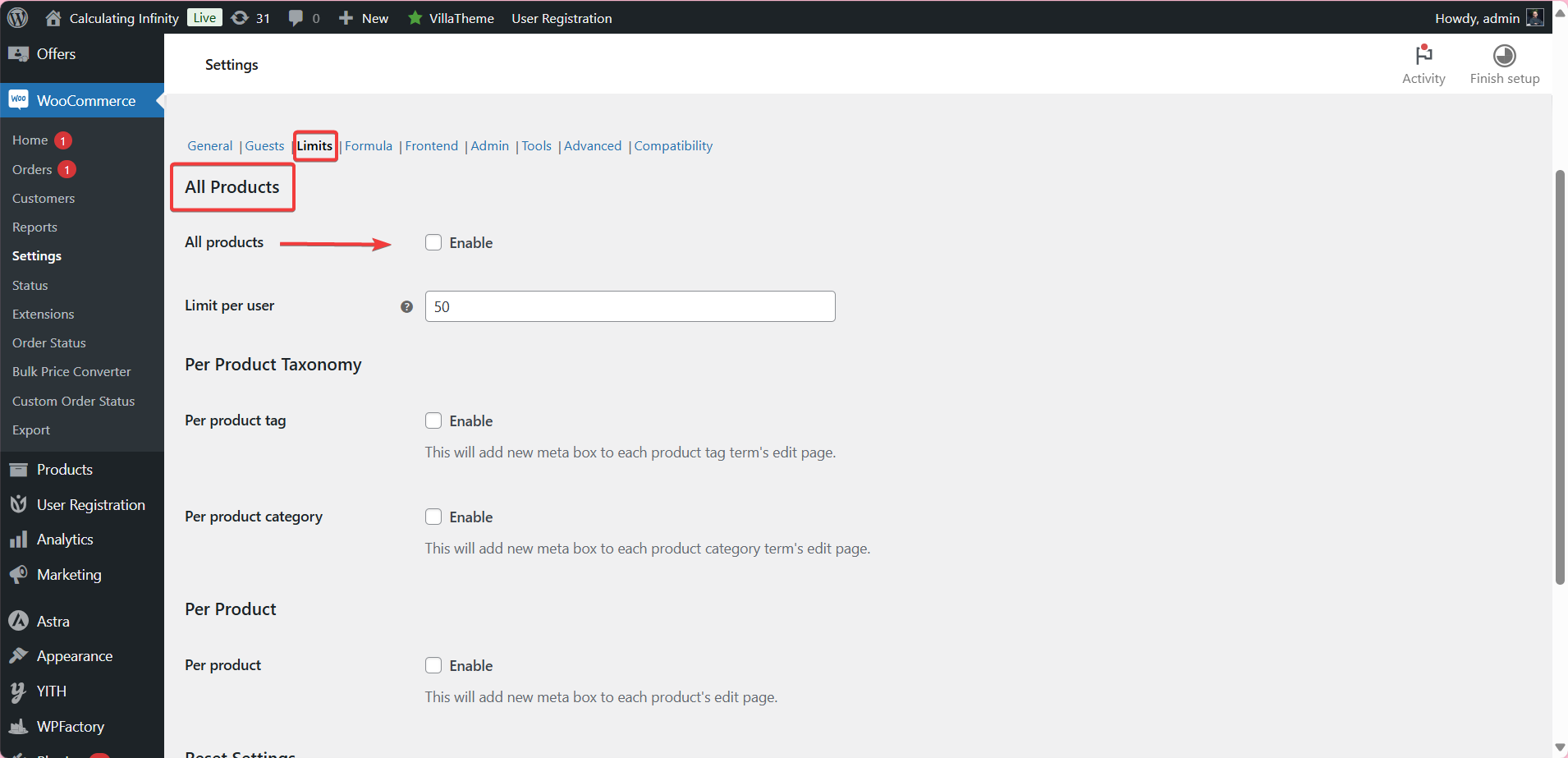
- Open the Limits section. Under All Products, enable All products (default: off) and set Limit per user (default: 1). Save changes.
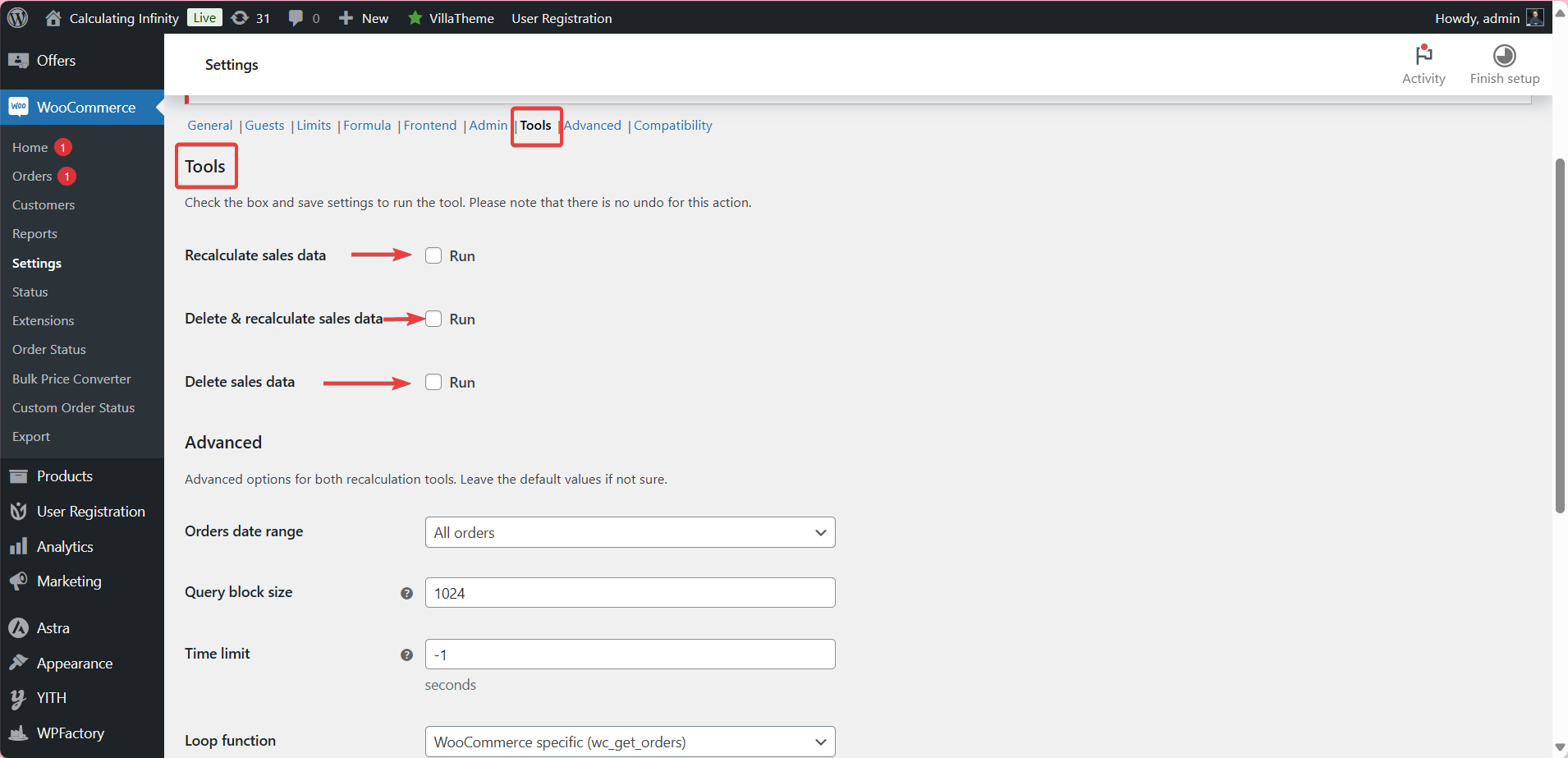
- If you already have orders, or you change Mode later, go to Tools, check Recalculate sales data and save, so past orders are counted.
- Log in as a test customer and try to buy more than the limit. With Validate on add to cart on (default), the notice appears as soon as the limit is exceeded.
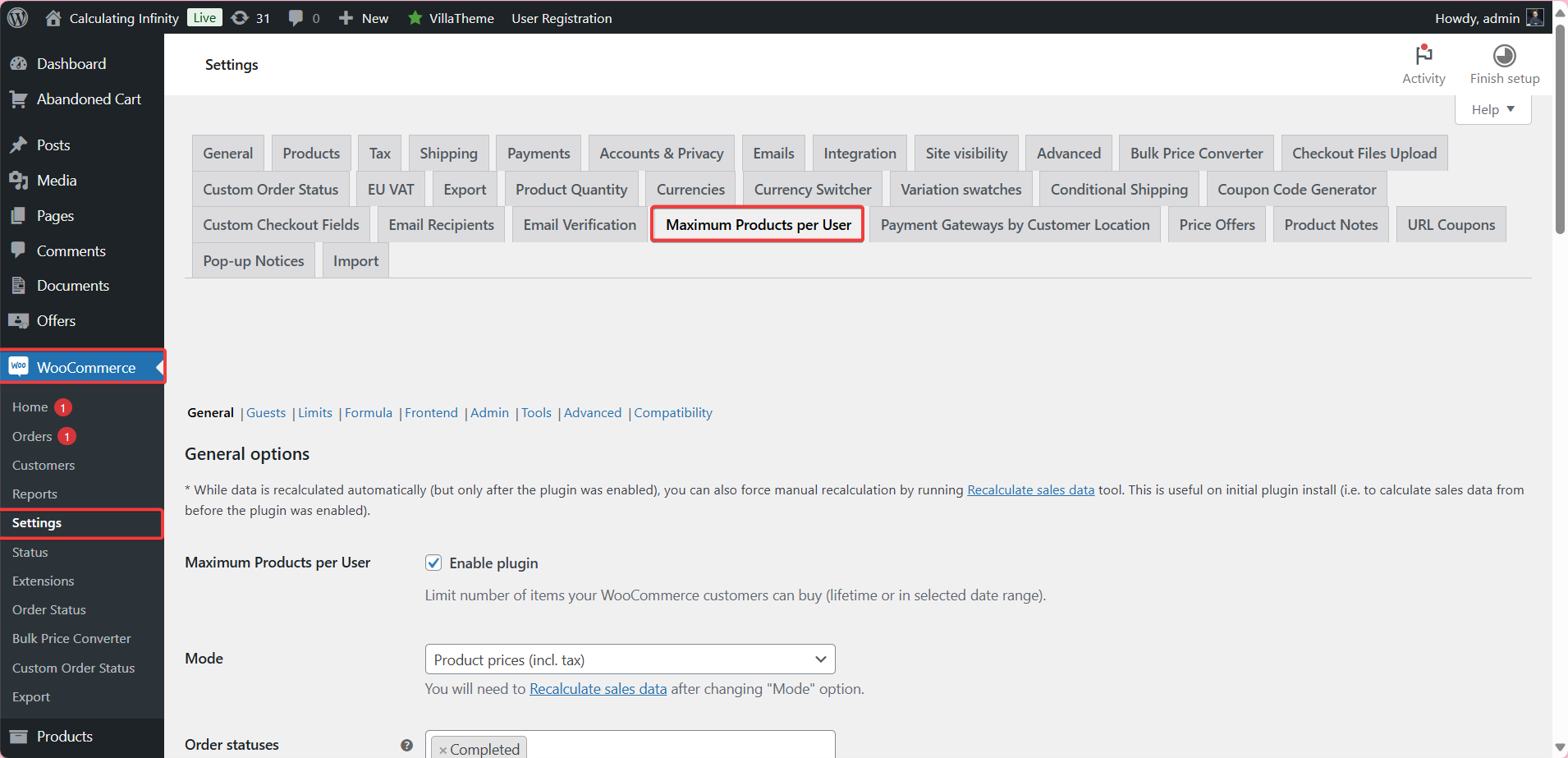
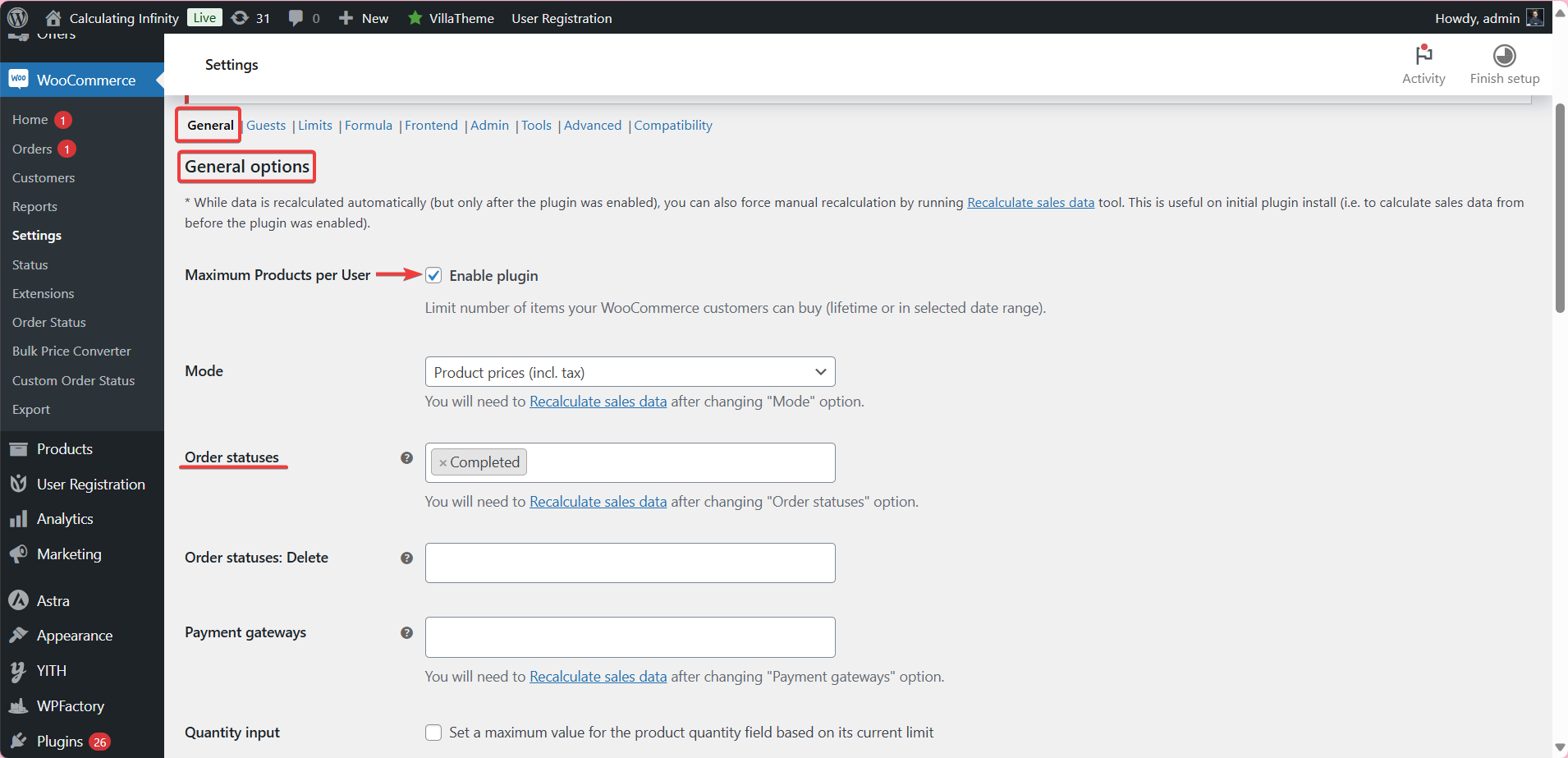
The full walkthrough is in how to set up product purchase limits in WooCommerce.
Main features #
How purchases are counted (General, Free) #
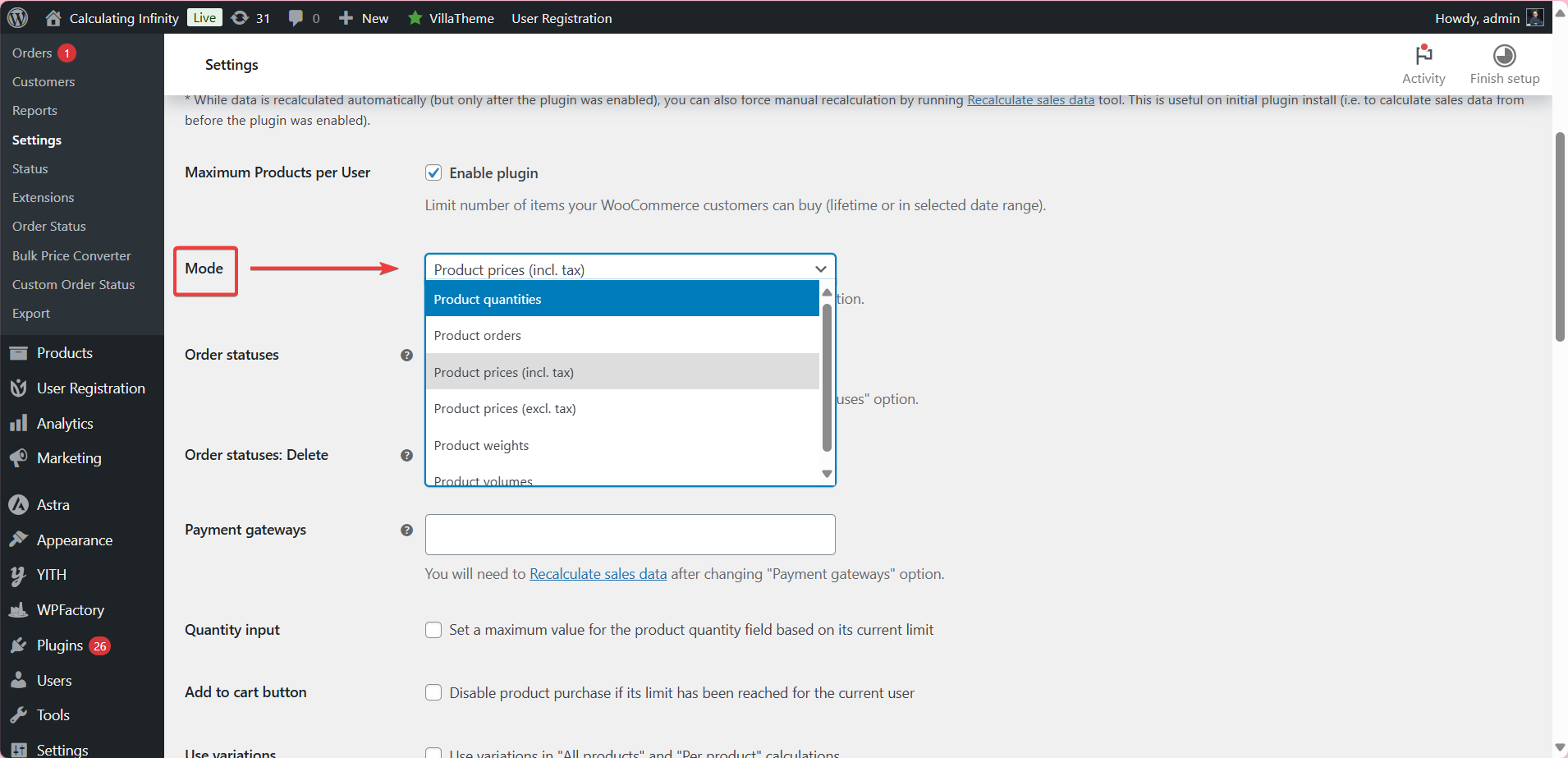
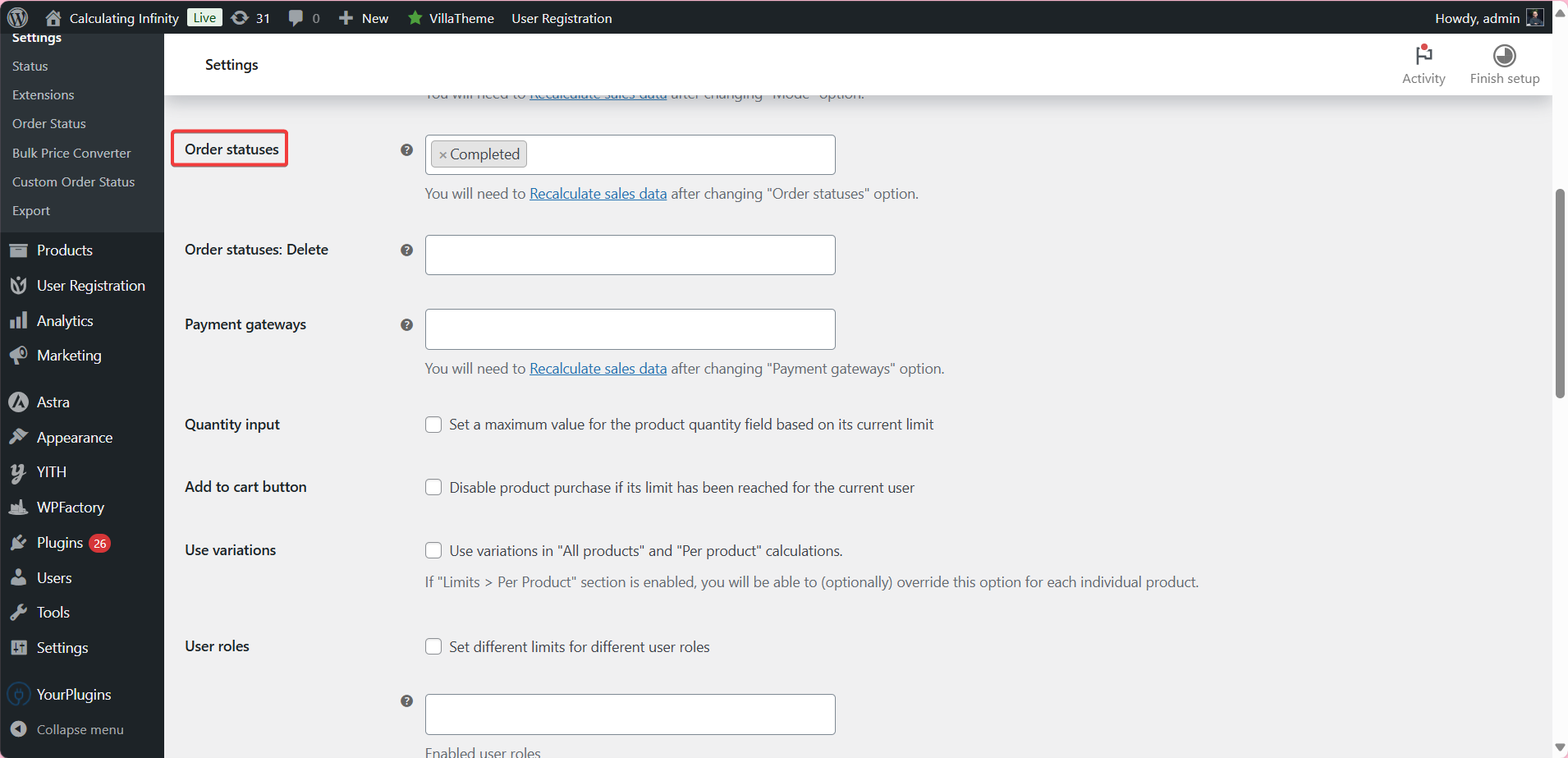
Mode sets what is limited: Product quantities, Product orders, Product prices (incl. tax), Product prices (excl. tax), Product weights or Product volumes. You also choose which Order statuses count, which Payment gateways apply, whether refunds are deducted and whether variations are counted separately (Use variations).
Storefront controls and user roles (General, Free) #
Quantity input caps the quantity field at the remaining limit, Add to cart button disables purchase once the limit is reached, and Hide products removes limit-reached products from the catalog. User roles turns on separate limits per role. See setting different limits per user or per role.
Date ranges (General, Free) #
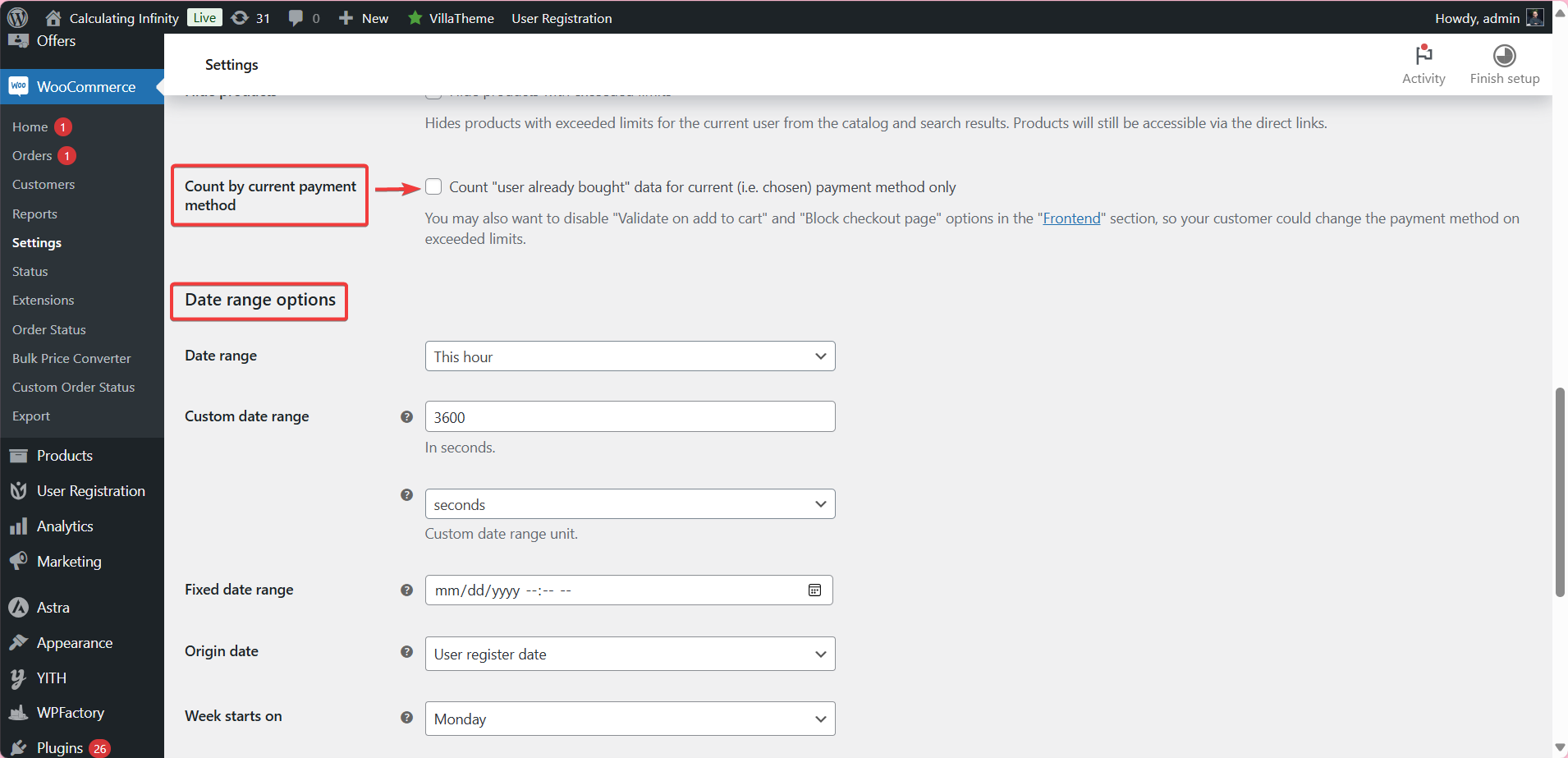
Limits can be lifetime or reset by hour, day, week, month or year, run over a rolling period, a custom range or a fixed date. See how to set a date range for purchase limits.
Guests #
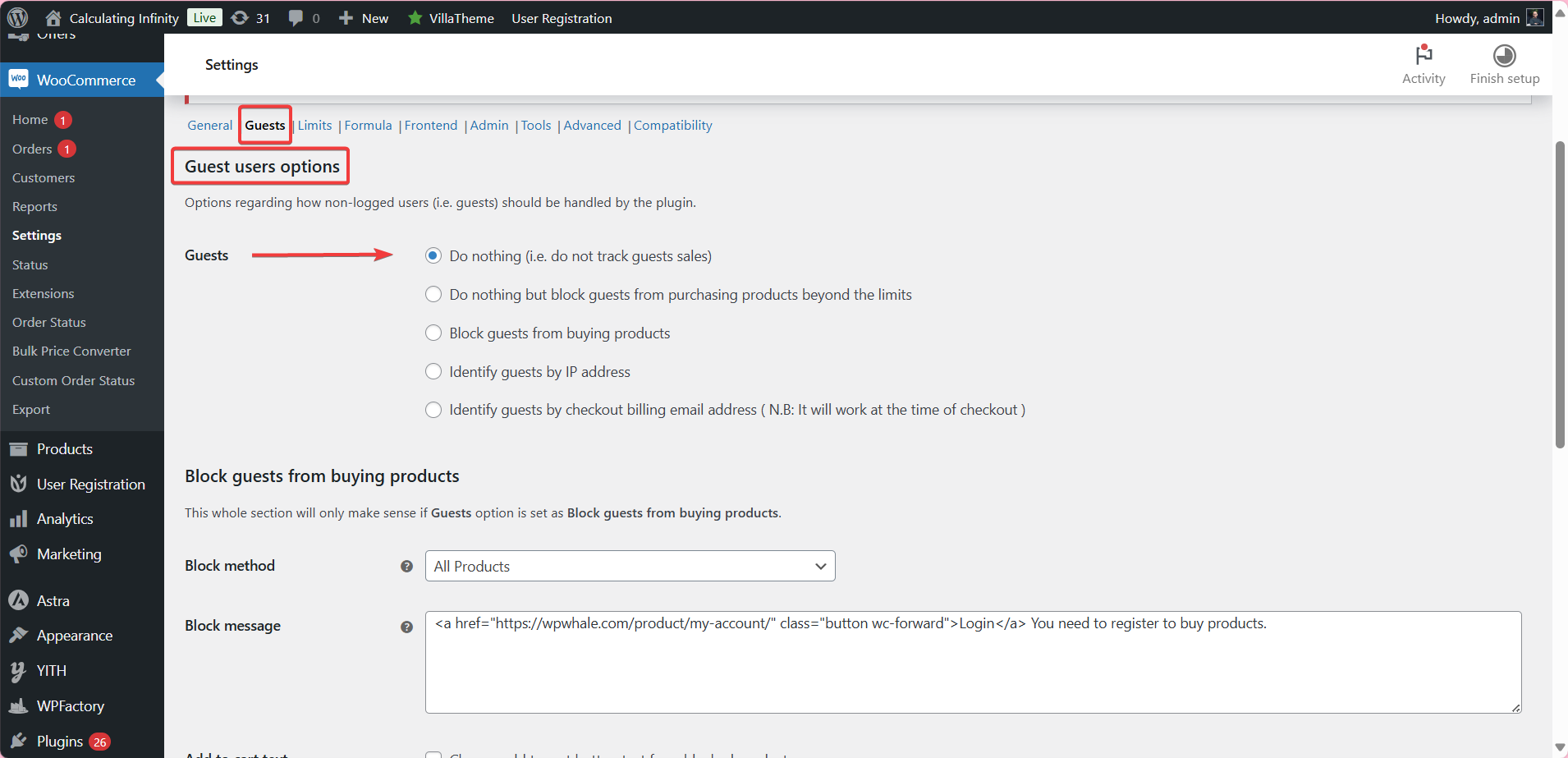
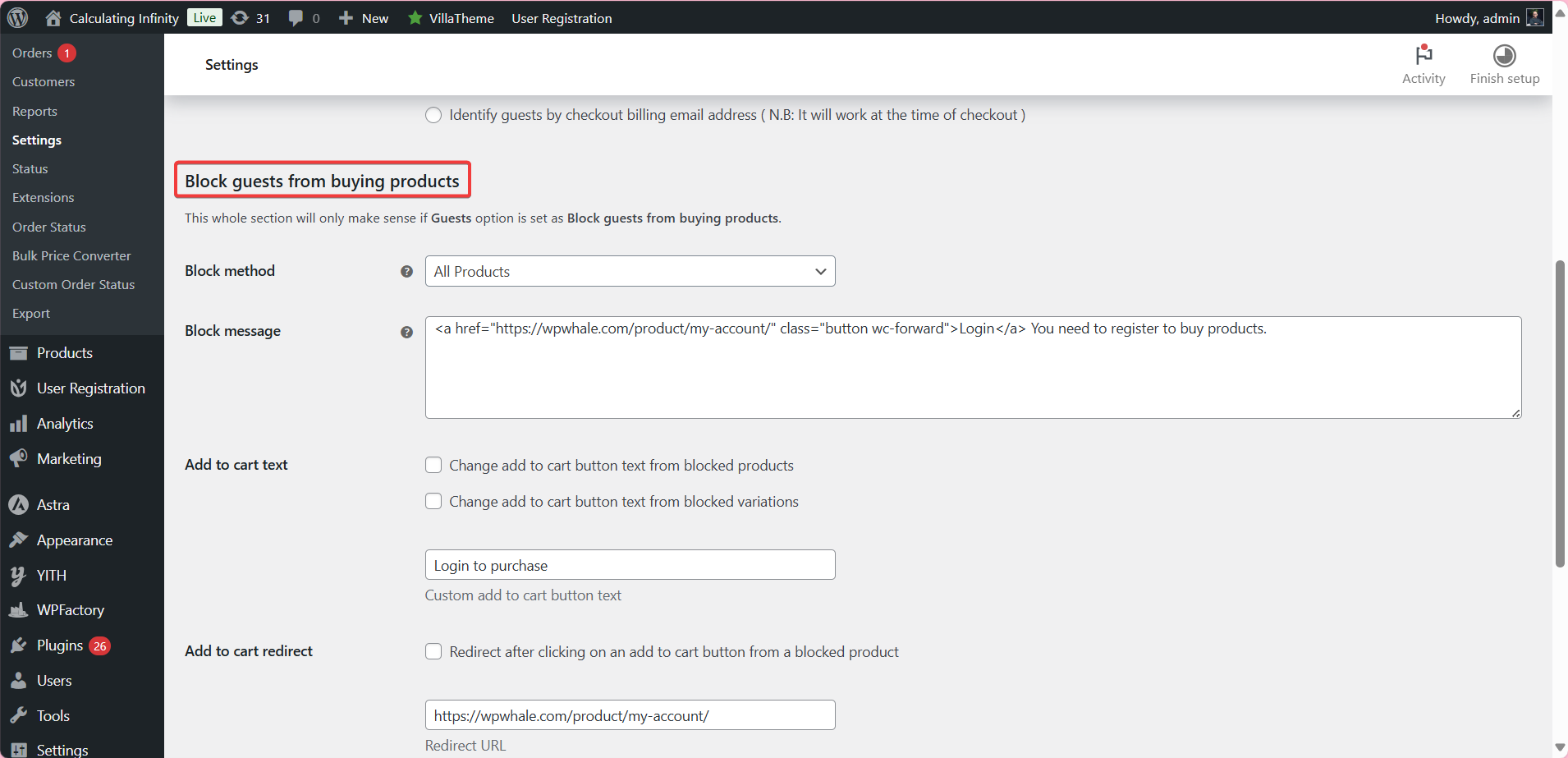
The Guests option decides how unregistered buyers are handled: do nothing (default), block them beyond the limits, block them from buying, or identify them by IP address or checkout billing email. The block method, custom add to cart text (default “Login to purchase”) and add to cart redirect are Pro. See how to handle guest purchase limits.
Per product, category and tag limits (Limits, Pro) #
Per product adds a limits box to each product edit page. Per product tag and Per product category set limits on terms. See product-specific purchase limits and limits by category or tag.
Limits by formula (Formula, Pro) #
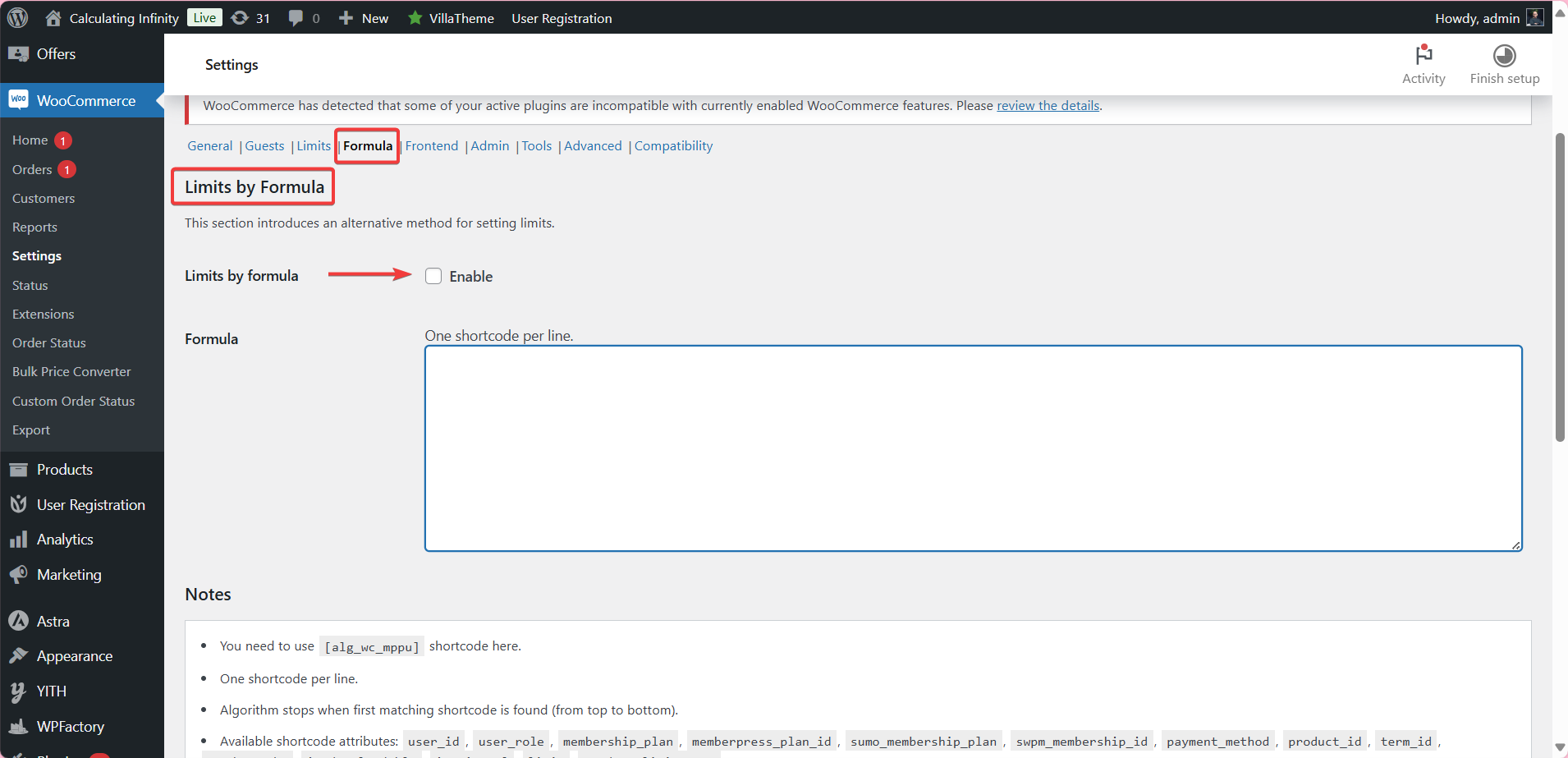
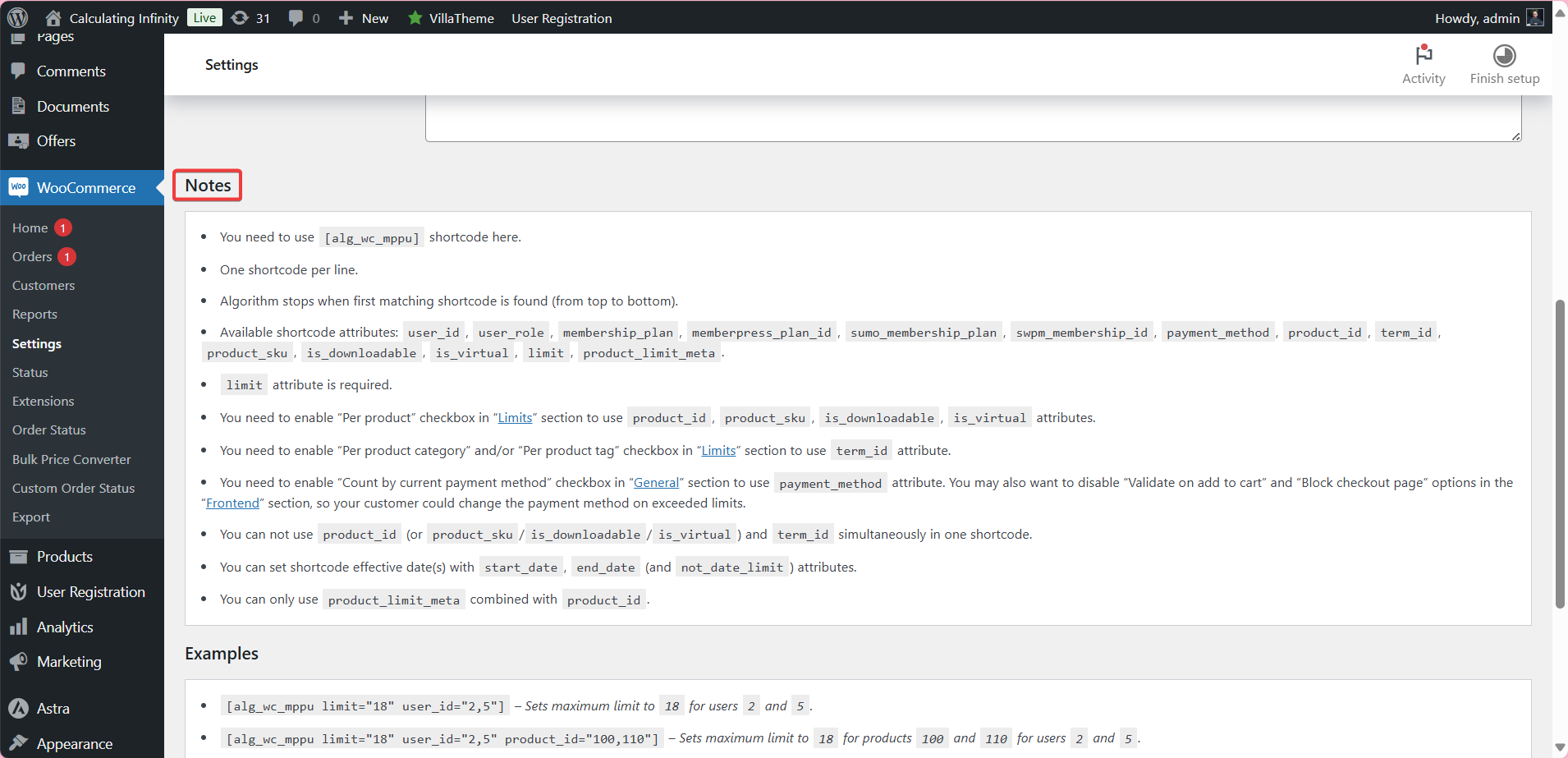
Write limits as [wpfmppu] shortcodes that combine users, roles, products, terms and payment gateways. See how to set purchase limits by formula and the formula attributes reference.
Messages and checkout blocking (Frontend, Free) #
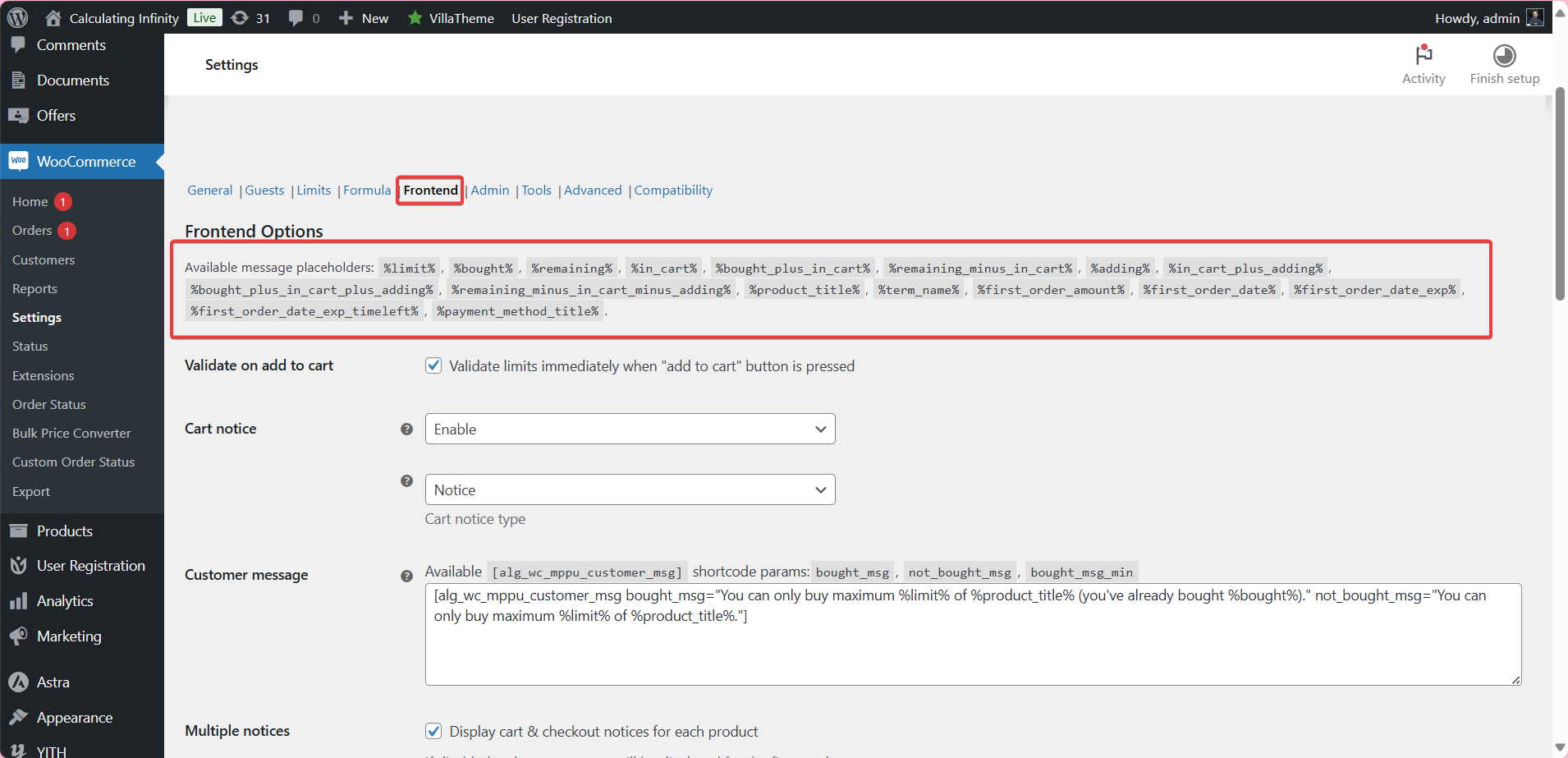
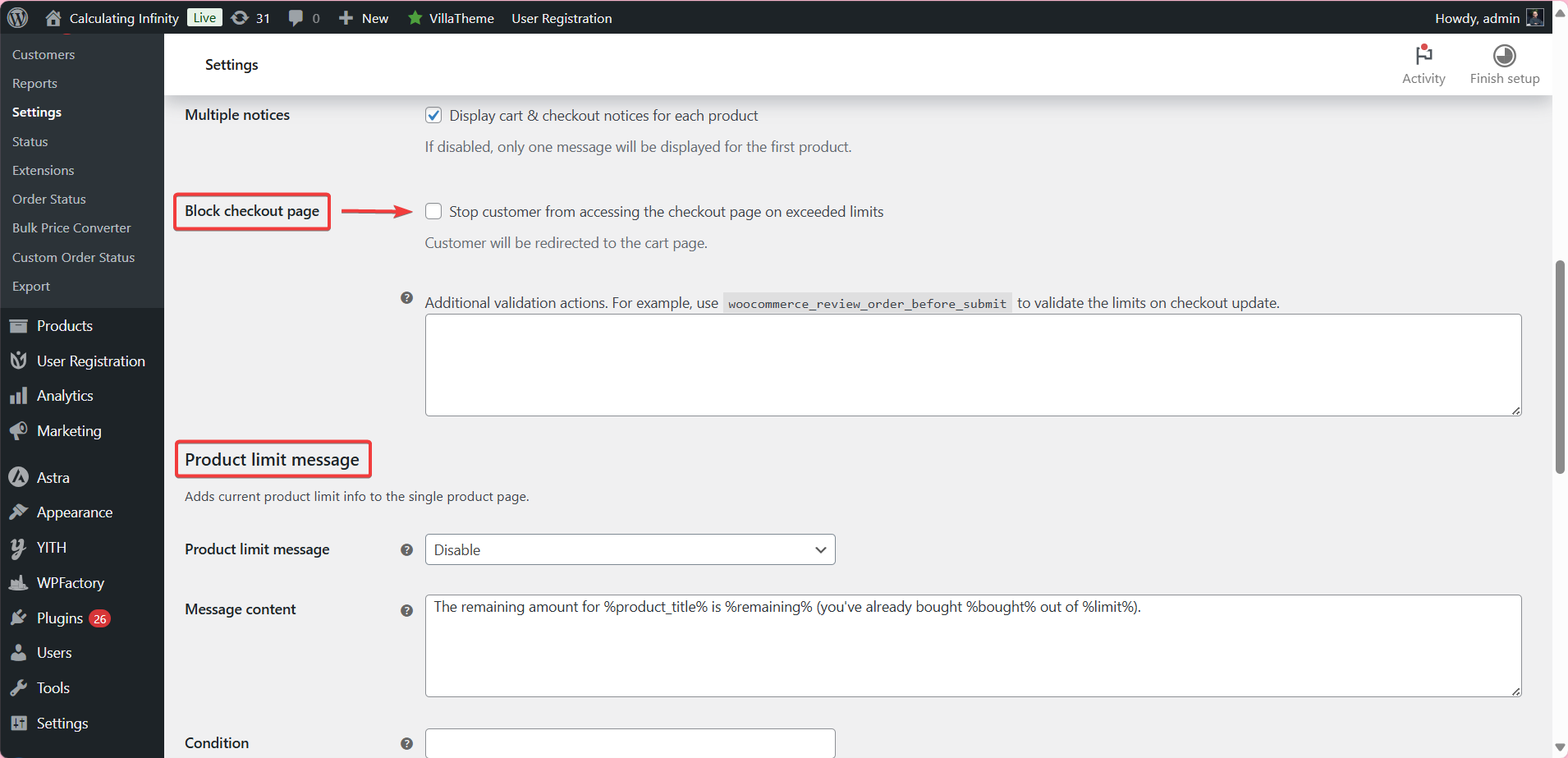
Validate on add to cart and Cart notice are on by default. You can edit the customer messages, turn on Block checkout page, and show a Product limit message on product pages. See how to customize purchase limit messages and the placeholders reference.
My account tab (Frontend, Free) #
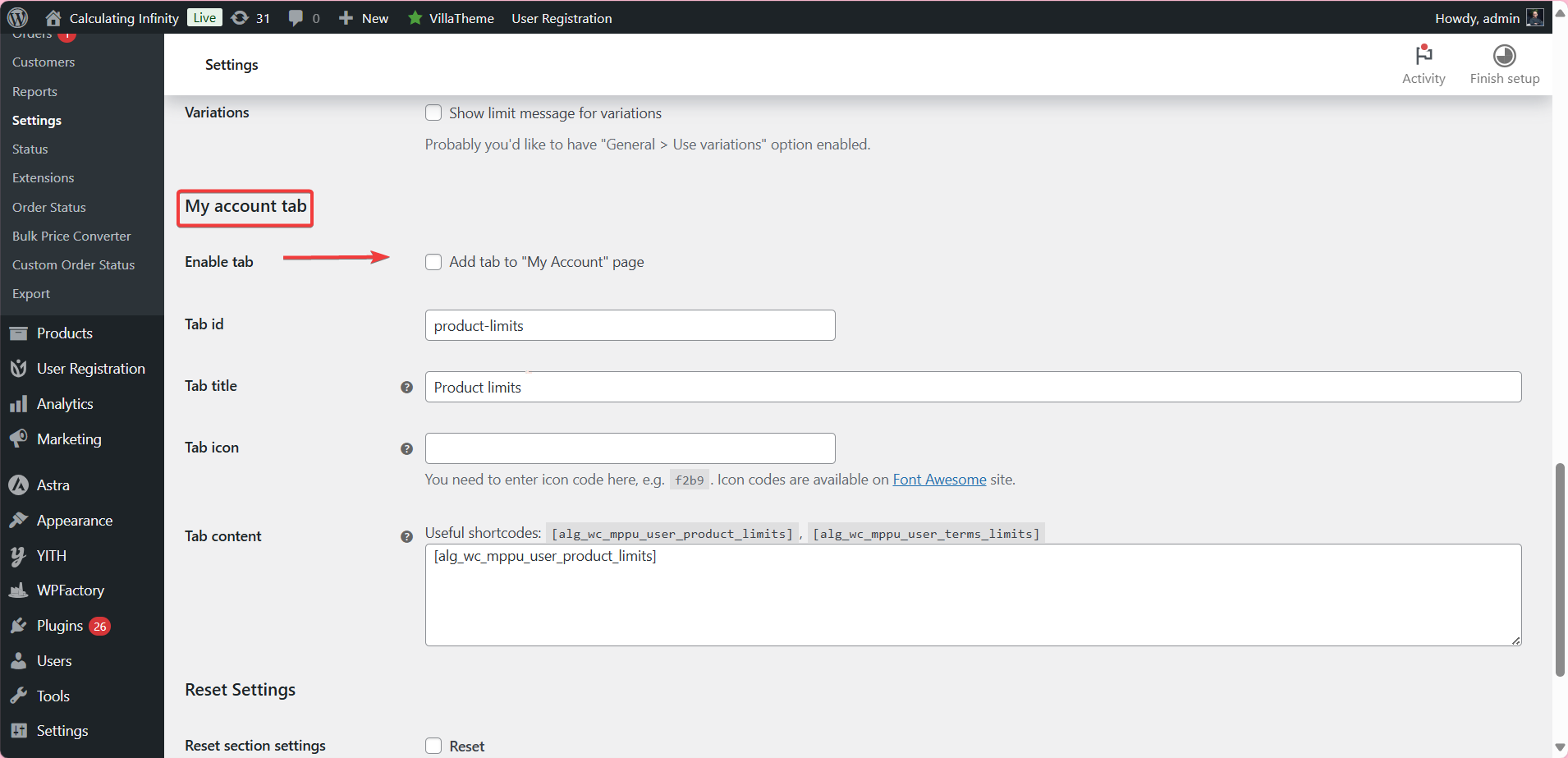
Enable tab adds a “Product limits” tab to My Account that lists each customer’s limits with [wpfmppu_user_product_limits]. See how to add a product limits tab to My Account.
Sales data (Admin and Tools, Free) #
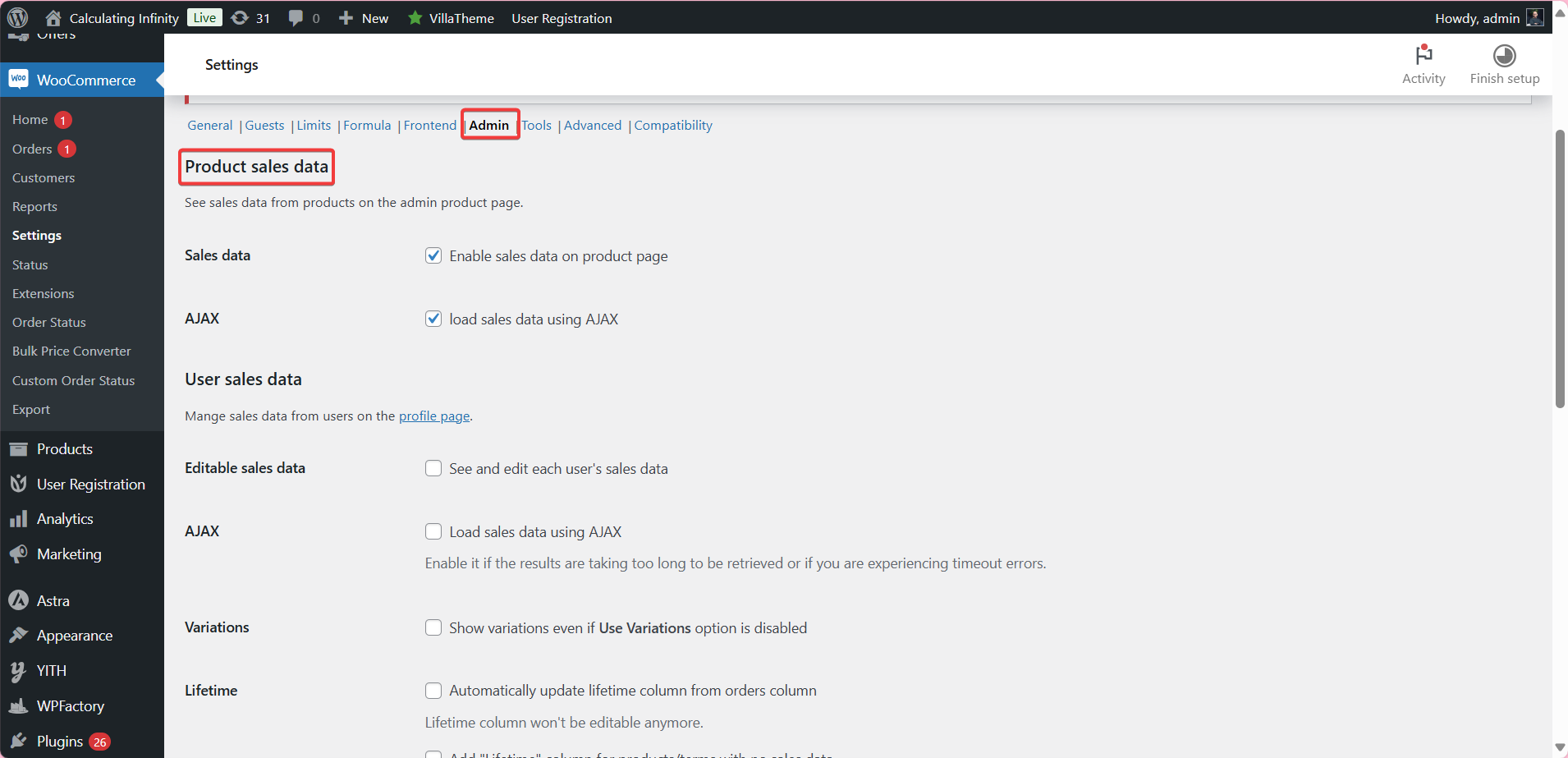
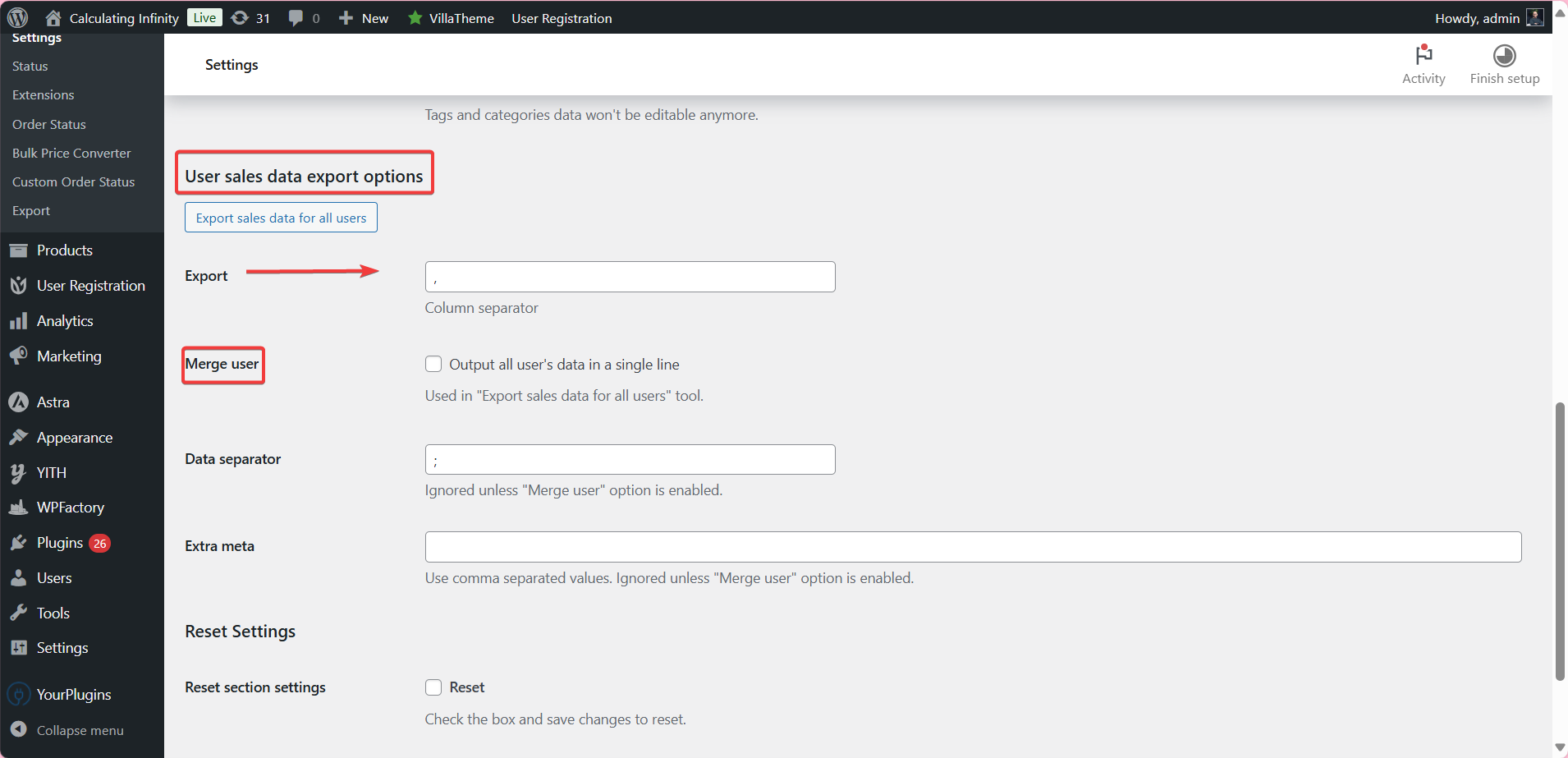
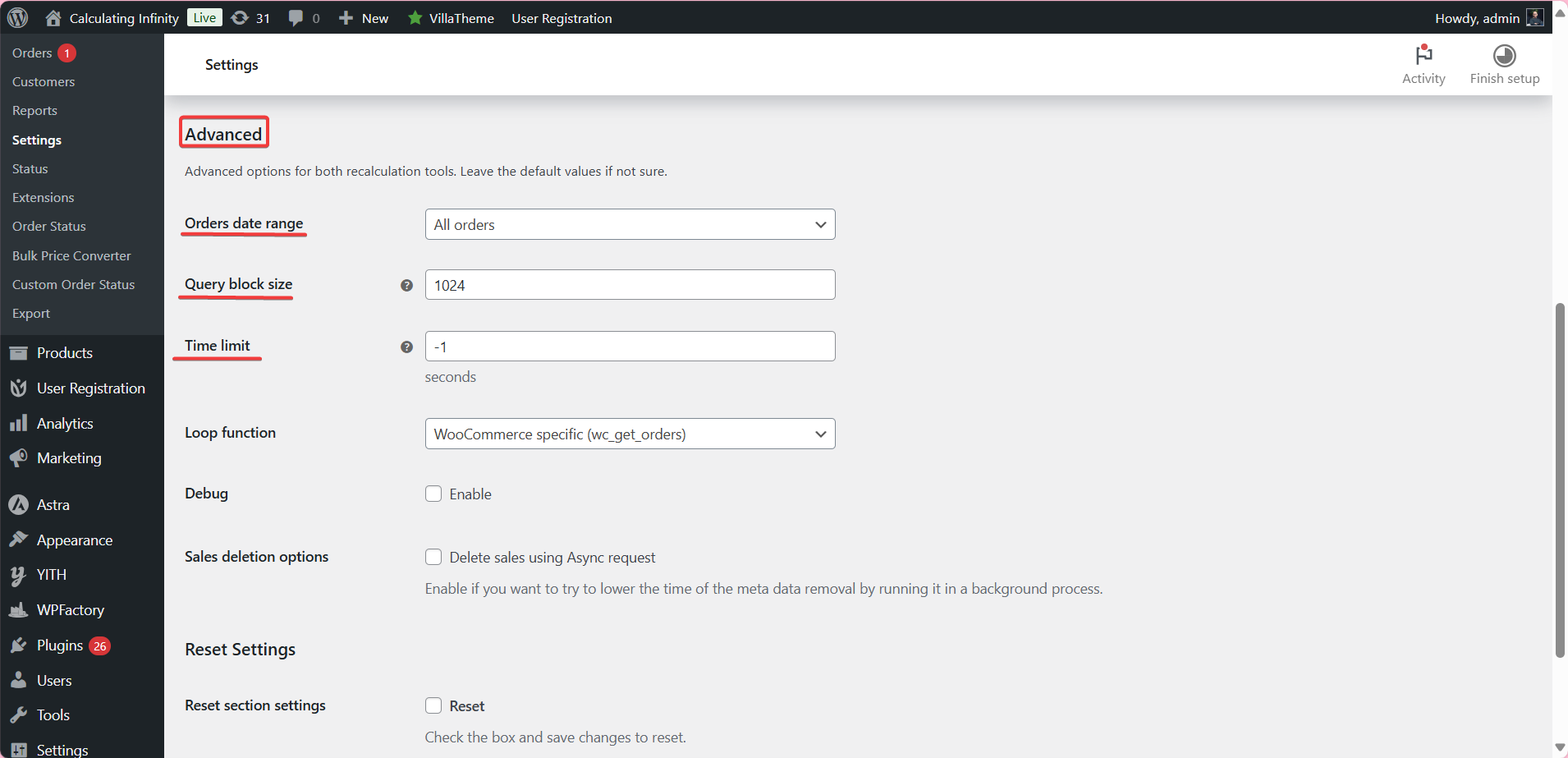
View and edit sales data on product and user pages, export user sales data, and recalculate or delete stored sales data. See how to export user sales data and how to recalculate and reset sales data.
Advanced options and orders above limits #
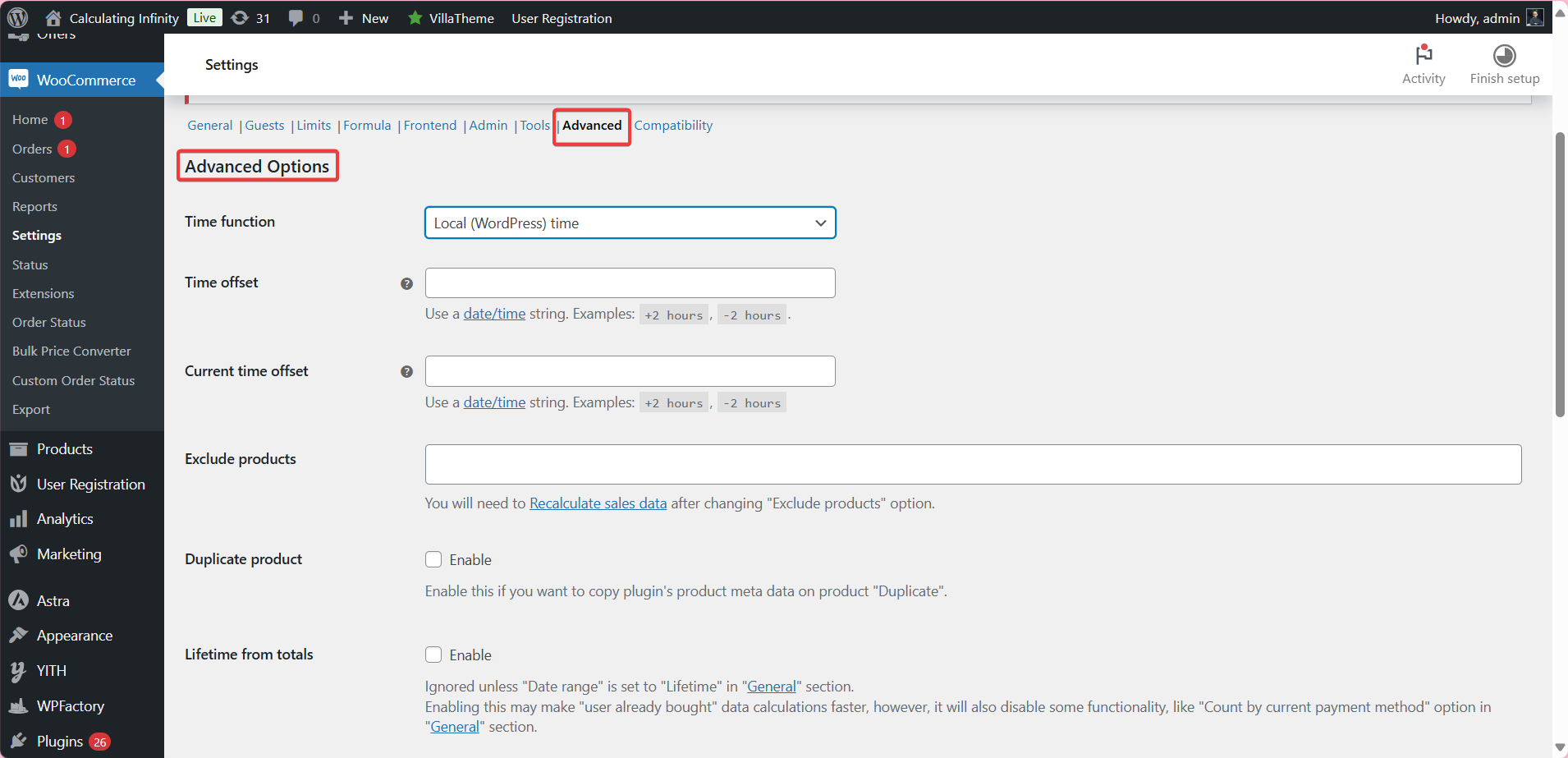
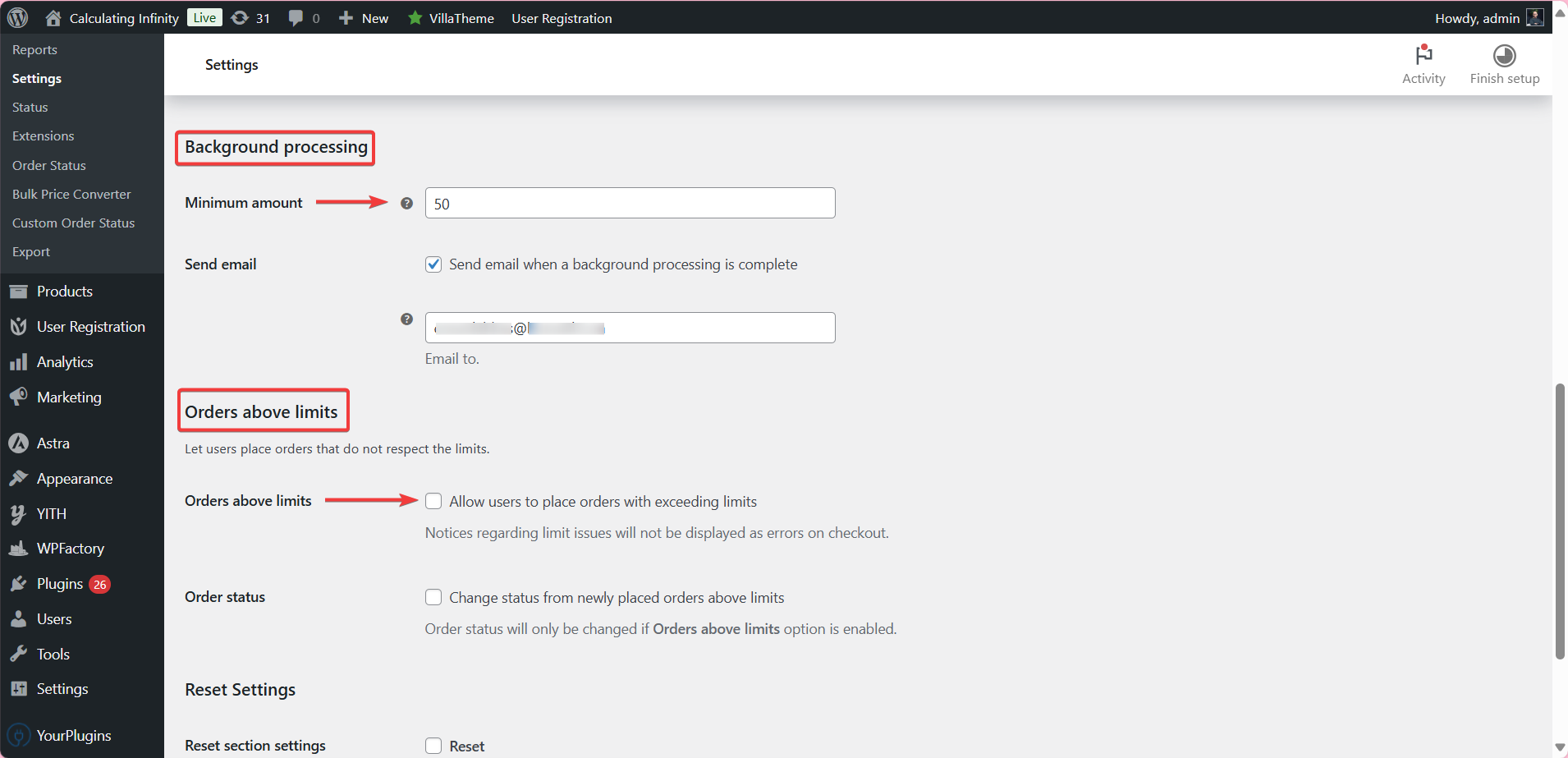
The Advanced section holds time offsets, excluded products, background processing and Orders above limits (Pro), which lets customers place orders beyond the limit and can move those orders to a custom status (default label “Above limit”). See advanced options and how to allow orders above the limit.
Compatibility #
Options for Point of Sale for WooCommerce registers and WPC Composite Products (both Pro). See compatibility with Point of Sale and WPC Composite Products.
Free vs Pro #
| Feature | Free | Pro |
|---|---|---|
| All products limit and per-role limits | Yes | Yes |
| All six Modes (quantities, orders, prices, weights, volumes) | Yes | Yes |
| Order statuses, payment gateways, refunds, Use variations | Yes | Yes |
| Quantity input, Add to cart button, Hide products | Yes | Yes |
| All date ranges (except MemberPress subscription date origin) | Yes | Yes |
| Guests option | Yes | Yes |
| Guests block method, add to cart text and redirect | No | Yes |
| Per product, Per product tag, Per product category limits | No | Yes |
| Limits by formula | No | Yes |
| Frontend messages, Block checkout page, Product limit message, My account tab | Yes | Yes |
| Admin sales data and Tools | Yes | Yes |
| Orders above limits | No | Yes |
| POS registers and WPC Composite compatibility options | No | Yes |
See Free vs Pro: Maximum Products per User for more.
FAQ #
Why is my limit not applied? #
Check that All products is enabled in the Limits section and that the customer’s orders use a status listed in Order statuses (only Completed by default). See the troubleshooting checklist.
Do orders placed before I installed the plugin count? #
Run Recalculate sales data in the Tools section to build sales data from existing orders. Run it again whenever you change Mode.
Can I limit one product only? #
Yes, with Per product in the Limits section (Pro). See product-specific limits apply to the whole store if the limit affects every product.
My weekly limit does not reset. Why? #
See time-based limits are not resetting.
Get more control #
Store-wide and role limits are free. Maximum Products per User for WooCommerce Pro adds per-product, category and tag limits, limits by formula, guest blocking options and orders above limits. See what Pro unlocks.
Need a hand? Our team answers every ticket on the Maximum Products per User support forum.